Overview
Global Traffic Manager (GTM) provides the ping-based health check feature that can be used to check the health status of IP addresses. When you configure an address pool, you can configure a ping-based health check to monitor each IP address in the address pool and obtain the status of the application service that runs on the IP addresses. If a monitored IP address is abnormal, the system automatically blocks the IP address. After the IP address becomes available, it is automatically unblocked.
Parameter description
Health Check Protocol
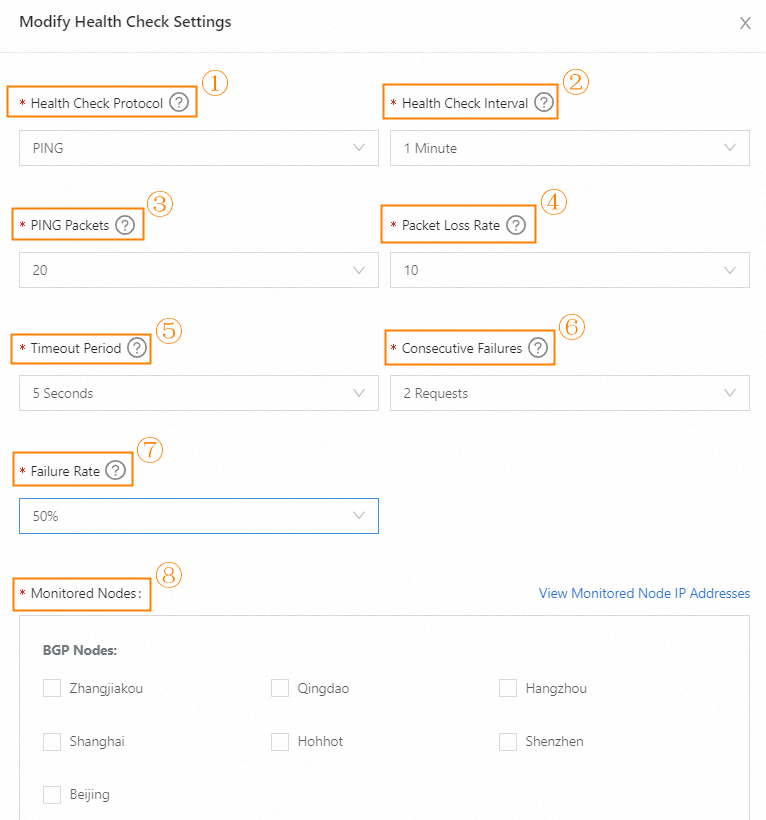
The protocol that is used to monitor the metrics of IP addresses. These metrics include the network accessibility, packet loss rate, and latency. In this example, PING is selected.
Health Check Interval
The interval between two consecutive ping-based health checks. Default value: 1 Minute.
PING Packets
The total number of ping packets that are concurrently sent to the IP address for each health check. This parameter is used to calculate the packet loss rate. Valid values: 20, 50, and 100.
Packet Loss Rate
The packet loss rate for each health check. The packet loss rate can be calculated by using the following formula: Packet loss rate in a check = The number of lost packets/The total number of ping packets × 100%. If the packet loss rate reaches the threshold, an alert is triggered. Valid values: 10%, 30%, 50%, 80%, 90%, and 100%.
Timeout Period
The timeout period of a ping-based health check. During a ping-based health check, the system calculates the response time of each ping packet that is sent. If the response time of a packet exceeds the specified timeout period, the health check times out. Valid values: 2 Seconds, 3 Seconds, 5 Seconds, and 10 Seconds.
Consecutive Failures
The number of consecutive health check failures for an IP address of an application service before the IP address is considered abnormal. An IP address of an application service is deemed abnormal only if it consecutively fails the health checks for the specified number of times. This prevents the accuracy of health checks from being affected by issues such as instantaneous network jitters. Valid values: 1 Request, 2 Requests, and 3 Requests.
1 Request: An application service is deemed abnormal when one health check determines that an IP address of the application service is abnormal. In this case, one alert is reported.
2 Requests: An application service is deemed abnormal when two health checks determine that an IP address of the application service is abnormal. In this case, two alerts are reported.
3 Requests: An application service is deemed abnormal when three health checks determine that an IP address of the application service is abnormal. In this case, three alerts are reported.
Failure Rate
The ratio of health check nodes that detect exceptions to all health check nodes during a ping-based health check. If the actual ratio exceeds the specified threshold, the application service is deemed abnormal. Valid values: 20%, 50%, 80%, and 100%.
Monitored Nodes
The geographical location in which the nodes that perform ping-based health checks reside. The following table describes the default nodes that the system provides.
Node type
Geographical location
Border Gateway Protocol (BGP) nodes
Zhangjiakou, Qingdao, Hangzhou, Shanghai, Hohhot, Shenzhen, and Beijing
Nodes outside the Chinese mainland
Hong Kong, Germany, Singapore, Silicon Valley, Australia, Malaysia, and Japan
Internet service provider (ISP) nodes
China Unicom in Wuhan, China Unicom in Dalian, China Unicom in Nanjing, China Unicom in Tianjin, China Telecom in Qingdao, China Telecom in Changsha, China Telecom in Xi'an, China Telecom in Zhengzhou, China Mobile in Shenzhen, China Mobile in Dalian, and China Mobile in Nanjing
Procedure
Log on to the Alibaba Cloud DNS console.
In the left-side navigation pane, click Global Traffic Manager. On the Global Traffic Manager page, find the GTM instance that you want to manage, click its ID, and then perform the following operations:
If you have not configured the GTM instance, configure the instance by referring to the Tutorial overview and Enable health check topics.
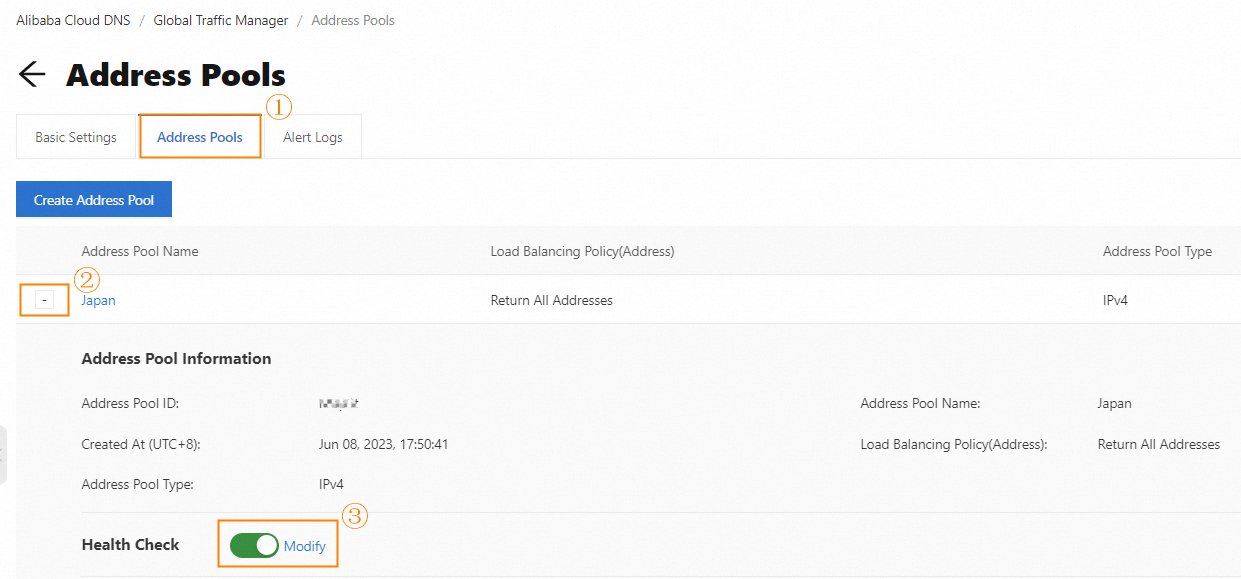
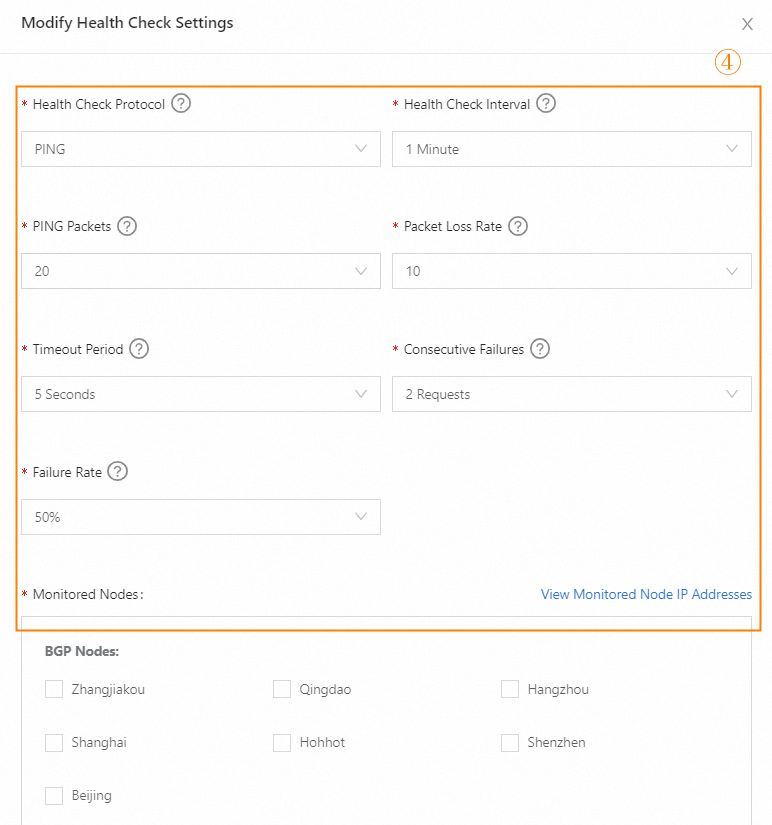
If the instance is configured, click the Address Pools tab. On this tab, turn on Health Check and click Modify. In the Modify Health Check Setting dialog box, modify the parameters based on the description of the parameters.