Serverless Application Center allows you to create applications based on your business scenarios. You can also import existing applications to Serverless Application Center. This topic describes how to manage scenario-based applications in Serverless Application Center in the Function Compute console, including how to create, import, view, update, and delete an application.
Create an application
The application creation page in Serverless Application Center offers templates for various use cases. Click Details on a template card to learn more and select one that fits your business requirements.
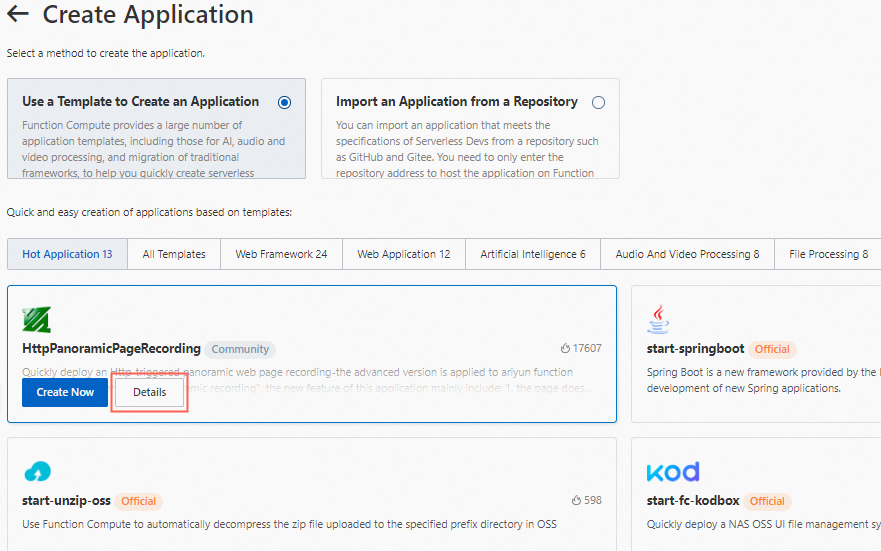
Log on to the Function Compute console. In the left-side navigation pane, click Applications.
(Optional) On the Applications page, click Create Application.
This step is required only for users that have existing applications.
On the application creation page, select Use a Template to Create an Application. In the template area below, find a template, hover over its card, and then click Create Now.
On the Create Application page, select a deployment type and configure the parameters as prompted.
Deploy from Code Repository
Code is pushed to the specified repository to trigger a pipeline to deploy the application. When you update the project, you can push code to the remote repository for secure release.
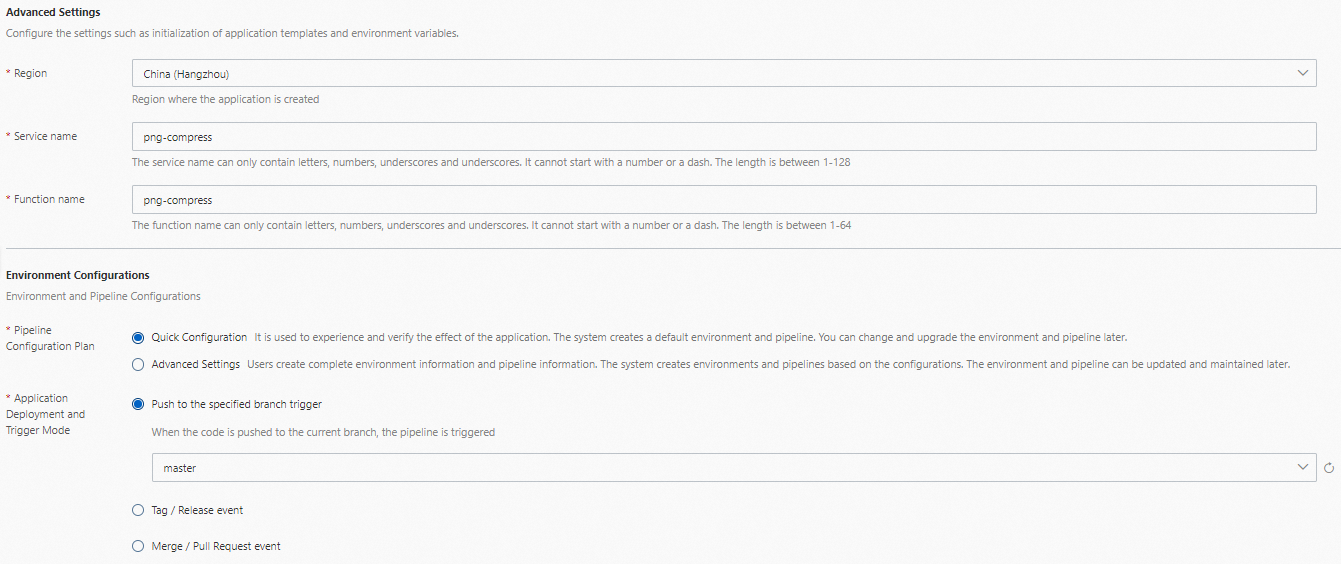
After you authorize the code repository, confirm the basic information, such as the Repository and Trigger Mode.
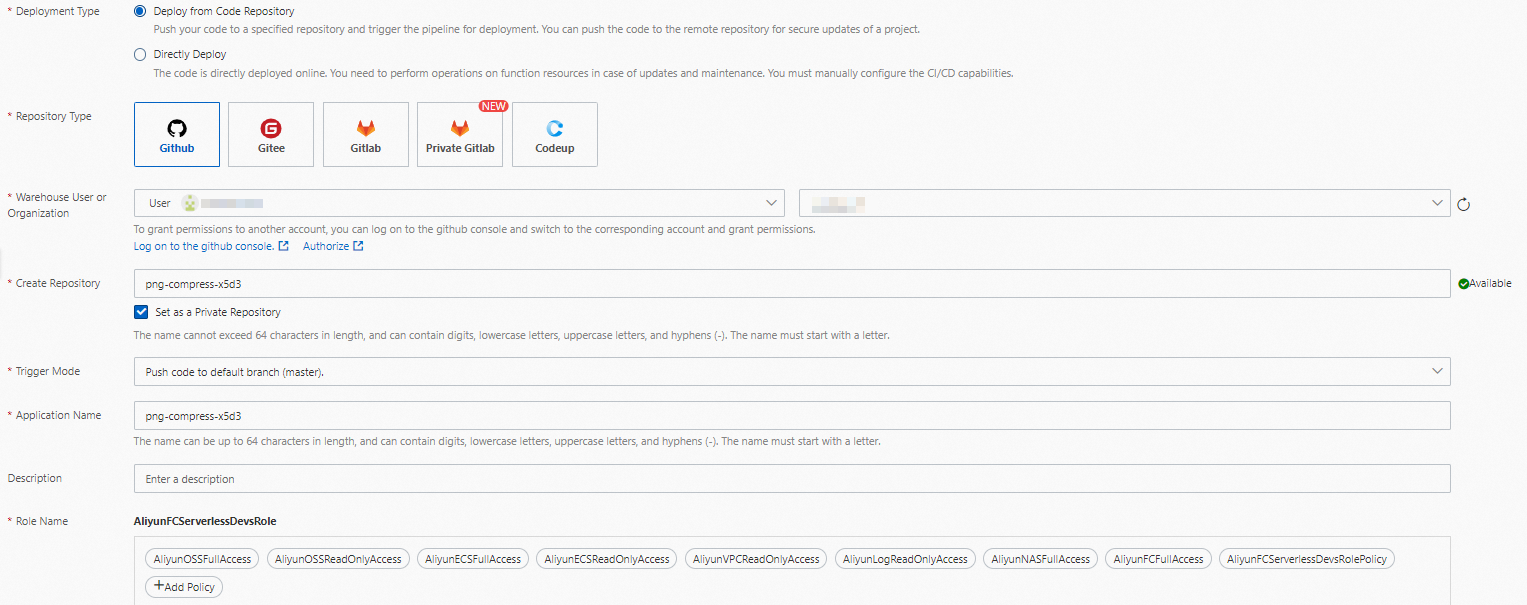
Confirm settings in the Advanced Settings and Environment Configurations sections.
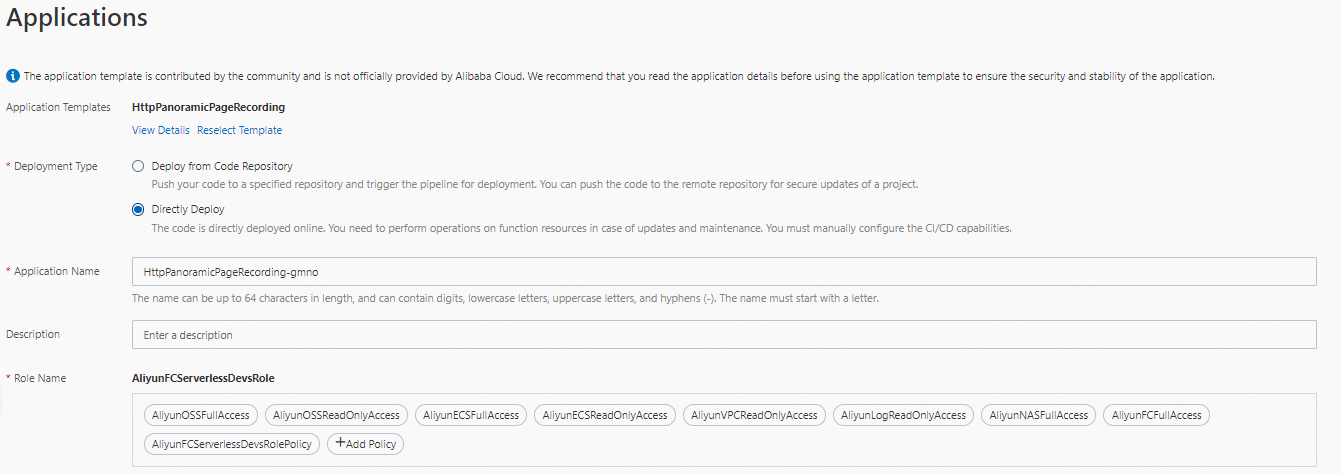
Directly Deploy
Code is directly deployed. You must manage function resources if you want to maintain or update the project. Capabilities such as continuous integration and continuous deployment (CI/CD) must be manually configured.
If you select Directly Deploy to deploy your application, you do not need to grant permissions in a code repository because Function Compute does not store code in a specific code repository. This method is suitable only for a quick trial of an application.
Click Create and Deploy Default Environment.
Deploy from Code Repository
If you selected this method, the following steps are included in the application creation process: synchronize the template to the specified code repository, create an application, create an environment, and trigger a pipeline.
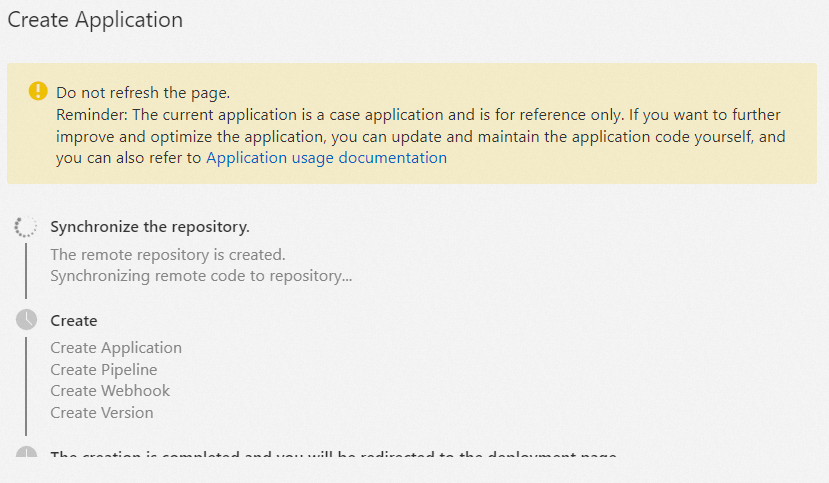
The preceding example describes how to use a code repository to quickly deploy an application. In actual usage scenarios, you can specify more custom settings for pipelines. For example, you can configure environment variables for builders and publishers and specify the execution process.
Directly Deploy
Compared with Deploy from Code Repository, the Directly Deploy method has fewer steps and is faster.
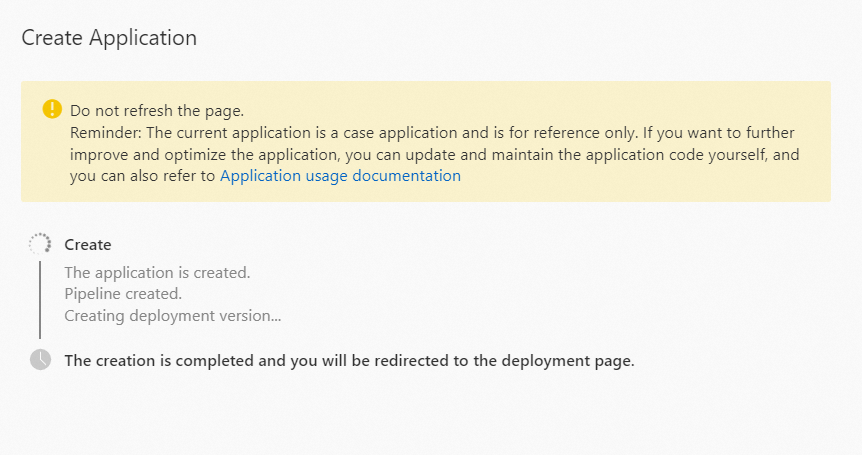
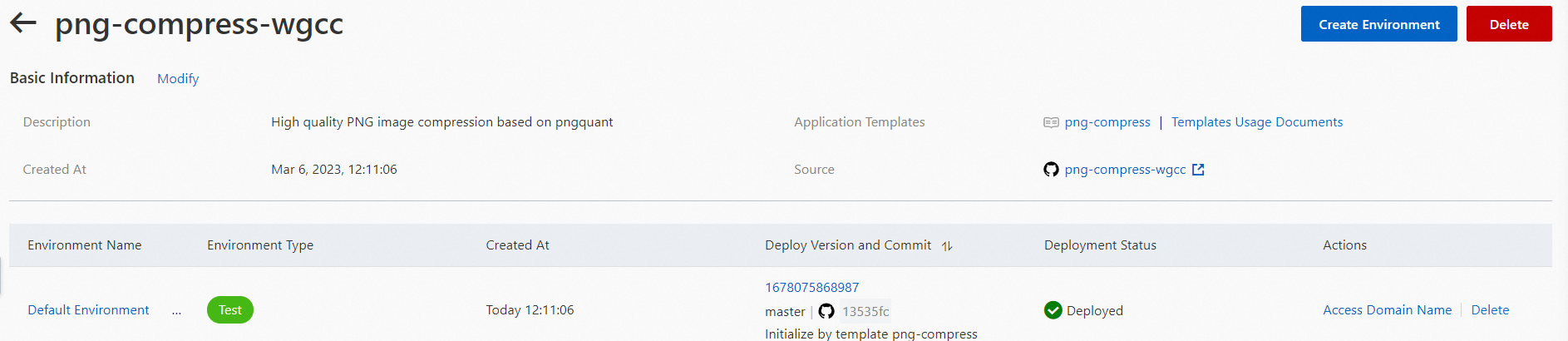
Wait a few minutes for the deployment to complete. On the application details page, you can view the application's basic and environment information. You can also click Access Domain Name in the Actions column to open the deployed application.
Import an application
You can host existing serverless applications that comply with Serverless Devs specifications to Serverless Application Center in Function Compute.
Log on to the Function Compute console. In the left-side navigation pane, click Applications.
(Optional) On the Applications page, click Create Application.
This step is required only for users that have existing applications.
On the application creation page, select Import an Application from a Repository and configure the parameters as prompted.
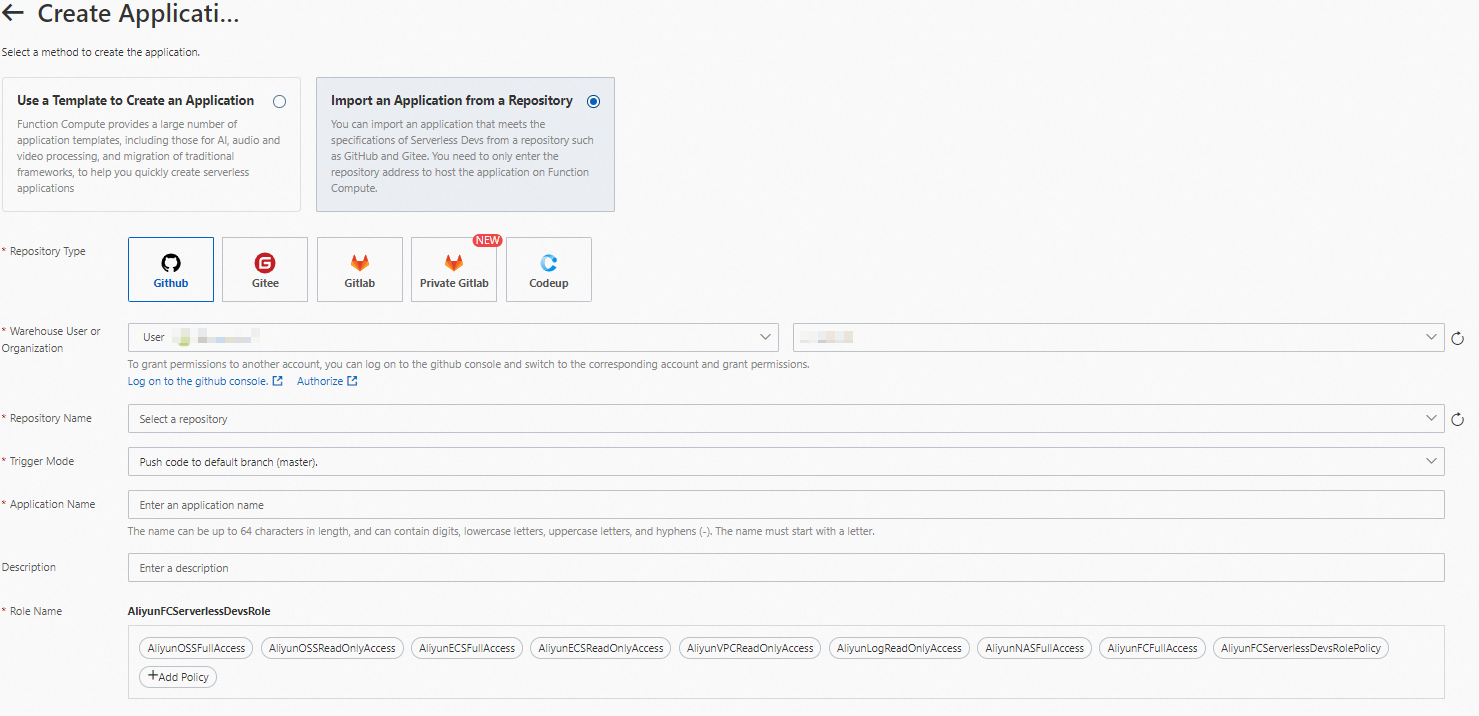
You need to only grant permissions in a repository and select the repository.
ImportantFollow the on-screen instructions to select a standard Serverless Devs application repository. The repository must contain the s.yaml file. You cannot select a repository that is associated with another application.
Click Create and Deploy Default Environment.
Wait a few minutes for the deployment to complete. On the application details page, you can view the application's basic and environment information. You can also click Access Domain Name in the Actions column to open the deployed application.
View and update an application
On the Applications page in Serverless Application Center, you can view all existing applications. You can also click the name of an application to view details of the application.
An application is a combination of logical resources. Basic information and environments of the application are displayed on the application details page. Details of an application include the basic information such as the description, code source configurations, creation time, and environments.
On the Application Details page, you can update the information about an application by following the on-screen instructions. If the code source is changed, the deployment of the application is affected, and you cannot roll back the application to an earlier version. For information about how to update the business logic, environment-related configurations, and pipeline-related configurations of an application, see Manage the environment of an application and Manage pipelines.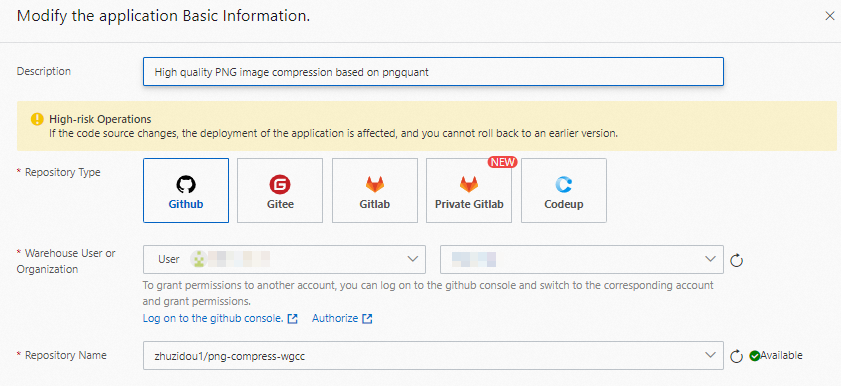
Delete an application
Log on to the Function Compute console. In the left-side navigation pane, click Applications. Find the application that you want to delete, click Delete in the Actions column, and follow the on-screen instructions.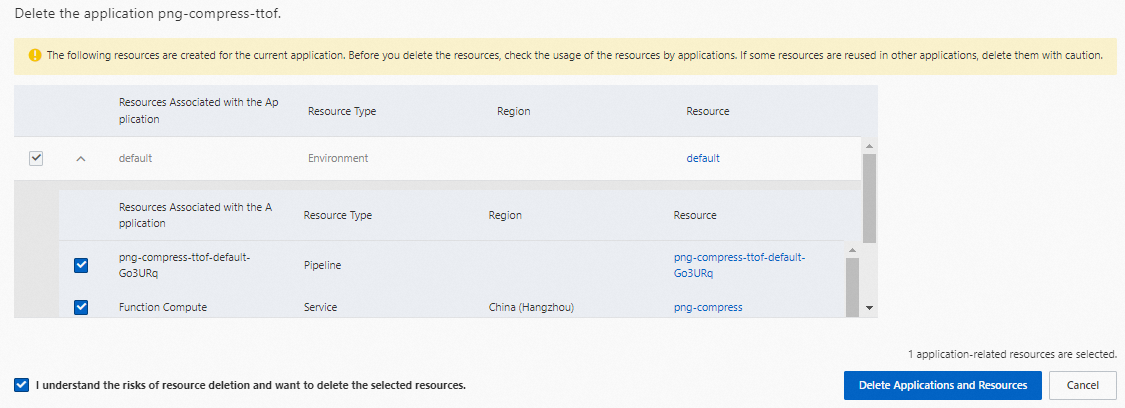
In the Delete Application dialog box, you can view the resources in the application, including pipelines, Function Compute services and functions, and code repository resources.
If other modules depend on the resources that you created in an application, errors may occur if you delete the application. Proceed with cautions. For example, if a function of an application is being used by a client or in another business logic, errors occur in the business logic that uses the function if you delete the application.
If resources in an application are changed by other entities, we recommend that you take necessary precautions when you delete the application. For example, an application creates a service in Function Compute, and a user creates other functions in this service. In this case, the service fails to be deleted. In this case, you can determine whether the resource change meets your business requirements. If the resource change does not affect your business, you can manually delete the service.