If a job encounters an exception during startup or runtime, you can view its exception logs. This topic describes how to view Job Manager exceptions, logs of failed TaskManagers, and logs of TaskManagers that are associated with slow checkpoints.
Background information
Type | Details |
Job Manager exceptions | If a job fails to run due to a failover, check for Job Manager exceptions. For more information, see View Job Manager exceptions. Note If the Job Manager fails to start, this is not a Job Manager exception. In this case, check the startup logs. |
Logs of failed TaskManagers | A job in the Normal state has no failed TaskManagers. However, for a high-risk job, a TaskManager might fail and then be restarted. In this case, view the archived logs of the failed TaskManager to find the potential cause. For more information, see View logs of failed TaskManagers. Note You can view logs of failed TaskManagers only if log archiving is enabled. You can only view logs within the retention period configured for log archiving. |
Logs of TaskManagers for slow checkpoints | If a checkpoint takes a long time to complete during job execution, view the logs of the associated TaskManager to find the cause. For more information, see Locate slow checkpoints and view logs of the corresponding TaskManagers. |
Prerequisites
The job instance is in the Running state.
Notes
Logs are paginated. Each page displays up to 1 MB of logs, which is approximately 8,000 to 9,000 lines. This amount is usually sufficient for troubleshooting. If you cannot find the cause of the issue on the current page, you can switch to other pages to view more logs.
View Job Manager exceptions
Log on to the Realtime Compute for Apache Flink console.
In the Actions column of the target workspace, click Console.
In the navigation pane on the left, click , and then click the name of the target job.
On the Job Log tab, click the Exception Information tab to view the Job Manager exception details.
 Note
NoteIn Exception History, you can view exceptions from the last 7 days and filter them by type.
View logs of failed TaskManagers
Log on to the Realtime Compute for Apache Flink console.
In the Actions column of the target workspace, click Console.
In the navigation pane on the left, click , and then click the name of the target job.
On the Job Log tab, click the Operational Log tab, and then select a job instance.
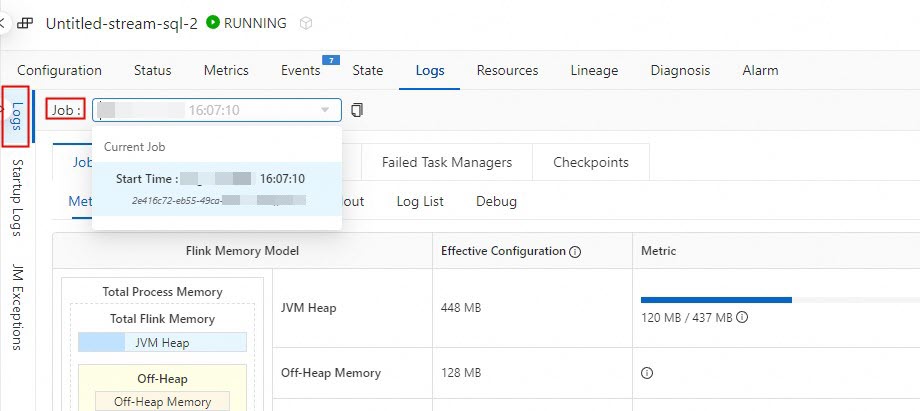
Click the Failed Task Managers tab.
Locate slow checkpoints and view logs of the corresponding TaskManagers
Log on to the Realtime Compute for Apache Flink console.
In the Actions column of the target workspace, click Console.
In the navigation pane on the left, click , and then click the name of the target job.
View the log information for the slow checkpoint.
On the Job Log tab, click the Checkpoints tab, then click Checkpoints History.
Check the values in the End to End Duration column to identify slow checkpoints.
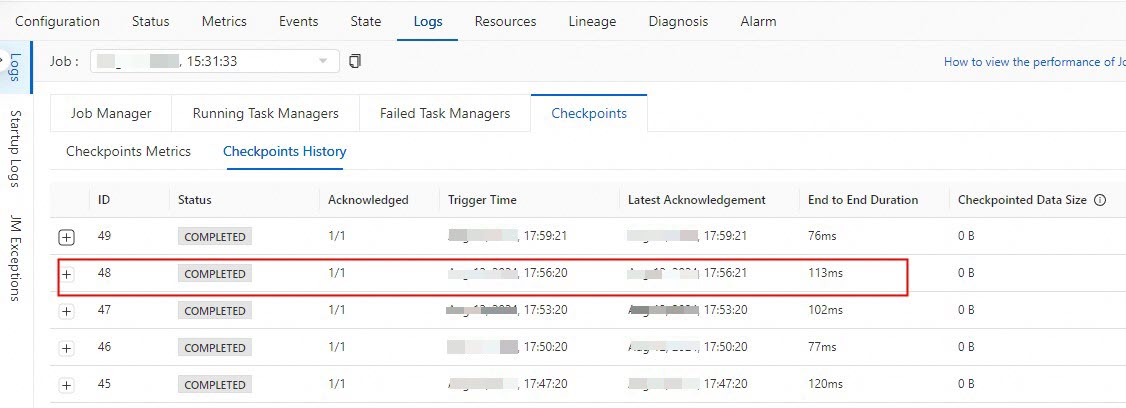
Click the
 icon to the left of a slow checkpoint's ID to view the details of the corresponding Operators node.
Click the
icon to the left of the Operators node to expand it and view the details of each task.Click the ID of the task node that has a long duration.
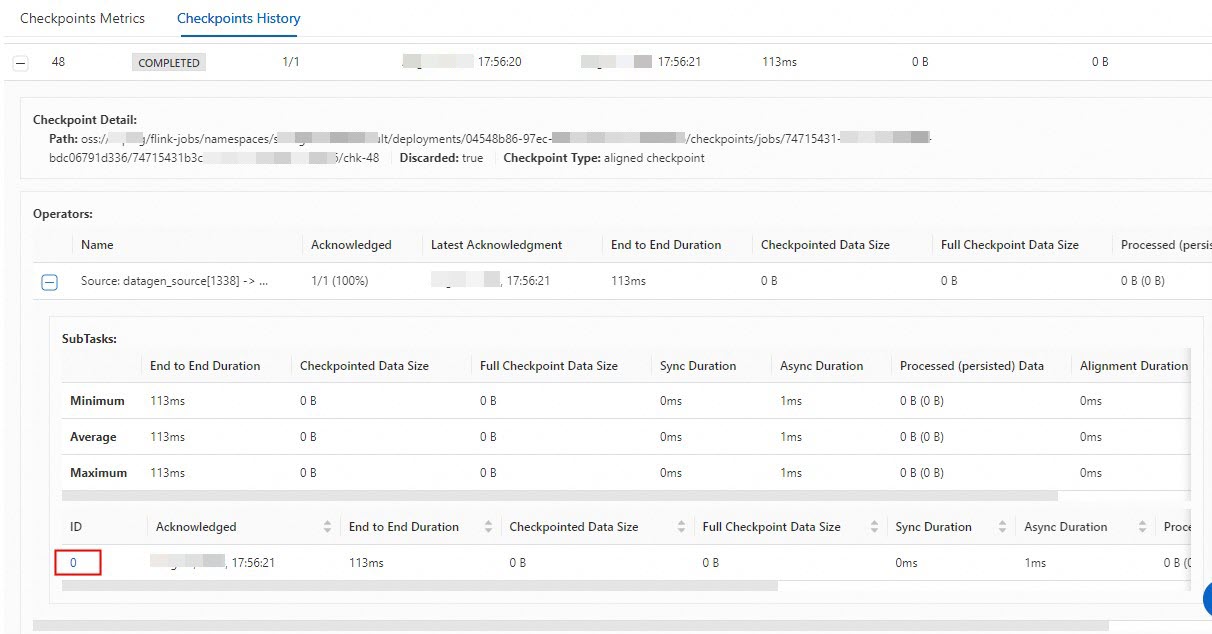
On the Running Task Managers tab of the page that appears, view the log for the TaskManager that is running the slow task.