Virtual Network Computing (VNC) gives you direct console access to an Elastic Compute Service (ECS) instance through your browser, without requiring network connectivity to the instance. Unlike SSH or Remote Desktop Protocol (RDP), VNC operates at the underlying hardware level and remains available even when the operating system is starting up, when SSH services have failed, or when security group rules block other connection methods.
Use VNC only for emergency operations and troubleshooting. For routine remote access, use SSH (Linux) or RDP (Windows) instead.
In Simple Application Server, this feature is called Rescue Logon. For details, see Connect to a simple application server by using the rescue feature.
When to use VNC
| Scenario | VNC appropriate? |
|---|---|
| SSH service failed or not started | Yes |
| OS is starting up and you need console access | Yes |
| Instance is in Stopping state | Yes |
| Security group rules block your connection | Yes |
| Routine remote administration | No — use SSH or RDP |
| Instance is in Stopped state | No — VNC is unavailable |
Limitations
VNC is not supported on
ecs.ebmhfc7.48xlargebare metal instances.Internet connectivity is not required, but you must log on to the Alibaba Cloud Management Console first.
VNC connects only to instances in Alibaba Cloud.
By default, Linux instances do not include a graphical user interface (GUI).
Before you begin
Review these constraints before opening a VNC connection:
Session timeout: A VNC session automatically closes after 300 seconds of inactivity. Reconnect if this occurs.
Instance state: The instance must be in Running or Stopping state.
Credentials required: Have the instance logon username and password ready. Authentication is password-based — you log on using the instance OS credentials, not a separate VNC password. Starting July 10, 2023, Alibaba Cloud manages authentication credentials and performs end-to-end data encryption for VNC logon to instances, removing the need for a separate VNC logon password.
Copy-paste limit: The Enter Copy Commands feature supports up to 2,000 characters. Special characters, including Chinese characters, are not supported.
Prerequisites
Before you begin, ensure that you have:
An ECS instance in Running or Stopping state
The logon username and password for the instance OS
(For RAM users) The
ecs:DescribeInstancesandecs:DescribeInstanceVncUrlpermissions
Get the instance logon username
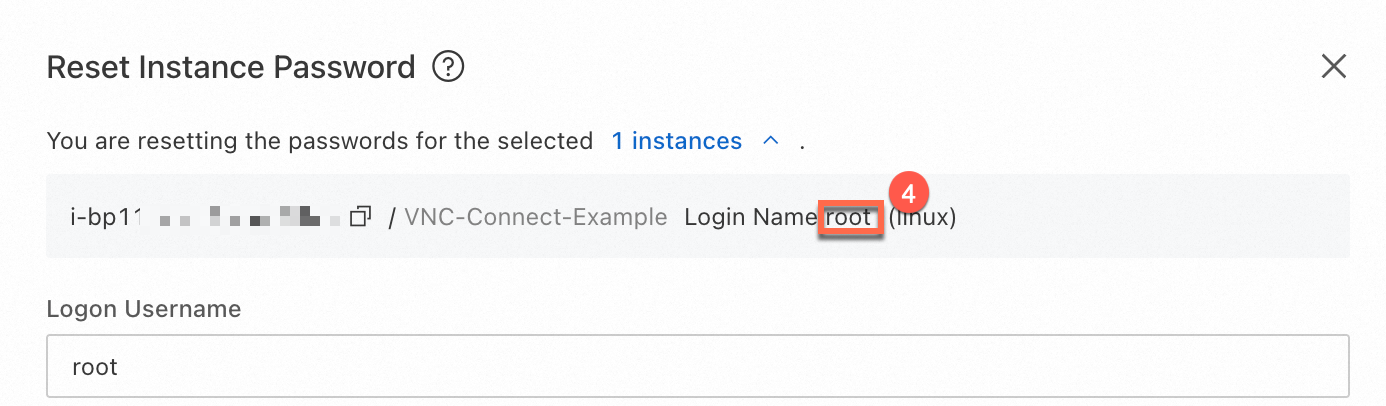
The default logon usernames are root or ecs-user for Linux instances and administrator for Windows instances. To look up the initial logon username in the ECS console:
Go to the ECS console - Instance.
Find the instance and click the
 icon, then click Reset Instance Password.
The initial logon username appears as shown below.
For more information, see Manage logon users for instances.
Reset a forgotten or missing logon password
If you forgot the logon password or used an SSH key pair as the logon credential, reset the password before connecting:
In the ECS console, find the instance.
Click the
icon and select Reset Instance Password.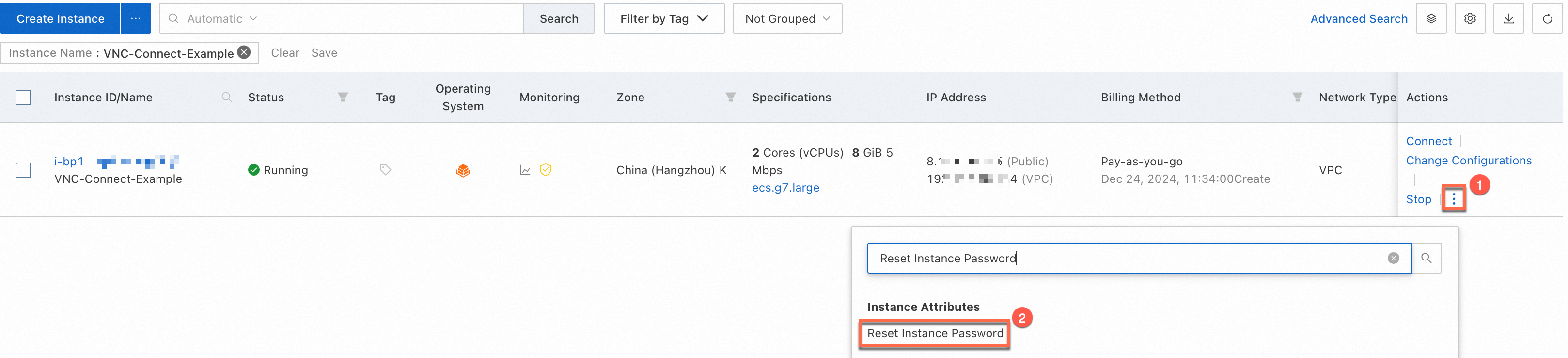
Follow the prompts to set a new password.
For more information, see Reset the logon password of an instance.
Grant permissions to a RAM user
If you are using a Resource Access Management (RAM) user, attach the following policy to grant the minimum required permissions. For details on attaching policies, see Grant permissions to a RAM user.
{
  "Version": "1",
  "Statement": [
    {
      "Effect": "Allow",
      "Action": [
        "ecs:DescribeInstances",
        "ecs:DescribeInstanceVncUrl"
      ],
      "Resource": "*"
    }
  ]
}
The ecs:DescribeInstances action queries instance information. The ecs:DescribeInstanceVncUrl action retrieves the VNC connection URL. Use the Resource element to restrict access to specific instances. For more information, see Resource.
Connect to an instance
Step 1: Find the instance
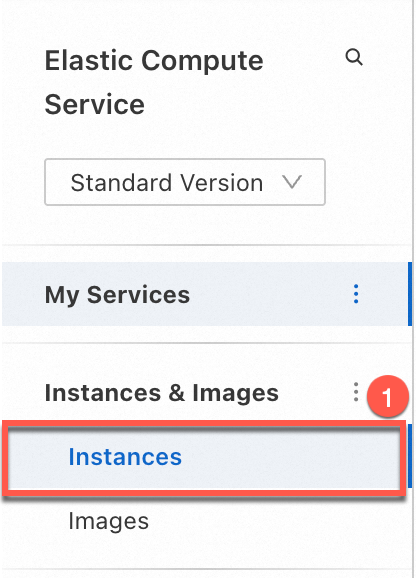
Go to ECS console - Instance.
In the top navigation bar, select the region and resource group of the instance.

On the Instance page, click the instance ID to open the instance details page. The following figures show an instance in the Running state.

Step 2: Open the VNC connection page
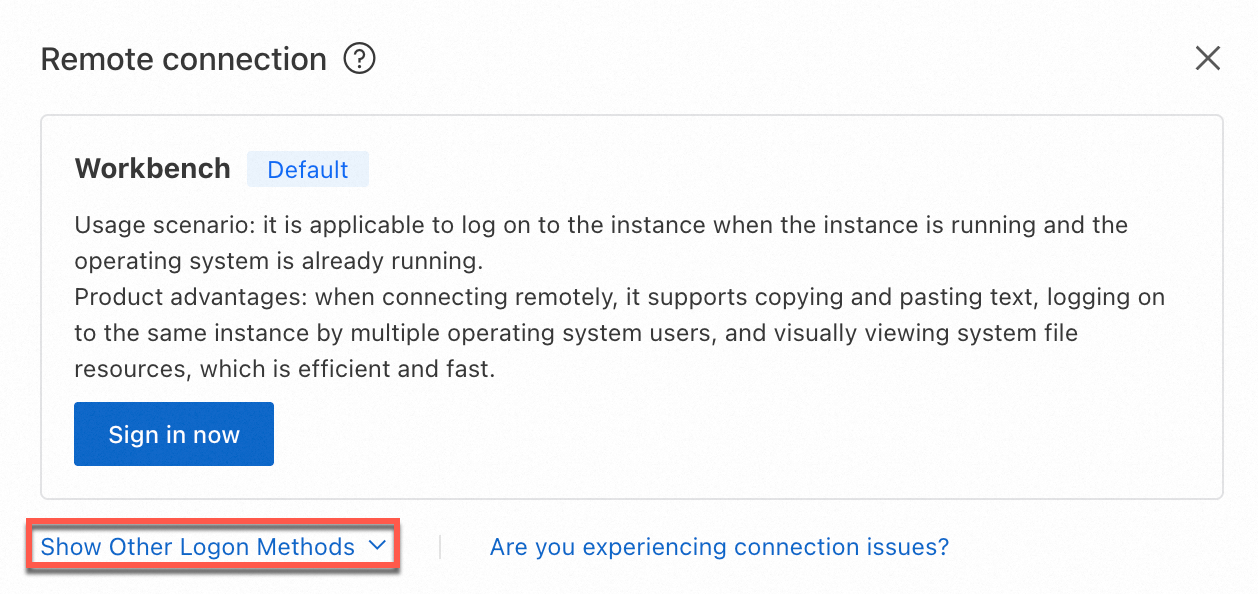
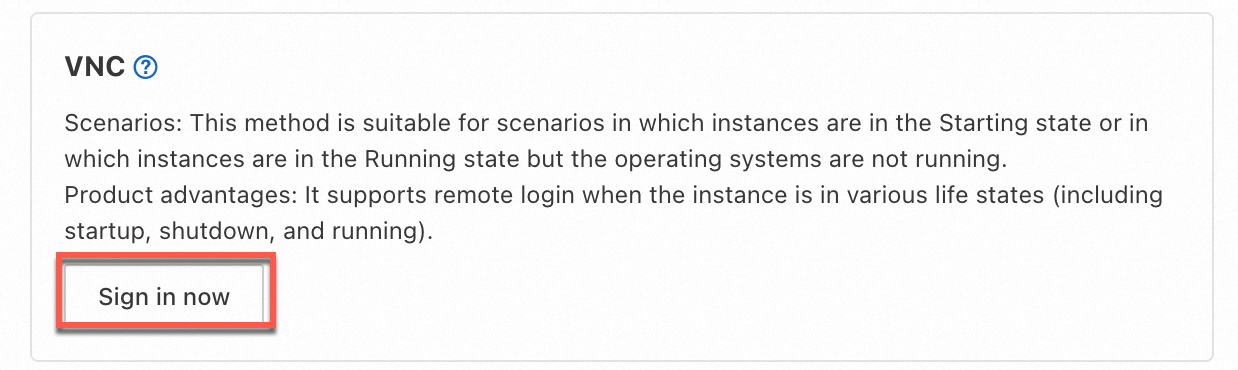
Click Connect. In the Remote connection dialog box, click Show Other Logon Methods, then click Sign in now in the VNC section. The VNC connection page opens.
ImportantIf the message "You do not have the permissions to perform this operation. Ask the Alibaba Cloud account to grant the permissions in the RAM console and try again later." appears, check that your RAM user has the required permissions. See Grant permissions to a RAM user above.
Step 3: Log on to the instance OS
The VNC connection page displays the OS interface of the instance. Log on using the instance logon username and password.
Linux instance
In this example, an instance running Alibaba Cloud Linux 3 is used.

Enter the username (such as
rootorecs-user) and press Enter.Enter the password and press Enter.
ImportantPassword characters are hidden as you type. If you see a
Login Incorrecterror, reset the logon password and try again. See Reset the logon password of an instance.Verify that you are logged on. The following figure shows a successful logon.
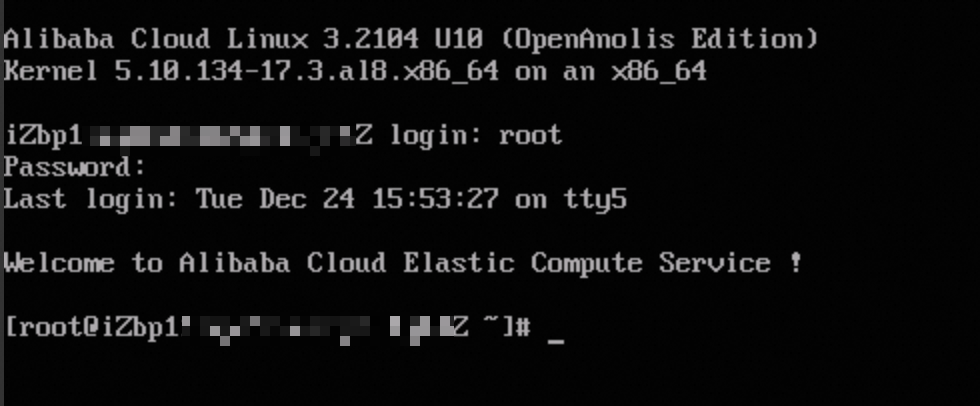
A persistent black screen means the instance is in sleep mode. Press any key to wake it.
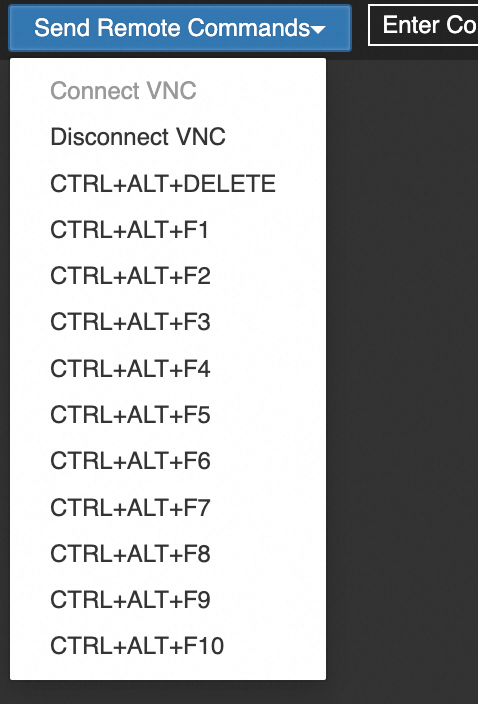
Switch between up to 10 VNC management terminals using Send Remote Commands > CTRL+ALT+F1 through CTRL+ALT+F10. The default terminal is CTRL+ALT+F1.
Windows instance
In this example, an instance running Windows Server 2025 is used.

In the upper-left corner, choose Send Remote Commands > CTRL+ALT+DELETE to unlock the OS.
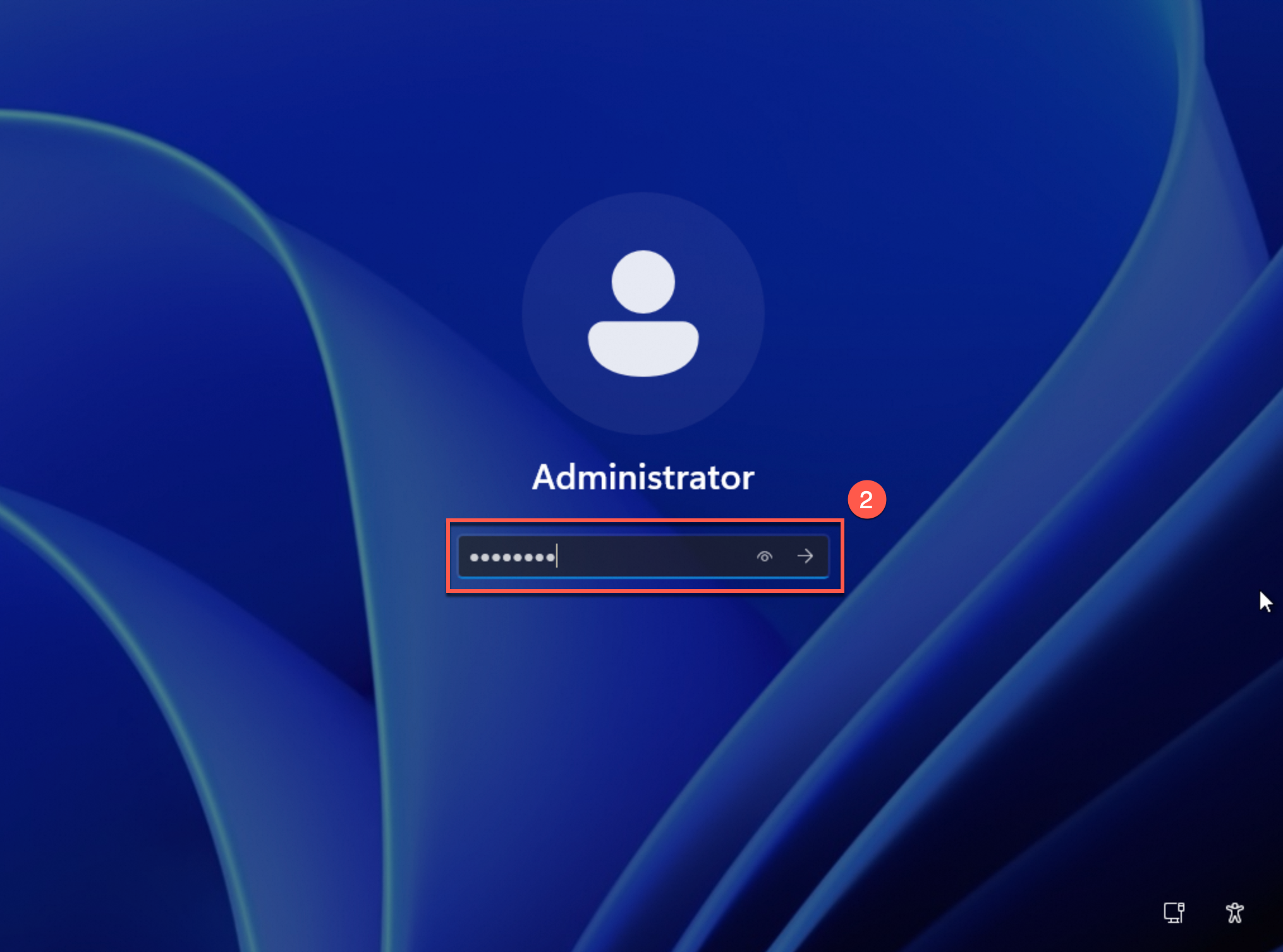
Select a username, enter the password, and press Enter. The default username is
Administrator.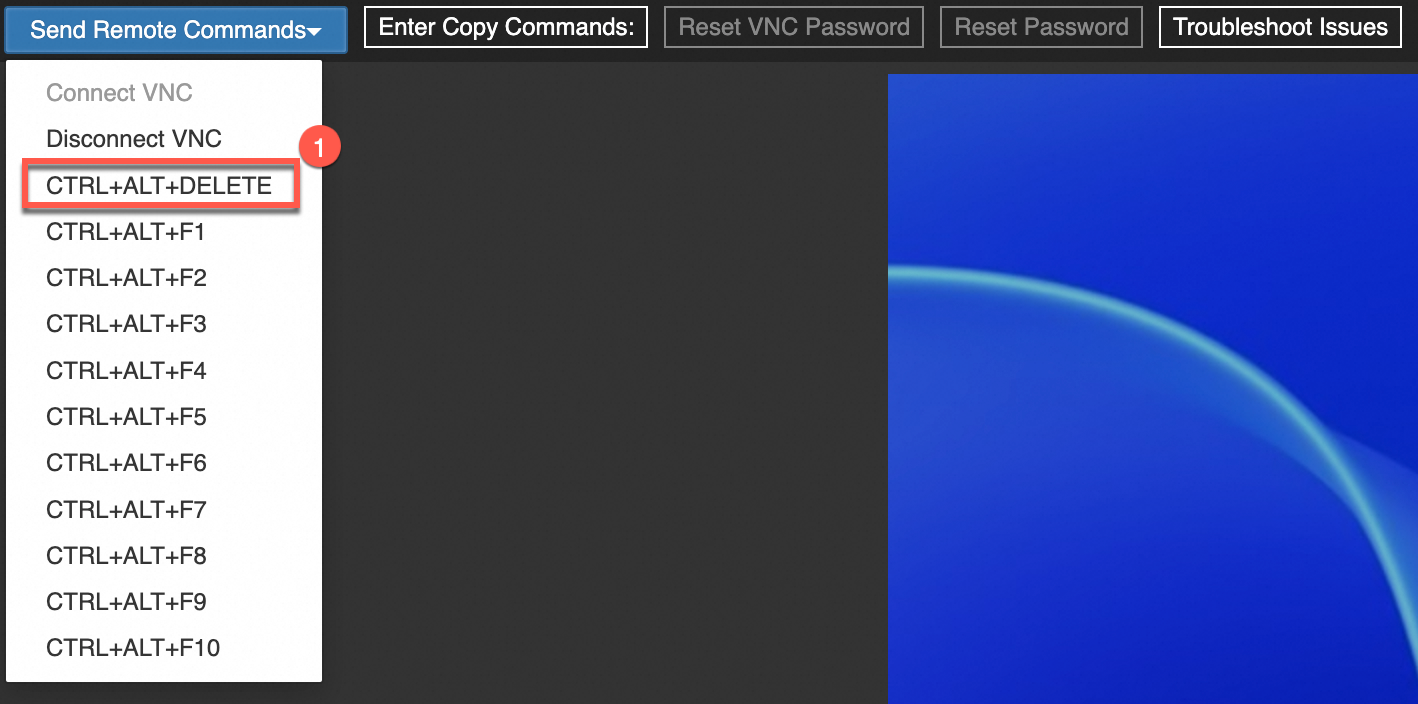
Other operations
Copy and paste content
Direct copy-paste from your local machine to the instance is not supported. Use the Enter Copy Commands feature instead.
Content is limited to 2,000 characters. Special characters, including Chinese characters, are not supported.
Connect to the instance by using VNC.
Position the cursor at the location where you want to paste content.
In the upper-left corner of the VNC connection page, click Enter Copy Commands.
In the Copy and Paste Commands dialog box, enter the content and click OK.
Send remote commands
Use Send Remote Commands to send keyboard shortcuts to the instance. For Linux instances, select CTRL+ALT+F1 through CTRL+ALT+F10 to switch VNC management terminals. For Windows instances, select CTRL+ALT+DELETE to unlock the OS.
Connect to the instance by using VNC.
In the upper-left corner of the VNC connection page, click Send Remote Commands and select a command.
In this example, Windows is used.
FAQ
For issues that occur when connecting by using VNC, see VNC connection issues.
What's next
To connect programmatically, call the DescribeInstanceVncUrl API operation to get the VNC URL for the instance.