A static IP address in the NIC configuration file that differs from the ECS console can cause network failures, ineffective security group rules, and management issues. Update the NIC configuration to match the console IP address.
Problem description
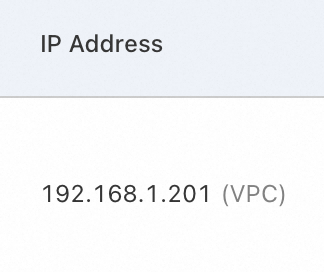
The static IP address in the NIC configuration file does not match the IP address shown in the ECS console.
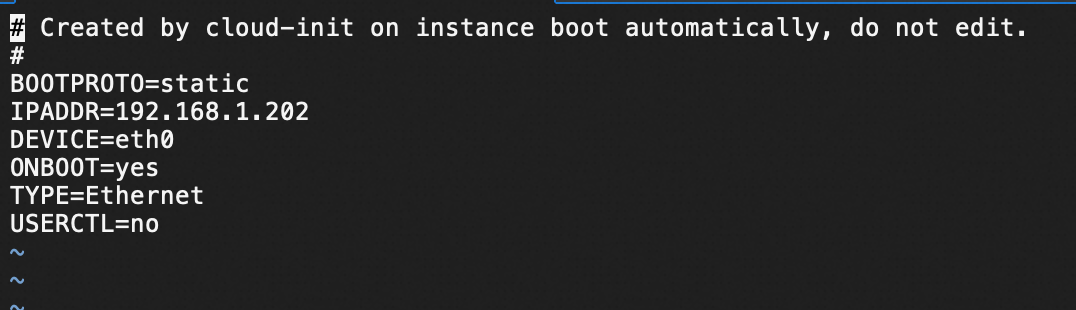
Solution
Step 1: Obtain the IP address from the ECS console
Find the private IP address of the instance in the ECS console. See IP addresses.
Step 2: Update the NIC configuration file
Red Hat Enterprise Linux (RHEL) series
-
Applies to: Alibaba Cloud Linux 2, Alibaba Cloud Linux 3, CentOS 6, CentOS 7, CentOS 8, Red Hat 6, Red Hat 7, Red Hat 8, Red Hat 9, Anolis 7, Anolis 8, Fedora 33, Fedora 34, and Fedora 35.
-
This example uses Alibaba Cloud Linux 3.2.
-
This example uses the primary NIC eth0. Replace with your actual NIC name.
-
Connect to the instance.
-
View the subnet mask.
View the routing information:
route -nSample output:
-
The subnet mask (Genmask) is 255.255.255.0.
-
The default gateway (Gateway) is 192.168.1.253.

-
-
Modify or create the NIC configuration file:
sudo vi /etc/sysconfig/network-scripts/ifcfg-eth0Set the IP acquisition method to Static and configure the primary private IPv4 address and subnet mask.
Template:
DEVICE=eth0
TYPE=Ethernet
#The method used to obtain an IP address, which is set to Static.
BOOTPROTO=static

#The IPv4 address and subnet mask that require manual configuration.
IPADDR=<Replace the value of this parameter with the actual IPv4 address>
NETMASK=<Replace the value of this parameter with the actual subnet mask>
Example:
DEVICE=eth0
TYPE=Ethernet
#The method used to obtain an IP address, which is set to Static.
BOOTPROTO=static

#The IPv4 address and subnet mask that require manual configuration.
IPADDR=192.168.1.201
NETMASK=255.255.255.0
Ubuntu 22, Ubuntu 24, and Debian 12
-
Connect to the instance.
-
View the subnet mask.
View the routing information:
route -nSample output:
-
The subnet mask (Genmask) is 255.255.255.0.
-
The default gateway (Gateway) is 192.168.1.253.
-
-
Disable the network configuration feature of cloud-init:
ImportantThe /etc/netplan/50-cloud-init.yaml file is auto-generated by
cloud-initat instance startup. Disable cloud-init network configuration before editing this file. See cloud-init network initialization.sudo vim /etc/cloud/cloud.cfg.d/99-disable-network-config.cfgAdd the following content:
network: {config: disabled} -
Open the /etc/netplan/50-cloud-init.yaml file and configure the NIC:
sudo vim /etc/netplan/50-cloud-init.yamlExample:
network:
    version: 2
    ethernets:
        eth0: #The name of the NIC.
            dhcp4: false #By default, Dynamic Host Configuration Protocol (DHCP) is enabled to automatically assign IP addresses. If you set this parameter to false, you must manually configure IP addresses for the NIC.
            match:
                macaddress: 00:16:3e:16:43:xx #Replace the value of this parameter with the actual MAC address of the NIC.
            set-name: eth0
            addresses:
                    - 192.168.1.201/24 #Replace the value of this parameter with the actual primary private IPv4 address of the NIC.
            routes:
              - to: default
                via: 192.168.1.253 #Replace the value of this parameter with the actual default gateway address.
Ubuntu 18 and Ubuntu 18 20
-
Connect to the instance.
-
View the subnet mask.
View the routing information:
route -nSample output:
-
The subnet mask (Genmask) is 255.255.255.0.
-
The default gateway (Gateway) is 192.168.1.253.
-
-
Disable the network configuration feature of cloud-init:
ImportantThe /etc/netplan/50-cloud-init.yaml file is auto-generated by
cloud-initat instance startup. Disable cloud-init network configuration before editing this file. See cloud-init network initialization.sudo vim /etc/cloud/cloud.cfg.d/99-disable-network-config.cfgAdd the following content:
network: {config: disabled} -
Open the /etc/netplan/50-cloud-init.yaml file and configure the NIC:
sudo vim /etc/netplan/50-cloud-init.yamlExample:
network:
    version: 2
    ethernets:
        eth0: #The name of the NIC.
            dhcp4: false #By default, DHCP is enabled to automatically assign IP addresses. If you set this parameter to false, you must manually configure IP addresses for the NIC.
            match:
                macaddress: 00:16:3e:16:43:xx #Replace the value of this parameter with the actual MAC address of the NIC.
            set-name: eth0
            addresses:
                    - 192.168.1.201/24 #Replace the value of this parameter with the actual primary private IPv4 address of the NIC.
            gateway4: 192.168.1.253 #Replace the value of this parameter with the actual default gateway address.
Step 3: Restart the network service
Restart the network service to apply the new configuration.
Some commands require an instance restart, which may cause service interruptions. Restart the network service during off-peak hours.
|
Operating system |
Restart command |
|
or |
|
|
|
|
|
|
|
|