Disclaimer: This document may contain information about third-party products. This information is for reference only. Alibaba Cloud makes no representations or warranties, express or implied, with respect to the performance or reliability of third-party products. Alibaba Cloud is not liable for any potential issues that may arise from using these products.
Overview
This topic describes how to install Internet Information Services (IIS) and FTP services on a Windows instance.
Description
Please note the following:
If you perform risky operations, such as modifying an instance or its data, ensure that the instance has disaster recovery and fault tolerance capabilities to protect your data.
Before you modify the configurations or data of instances, such as ECS and ApsaraDB RDS instances, create snapshots or enable features such as RDS log backup.
If you have granted permissions or submitted security information, such as logon credentials, on the Alibaba Cloud platform, change them promptly.
This topic provides installation instructions for Windows Server 2008, and for Windows Server 2012 and later versions.
Note: Windows Server 2012 and later versions refer to Windows Server 2012, Windows Server 2016, and Windows Server 2019. For more information about installing IIS and FTP services on these versions, see the official Microsoft documentation.
Steps for Windows Server 2008
On the server desktop, click Server Manager.
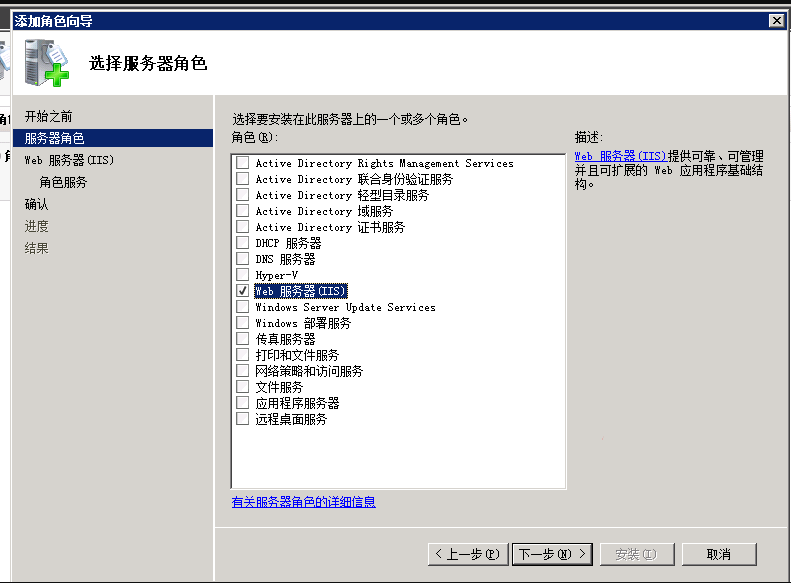
Right-click Roles, click Add Roles, and then click Next.
Select the Web Server (IIS) check box and click Next.
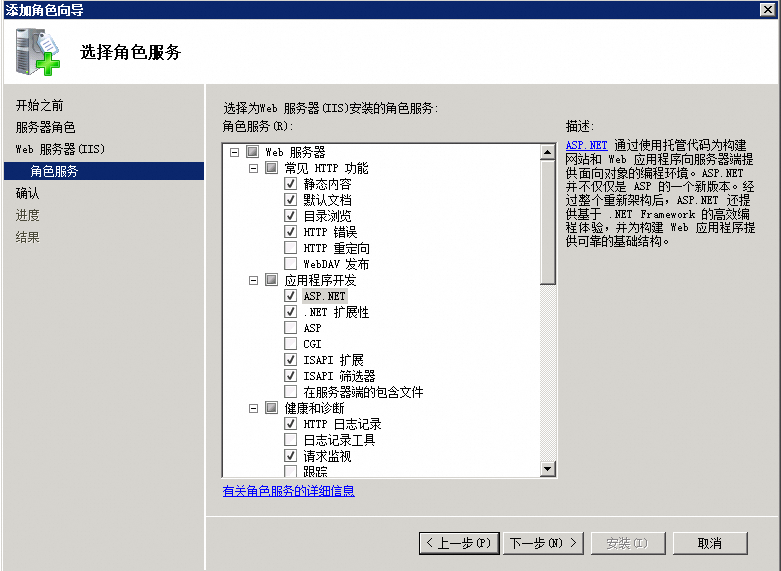
Click Next. Under Application Development, select the ASP.NET check box.
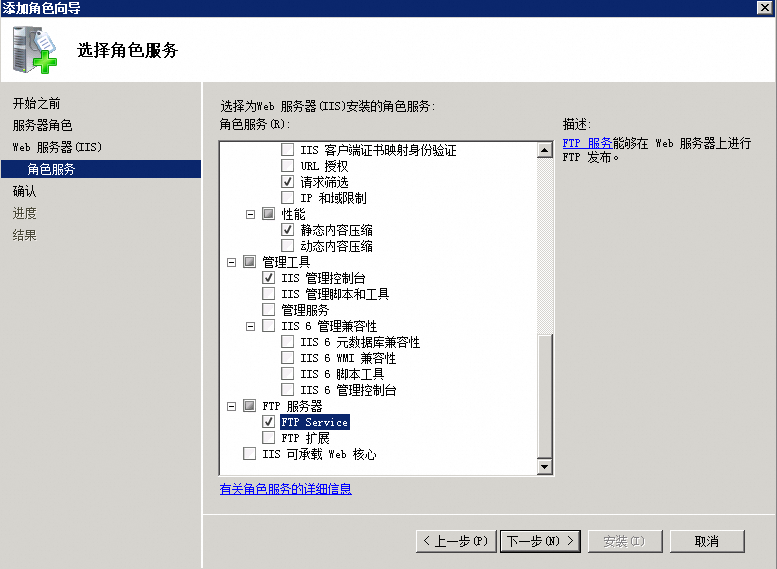
Select the FTP Server and FTP Service check boxes, and then click Next.
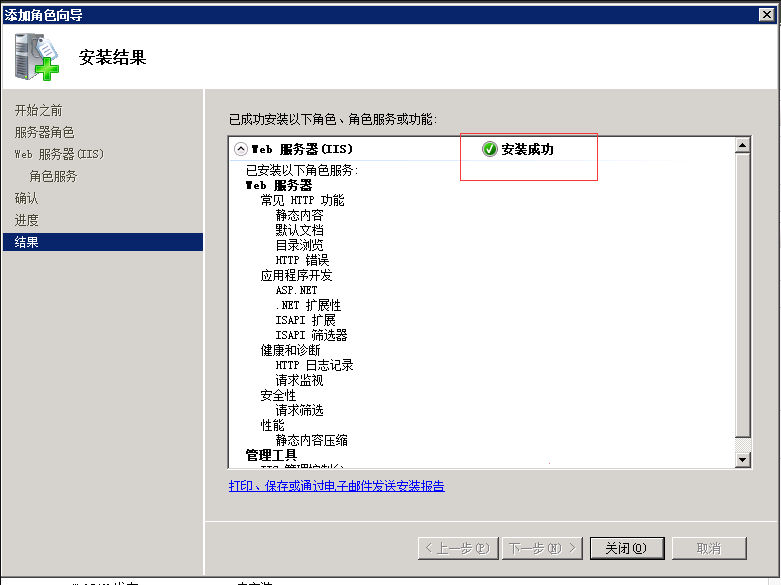
Click Install.
When the Installation succeeded message appears, click Close.
In the lower-left corner of the server, click Start > Administrative Tools > Internet Information Services (IIS) Manager.
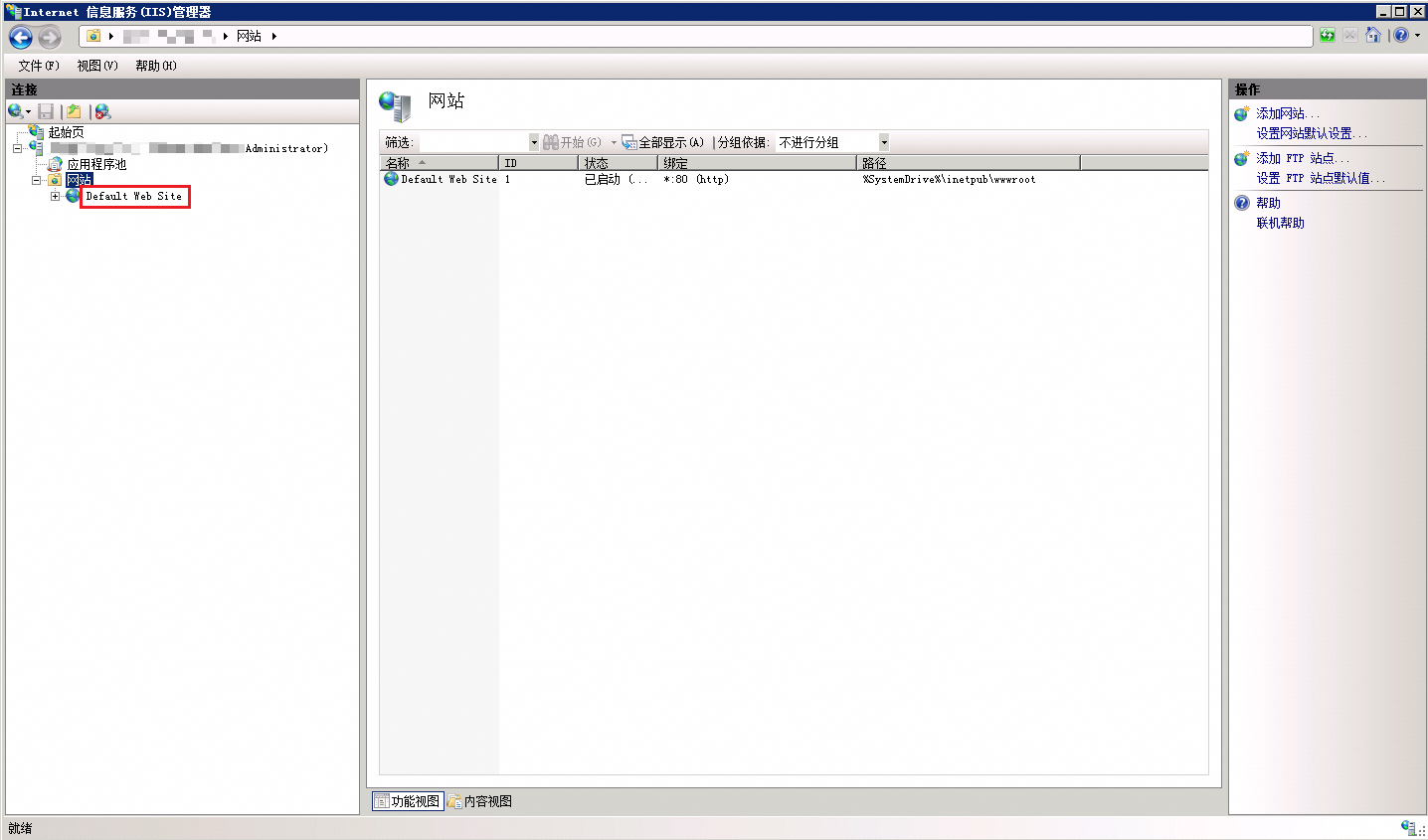
Double-click <hostname> > Sites. Click Default Web Site.
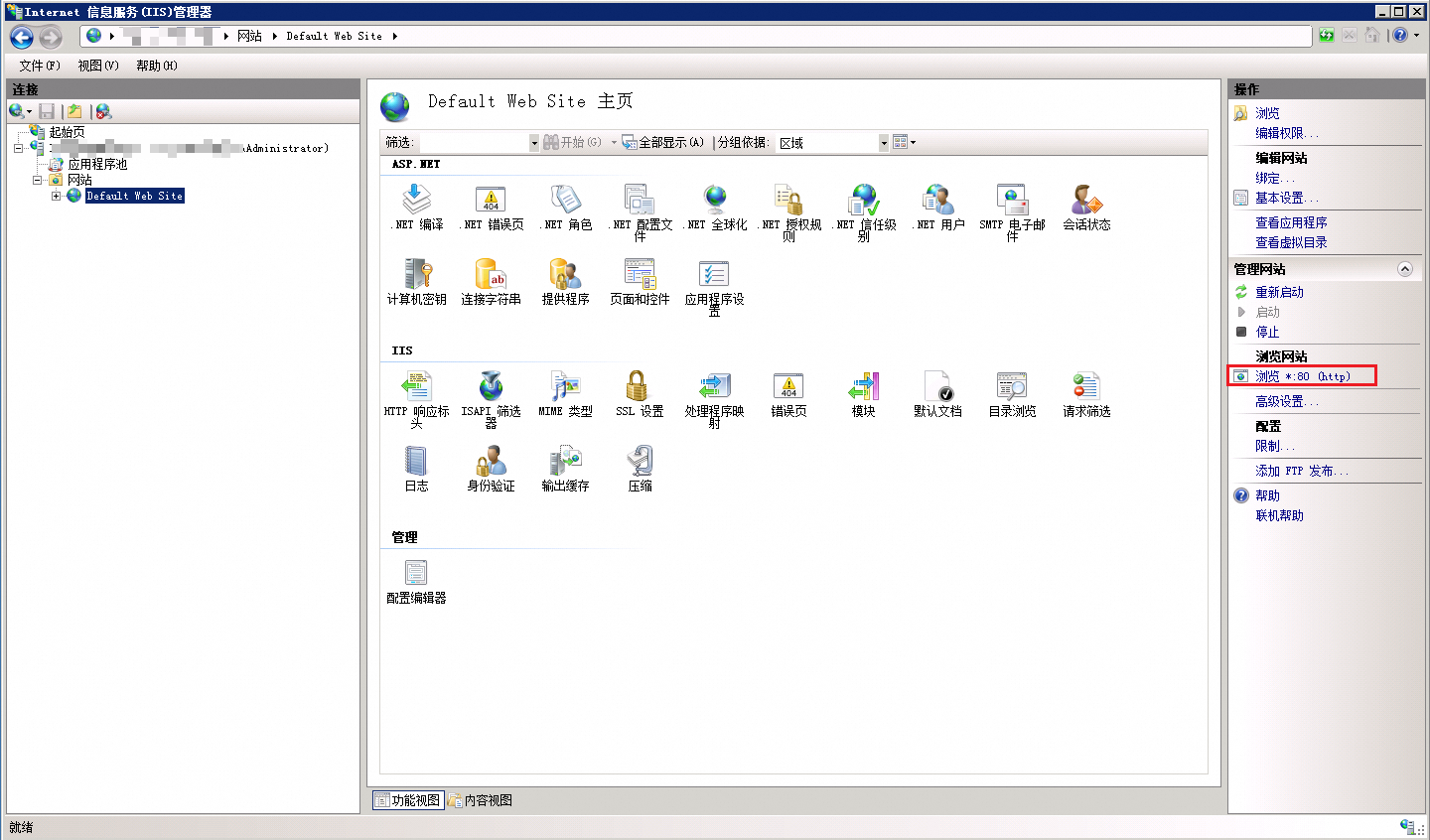
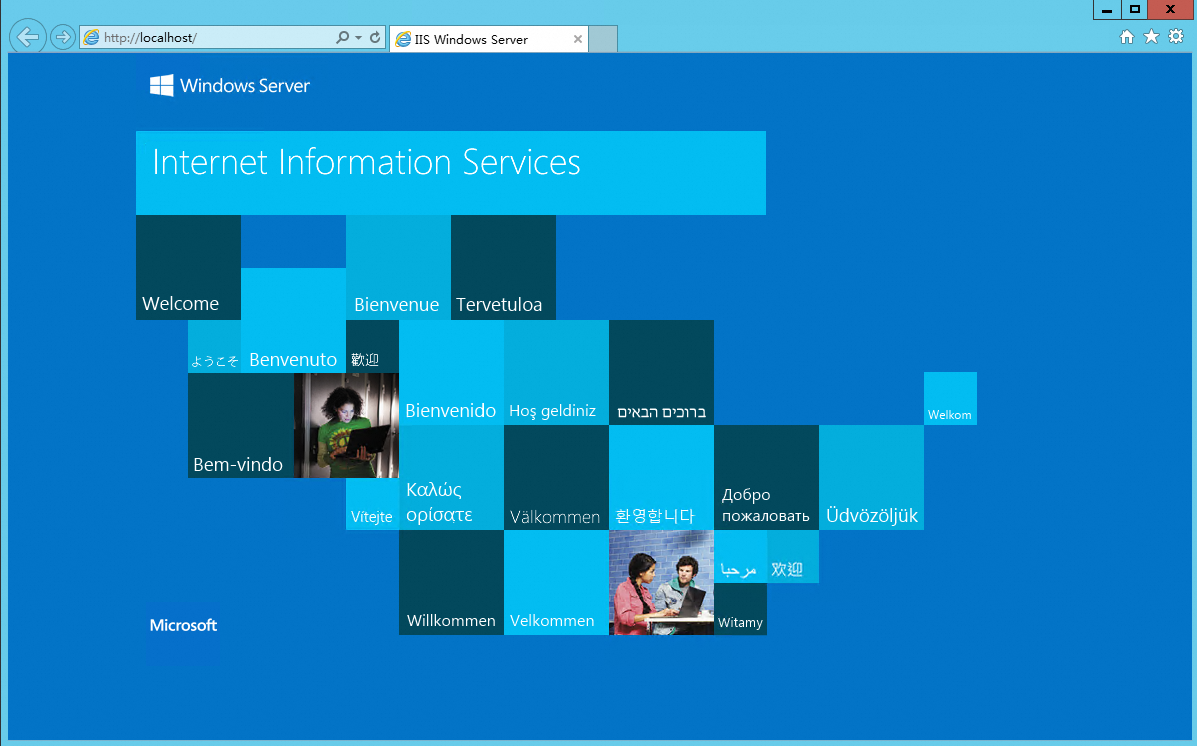
Click Browse *:80 (http) to open the default IIS site in a browser.
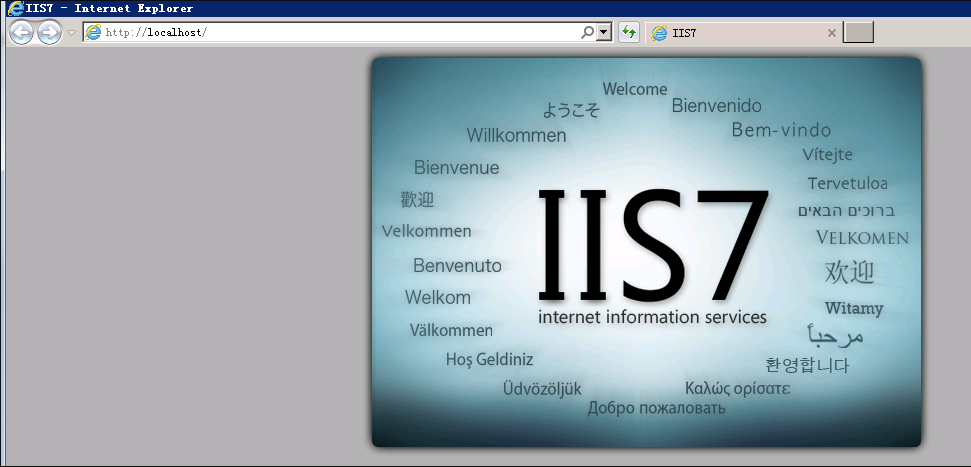
The IIS installation is complete.
Steps for Windows Server 2012 and later
Open Server Manager and click Manage > Add Roles and Features.
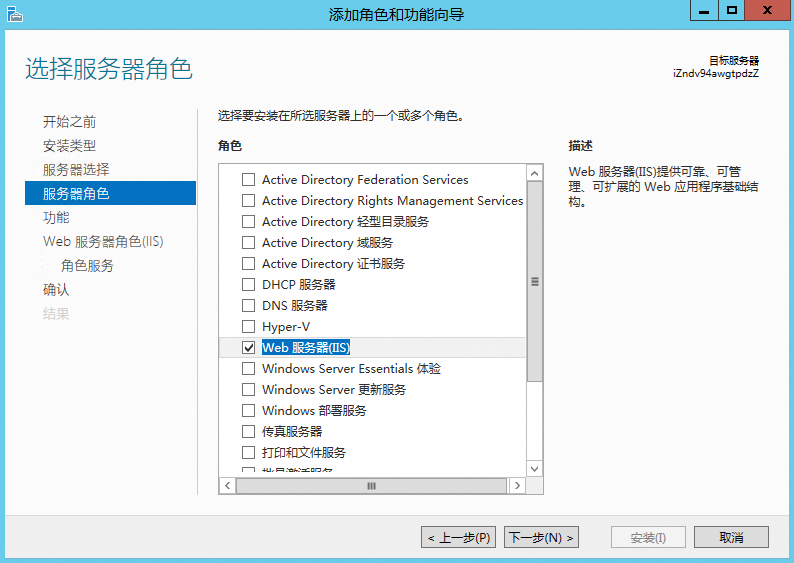
For Server Roles, select Web Server (IIS) and click Next.
On the Features page, select the features that you require. In this example, .NET Framework 3.5 Features is selected. Click Next, and then click Next again.
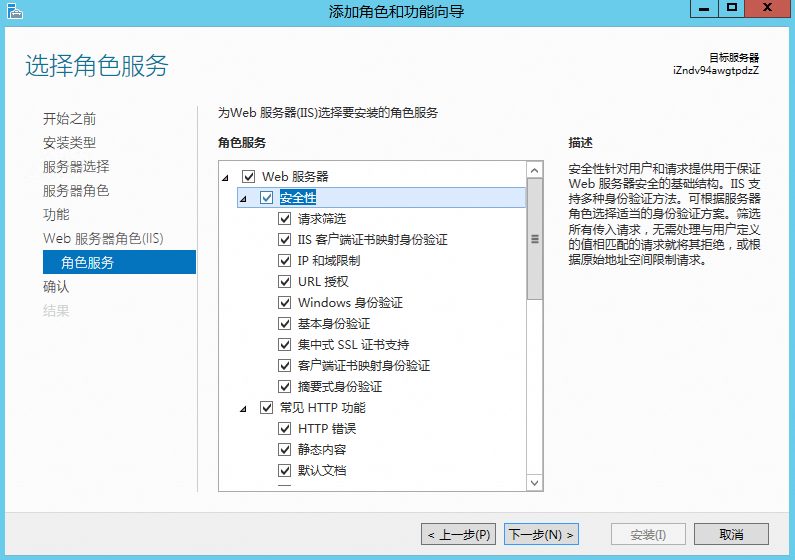
On the Role Services page, select the required Security options. If you are unsure which items to select, you can select all items under Security. Then, click Next.
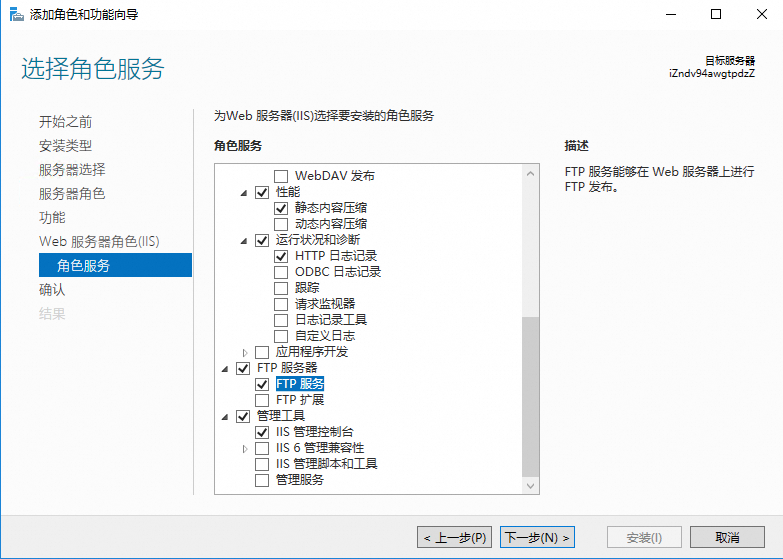
Select the FTP Server and FTP Service check boxes. Make sure that you select the necessary Management Tools for the server. Click Next, and then click Install.
The installation begins. Wait for the installation to complete.
If the installation fails, perform the following steps.
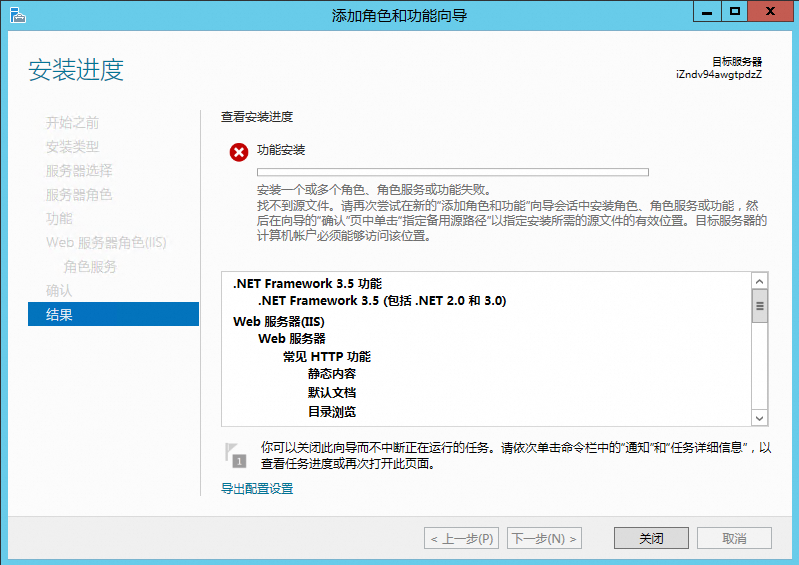 Uninstall the following patches from the Windows system. After you uninstall the patches, repeat Steps 1 to 6.
kb5027141
kb5028872
kb5020878
kb5028970, kb5029915
kb5029915, kb5031003, kb5031008
NoteUninstall only the patches that are installed on your Windows system.
After the installation is complete, open Server Manager in Windows Server 2012 and click Tools > Internet Information Services (IIS) Manager.
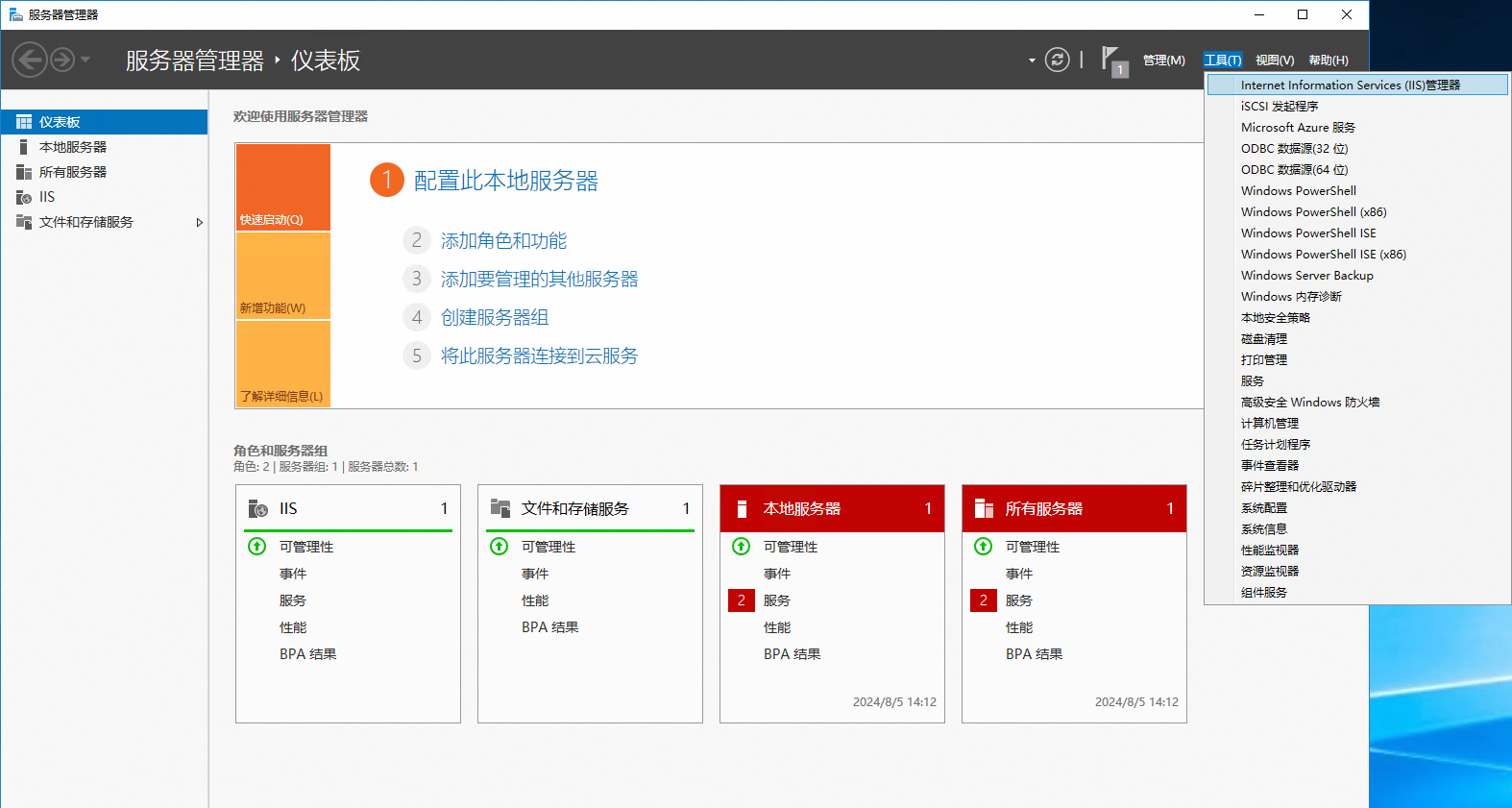
If Application Pools and Sites are displayed in the manager, the IIS installation is successful.
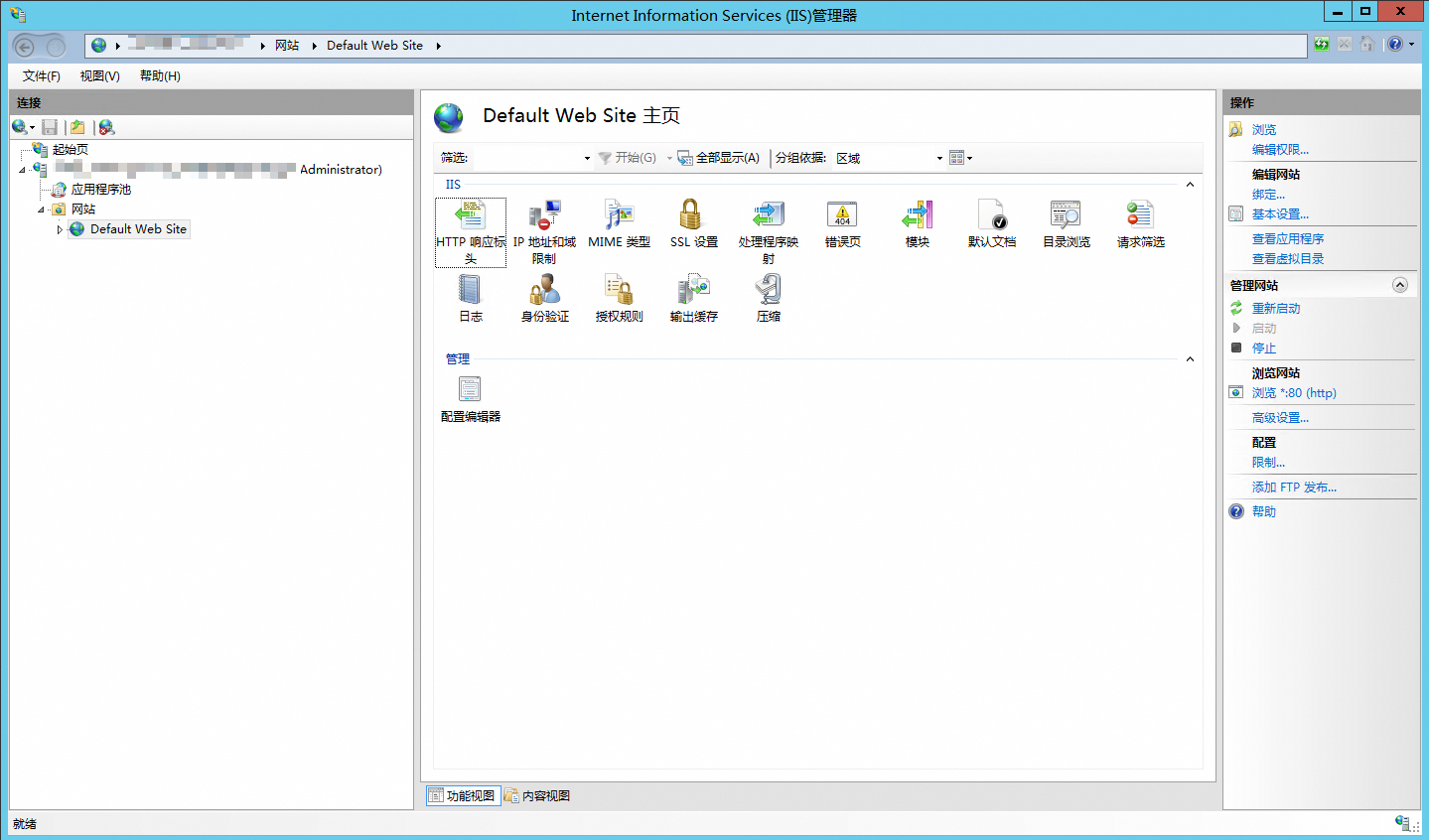
Click Browse *:80 (http) to open the default IIS site in a browser.
Applies to
Elastic Compute Service