Diagnose and fix inactive or missing network services on a Linux ECS instance to restore connectivity.
Problem description
In this example, an ECS instance runs Alibaba Cloud Linux 3.2104 LTS 64-bit. The following figure shows the network service in an inactive state.

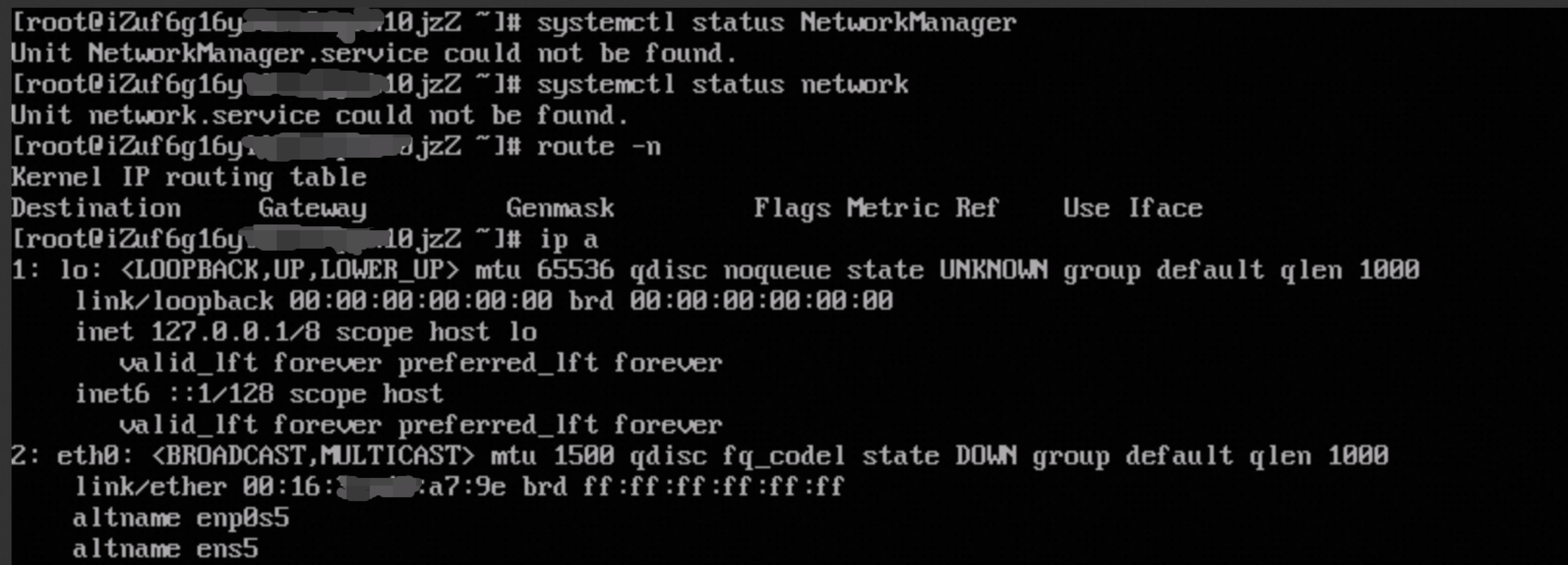
The following figure shows the network service is missing from the instance.

Solution
Check the network service status
-
Connect to the Linux ECS instance.
See Log on to a Linux instance using Workbench. If network issues prevent the connection, use Connect using VNC instead.
-
Run the appropriate command for your operating system to check the network service status.
Operating system
Command
-
Alibaba Cloud Linux 2
-
CentOS 7
-
Red Hat 7
-
Anolis 7
-
SUSE Linux 11, SUSE Linux 12, and SUSE Linux 15
-
openSUSE 15 and openSUSE 42
sudo systemctl status network-
CentOS 6
-
Red Hat 6
sudo service network status-
Alibaba Cloud Linux 3
-
CentOS 8
-
Red Hat 8
-
Anolis 8
-
Fedora 33, Fedora 34, and Fedora 35
sudo systemctl status NetworkManager-
Ubuntu 18, Ubuntu 20, and Ubuntu 22
-
Debian 12
sudo systemctl status systemd-networkd-
Ubuntu 14 and Ubuntu 16
-
Debian 8, Debian 9, Debian 10, and Debian 11
sudo systemctl status networkingThe following figure shows the network service running normally. If the status is inactive (dead), restart the network service. If a "service could not be found" error appears, the service was uninstalled — re-install the network service.

-
Restart the network service
Run the appropriate command for your operating system to restart the network service.
Some commands require an instance restart, which may cause service interruptions. Restart the network service during off-peak hours.
|
Operating system |
Command |
|
or |
|
|
|
|
|
|
|
|
After restarting, check the network service status again. If it remains abnormal, re-install the network service.
Re-install the network service
For example, if NetworkManager and network services are uninstalled from an Alibaba Cloud Linux 3 instance, the ip command returns no IPv4 address and the route command shows no routing information. Attempting to install NetworkManager fails with a "network unreachable" error. Follow these steps to re-install the network service.
Step 1: Obtain network information from the ECS console
View the IP addresses of the instance on the Instance Details tab in the ECS console.
Log in to the ECS console.
In the left-side navigation pane, choose .
In the upper-left corner of the page, select a region and resource group.
-
On the Instance page, find the target instance and click its ID. On the Instance Details tab, view the IP addresses.
-
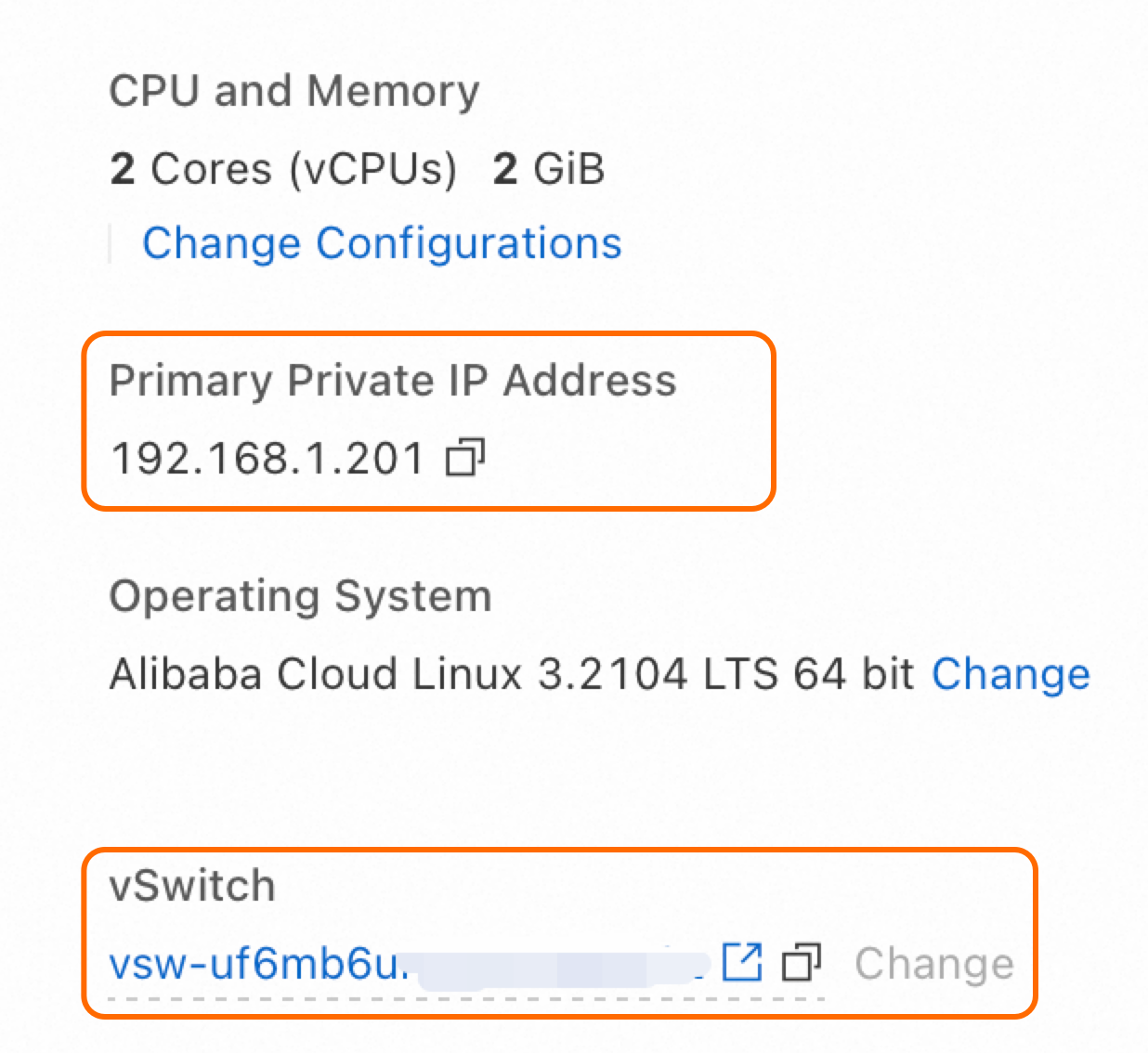
IP addresses in the Configuration Information section:
-
The primary private IP address is 192.168.XX.XX.
-
-
-
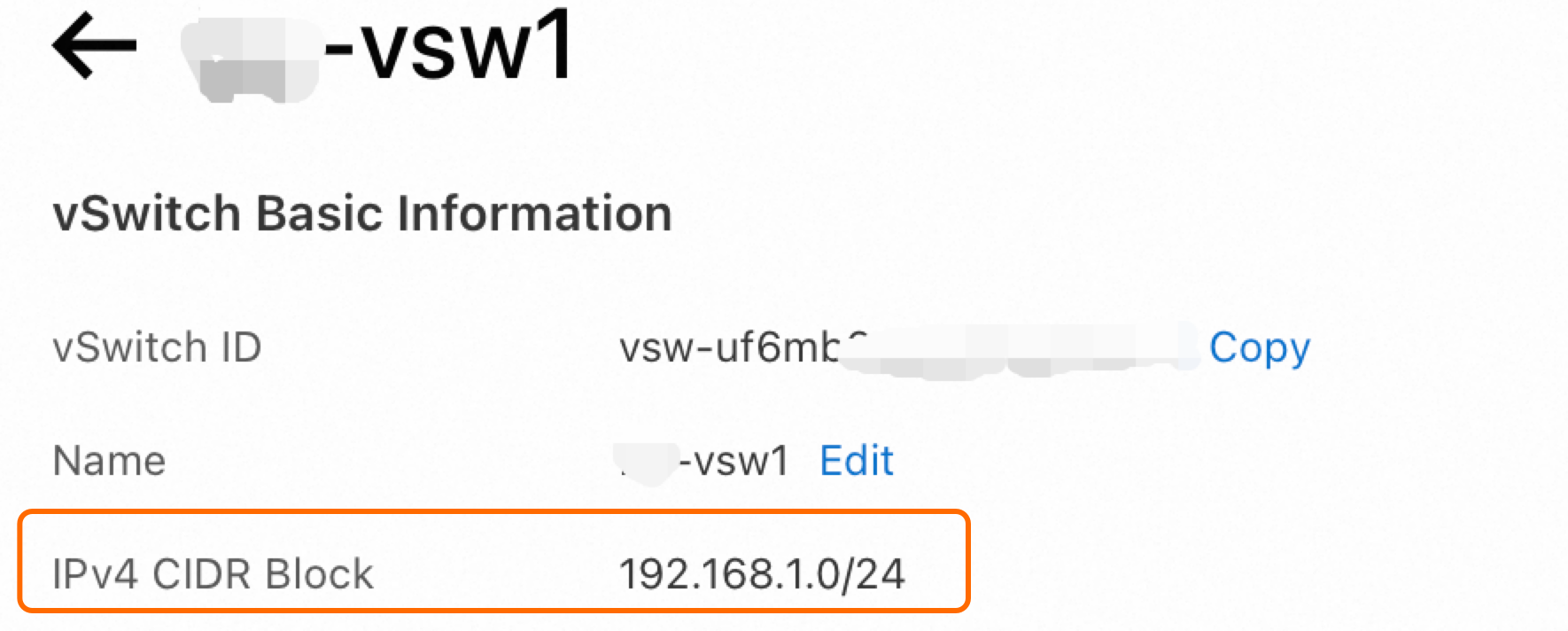
In the Configuration Information section, click the vSwitch ID. In the dialog box, view the IPv4 CIDR block of the vSwitch.
In this example, the vSwitch IPv4 CIDR block is 192.168.1.0/24, the primary ENI private IPv4 address is 192.168.1.201, and the default gateway is 192.168.1.253.
Step 2: Configure the network on the instance
Connect to the instance and run the following commands to configure and activate the primary ENI. Replace <IPv4 address of the primary ENI>, <Subnet mask>, and <Gateway IP address> with the values obtained in Step 1.
sudo ip addr add <IPv4 address of the primary ENI>/<Subnet mask> dev eth0
sudo ip link set eth0 up
sudo ip route add default via <Gateway IP address>
Example:
sudo ip addr add 192.168.1.201/24 dev eth0
sudo ip link set eth0 up
sudo ip route add default via 192.168.1.253
Step 3: Install NetworkManager
Install NetworkManager and verify its status.
sudo yum install -y NetworkManager
sudo systemctl restart NetworkManager
sudo systemctl status NetworkManager
If the network service still fails after re-installing NetworkManager, check the error logs:
journalctl -u NetworkManager