Problem description
The operating system shows fewer logical processors than the vCPUs specified for the ECS instance type.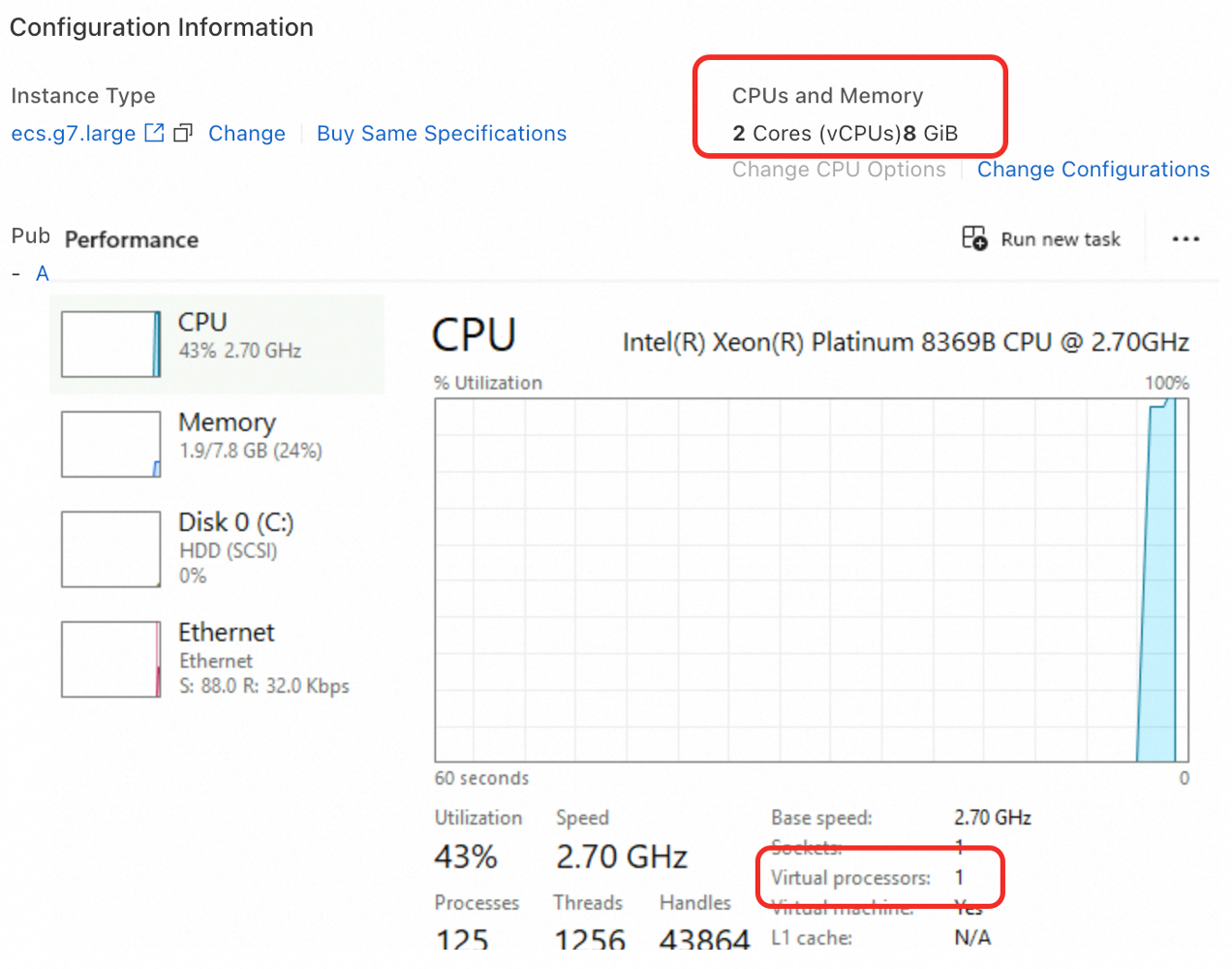
Causes
-
BOOT parameter limitation: A
numprocoronecpuparameter in the Windows Boot Configuration Data (BCD) limits the processor count. -
Hyper-threading is disabled: Threads per Core is set to 1 in the ECS instance configuration, or a registry key has disabled hyper-threading.
Solution
Clear the boot parameter limitation
Remove the boot parameter that limits CPU core count.
Log on to an ECS instance.
Go to ECS console - Instances. In the top-left corner, select the region and resource group for the target instance.
Navigate to the details page of the target instance. Click Connect and select Workbench. Set the connection method to Terminal Connection, enter your username and password, and log on to the graphical terminal.
-
Clear the BOOT parameter limitation.
-
Right-click the
 icon, click Run, enter
 powershell, and press Enter. -
Query the current boot configuration:
bcdedit -
Check the output for
numprocoronecpu. If either exists, delete it. Replace<identifier>with the Windows boot loader identifier from the previous output.# Delete the processor count limit bcdedit /deletevalue "<identifier>" numproc # Delete the single-processor mode limit bcdedit /deletevalue "<identifier>" onecpuIf the identifier is
{current}, runbcdedit /deletevalue "{current}" numprocandbcdedit /deletevalue "{current}" onecpuas needed. -
Restart the instance for the changes to take effect.
-
Enable hyper-threading
If no boot parameters limit the CPU count, check the hyper-threading configuration.
-
Stop the instance.
CPU options can only be changed when the instance is in the Stopped state.
-
Modify the configuration.
Go to ECS console - Instances.
-
Click the instance ID to open its details page. In the Configuration Information section, click Change CPU Options.
-
In the dialog box, verify that Threads per Core is not set to 1. A value of 1 disables hyper-threading.
-
Start the instance.
Start the instance and verify the logical processor count.
Fix disabled hyper-threading via the registry
If Threads per Core is not 1, check whether a security policy has disabled hyper-threading. See KB4072698.
-
Log on to the ECS instance. Right-click the
icon, click Run, and enter regeditto open the Registry Editor. -
Navigate to:
HKEY_LOCAL_MACHINE\SYSTEM\CurrentControlSet\Control\Session Manager\Memory Management -
Check for the
FeatureSettingsOverrideandFeatureSettingsOverrideMaskkeys. If they exist, setFeatureSettingsOverrideto 72 andFeatureSettingsOverrideMaskto 3. -
Restart the instance for the changes to take effect.