This topic describes the cause of and solution to the following issue: The system, memory, or process of the Linux Elastic Compute Service (ECS) instance is abnormal, and the "page allocation failure" error message is displayed in system logs.
Problem description
The system, memory, or process of a Linux ECS instance is abnormal. The system logs show the "page allocation failure" error message, which indicates that the system cannot allocate memory space for new memory pages due to insufficient memory. As a result, memory page allocation fails.
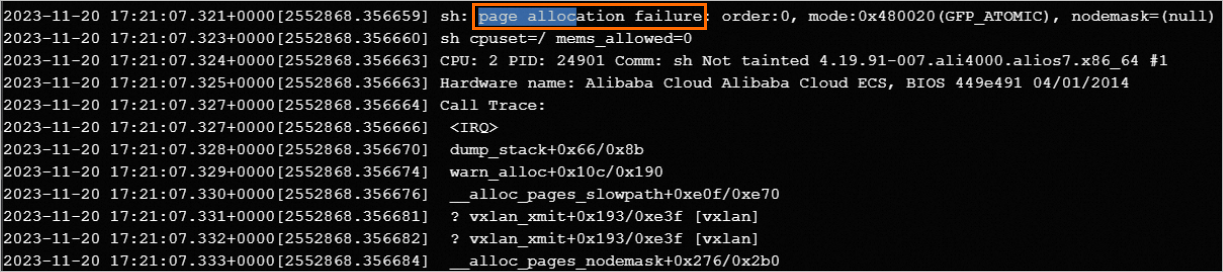
For information about how to view the system logs and screenshots of an instance, see View system logs and screenshots.
Cause
This issue may be caused by insufficient system memory or severe memory fragmentation of the ECS instance. As a result, required memory pages cannot be allocated.
Solution
We recommend that you first try Solution 1: Troubleshoot memory exceptions and optimize memory to resolve the memory usage issue. If the issue persists after you troubleshoot memory exceptions and optimize memory, you can use Solution 2: Upgrade the instance type (vCPUs and memory) to resolve the issue of insufficient memory or severe memory fragmentation.
Solution 1: Troubleshoot memory exceptions and optimize memory
Connect to the Linux instance.
For more information, see Connect to a Linux instance by using a password or key.
Troubleshoot abnormal processes that consume a large amount of memory.
Run the
freeandtopcommands to verify that no memory-intensive processes are running.Run the following command to query the sum amount of physical memory that is occupied by all processes, and compare the result with the value in the free command output to check whether an offset exists:
ps aux|awk '{sum+=$6} END {print sum/1024}'If no offset is found, you can run the following command to sort processes by resident set size (RSS) and identify memory-hungry processes:
ps -eo pid,rss,pmem,pcpu,vsz,args --sort=rssIf no abnormal processes are found in the preceding steps, proceed to the following steps:
Run the following command to check the usage of the slab memory allocator:
cat /proc/meminfo | awk '{sum=$2/1024} {print $1 sum " MB"}'NoteThe
{print $1 sum " MB"}command converts the output to be displayed in MB.Run the
atopcommand to use the atop tool to analyze the memory usage of slabs and check whether the memory usage is high.The following figure shows a sample output.

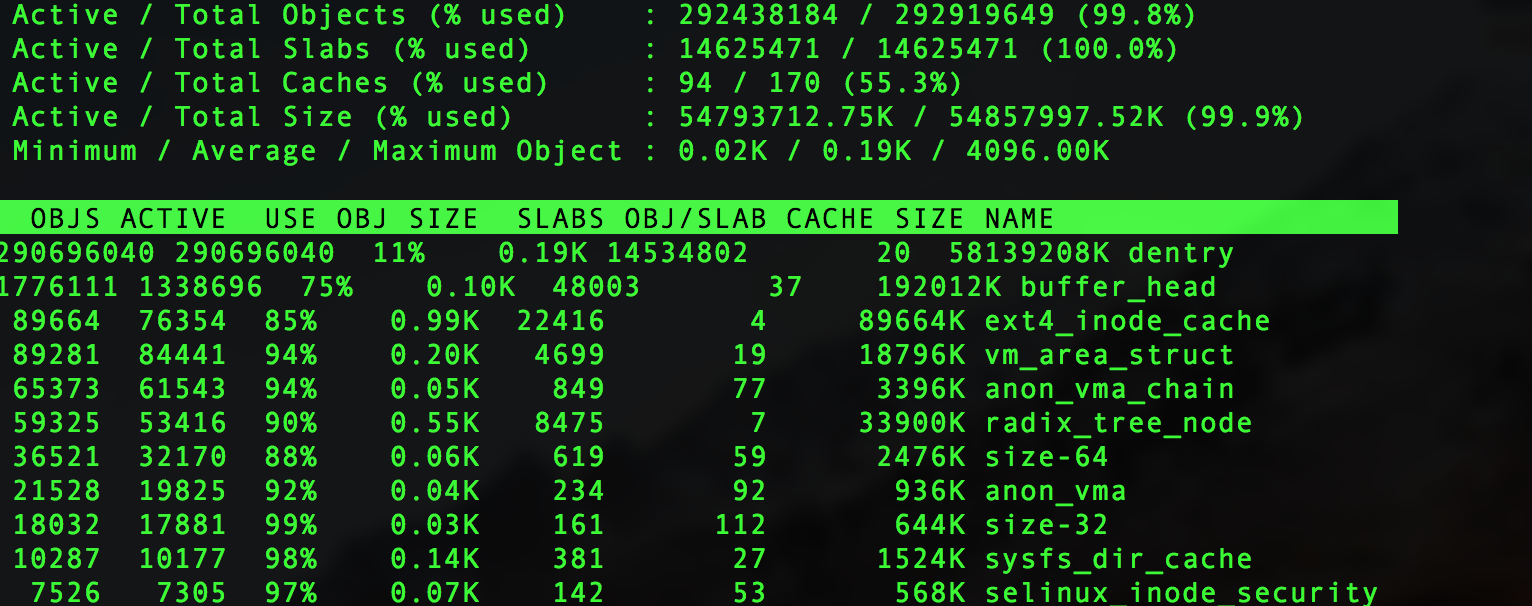
Determine whether the slab memory usage is high based on the command output.
Run the
slabtopcommand to analyze the memory usage of slabs in more details.The following figure shows a sample output.
Perform the following operations to optimize memory:
Release memory
ImportantBefore you release memory, we recommend that you run the
synccommand to ensure that all unwritten data in system caches, including modified inodes, deferred block I/O, and read-write mapping files, is written to disks.To clear the page cache, run the following command:
Clear page caches:
sudo echo 1 > /proc/sys/vm/drop_cachesClear directory and inode caches:
sudo echo 2 > /proc/sys/vm/drop_cachesClear page, directory, and inode caches:
sudo echo 3 > /proc/sys/vm/drop_caches
NoteThe preceding operations are not harmful to the system, because they only release completely unused memory objects, and dirty data remains in use in memory until the data is written to disks.
If multiple executions of the
sudo echo 3 > /proc/sys/vm/drop_cachescommand fail to clear the caches, run thesudo echo 0 > /proc/sys/vm/drop_cachescommand and then thesudo echo 3 > /proc/sys/vm/drop_cachescommand.
Defragment memory
If the system still has insufficient memory after releasing the memory, you can run the following command to defragment memory to resolve the issue of partial memory fragmentation:
NoteThis operation consumes a large amount of CPU resources.
sudo echo 1 > /proc/sys/vm/compact_memoryProperly configure system parameters
Check the following field in the
/etc/sysctl.conffile and set an appropriate value for the minimum amount of free memory allowed. If this value is reached, automatic memory reclaim is triggered.vm.min_free_kbytes
Solution 2: Upgrade the instance type (vCPUs and memory)
If the issue persists after you troubleshoot memory exceptions and optimize memory, you can upgrade the instance type of your ECS instance to resolve the issue of insufficient memory or severe memory fragmentation and ensure that the system can allocate the required memory pages to prevent exceptions in the system, memory, or processes of the instance. For more information, see Overview of instance configuration changes.