Resolve screen resolution issues on UEFI-based Windows instances by adjusting the resolution in UEFI Firmware Settings after connecting with VNC.
Problem description
After you connect to a Windows instance that runs a UEFI image by using VNC, the screen resolution cannot be changed.
Cause
UEFI-based operating systems use a different graphical output mode than Legacy BIOS-based systems. Remote desktop protocols, such as VNC, may be unable to control the display settings on UEFI systems, preventing screen resolution changes.
Solution
The following steps use Windows Server 2022 as an example. Steps may vary by operating system.
(Optional) Create snapshots for the disks attached to the instance to back up data.
Connect to the instance by using VNC.
Restart the instance in recovery mode.
Open Windows Settings and click Update & Security.
In the left-side navigation pane, click Recovery.
Click Restart Now.
ImportantRestarting may interrupt running services. Back up instance data during off-peak hours before restarting.
Open UEFI Firmware Settings.
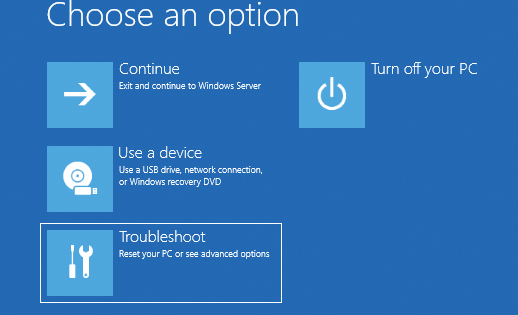
Click Troubleshoot.
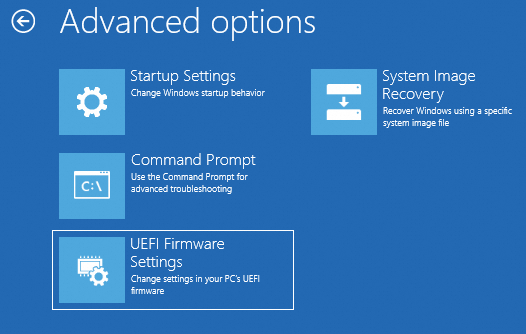
Click UEFI Firmware Settings.
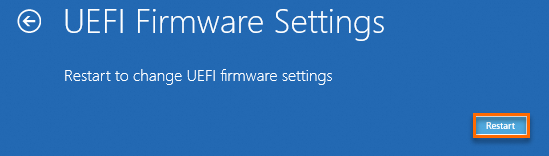
Click Restart to load the UEFI Firmware Settings menu.
Change the screen resolution in UEFI Firmware Settings.
Select Device Manager and press
Enter.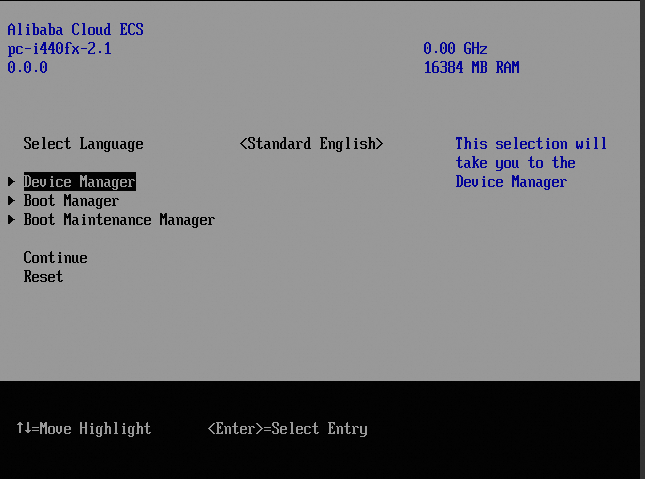
Select OVMF Platform Configuration and press
Enter.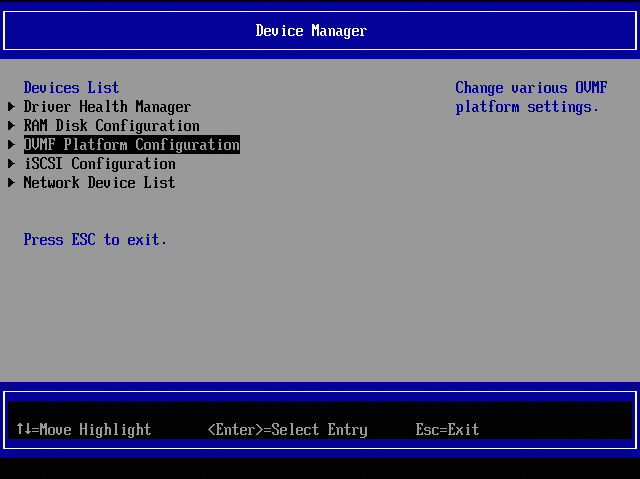
Change Preferred is selected by default. Press
Enter.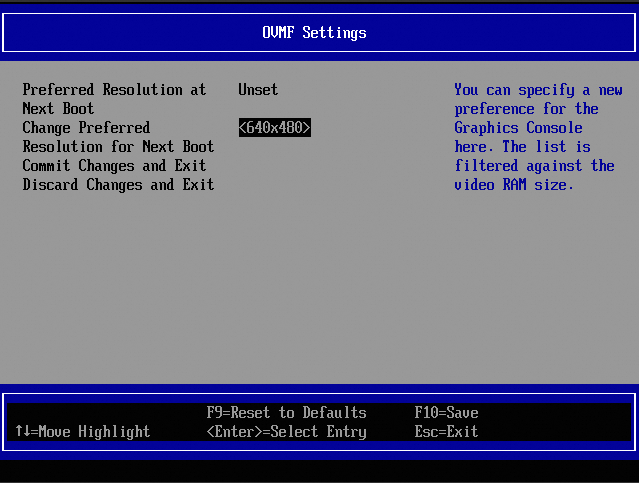
Select a resolution (such as 1280×760) from the drop-down list and press
Enter.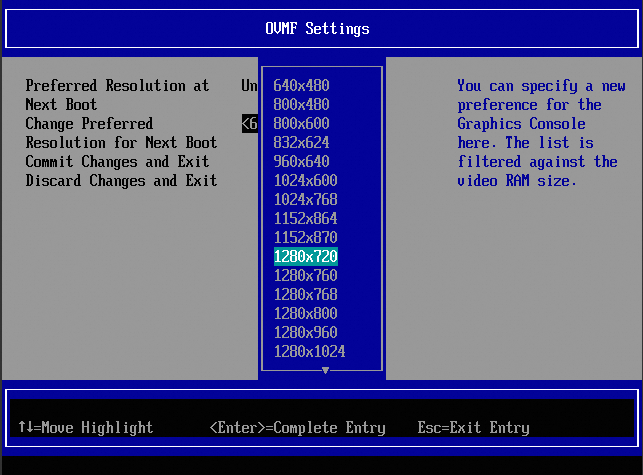
Press
F10to save, enterYto confirm, and pressEscto exit.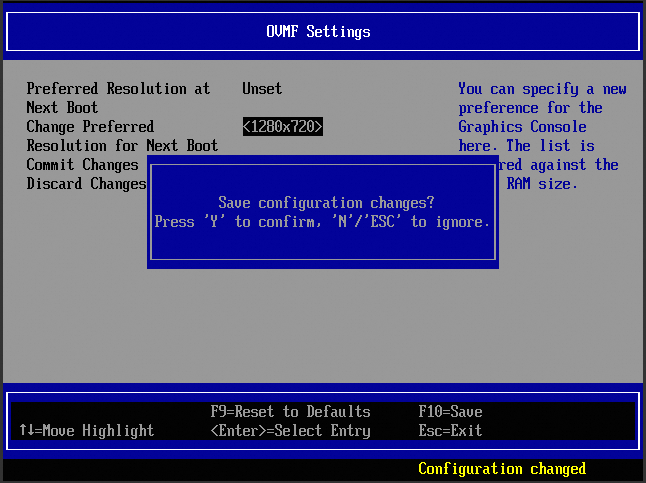
Restart the instance from within the instance.
ImportantIf you restart the instance from the ECS console instead, the screen resolution resets when you reconnect via VNC. Repeat these steps to change it again.
Reconnect to the instance and verify the screen resolution.
Right-click the desktop and select Display settings to check the resolution.