To use an Azure database as the source or destination in a Data Transmission Service (DTS) task, configure network connectivity between Azure and Alibaba Cloud. You can connect over a public IP address or through a VPC-based IPsec-VPN tunnel.
-
Public IP address: Enable public access on Azure, then add DTS server IP addresses to your database security settings.
-
Virtual private cloud (VPC): Establish an IPsec-VPN connection between your Azure virtual network (VNet) and an Alibaba Cloud VPC through VPN Gateway.
Connect over a public IP address
-
Enable public access for your database on the Azure platform.
-
Add the CIDR blocks of DTS servers in the corresponding region to your database security settings (security group rules, firewalls, and whitelists). The specific IP addresses depend on your DTS task type: data migration, data synchronization, or data validation.
If the source database is an Azure SQL Managed Instance, you must use this method to connect the source database to Alibaba Cloud.
Connect over a VPC
Create a secure IPsec-VPN tunnel between an Azure VNet and an Alibaba Cloud VPC for private network connectivity.
Estimated time: 60 to 120 minutes (including gateway provisioning on both sides).
What you accomplish:
-
Create a VPN Gateway instance on Alibaba Cloud
-
Deploy VPN resources (gateway subnet, virtual network gateway, local network gateways, site-to-site connections) on Azure
-
Create customer gateways and an IPsec-VPN connection on Alibaba Cloud
-
Verify network connectivity between the two environments
Scenario

The following example shows a typical cross-cloud setup:
-
A VNet in the Germany West Central region on Azure with a VM instance.
-
A VPC in the Germany (Frankfurt) region on Alibaba Cloud with an Elastic Compute Service (ECS) instance.
-
The enterprise wants to connect the Azure VNet and the Alibaba Cloud VPC through an IPsec-VPN connection associated with a VPN Gateway.
Prerequisites
Make sure you have the following resources:
-
A virtual network in the Germany West Central region on Azure, with a VM instance deployed in it. For instructions, see the Azure portal documentation.
-
A VPC in the Germany (Frankfurt) region on Alibaba Cloud, with an ECS instance.
-
Non-overlapping CIDR blocks for the Azure VNet and the Alibaba Cloud VPC.
Plan CIDR blocks so that the Azure VNet and the Alibaba Cloud VPC address spaces do not overlap. The following example values are used throughout this guide:
|
Resource |
CIDR block |
Instance IP address |
|
Alibaba Cloud VPC |
10.0.0.0/16 |
ECS: 10.0.0.1 |
|
Azure VNet |
192.168.0.0/16 |
VM: 192.168.0.1 |
Security requirements
Configure security settings on both platforms to allow traffic between the Alibaba Cloud VPC and the Azure VNet.
-
Alibaba Cloud: Security group rules must allow inbound and outbound traffic between the VPC (10.0.0.0/16) and the Azure VNet (192.168.0.0/16). For details, see Add a security group rule and Query security group rules.
-
Azure: Network security group rules must allow traffic from the Alibaba Cloud VPC CIDR block. For details, contact Azure support.
-
DTS-specific: Add the
100.104.0.0/16CIDR block to the Azure local network gateways (Step 2) and to the Local Network field of the Alibaba Cloud IPsec-VPN connection (Step 3). DTS uses IP addresses in this block for data transmission. For the full list, see Add the CIDR blocks of DTS servers to a whitelist.
Step 1: Create a VPN Gateway instance on Alibaba Cloud
Create a VPN Gateway instance on Alibaba Cloud. After creation, the instance receives two IP addresses for the IPsec-VPN connection with the Azure VNet.
-
Go to the VPN Gateway console and configure the following parameters. Only key parameters are listed here. For all parameters, see Create and manage a VPN Gateway instance.
Parameter
Description
Example
Name
Name for the VPN Gateway instance.
VPN GatewayRegion
Region for the VPN Gateway instance.
Germany (Frankfurt)
Gateway Type
Gateway type.
Standard
Network Type
Network type.
Public
Tunnels
Tunnel mode. For dual-tunnel vs. single-tunnel, see IPsec-VPN dual-tunnel mode.
Dual-tunnel (default)
VPC
VPC to associate with the VPN Gateway instance.
Select the VPC in Germany (Frankfurt).
vSwitch
A vSwitch from the VPC. In dual-tunnel mode, two vSwitches are required. The system creates an elastic network interface (ENI) in each vSwitch for traffic exchange. Each ENI uses one IP address from its vSwitch. After a VPN Gateway is created, the associated vSwitches cannot be changed.
Select a vSwitch in the VPC.
vSwitch 2
A second vSwitch. For zone-disaster recovery, select vSwitches in different zones. If the VPC has only one zone, select two different vSwitches in the same zone for high availability. If no second vSwitch exists, create one.
Select a second vSwitch.
IPsec-VPN
Enable or disable IPsec-VPN.
Enable (default)
SSL-VPN
Enable or disable SSL-VPN.
Disable (default)
-
Return to the VPN Gateway page. The instance state is initially Provisioning and changes to Active after 1 to 5 minutes, indicating the instance is ready for use.
-
Note the two IP addresses assigned to the VPN Gateway instance. These are used in later steps.
VPN Gateway instance
IP address
VPN Gateway (vpn-gw8dickm386d2qi2g\*\*\*\*)
IPsec address 1 (active): 8.XX.XX.130
IPsec address 2 (standby): 8.XX.XX.75
Step 2: Deploy VPN resources on Azure
Configure the following VPN resources on Azure to establish the IPsec-VPN connection with Alibaba Cloud. For detailed instructions, see the Azure portal documentation or contact Azure support.
-
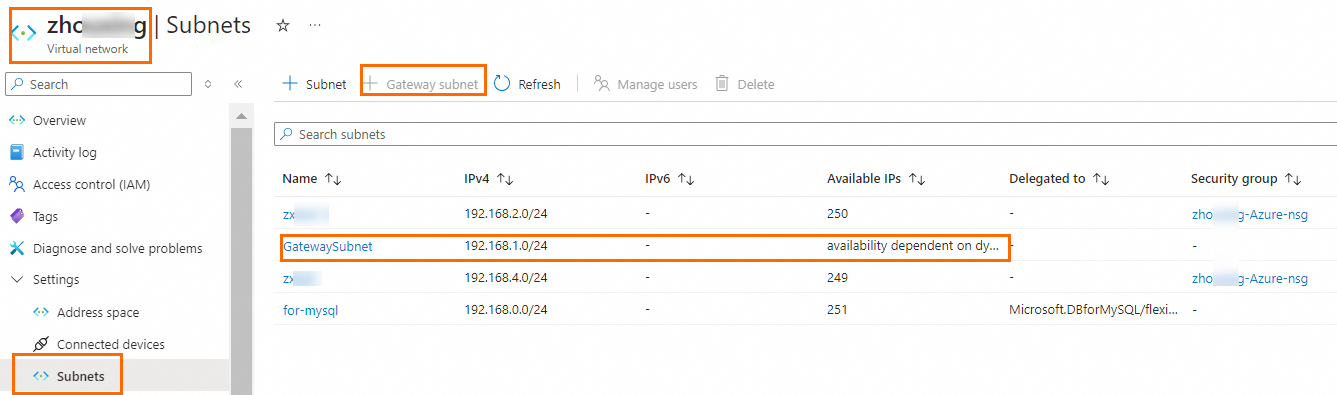
Create a gateway subnet in the virtual network. This subnet is required for the virtual network gateway.
-
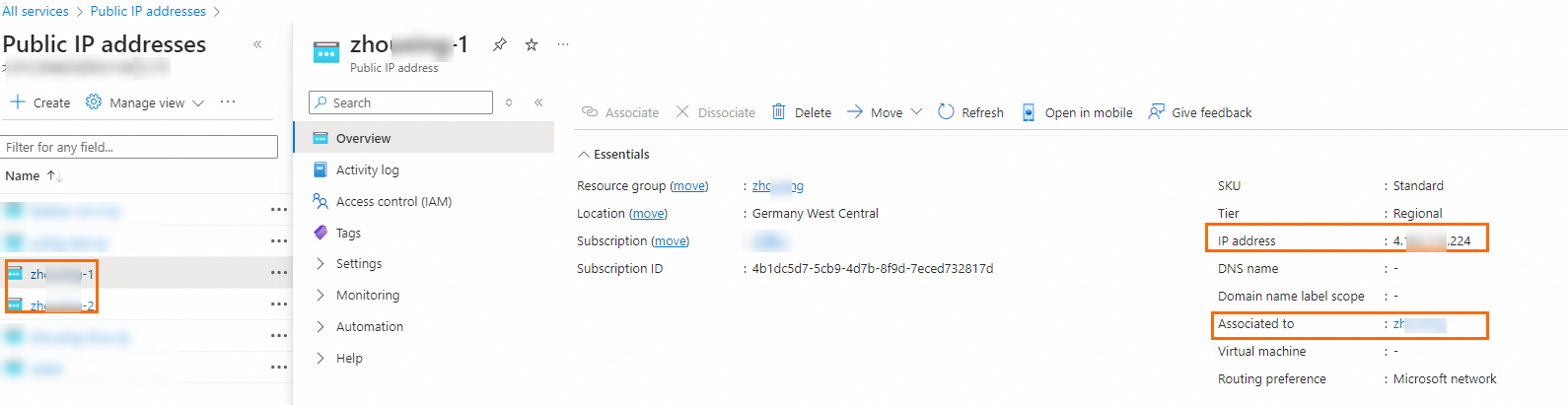
Create a virtual network gateway. Associate the gateway with the virtual network that connects to Alibaba Cloud. Enable active-active mode and create two public IP addresses. Use default values for other parameters. After creation, view the two public IP addresses assigned to the gateway on the Public IP addresses page. In this example:
4.XX.XX.224and4.XX.XX.166.NoteAzure virtual network gateway creation can take 45 minutes or more. Monitor the deployment status on the gateway Overview page.

-
Create two local network gateways. Each local network gateway corresponds to one IP address of the Alibaba Cloud VPN Gateway instance. Add the following CIDR blocks to each local network gateway:
-
Alibaba Cloud VPC:
10.0.0.0/16 -
DTS CIDR block:
100.104.0.0/16
ImportantThe
100.104.0.0/16CIDR block is required for DTS data transmission. For more information, see Add the CIDR blocks of DTS servers to a whitelist.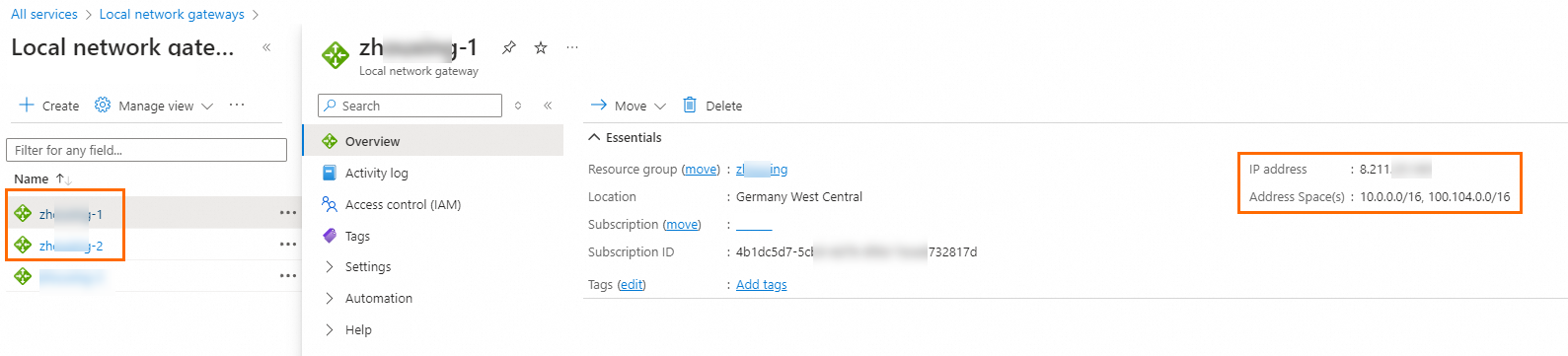
-
-
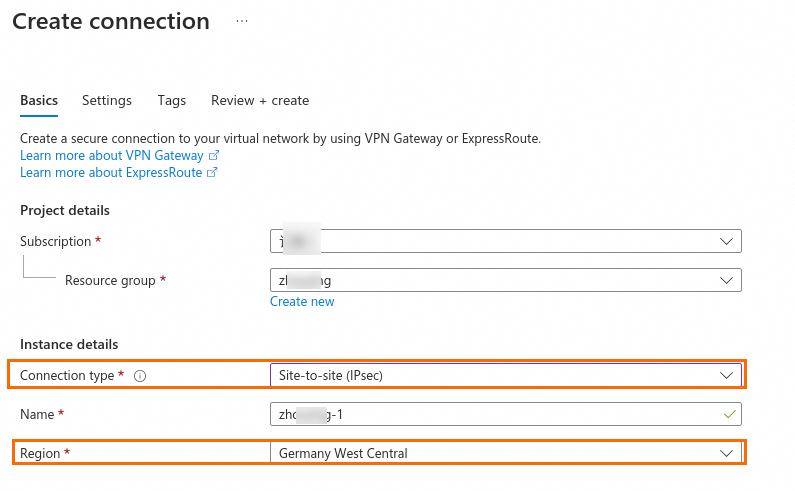
Create two site-to-site VPN connections. For each connection: For the second connection, associate it with the other local network gateway. Keep all other settings the same.
-
Set Connection type to Site-to-site (IPsec).
-
Associate the connection with the virtual network gateway.
-
Select the corresponding local network gateway.
-
Set the shared key. Use the same shared key for the corresponding Alibaba Cloud IPsec-VPN tunnel.
-
Use default values for other parameters.
ImportantBoth Alibaba Cloud and Azure support dual-tunnel mode, but they differ in tunnel architecture. An Azure IPsec-VPN connection binds both tunnels to the same local network gateway by default, while Alibaba Cloud assigns different IP addresses to each tunnel. To enable both tunnels, create two separate site-to-site VPN connections on Azure, each associated with a different local network gateway.

-
Step 3: Create an IPsec-VPN connection on Alibaba Cloud
After deploying Azure VPN resources, configure Alibaba Cloud to complete the IPsec-VPN connection.
3a. Create customer gateways
Create two customer gateways, one for each public IP address of the Azure virtual network gateway.
-
Go to the Customer Gateway page. In the top navigation bar, select Germany (Frankfurt).
-
In the Create Customer Gateway panel, configure the following parameters and click OK. Only key parameters are listed. For all parameters, see Customer gateways.
Parameter
Customer Gateway 1
Customer Gateway 2
Name
Customer Gateway 1Customer Gateway 2IP Address
4.XX.XX.2244.XX.XX.166
3b. Create an IPsec-VPN connection
-
In the left-side navigation pane, choose Interconnections > VPN > IPsec Connections.
-
On the IPsec Connections page, click Bind VPN Gateway.
-
On the Create IPsec-VPN Connection (VPN Gateway) page, configure the following parameters and click OK.
ImportantAdd
100.104.0.0/16to Local Network because DTS uses IP addresses in this CIDR block for data transmission.ImportantThe pre-shared key for each tunnel must match the shared key of its corresponding Azure site-to-site VPN connection. Mismatched keys prevent the IPsec-VPN connection from being established.
Parameter
Description
Example
IPsec-VPN Connection Name
Name for the connection.
IPsec-VPN ConnectionRegion
Region of the VPN Gateway. The connection is created in the same region.
Germany (Frankfurt)
Filter By Resource Group
Resource group of the VPN Gateway.
Default resource group
Associate With VPN Gateway
VPN Gateway to associate.
Select VPN Gateway created in Step 1.
Routing Mode
Routing mode. Destination Routing Mode routes traffic by destination IP. Protected Data Flows (also referred to as policy-based routing) routes traffic by source and destination IP.
Protected Data Flows
Local Network
CIDR blocks of the VPC associated with the VPN Gateway.
10.0.0.0/16and100.104.0.0/16Remote Network
CIDR block of the Azure VNet.
192.168.0.0/16Effective Immediately
Start negotiations immediately or wait for inbound traffic.
Yes
Enable BGP
Enable Border Gateway Protocol (BGP) dynamic routing.
Disabled (default)
Tunnel 1 (Primary):
Parameter
Description
Example
Customer Gateway
Customer gateway for the primary tunnel.
Customer Gateway 1
Pre-Shared Key
Authentication key (1 to 100 characters: digits, letters, and special characters). Must match the corresponding Azure VPN connection shared key. If not specified, the system generates a 16-character key.
Same key as the Azure VPN connection
Encryption Configurations
IKE, IPsec, Dead Peer Detection (DPD), and NAT traversal settings.
Default values. For details, see IPsec-VPN connections.
Tunnel 2 (Backup):
Parameter
Description
Example
Customer Gateway
Customer gateway for the backup tunnel.
Customer Gateway 2
Pre-Shared Key
Must match the corresponding Azure VPN connection shared key.
Same key as the Azure VPN connection
Encryption Configurations
IKE, IPsec, DPD, and NAT traversal settings.
Default values
-
In the Created message, click Cancel.
3c. Publish the policy-based route
After the IPsec-VPN connection is created with Protected Data Flows routing, a policy-based route is automatically generated. Publish this route to the VPC.
-
In the left navigation pane, choose Interconnections > VPN > VPN Gateways.
-
In the top navigation bar, select the region of the VPN Gateway.
-
Click the ID of the VPN Gateway.
-
On the details page, click the Policy-based Route Table tab. Find the route and click Advertise in the Actions column.
-
In the Advertise Route dialog box, click OK.
Step 4: Verify network connectivity
After completing the configuration on both platforms, test the connection between the Azure VNet and the Alibaba Cloud VPC.
Before testing, make sure security group rules on both Alibaba Cloud and Azure allow traffic between the VPC and VNet. See Security requirements.
-
Log in to an Azure VM instance in the Azure VNet. For instructions, see the Azure portal documentation.
-
Run the
pingcommand to reach the private IP address of the Alibaba Cloud ECS instance: A successful reply confirms that the Azure VNet and the Alibaba Cloud VPC can communicate.ping 10.0.0.1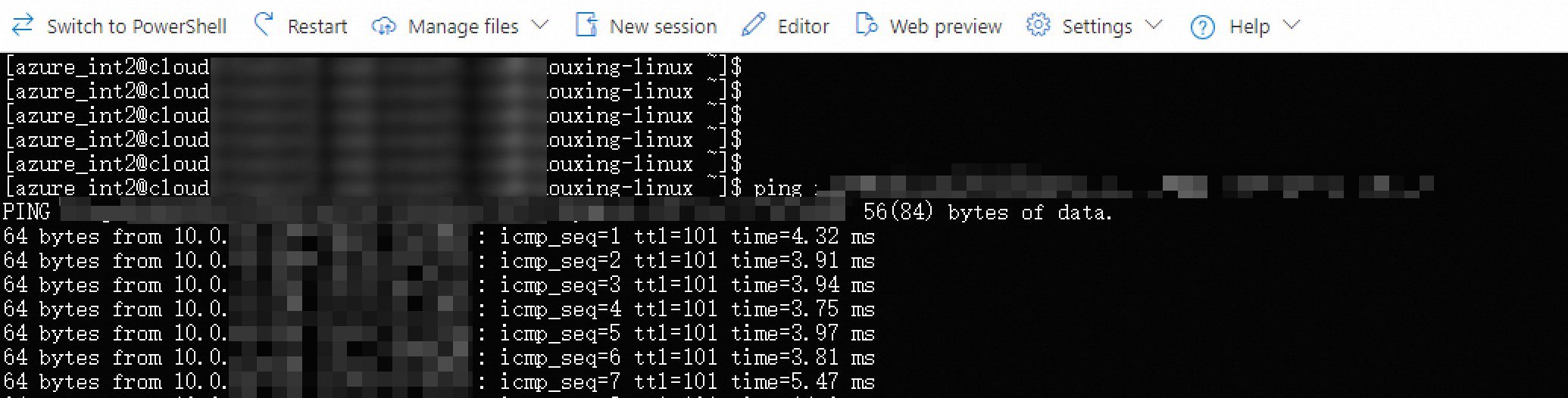
Troubleshooting
If the ping test fails, check the following:
-
Check IPsec-VPN connection status. On the Alibaba Cloud VPN Gateway console, verify that the IPsec-VPN connection status is Connected and both tunnels are up.
-
Verify route advertisement. Confirm that the policy-based route is published to the VPC (Advertised status on the Policy-based Route Table tab).
-
Check security group rules. On both Alibaba Cloud and Azure, confirm that security group rules allow ICMP traffic and the relevant CIDR blocks.
-
Verify Azure VPN connection status. On the Azure portal, check the site-to-site VPN connection status. If the connection shows as Not connected, verify that the pre-shared key and encryption settings match between Azure and Alibaba Cloud.
-
Reset the VPN gateway. If the connection was previously working, try resetting the Azure virtual network gateway. For instructions, see the Azure VPN Gateway documentation.
Next steps
After connectivity is established, add the CIDR blocks of DTS servers to your database security settings (security group rules, firewall policies, and whitelists). The required IP addresses depend on your DTS task type: