This topic describes how to install the xdragon_hardware_detect_plugin monitoring plug-in on an ECS bare metal instance with a local disk.
Prerequisites
The target ECS bare metal instance must meet the following requirements:
The instance is in one of the following regions: China (Beijing), China (Shanghai), China (Hangzhou), China (Shenzhen), or China (Zhangjiakou).
The instance runs a Linux operating system.
This requirement applies only if you use OOS to install the monitoring plug-in in batches by matching tags. If you want to select ECS bare metal instances by tag, ensure that the target instances are tagged. For more information, see Create or add a tag.
The Cloud Assistant Agent is installed. For more information, see Install the Cloud Assistant Agent.
NoteThe Cloud Assistant Agent is pre-installed on ECS instances that are created from a public image after December 1, 2017.
Background information
If you use an ECS bare metal instance with a local disk, you must monitor and diagnose the health of the local disk.
The xdragon_hardware_detect_plugin plug-in periodically checks the health of local disks on your ECS bare metal instance. If the plug-in detects an error on a local disk, it automatically reports a system event. The corresponding system event code is SystemMaintenance.ReInitErrorDisk. For more information, see Maintenance and system events for instances with local disks.
OOS batch installation
You can use a public template in CloudOps Orchestration Service (OOS) to automatically install the xdragon_hardware_detect_plugin monitoring plug-in.
Log on to the OOS console.
In the upper-left corner of the page, select a region and resource group.

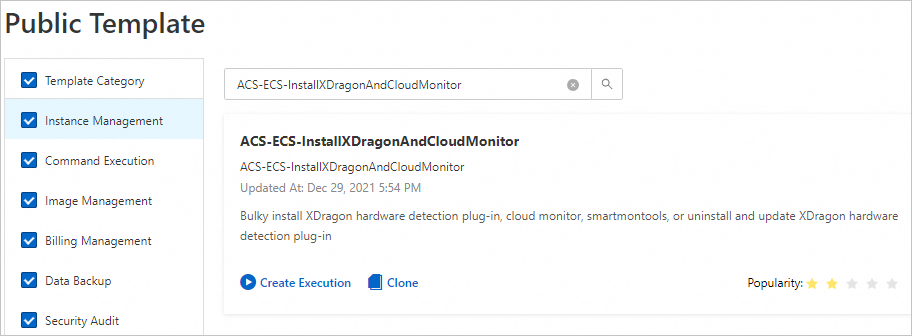
In the left-side navigation pane, choose . Search for ACS-ECS-InstallXDragonAndCloudMonitor to find the template for installing the X-Dragon monitoring plug-in, and then click Create an execution..
In the Create an execution. dialog box, complete the following steps:
In the Basic Information step, set execution mode to Automatic and leave the other parameters at their default values. Then, click Next: Set Parameters.
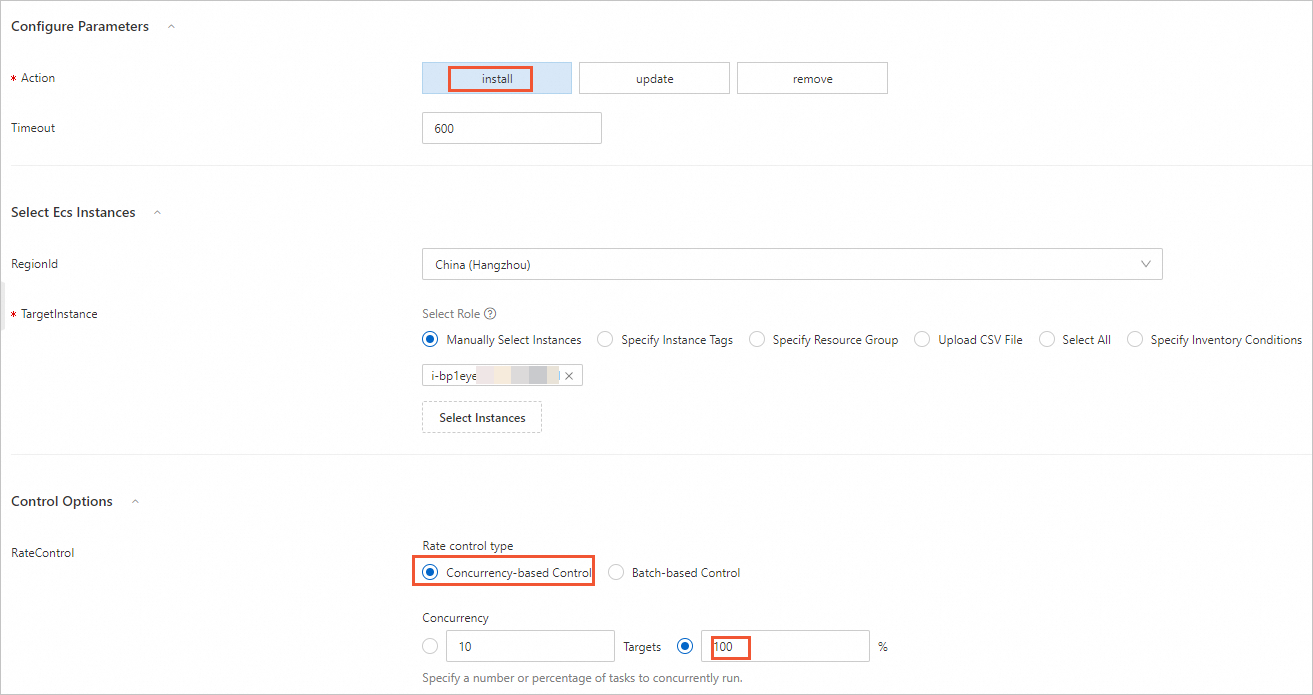
In the Parameter Settings step, configure the following parameters and leave the other parameters at their default values. Then, click Next: Confirm.
Action: Select install to install the plug-in.
NoteThis template can be used to install, update, or uninstall the monitoring plug-in. Select the required action.
Target Instances: Select one or more ECS bare metal instances on which to install the monitoring plug-in.
Rate Control: Select Concurrency-based Control. For Concurrency, select % and set the value to 100.
Confirm the template configuration and click Create.
After the automated task is created, you can view the execution results on the Executions page.
If Success is displayed in the Execution Status column corresponding to the O&M task, the O&M task is completed.
If Failed is displayed in the Execution Status column corresponding to the O&M task, you can click Details in the Actions column. Click Log in the Output section. Then, you can analyze and adjust the execution content based on the log information.
Manual installation
You can use the aliyun_installer tool provided by the Cloud Assistant Agent to download and install the xdragon_hardware_detect_plugin monitoring plug-in.
Connect to the ECS bare metal instance as the root user.
(Optional) Run the
aliyun_installer -hcommand to view help information about the tool.Run the aliyun_installer command to install the xdragon_hardware_detect_plugin monitoring plug-in.
aliyun_installer -i xdragon_hardware_detect_plugin -e 1.0.0Save and run the shell script to install a specific version of the CloudMonitor agent. For the script content, see Sample script below.
bash <nameOfTheScript>.shNoteYou must install the xdragon_hardware_detect_plugin monitoring plug-in before you install the CloudMonitor agent. If you have already installed the CloudMonitor agent, run the
/usr/local/cloudmonitor/CmsGoAgent.linux-amd64 restartcommand to restart it.Run the
smartctl -Vcommand to check whether the smartctl local disk analysis tool is installed.If the command output includes the version number, the tool is installed.
(Optional) If the smartctl tool is not installed, install it based on your operating system:
CentOS:
yum install smartmontoolsUbuntu:
apt update && apt install smartmontoolsFor other Linux distributions, see the smartmontools documentation.
The following sample script manually installs a specific version of the CloudMonitor agent:
#!/bin/bash
echo "installing cms agent"

if [ -z "${CMS_HOME}" ]; then
  CMS_HOME="/usr/local/cloudmonitor"
  [[ ! -z "`egrep -i coreos /etc/os-release`" ]] && CMS_HOME="/opt/cloudmonitor"
fi

if [ `uname -m` = "x86_64" ]; then
    ARCH="amd64"
else
    ARCH="386"
fi

VERSION="2.1.57"
ELF_NAME=CmsGoAgent.linux-${ARCH}
DOWNLOAD_PATH="cms-go-agent/${VERSION}/${ELF_NAME}"
DEST_UPDATE_FILE="$CMS_HOME/${ELF_NAME}"

current_cms_version="0"
# The X-Dragon architecture is always x86, so just check the version.
if [ -f /usr/local/cloudmonitor/CmsGoAgent.linux-amd64 ]; then
    current_cms_version="$($DEST_UPDATE_FILE version)"
fi

if [ $current_cms_version = "2.1.57" ]; then
    echo "CmsGoAgent already installed"
    echo "Installation success."
    exit 0
fi

if [ -z "${REGION_ID}" ]; then
  REGION_ID="$(wget -q --timeout=1 -t 1 -O - 'http://100.100.100.200/latest/meta-data/region-id')"
fi


if [ -d $CMS_HOME ] ; then
  if [ -f $CMS_HOME/wrapper/bin/cloudmonitor.sh ] ; then
    $CMS_HOME/wrapper/bin/cloudmonitor.sh remove;
    rm -rf $CMS_HOME;
  elif [ -f $DEST_UPDATE_FILE ]; then
    $DEST_UPDATE_FILE stop
    #$DEST_UPDATE_FILE uninstall
    ps aux | grep -v grep | grep $ELF_NAME
  fi
fi

download()
{
  if [ -z "${REGION_ID}" ]; then
    echo "Network type is classic."
    OSS_URL="http://cms-agent-cn-hangzhou.oss-cn-hangzhou-internal.aliyuncs.com/$DOWNLOAD_PATH"
  else
    echo "networkType is vpc, REGION_ID: $REGION_ID"
    if [[ "$REGION_ID" = "cn-shenzhen-finance-1" ]]; then
      OSS_URL="http://cms-download.aliyun.com/$DOWNLOAD_PATH"
      CMS_PROXY="szcmsproxy.aliyun.com:3128"
    elif [[ "$REGION_ID" = "cn-shanghai-finance-1" ]]; then
      OSS_URL="http://cms-agent-$REGION_ID.oss-$REGION_ID-pub-internal.aliyuncs.com/$DOWNLOAD_PATH"
    elif [[ "$REGION_ID" = "ap-south-1" ]]; then
      OSS_URL="http://cms-download.aliyun.com/$DOWNLOAD_PATH"
      CMS_PROXY="cmsproxy-ap-south-1.aliyuncs.com:8080"
    elif [ "$REGION_ID" = "ap-southeast-3" -o "$REGION_ID" = "me-east-1" -o "$REGION_ID" = "cn-chengdu" ]; then
      OSS_URL="http://cms-download.aliyun.com/$DOWNLOAD_PATH"
    else
      OSS_URL="http://cms-agent-$REGION_ID.oss-$REGION_ID-internal.aliyuncs.com/$DOWNLOAD_PATH"
    fi
  fi
  echo download from "$OSS_URL"
  wget -q -e "http_proxy=$CMS_PROXY" "$OSS_URL" -O "$DEST_UPDATE_FILE" -t 3 --connect-timeout=2
  if [ $? != 0 ]; then
    echo "Download failed. Retrying..."
    CMS_PROXY="vpc-opencmsproxy.aliyun.com:8080";
    OSS_URL="http://cms-download.aliyun.com/$DOWNLOAD_PATH"
    wget -q -e "http_proxy=$CMS_PROXY" "$OSS_URL" -O "$DEST_UPDATE_FILE" -t 3 --connect-timeout=2
  fi
  if [ $? != 0 ]; then
    echo "Download failed. Retrying..."
    CMS_PROXY="opencmsproxy.aliyun.com:8080";
    OSS_URL="http://cms-download.aliyun.com/$DOWNLOAD_PATH"
    wget -q -e "http_proxy=$CMS_PROXY" "$OSS_URL" -O "$DEST_UPDATE_FILE" -t 3 --connect-timeout=2
  fi
}

mkdir -p $CMS_HOME && \
chown -R root:root $CMS_HOME && \
download && \
chmod a+x $DEST_UPDATE_FILE
$DEST_UPDATE_FILE check
RC=$?
if [ ${RC} -ne 0 ]; then
    echo CmsGoAgent install failed, your platform is not supported
    exit ${RC}
fi

$DEST_UPDATE_FILE install >/dev/null 2>&1 || true
$DEST_UPDATE_FILE start
ps aux | grep -v grep | grep $ELF_NAME

ACT_VERSION=`$DEST_UPDATE_FILE version`
if [ -n "$ACT_VERSION" ]; then
    echo CmsGoAgent v$ACT_VERSION installed
else
    echo CmsGoAgent install failed
    exit 1
fi
Results
After installation, the xdragon_hardware_detect_plugin monitoring plug-in is located in the /usr/local/xdragon_hwqc directory. To update the plug-in, run aliyun_installer -d xdragon_hardware_detect_plugin. To uninstall it, run aliyun_installer -u xdragon_hardware_detect_plugin.
Next steps
You can call an ECS API operation to isolate a faulty local disk. After the disk is isolated, the ECS bare metal instance continues to run on the same physical server. For more information, see Maintenance and system events for instances with local disks.