Use case
Assume that your application is deployed in two data centers: A and B. Each data center has a public IP address for ingress traffic. You want to distribute traffic between the two data centers according to a specific ratio during normal operations. If one data center fails, the system detects the failure and removes its IP address from service. When the data center recovers, its IP address is automatically added back to resume load balancing.
Preparations
Your domain
cloud-example.comis hosted on Alibaba Cloud DNS. The subdomain managed by GTM iswww.cloud-example.com.NoteIf your domain uses a third-party DNS provider, add a CNAME record pointing to the GTM access zone name in that provider's console.
A GTM instance is available. If not, purchase a subscription instance.
The desired traffic scheduling result is:
Source of DNS query
Application service endpoint
Weight ratio
Global default
1.1.XX.XX, 2.2.XX.XX
1:1
NoteAdjust the ratio as needed. A higher weight value means the domain name is resolved to the corresponding address more frequently.
Procedure
Go to the Alibaba Cloud DNS - Global Traffic Manager console.
On the Access Domain tab, click Create Access Domain.
In the Select Scenario dialog box, select Multi-active Load Balancing.
On the Create Access Domain page, click the access domain icon and select Basic Configuration.
On the Basic Configuration page, configure the parameters and click Submit. For more information, see Step 1. Configure an access domain.
On the current page, click the address pool icon and select Basic Configuration.

On the canvas, click the address icon and select Basic Configuration. On the configuration page, add an address and configure its settings, such as a health check template. This example uses the TCP probe protocol to probe port 80 on the server. You can use this method to add an address and associate it with a health check template.
NoteIf no health check template exists, click Add Health Check Template. For details, see Health check templates.
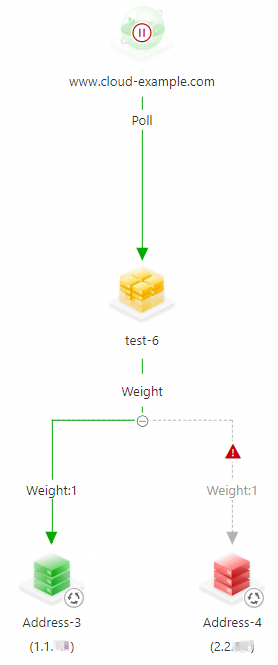 Important
If you encounter red or orange alerts during setup, check the health status of your addresses.
You do not need to configure a load balancing policy. The scenario template automatically generates a policy.
NoteTo adjust the weight ratio, click the weight value above the address pool.
ImportantDuring testing, you may find that DNS resolution results do not always match the weight configuration. This is normal because weight-based scheduling is a coarse-grained method that applies to requests from local DNS servers. A local DNS server queries the authoritative DNS server (Alibaba Cloud DNS) only once during the Time-to-Live (TTL) period.
For example, assume that users in Shanghai use localdnsA and users in Beijing use localdnsB. When localdnsA and localdnsB send query requests to GTM, GTM responds according to your weight policy. However, within the TTL period, all users on the same local DNS server receive the same resolution result.
Configure alert rules for the instance. For details, see Configure alerts.
On the Access Domain page, click the access domain icon and select Enable.
In the confirmation dialog box, verify the details and click OK to enable the Access Domain.
ImportantIf a DNS record with the same name and type already exists in Alibaba Cloud DNS, GTM policies take precedence over standard domain name resolution for that domain.
If the GTM instance is disabled or deleted, DNS queries fall back to Alibaba Cloud DNS Public Zone records.