You can share a data source with other workspaces by granting permissions. After you share a data source, you can access it from the target workspace. This topic describes how to manage permissions for a data source and view the shared data source.
Background
A data source typically contains sensitive information, such as connection addresses, usernames, and passwords. Developers usually only need to reference a data source to access data. If this sensitive information is exposed, or if anyone can modify the data source, it can create security risks. For example, if multiple users modify a data source's configuration, it may cause connection errors and cause dependent tasks to fail.
To prevent these issues, Data Integration provides a strict permission model where only the data source's creator can manage its permissions. The creator can grant access to specific workspaces or users.
Limitations
-
Data source permission management supports sharing data sources only across workspaces. It does not support permission control for data sources within the same workspace.
-
In a workspace, only the Alibaba Cloud account, an administrator, or a security administrator can edit a data source.
Considerations
To control data output and write access for a specific table within a data source, you can use the Approval Center to define custom approval policies for Data Integration. The Approval Center allows administrators to define which Data Integration tasks require approval based on the combination of source and destination data sources. For more information, see Data Integration approval policies.
Grant permissions
Log on to the DataWorks console. In the target region, click in the left-side navigation pane. Select a workspace from the drop-down list and click Go to Management Center.
-
In the left-side navigation pane, click Data Sources to go to the Data Sources page.
-
On the Data Sources page, go to the Data Sources. Find the data source that you want to manage and click the
 icon in the Connection Information column to open the Data Source Permission Management dialog box.
 -
In the Data Source Permission Management dialog box, configure the parameters.
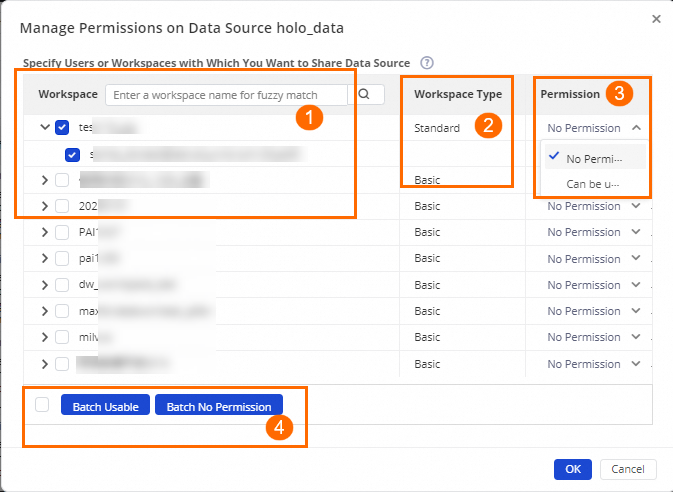
No.
Parameter
Description
①
Workspace
This section lists all workspaces that you are a member of and all members in each workspace. You can share the data source with an entire workspace or with specific members.
-
If no permissions are configured for the data source, it inherits the previous permission settings.
-
When you configure permissions for a workspace, the settings apply to all members in that workspace, including new members added later. After you grant permissions to a workspace, you can still override the permissions for a specific member. For example, you can set the permission to No permission for the entire workspace but set it to Allowed for a specific member.
-
You can control permissions for members of the current workspace.
-
A project administrator can use a data source only after you grant the required permissions.
②
Workspace Type
The type of the workspace. The value can be Basic or Standard.
③
Permission
The following permission types are supported:
-
No permission: The specified workspace or user cannot see or use the data source.
-
Allowed: The specified workspace or user can use and edit the data source.
ImportantWhen you share a data source, you are creating a reference to the original. Editing a shared data source modifies the original. Be cautious when granting edit permissions.
④
Batch Operations
After selecting multiple workspaces or members, you can grant them permissions in bulk by using Batch Usable and Batch No permission.
-
-
Click Determine.
You can share data sources across workspaces based on the following rules:
-
Sharing from a basic mode workspace to another basic mode workspace:
-
If the source workspace is upgraded to standard mode, the data source is shared from its production environment.
-
If the destination workspace is upgraded to standard mode, two data sources with identical content are created, one for the development environment and one for the production environment.
-
-
Sharing from a basic mode workspace to a standard mode workspace: Two data sources with identical content are created in the destination workspace, one for the development environment and one for the production environment.
-
Sharing from a standard mode workspace to another standard mode workspace: The environment of the data source is preserved after sharing. A data source from a development environment is shared to the development environment, and a data source from a production environment is shared to the production environment.
-
Sharing from a standard mode workspace to a basic mode workspace:
-
You can share a data source from either the production or development environment of the source workspace. Only one shared data source can exist in the destination workspace. The most recently shared data source overwrites any existing one.
-
If the destination workspace is upgraded to standard mode, the shared data source is split into two instances with identical content, one for the development environment and one for the production environment. Both maintain their link to the original shared data source.
-
-
View shared data sources
In the top navigation bar, switch to the workspace to which you granted permissions. Go to the Data Sources page of that workspace to view the shared data source.
On this page, you can view information about shared data sources, such as Data source information, Connection Information, Description, and Creation time. Shared data sources are named in the format Sharing workspace name.Data source name.
