All Products
Search
Document Center

:Integrate the AI assistant with Lark

Last Updated:May 09, 2026

Create a Lark app

  1. Go to the Lark Open Platform or Lark Open Platform, click Create Custom Enterprise App, enter an app name and description, select an app icon, and click Create.

  2. In the left-side navigation pane, go to the Credentials & Basic Information page. Copy the App ID (for example, cli_xxx) and App Secret.

  3. In the left-side navigation pane, click Permissions & Scopes. Click Bulk Import/Export Permissions, paste the following JSON configuration, click Next, confirm the new permissions, and click Request to Activate.

    JSON configuration

    {
      "scopes": {
        "tenant": [
          "contact:contact.base:readonly",
          "docx:document:readonly",
          "im:chat:read",
          "im:chat:update",
          "im:message.group_at_msg:readonly",
          "im:message.p2p_msg:readonly",
          "im:message.pins:read",
          "im:message.pins:write_only",
          "im:message.reactions:read",
          "im:message.reactions:write_only",
          "im:message:readonly",
          "im:message:recall",
          "im:message:send_as_bot",
          "im:message:send_multi_users",
          "im:message:send_sys_msg",
          "im:message:update",
          "im:resource",
          "application:application:self_manage",
          "cardkit:card:write",
          "cardkit:card:read"
        ],
        "user": [
          "contact:user.employee_id:readonly",
          "offline_access",
          "base:app:copy",
          "base:field:create",
          "base:field:delete",
          "base:field:read",
          "base:field:update",
          "base:record:create",
          "base:record:delete",
          "base:record:retrieve",
          "base:record:update",
          "base:table:create",
          "base:table:delete",
          "base:table:read",
          "base:table:update",
          "base:view:read",
          "base:view:write_only",
          "base:app:create",
          "base:app:update",
          "base:app:read",
          "board:whiteboard:node:create",
          "board:whiteboard:node:read",
          "calendar:calendar:read",
          "calendar:calendar.event:create",
          "calendar:calendar.event:delete",
          "calendar:calendar.event:read",
          "calendar:calendar.event:reply",
          "calendar:calendar.event:update",
          "calendar:calendar.free_busy:read",
          "contact:contact.base:readonly",
          "contact:user.base:readonly",
          "contact:user:search",
          "docs:document.comment:create",
          "docs:document.comment:read",
          "docs:document.comment:update",
          "docs:document.media:download",
          "docs:document:copy",
          "docx:document:create",
          "docx:document:readonly",
          "docx:document:write_only",
          "drive:drive.metadata:readonly",
          "drive:file:download",
          "drive:file:upload",
          "im:chat.members:read",
          "im:chat:read",
          "im:message",
          "im:message.group_msg:get_as_user",
          "im:message.p2p_msg:get_as_user",
          "im:message:readonly",
          "search:docs:read",
          "search:message",
          "space:document:delete",
          "space:document:move",
          "space:document:retrieve",
          "task:comment:read",
          "task:comment:write",
          "task:task:read",
          "task:task:write",
          "task:task:writeonly",
          "task:tasklist:read",
          "task:tasklist:write",
          "wiki:node:copy",
          "wiki:node:create",
          "wiki:node:move",
          "wiki:node:read",
          "wiki:node:retrieve",
          "wiki:space:read",
          "wiki:space:retrieve",
          "wiki:space:write_only"
        ]
      }
    }
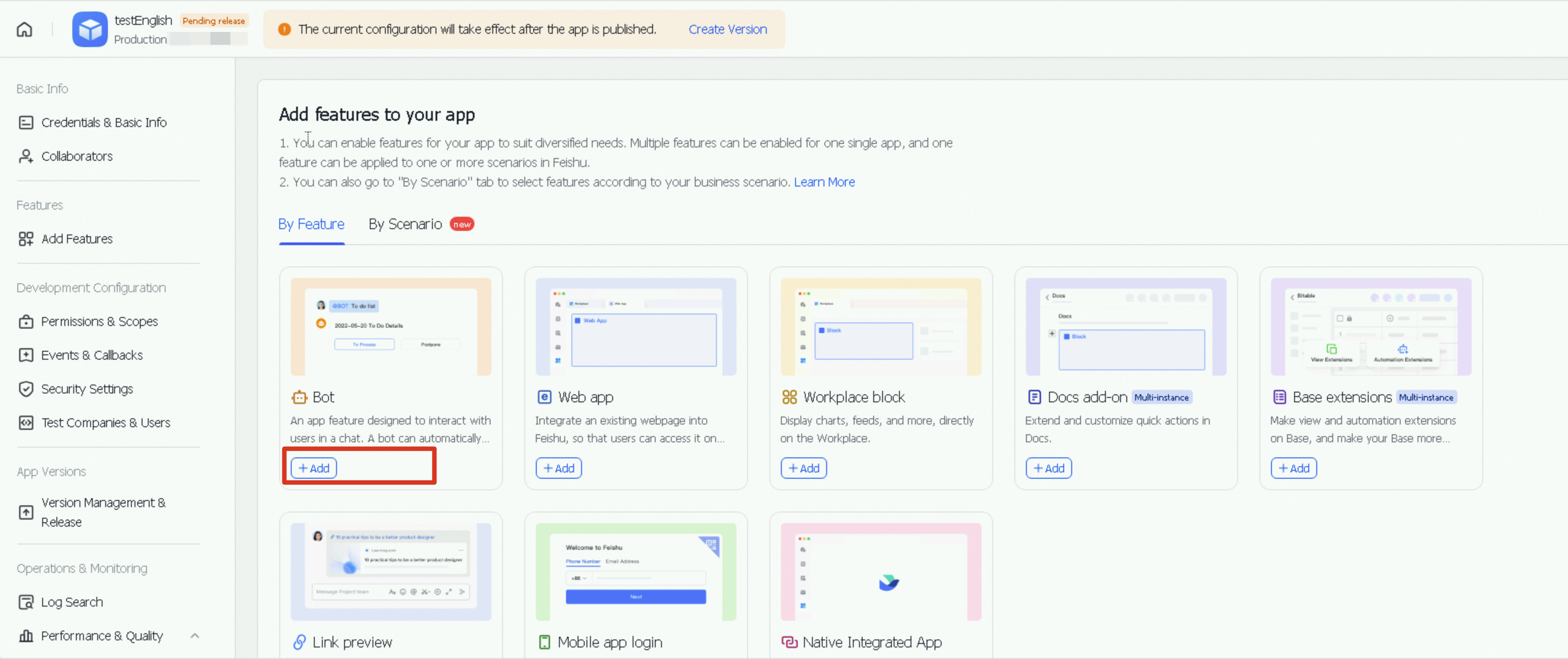
  4. In the left navigation bar, click Add Application Capability, select the Add by Capability tab, find the bot card, and click Configuration.

    image

  5. Configure event subscriptions.

    1. Return to the DataWorks console and create a DataClaw instance. For more information, see AI assistant configuration.

    2. In the left-side navigation pane of the Lark Open Platform, click Event Subscriptions. On the Event Subscription tab, under Subscription Method, select Use long-lived connection to receive events and click Save.

    3. On the Event Subscription page, click Add Event. On the Subscribe as App tab, search for "message" and select the Receive messages, Message reaction created, and Message reaction canceled events. Then click Confirm.

  6. On the Version Management and Publishing page, create a version, enter the app version and update notes, click Save, submit for review, and publish.

Configure the bot

You can create a new group chat or add the bot to an existing one. To test the bot, mention it by typing @<bot_name> in a group chat, or search for the bot to start a private chat.

To use the bot in an external group chat, see the document Bots can be used in external chats and DMs with external users.
  1. Add a bot by following the path: ... > Configure > Group bot > Add bot.

  2. Click the bot's avatar, then click Send Message to start a private chat. To message the bot in a group chat, @mention the bot.