In DataWorks, a Logical Model is a blueprint for data design. Publishing a model materializes it as a Physical Table or View in a Compute Engine, such as MaxCompute or Hologres, for data development and analysis.
Limitations
Before you publish a model, ensure that you meet the following conditions:
Target engine: You can publish models to MaxCompute, Hologres, E-MapReduce (EMR) Hive, CDH, and MySQL.
Publish Type:
When publishing as a View or Materialized View, the target engine must be MaxCompute.
When you publish a model as a Materialized View, the Publish Mode must be Delete and Recreate.
Environment:
In a workspace in basic mode, you can only publish to the Production environment.
In a workspace in standard mode, you can publish to either the Development or Production environment.
Resource Group:
When the target engine is E-MapReduce (EMR) Hive or CDH, you must specify an Exclusive Resource Group for Scheduling or a Serverless Resource Group to run the publishing task.
Publish and materialize a model
You can publish and materialize a Dimension Table, Fact Table, Aggregate Table, or Application Table to a data source instance. These materialized tables can then be used by a compute engine for data development and analysis. You can publish tables to MaxCompute, Hologres, E-MapReduce (EMR) Hive, CDH, and MySQL engines.
Publish the model.
After you create a model, click the
 icon in the toolbar on the table details page. In the Publish dialog box, configure the following parameters.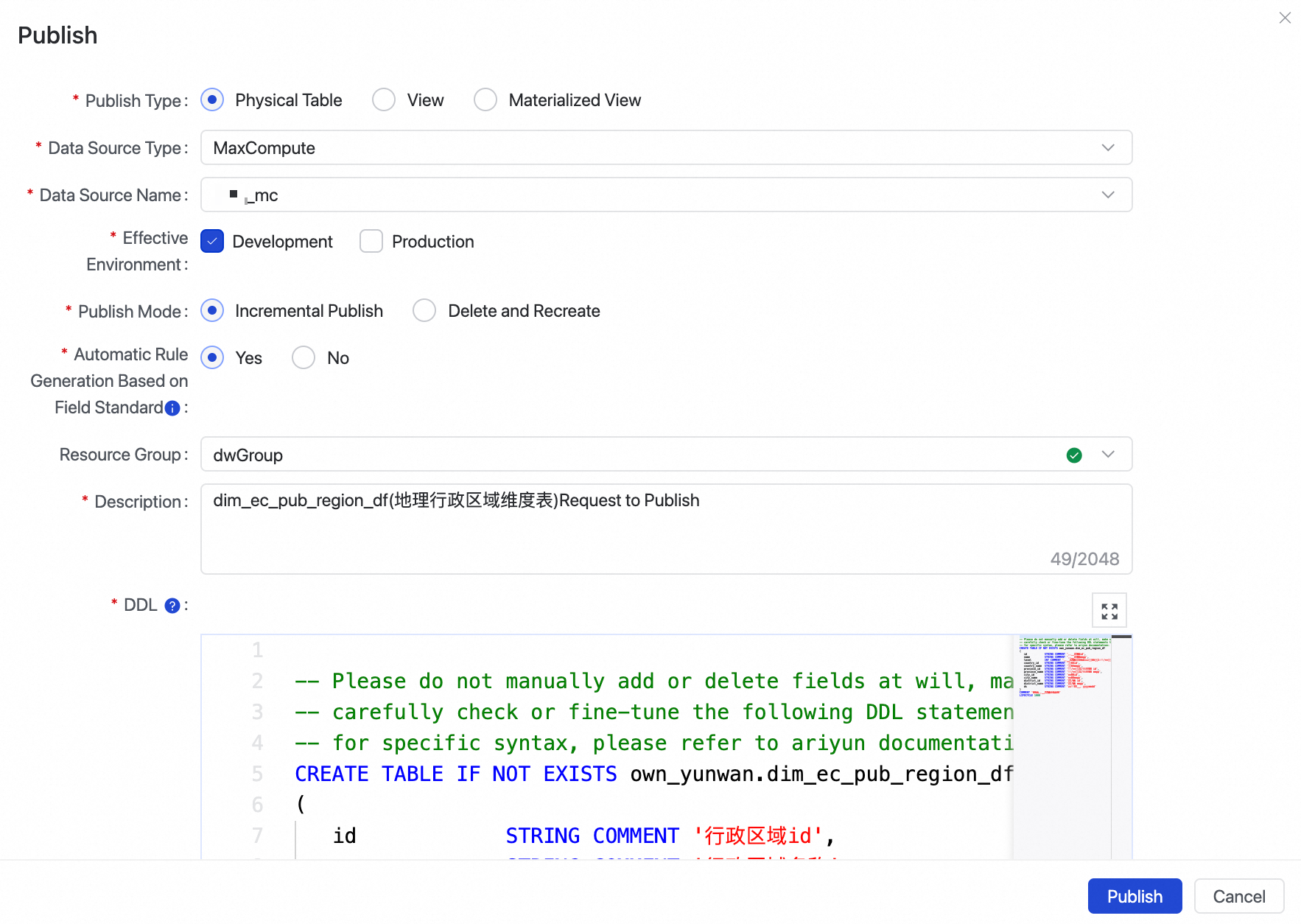
Parameter
Description
Publish Type
Specify the materialization format for the model.
Physical Table: Creates a physical table in the target engine.
View: Creates a view in the target engine. This option is supported only for MaxCompute data sources.
Materialized View: Creates a materialized view in the target engine. This option is supported only for MaxCompute data sources. A materialized view is a form of precomputation that stores the results of expensive operations, such as JOINs and aggregations. Queries can then reuse these results to avoid repeating these operations, accelerating performance. For more information, see Materialized View operations.
Data Source Type
Select the engine where data is stored. The available options are MaxCompute, E-MapReduce (EMR) Hive, Hologres, CDH, and MySQL.
Effective Environment
The environment where you want to publish the model. You can select Development or Production.
If you use a DataWorks workspace in basic mode, you can only publish tables to the Production environment.
If you use a DataWorks workspace in standard mode, you can publish tables to either the Production or Development environment.
Publish Mode
The method used to publish the model.
Incremental Publish: Applies only the model's changes to the target engine. This mode is recommended for previously published models to preserve historical data and minimize impact on online services.
Delete and Recreate: Drops the existing table of the same name in the target engine and then recreates it. Important: This operation will drop and recreate the table, resulting in historical data loss.
When a model is published for the first time, both modes have the same effect.
Automatic Rule Generation Based on Field Standard
Specifies whether to automatically generate quality rules after the model is published. For more information, see Data Tagging.
Yes: After the model is successfully published to the Production environment, the system automatically generates quality rules for fields defined as a Primary Key, fields with NOT NULL constraints, or fields associated with standard codes.
No: Does not automatically generate quality rules.
Resource Group
This parameter is required when you materialize a model as a Physical Table in E-MapReduce (EMR) Hive or CDH. Ensure that the selected resource group has network connectivity to the data source.
NoteTo publish physical tables to E-MapReduce or CDH, you must use an Exclusive Resource Group for Scheduling.
If you do not have a suitable Exclusive Resource Group for Scheduling, see Use an Exclusive Resource Group for Scheduling to create one.
DDL
To publish a Materialized View, the
SELECTstatement in its definition must be executable. You must edit theAS SELECTclause to ensure it is a valid SQL statement.NoteThis parameter is required only when you publish the model as a Materialized View.
For more information about DDL operations for materialized views, see Materialized View operations.
After you complete the configuration, click Publish. The system publishes the model to the corresponding Development or Production environment and materializes it in the selected engine.
You can view the current progress and related logs in the Publish dialog box.
You can publish the model again to a different environment.
Optional: After the model is published, you can click the
 icon in the toolbar on the table details page to view the details of the most recent publish operation.
The Publishing Status includes three states: Succeeded, Failed, and Publishing. The log for a Succeeded status is shown in the figure below.
 Note
NoteIf the Publishing Status is Failed, identify and resolve the issue based on the error message.
If the Publishing Logs dialog box displays No publishing logs found., the model has never been published.
View publishing records
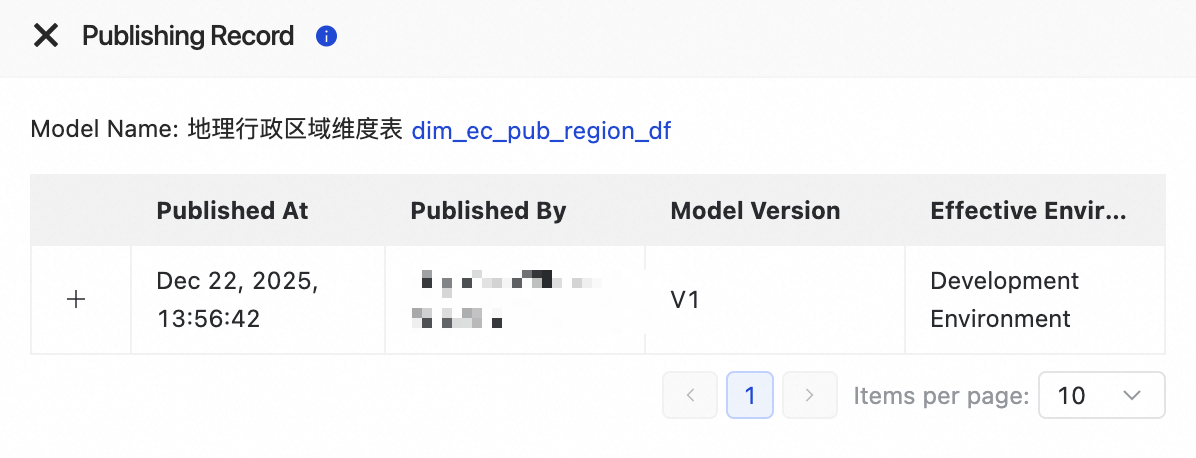
After the model is successfully published, you can go to the model's edit page and click Publishing Record in the right-side navigation pane to view details of historical published versions.
Generate an ETL code framework
In DataWorks Intelligent Data Modeling, you can use the Model Development feature to generate an ETL Code Framework for published model tables, such as Dimension Tables and Fact Tables.
The Model Development feature only supports code generation for model tables published to MaxCompute and E-MapReduce (EMR) Hive compute engines.
In DataWorks Intelligent Data Modeling, double-click a published model table to open its details page.
In the actions bar, click Develop Model.
In the Develop Model dialog box, select Create DataStudio Node or Associate DataStudio Node, configure the parameters, and click OK.
Select Create DataStudio Node
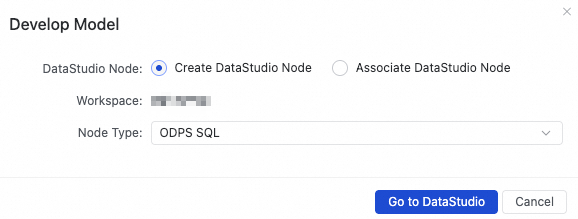
The system automatically creates a DataStudio node and populates the node name based on the table name.
If the model table is published to the MaxCompute engine, an ODPS SQL node is created.
If the model table is published to the E-MapReduce (EMR) Hive engine, an EMR Hive node is created.
After you confirm the configuration, click Go to DataStudio. The system automatically opens a node creation dialog box in DataStudio. Click OK to create the node and generate the ETL code.
Select Associate DataStudio Node
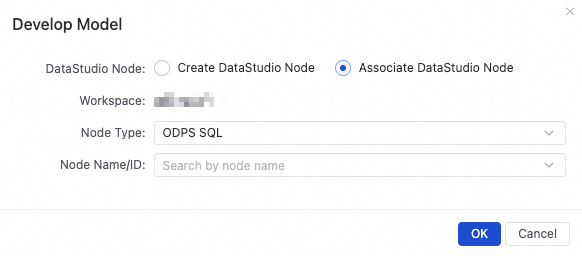
This option associates the code framework with an existing DataStudio node of the same engine type. Once the binding is successful, you can click the node name to go to the corresponding node page and continue development.
If you need to associate multiple nodes with the same model table, you can click Develop Model again to bind another node.
Billing
The model publishing feature is free. However, you are charged for the compute and storage resources used during materialization:
Target engine fees: After a model is materialized, you are billed for the consumed storage and compute resources in the target engine (such as MaxCompute or Hologres) according to the pricing of the respective product.