A node group is a reusable component that bundles a set of commonly used nodes from a workflow. You can reference this group in other workflows to quickly clone all its nodes. When a node group is cloned, the configurations of the individual nodes are preserved. This topic describes how to create, reference, split, and delete a node group.
Prerequisites
Before using node groups, create a workflow and add the required nodes. For more information, see Create a workflow and Data Studio (legacy version).
Usage notes
When you reference a node group, the configurations and dependencies of the nodes within the group remain unchanged.
If the node group contains PAI nodes, you must recreate the experiments when referencing the node group in another workflow.
When a node group is referenced in another workflow, a random numeric string is automatically appended to the output name of each cloned node to ensure uniqueness.
Create a node group
Go to the DataStudio page.
Log on to the DataWorks console. In the top navigation bar, select the desired region. In the left-side navigation pane, choose . On the page that appears, select the desired workspace from the drop-down list and click Go to Data Development.
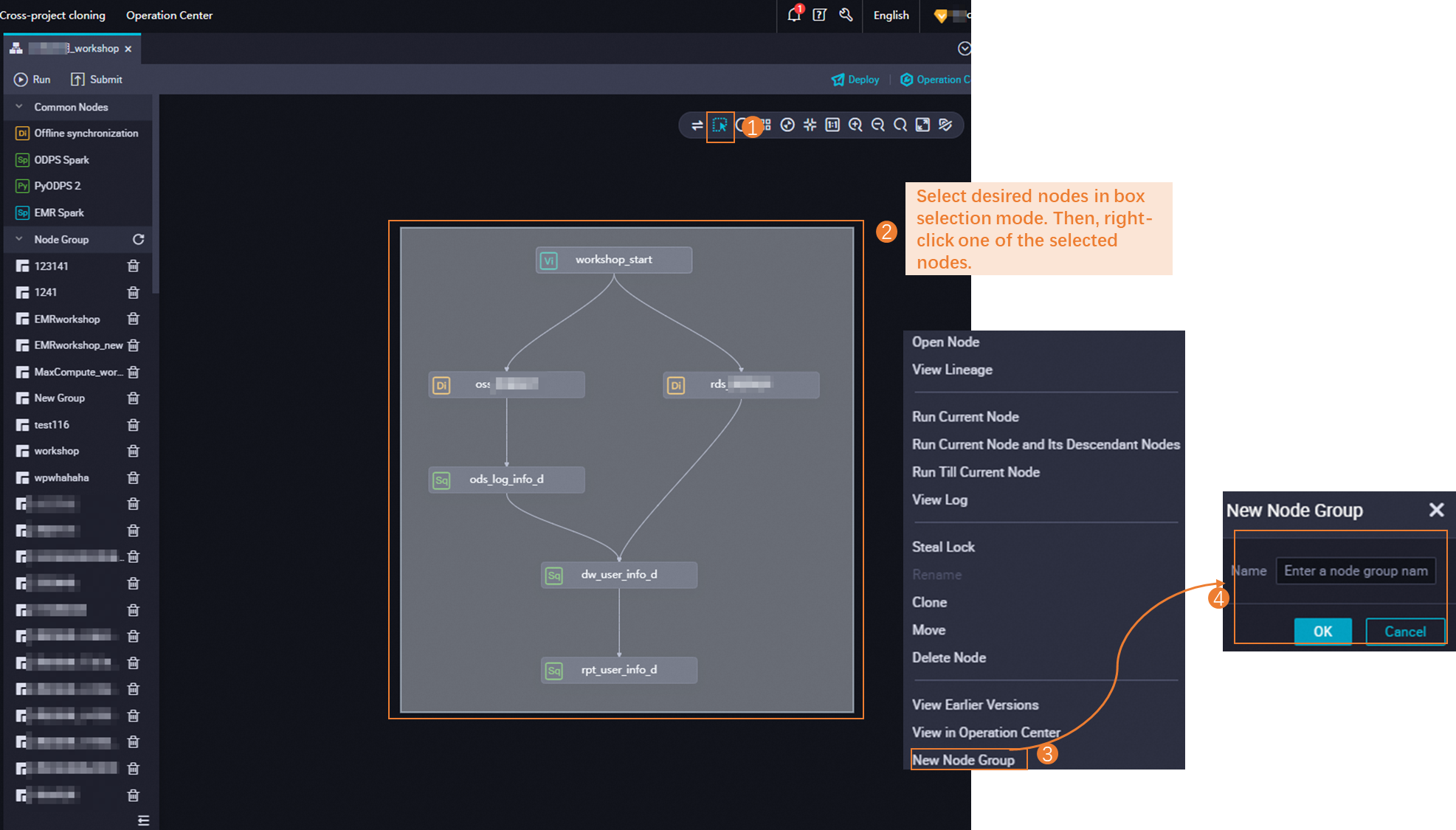
Create a node group.
Generate a node group. Select the required nodes, and then generate the node group as shown in the figure.
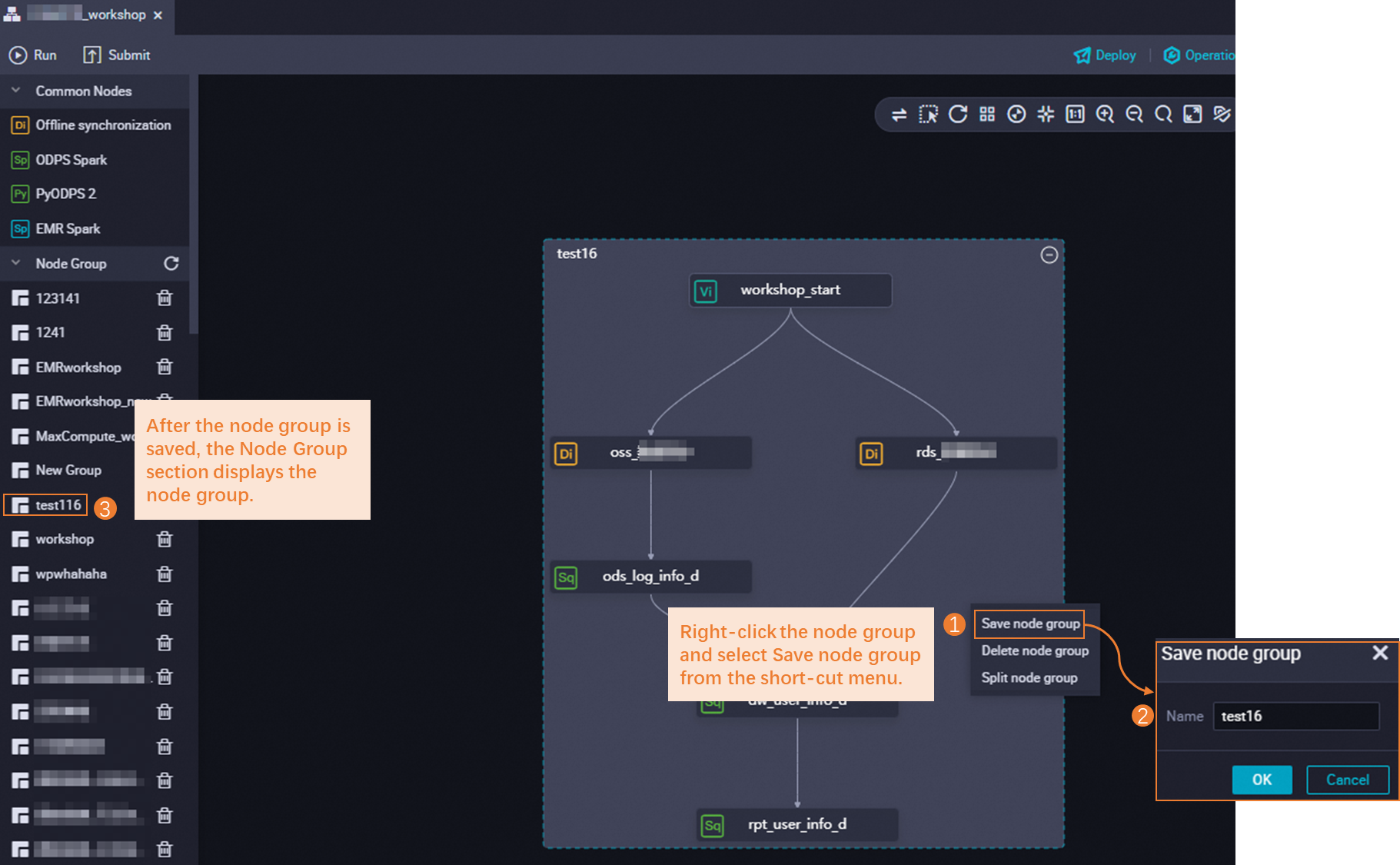
Save the node group. After generating the node group, you must save it. A node group is created only when saved, and only saved groups can be referenced in other workflows.
Reference a node group
After a node group is created, you can reference it in other workflows to quickly clone all its nodes. Double-click the workflow where you want to reference the node group and follow the steps in the figure below.
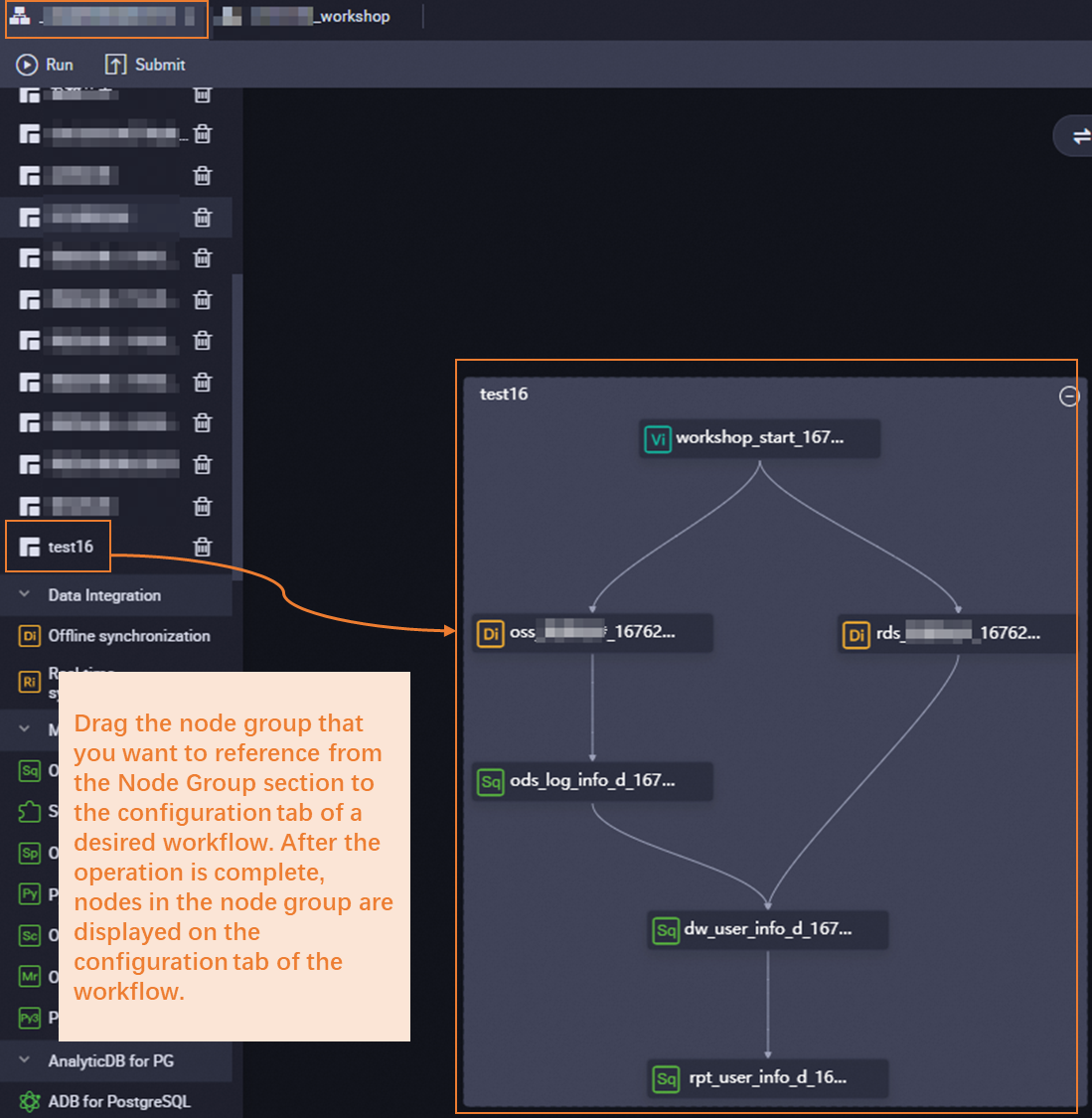 After referencing the node group, submit and deploy the workflow to the production environment and view the details of the cloned nodes in the Operation Center.
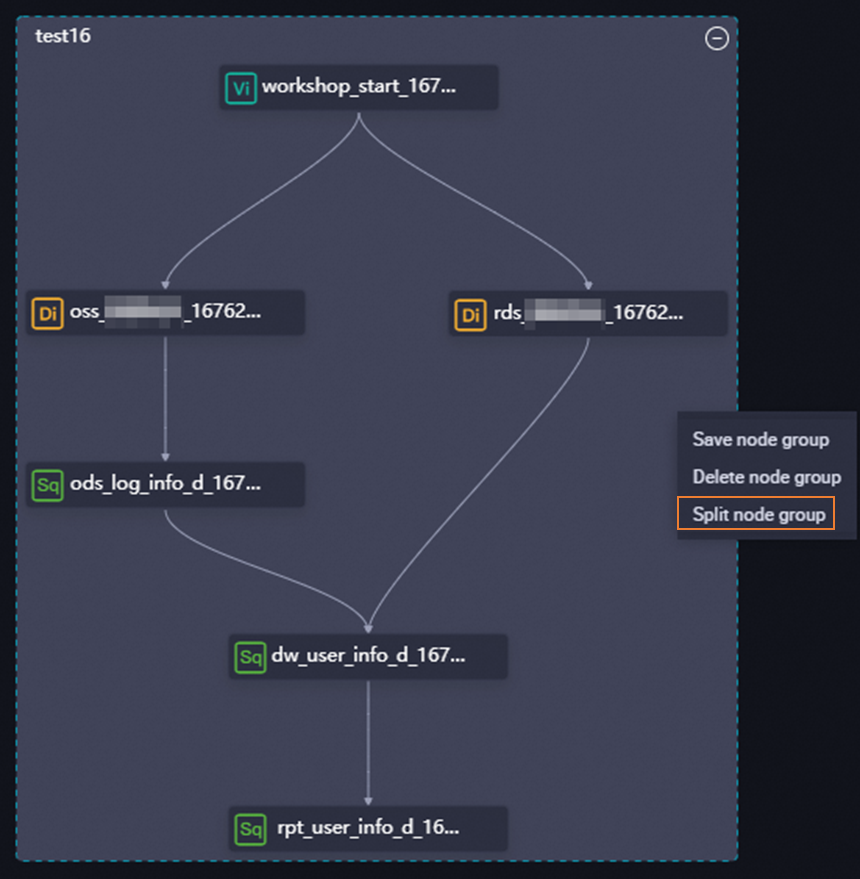
Split a node group
To reorganize the nodes within a node group, split the group. You can then modify the nodes and generate a new node group if needed.
Splitting only affects the selected node group on the canvas and does not change the saved version in the node group list.
Delete a node group
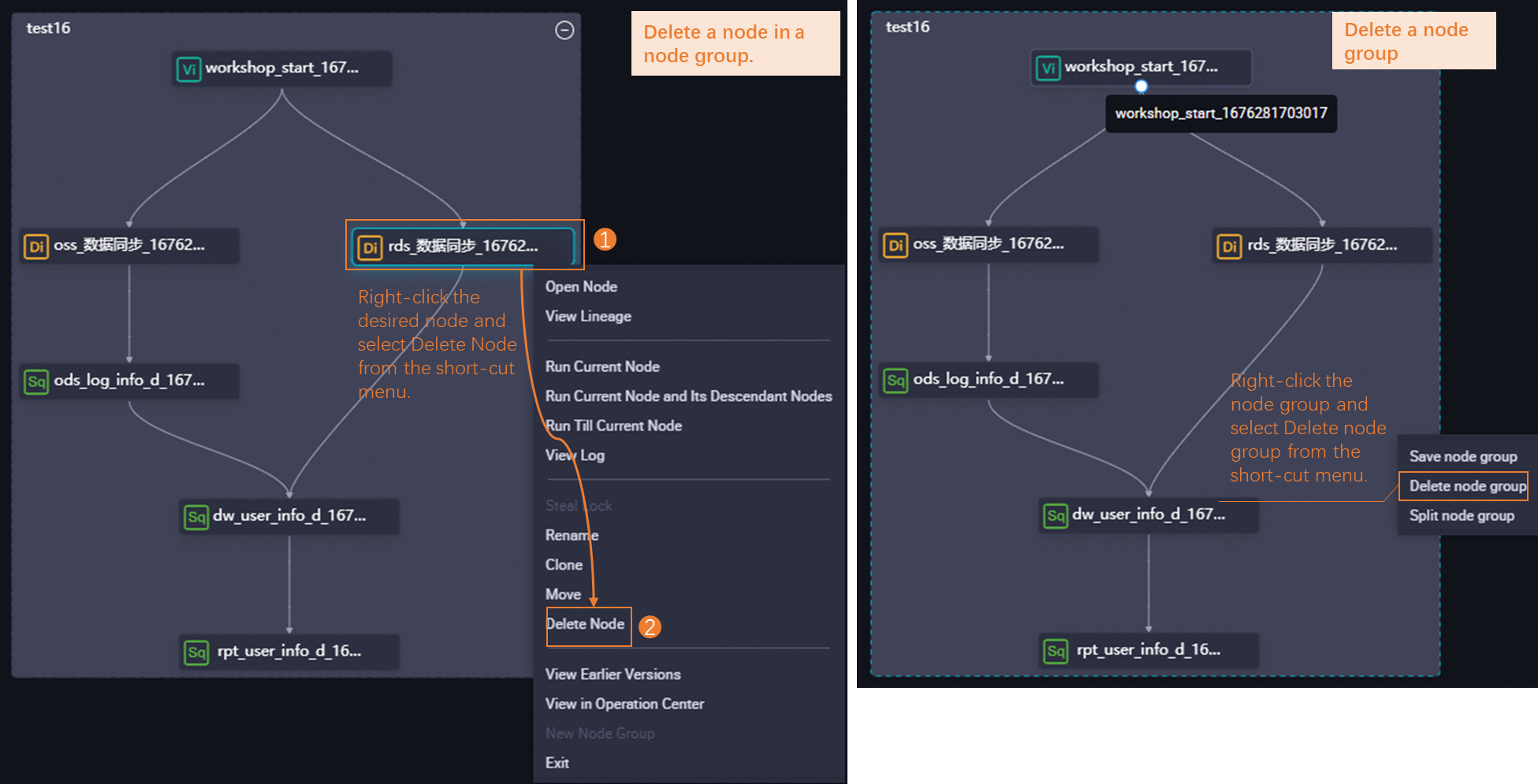
You can delete a node group or delete specific nodes within it.
Deleting a node group permanently deletes all nodes within it. Proceed with caution.