When you synchronize data in real-time from PolarDB to AnalyticDB for MySQL, you must first configure the network and whitelist settings for the data sources. This preparation establishes the required network environment and account permissions for the task.
Prerequisites
Complete the following preparations before you configure the data source:
-
Purchase a PolarDB for MySQL cluster and an AnalyticDB for MySQL cluster. This topic uses a PolarDB for MySQL cluster as the source.
-
You have purchased and configured an exclusive resource group for Data Integration. For more information, see Plan and configure resources.
- You have evaluated your network environment and established a connection between your data source and the exclusive resource group for Data Integration.
- If the data source and the exclusive resource group for Data Integration are in the same Virtual Private Cloud (VPC) within the same region, they can connect automatically.
- If they are in different network environments, you must connect them using a method such as VPN Gateway.
Background information
To synchronize data, ensure network connectivity exists between the data sources and the exclusive resource group for Data Integration, and verify that there are no account permission restrictions.
-
Network whitelist
For example, if the data source and the resource group reside in the same VPC, you must add the CIDR block of the VPC where the exclusive resource group for Data Integration is located to the data source's whitelist. This ensures that the resource group can access the data source.
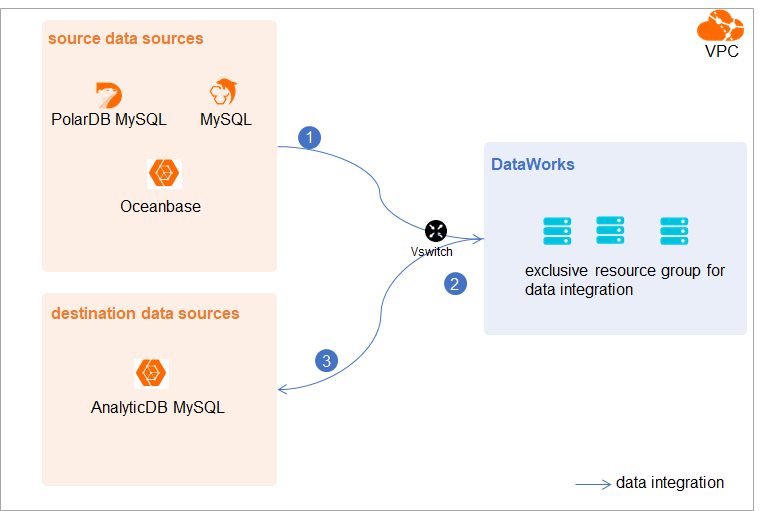
-
Prepare an account that Data Integration can use to access the data source for data extraction and write operations.
-
If the source data source is PolarDB for MySQL, you must enable the binary log. PolarDB for MySQL is a cloud-native database that is fully compatible with MySQL. By default, PolarDB uses higher-level physical logs. To integrate with the MySQL ecosystem, you can enable the binary log.
Limits
-
Currently, you can use a synchronization solution to synchronize data only from a PolarDB for MySQL data source. Other types of PolarDB data sources are not supported. In this topic, PolarDB refers to PolarDB for MySQL.
-
For PolarDB, real-time synchronization is supported only on the primary node (read/write instance).
-
XA ROLLBACK is not supported. For transaction data on which an XA PREPARE statement has been executed, the real-time synchronization task replicates this data to the destination. If an XA ROLLBACK statement is executed, the real-time synchronization task does not roll back the data that was already replicated. To handle this, you must manually remove the affected table from the real-time synchronization task, add the table back, initialize a full data synchronization, and then resume incremental synchronization.
Procedure
-
Configure the whitelist.
Add the CIDR block of the VPC where the exclusive resource group for Data Integration resides to the whitelist of the PolarDB cluster.
-
View and record the network details of the exclusive resource group.
-
Log on to the DataWorks console.
-
In the left-side navigation pane, click Resource Groups.
-
On the Exclusive Resource Group tab, find the target resource group for Data Integration and click View Information in the Actions column.
-
Copy the EIP and Network segment from the dialog box to the database whitelist.
-
On the Exclusive Resource Group tab, find the target resource group for Data Integration and click Network Settings in the Actions column.
-
On the VPC Binding tab, view the vSwitch CIDR Block and add it to the database whitelist. You can find this value in the CIDR block of vSwitch column of the binding information table.
-
-
Add the EIP and CIDR block you recorded to the whitelist of the PolarDB cluster.
In the left-side navigation pane, click Cluster Whitelist. On the IP List page, click Add IP Whitelist Group. For more information, see Configure a whitelist.
-
-
Create an account and configure permissions.
Provision a database account for the synchronization task with the
SELECT, REPLICATION SLAVE, REPLICATION CLIENTpermissions.-
Create an account.
For more information, see Create a database account.
-
Grant permissions.
Run the following command to grant the required permissions to the account. Alternatively, you can grant the
SUPERprivilege to the account.-- CREATE USER 'sync_account'@'%' IDENTIFIED BY 'your_password'; GRANT SELECT, REPLICATION SLAVE, REPLICATION CLIENT ON *.* TO 'sync_account'@'%';
-
-
Enable Binlog for PolarDB.
For more information, see Enable binary logging.
Next steps
After you configure the data source, the source, destination, and resource instance can connect over the network without access restrictions. You can then add the data sources in DataWorks and associate them with your data synchronization solution.
For more information about how to add a data source, see Add a data source.