Cloud Parallel File Storage (CPFS) supports the Network File System (NFS) protocol through protocol services. The NFS protocol offers excellent operating system compatibility and compute elasticity while retaining the high throughput of CPFS. This topic uses CentOS as an example to describe how to quickly deploy a CPFS file system and mount it using the NFS protocol. A protocol service provides independent NFS mount targets and does not depend on POSIX mount targets.
Prerequisites
The CPFS service is activated.
When you log on to the CPFS console for the first time, follow the on-screen instructions to activate the service.
An Elastic Compute Service (ECS) instance is created and meets the following conditions. For more information, see Create an instance.
A public IPv4 address is assigned to the instance, or an Elastic IP Address (EIP) is associated with the instance.
The instance runs one of the following operating systems supported by the CPFS-NFS client.
Operating system type
Operating system version
Alibaba Cloud Linux
Alibaba Cloud Linux 3.2104 64-bit
Alibaba Cloud Linux 2.1903 64-bit
CentOS
CentOS 8.x 64-bit
CentOS 7.x 64-bit
Ubuntu
Ubuntu 20.04 64-bit
Ubuntu 18.04 64-bit
Ubuntu 16.04 64-bit
Debian
Debian 10.x 64-bit
Debian 9.x 64-bit
Debian 8.x 64-bit
SUSE
SUSE Linux Enterprise Server 15 64-bit
This topic uses an ECS instance and a CPFS file system with the following configurations:
ECS
Operating system: CentOS 7.9
Region: China (Shanghai)
Zone: Shanghai Zone B
CPFS
Region: China (Shanghai)
Zone: Shanghai Zone B
Type: 100 MB/s/TiB baseline
Storage capacity: 3600 GiB
Procedure
Step 1: Create a file system
Log on to the CPFS console.
At the bottom of the Overview page, click Create CPFS File System.
On the CPFS (Pay-As-You-Go) page, configure the required parameters as described in the following table. For the other parameters, use the default configurations or specify custom values as needed. For more information, see Create a file system.
Parameter
Description
Region
From the drop-down list, select China (Shanghai).
Zone
Select Shanghai Zone B. The file system and the ECS instance must be in the same zone.
Type
Select 100 MB/s/TiB Baseline.
Storage Capacity
Select the storage capacity of the file system. This topic uses 3600 GiB as an example.
VPC
Select an existing VPC.
vSwitch
Select a vSwitch that is in the selected VPC.
Click Buy Now and follow the on-screen instructions to complete the purchase.
Step 2: Create a fileset (optional)
A fileset is a subdivision of a CPFS file system that has an independent inode space and can be managed separately. It appears as a directory in the file system's directory structure. You can create a fileset to export data and create NFS mount targets. A fileset provides more features than a regular directory, such as limits on the number of files and data flow control.
In the navigation pane on the left, choose , and then click the name of the file system that you just created.
On the file system details page, click the Fileset tab.
On the Fileset tab, click Create Fileset and configure the required parameters. For the other parameters, use the default configurations or specify custom values as needed.
Fileset Path: The path of the fileset in the file system. The path must start and end with a forward slash (/). For example, /fileset1/.
Click OK.
Step 3: Create a protocol service and an export directory
To access a CPFS file system using the NFS protocol, you must configure a protocol service to generate a mount target. The ECS instance uses this mount target to mount the CPFS file system.
On the file system details page, click the Protocol Service tab. Click Create Protocol Service and configure the required parameters as described in the following table. For the other parameters, use the default configurations or specify custom values as needed. For more information, see Manage protocol services.
Parameter
Description
Protocol Type
Select NFS V3.
vSwitch
Select a vSwitch that is in the same VPC as the file system.
Protocol Export
Click Fileset (Recommended) and select the fileset that you created in Step 2.
Export VPC
Select the same VPC as the ECS instance.
Export vSwitch
Select the same vSwitch as the ECS instance. The protocol cluster exports the protocol service to the specified export VPC through this vSwitch.
NoteA single protocol service can consume up to 32 IP addresses on the vSwitch. Make sure that the vSwitch has sufficient IP resources.
Click OK.
For the protocol service that you just created, click Export Directory in the Action column.
In the Export Directory panel, copy the mount address for later use.
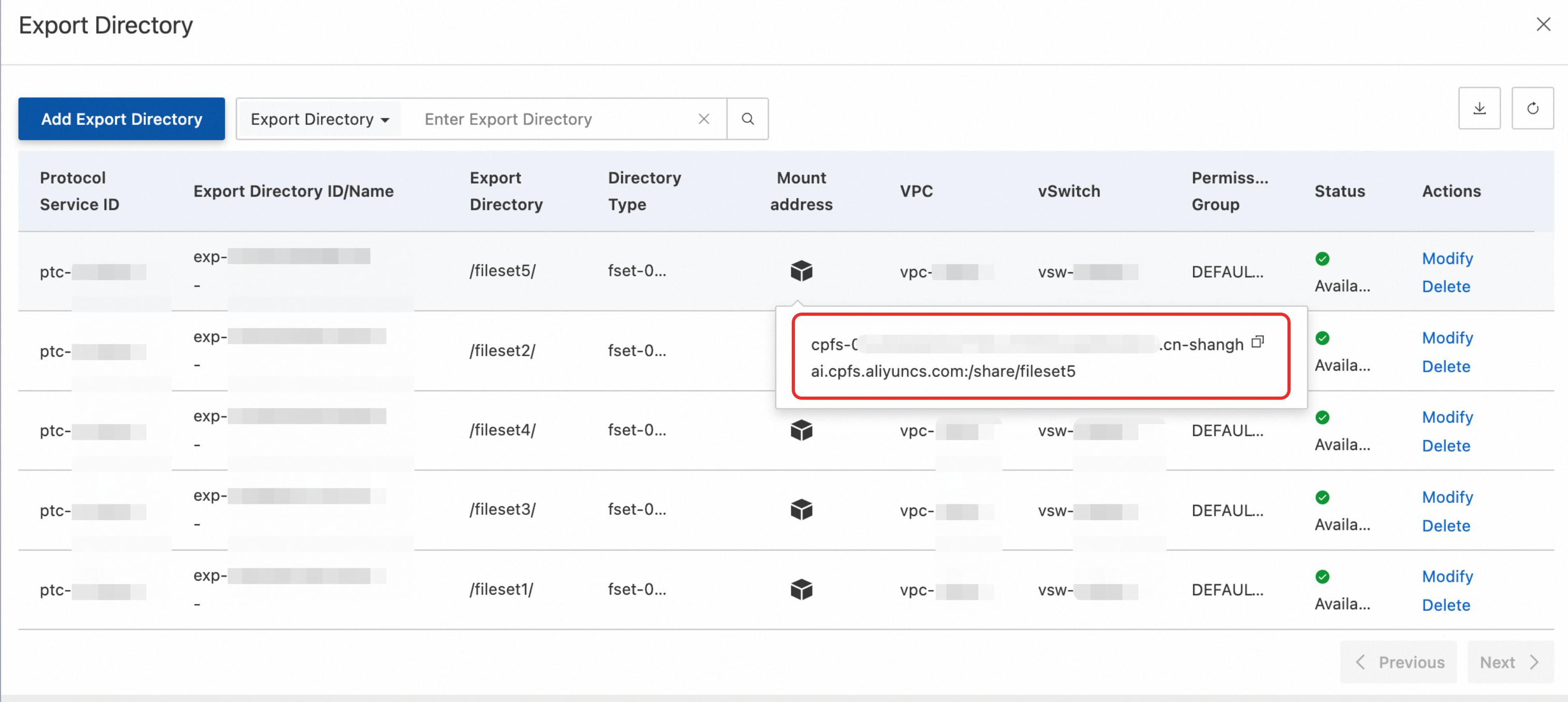
Step 4: Install the CPFS-NFS client and mount the file system
Connect to the ECS instance. For more information, see Connect to an ECS instance.
Configure the CPFS-NFS client.
Download the CPFS-NFS client.
wget https://cpfs-hangzhou-nfs-client.oss-cn-hangzhou.aliyuncs.com/aliyun-alinas-utils-latest.el.noarch.rpmInstall the CPFS-NFS client.
sudo yum install aliyun-alinas-utils-*.rpmCheck whether the CPFS-NFS client is installed.
which mount.cpfs-nfsIf output similar to the following is returned, the CPFS-NFS client is installed.
/usr/sbin/mount.cpfs-nfs
Mount the CPFS file system.
sudo mount -t cpfs-nfs -o vers=3,rsize=1048576,wsize=1048576,hard,timeo=600,retrans=2,noresvport file-system-id.region.cpfs.aliyuncs.com:/share/path /mntReplace
file-system-id.region.cpfs.aliyuncs.com:/share/pathwith the mount target that you copied in Step 3. Replace/mntwith the local path on the server where you want to mount the file system. For more information about mount parameters, see Parameter description.Run the
mount -lcommand to view the mount result.After the file system is mounted, run the
df -hcommand to view the capacity of the file system.NoteTo automatically mount the file system when the ECS instance starts, add the mount configuration to the /etc/fstab file. This prevents the mount information from being lost if the instance restarts. For more information, see Configure automatic mounting at startup.
Step 5: Use the file system
After the file system is mounted, access and use it as a regular directory on the ECS instance.
The following example shows how to create and delete files in the CPFS file system using the /mnt local path on the ECS instance.