This topic describes how to quickly create a single-tenant fully managed service instance in Compute Nest. The service instance is based on a single-ECS MySQL package and includes a VPC peering connection.
Service overview
This example uses a single-ECS architecture and enables the VPC peering connection feature by default. After deploying the service instance, you can directly access the MySQL database, which is deployed in the service provider's account, over a private network. The GitHub repository for this example is: mysql-managed-vpcpeering-demo.
This example automatically creates a Compute Nest service. The creation process takes about three minutes. The service is successfully created when its status changes to Pending Submission. The service creation process is as follows.
-
Build a Compute Nest file artifact from the MySQL installation package, which is pre-stored in the GitHub repository.
-
Create a Compute Nest service and associate it with the corresponding file artifact.
This service is available in the following three plans.
|
Plan |
ECS instance type |
vCPU and memory |
System disk |
Public bandwidth |
|
Basic Edition |
ecs.c6.large |
c6, memory-optimized, 2 vCPUs, 4 GiB |
200 GiB PL0 ESSD |
1 Mbps fixed bandwidth |
|
Standard Edition |
ecs.c6.xlarge |
c6, memory-optimized, 4 vCPUs, 8 GiB |
200 GiB PL0 ESSD |
1 Mbps fixed bandwidth |
|
Advanced Edition |
ecs.c6.2xlarge |
c6, memory-optimized, 8 vCPUs, 16 GiB |
200 GiB PL0 ESSD |
1 Mbps fixed bandwidth |
Deployment architecture
This service deploys a single ECS instance. The security group allows inbound traffic on port 3306. A new VPC and vSwitch are created for each service instance.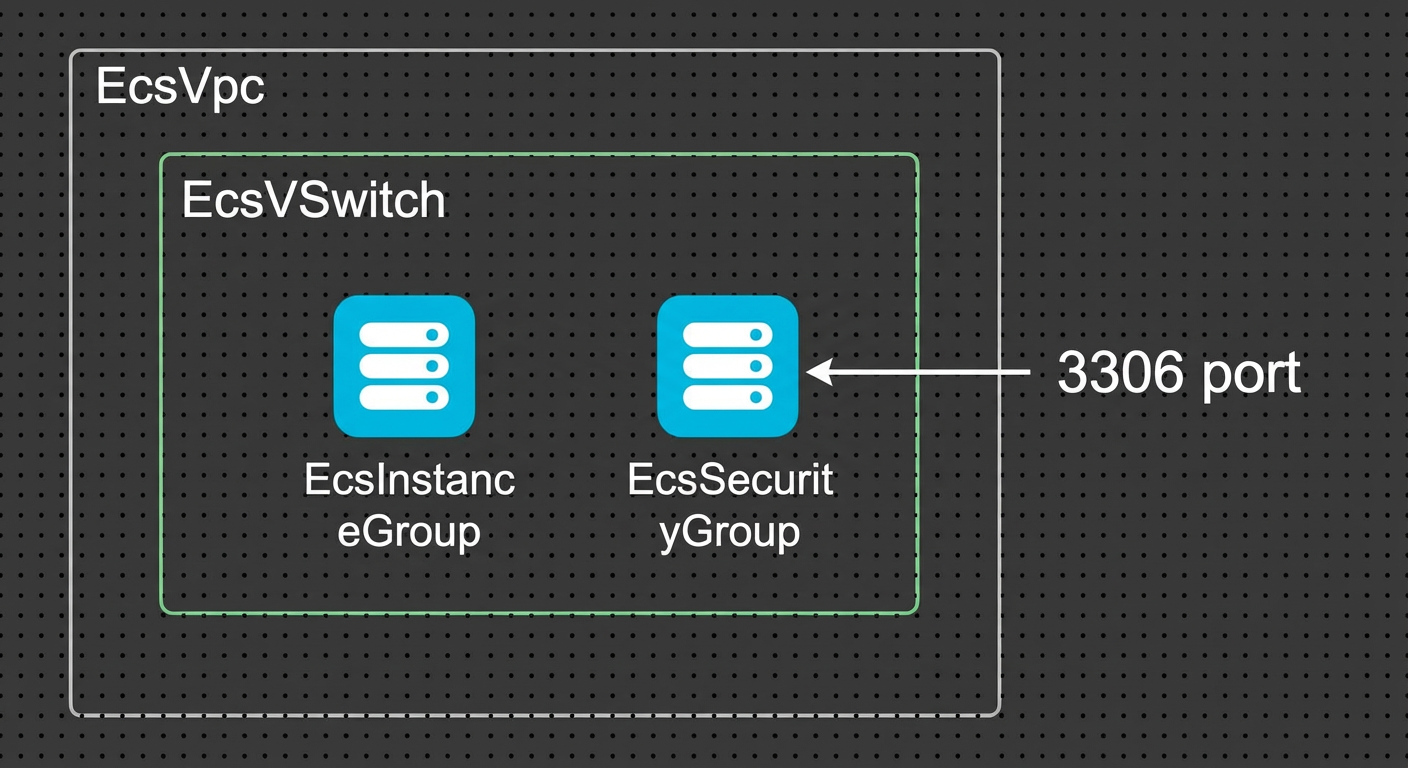
Billing for service creation
Creating the service from this template is free. For information about the fees for the created service instance, see the "Billing for service instances" section.
Permissions for RAM users
This service requires permissions to access and create resources such as ECS instances and VPCs. If you use a RAM user to create the service instance, you must first grant the RAM user the necessary permissions. For detailed instructions, see Manage permissions for RAM users.
The required policies are listed in the table below.
|
Policy name |
Description |
|
AliyunECSFullAccess |
Permissions to manage ECS. |
|
AliyunVPCFullAccess |
Permissions to manage VPC. |
|
AliyunROSFullAccess |
Permissions to manage ROS. |
|
AliyunComputeNestUserFullAccess |
Permissions for tenant-side management of Compute Nest. |
|
AliyunComputeNestSupplierFullAccess |
Permissions for service provider-side management of Compute Nest. |
|
AliyunCDTFullAccess |
Permissions to manage Cloud Data Transfer (CDT). |
Billing for service instances
This service instance incurs fees primarily for the following Compute Nest resources:
-
vCPU and memory specifications
-
System disk type and capacity
-
Public bandwidth
The following billing methods are supported:
-
pay-as-you-go (hourly)
-
subscription
The estimated cost of the service instance is displayed in real time during the creation process.
Deployment procedure
Deployment parameters
|
Section |
Parameter |
Description |
|
Basic Configuration |
Root and admin account password |
The password for the root and admin database accounts. It must be 8 to 32 characters long and can contain uppercase letters, lowercase letters, digits, and the following special characters: |
|
Network Configuration |
Availability zone |
Select an availability zone where the resources will be created in the service provider's account. |
|
Network Settings |
VPC IPv4 CIDR block |
Specify the IPv4 CIDR block for the new VPC. We recommend using a private CIDR block as defined in RFC 1918, such as 10.0.0.0/8, 172.16.0.0/12, or 192.168.0.0/16. |
|
Network Settings |
vSwitch CIDR block |
Specify the CIDR block for the vSwitch. |
Deployment steps
-
Click the deployment link provided by the service provider. On the service instance deployment page, specify the parameters as prompted. The page displays the MySQL on ECS (Peering Connection Supported) service. You can select the Basic Edition, Standard Edition, or Advanced Edition plan. Then, set the database password in the Basic Configuration section and select an availability zone in the Network Configuration section.
In the Network Configuration section, specify the IPv4 CIDR block for the new VPC and the CIDR block for the vSwitch. To create a VPC peering connection, you must also select the tenant's VPC for the connection. Note that the CIDR block of the selected tenant VPC cannot overlap with the CIDR block of the new VPC. The default value of VPC IPv4 CIDR Block is 192.168.0.0/16, and the default value of vSwitch CIDR Block is 192.168.1.0/24. In the Network Settings section, select an existing VPC or click Create VPC to create one, and then click + Add Peering Connection to configure the peering connection.
-
After you specify the parameters, proceed to the order confirmation page. The page displays the Dependency Check results and a summary of the Service Instance Information. After you confirm that the configuration is correct, select I have read and agree to the Compute Nest Service Agreement in the Terms of Service section, and then click Create Now.
-
Confirm the order, agree to the terms of service, and click Create Now to start the deployment. The page then displays Submitted. You can click View in List to go to the service instance list. On the Fully Managed Services tab, the service instance list shows the deployment status and progress of the instance.
-
Wait for the deployment to complete. You can then start using the service. On the Overview tab of the service instance details page, the Use Now section displays MysqlUserName (the logon username) and VisitUrl (the private endpoint), and the status in the Instance Information section is Deployed.
The Network Configuration section now shows the details of the VPC peering connection. This information appears only if you enabled the VPC peering connection on the creation page. On the Network Configuration tab, the Peering Connections list shows the peering connection ID, the status (Activated), the region, and the VPC ID.
-
Connect to the service. This service supports private access through a VPC peering connection. Follow these steps to connect from the tenant's VPC:
-
On the service instance details page, go to the Use Now section. Find the VisitUrl and copy the private IP address to access the database over a private network. The address is in the mysql://<private IP>:3306 format.
-
In the corresponding vSwitch of your VPC, create an ECS instance and install a MySQL client.
yum install mysql or apt install mysql-client -
Connect to the MySQL database from the ECS instance by using the private IP address.
[root@xxx ~]# mysql -u admin -h xxx.xxx.xxx.xxx -P 3306 -pxxx
Welcome to the MariaDB monitor.  Commands end with ; or \g.
Your MySQL connection id is 4
Server version: 5.6.51 MySQL Community Server (GPL)

Copyright (c) 2000, 2018, Oracle, MariaDB Corporation Ab and others.

Type 'help;' or '\h' for help. Type '\c' to clear the current input statement.
-
Service details
The installation package for MySQL Community Edition is pre-stored in the GitHub repository. During service creation, this package is published as a Compute Nest file artifact. The installation commands are written into the ROS template and are automatically executed by the ROS engine. Compute Nest replaces the {{ computenest::file::MySQL }} placeholder with the HTTP download URL of the MySQL file artifact.
wget '{{ computenest::file::MySQL }}' -O mysql-community-release-el6-5.noarch.rpm
rpm -ivh mysql-community-release-el6-5.noarch.rpm
yum repolist all | grep mysql
yum install mysql-community-server -y
File description
|
File path |
Description |
|
config.yaml |
The configuration file for service creation. The computenest-cli tool uses this file to create the service. |
|
parameters.yaml |
This file defines the network parameters, such as VpcId and vSwitchId, that the service provider configures for this single-tenant fully managed service. |
|
artifact/mysql-community-release-el6-5.noarch.rpm |
The installation package for MySQL Community Edition. This package is published as a Compute Nest file artifact during service creation. |
|
icons/service_logo.jpg |
The default logo for the service. |
|
templates/parameters.yaml |
For a single-tenant fully managed service, tenants only need to specify a subset of parameters. This file defines the parameters exposed to the tenant. |
|
templates/template.yaml |
The ROS template file. The ROS engine uses this template to automatically provision all required resources. |
The templates/template.yaml file consists of three main sections.
-
Parameters: Defines the parameters that the tenant needs to specify, such as billing method, instance specifications, IPv4 CIDR block, vSwitch CIDR block, instance password, and availability zone.ZoneId: Type: String AssociationProperty: ALIYUN::ECS::Instance:ZoneId Label: Availability zone # Database root account password Password: # Returns only asterisks (*) when this parameter is queried. NoEcho: true Type: String Description: 'Password for the root and admin database accounts, 8-32 characters, including uppercase and lowercase letters, numbers and special symbols (including: !@#$%^&*-+=_).' Label: Root and admin account password ConstraintDescription: '8-32 characters, including uppercase and lowercase letters, numbers and special symbols (including: !@#$%^&*-+=_).' MinLength: '8' MaxLength: '32' AssociationProperty: ALIYUN::ECS::Instance::Password # CIDR block for the new VPC VpcCidrBlock: Type: String Label: VPC IPv4 CIDR block Description: 'The IP address range of the VPC in CIDR block format. <br>You can use the following IP address ranges and their subnets: <br><font color=''green''>[10.0.0.0/8]</font><br><font color=''green''>[172.16.0.0/12]</font><br><font color=''green''>[192.168.0.0/16]</font>' AssociationProperty: ALIYUN::VPC::VPC::CidrBlock Default: 192.168.0.0/16 # CIDR block for the new vSwitch VSwitchCidrBlock: Type: String Label: vSwitch CIDR block Description: Must be a subnet of the VPC. AssociationProperty: ALIYUN::VPC::VSwitch::CidrBlock AssociationPropertyMetadata: VpcCidrBlock: VpcCidrBlock Default: 192.168.1.0/24 # ECS instance type EcsInstanceType: Type: String Label: Instance type AssociationProperty: ALIYUN::ECS::Instance::InstanceType AllowedValues: - ecs.c6.large - ecs.c6.xlarge - ecs.c6.2xlarge - ecs.c6.4xlarge -
Resources: Defines the resources to be created, including a new VPC, vSwitch, and ECS instance.# VPC EcsVpc: Type: ALIYUN::ECS::VPC Properties: CidrBlock: Ref: VpcCidrBlock VpcName: Ref: ALIYUN::StackName # vSwitch EcsVSwitch: Type: ALIYUN::ECS::VSwitch Properties: ZoneId: Ref: ZoneId VpcId: Ref: EcsVpc CidrBlock: Ref: VSwitchCidrBlock EcsSecurityGroup: Type: 'ALIYUN::ECS::SecurityGroup' Properties: VpcId: Ref: VpcId SecurityGroupIngress: - Priority: 1 PortRange: 3306/3306 NicType: internet SourceCidrIp: 0.0.0.0/0 IpProtocol: tcp # ECS instance EcsInstanceGroup: Type: ALIYUN::ECS::InstanceGroup Properties: # I/O-optimized instance IoOptimized: optimized ZoneId: Ref: ZoneId DiskMappings: - Category: cloud_essd Device: /dev/xvdb Size: 200 SystemDiskSize: 40 # User data script executed by cloud-init. # You can view logs in /var/log/cloud-init.log and /var/log/cloud-init-output.log. # The script is located at /var/lib/cloud/instance/scripts/part-001 for troubleshooting. UserData: Fn::Sub: - | #!/bin/sh # Wait for the network to become ready sleep 10 # The rest of the script is omitted. For details, see templates/template.yaml. # Billing method: pay-as-you-go InstanceChargeType: PostPaid MaxAmount: 1 # System disk type: ESSD SystemDiskCategory: cloud_essd # Instance name InstanceName: Ref: ALIYUN::StackName VpcId: Ref: VpcId SecurityGroupId: Ref: EcsSecurityGroup VSwitchId: Ref: VSwitchId # Specifies the CentOS 7.9 image. If you change the image, you may need to adapt the UserData script. ImageId: "centos_7_9_x64_20G_alibase_20220727.vhd" InstanceType: Ref: EcsInstanceType # Hostname HostName: Ref: ALIYUN::StackName # Logon password for the ECS instance Password: Ref: Password # Specifies whether to allocate a public IP address. AllocatePublicIP: true InternetMaxBandwidthOut: 1 -
Outputs: Defines the outputs that Compute Nest displays to the tenant on the service instance overview page in Compute Nest.Outputs: MysqlUserName: Label: MySQL logon username Value: admin VisitUrl: Label: Private endpoint Description: Private endpoint Value: Fn::Sub: - mysql://${ServerAddress}:3306 - ServerAddress: Fn::Select: - 0 - Fn::GetAtt: - EcsInstanceGroup - PrivateIps
Related documents
Service configuration
Change the specifications of a service instance
Service upgrade configurations