Compute Nest user roles are classified into software developers, software service providers, and software distributors, whose settings differ in the Compute Nest console. This topic describes the functional settings for Compute Nest user roles.
Role overview
The following table describes Compute Nest user roles and their supported operations, requirements, and activation methods.
Role | Supported operations | Requirements | Activation method |
Software developer |
| Individual or enterprise real-name verification is required. | Automatically activated after verification. |
Software service provider |
|
| Submit an application for approval. |
Software distributor |
|
| Submit an application for approval. |
Configure software developer settings
Configure host O&M settings
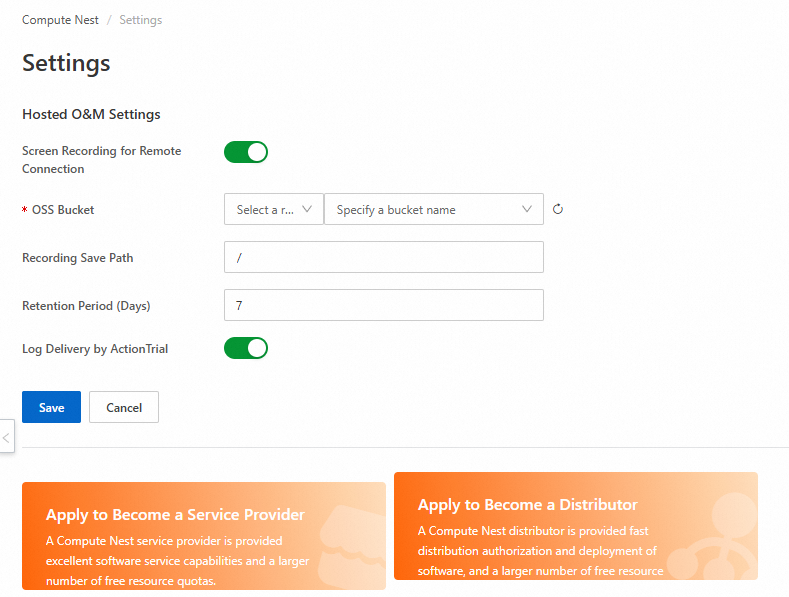
In the Host O&M Settings section of the Compute Nest - Settings page, you can configure the settings described in the following table.
Configuration item | Description |
Screen Recording for Remote Connection | After this feature is enabled, Compute Nest records videos of Elastic Compute Service (ECS) instance operations for later viewing. After you enable this feature, configure the following settings:
|
Log Delivery by ActionTrail | After this feature is enabled, service providers can view O&M operation information, including access and usage behaviors of cloud services in the Alibaba Cloud Management Console, by calling API operations, or by using developer tools. |
Configure software service provider and distributor settings
Unlike software developers who only need to complete individual or enterprise real-name verification with Alibaba Cloud, software service providers and software distributors must submit applications in the Compute Nest console for approval from Compute Nest.
Apply to become a software service provider or distributor
On the Compute Nest - Settings page, apply for the qualification of a service provider or distributor based on your permission planning.
NoteYou can also apply to become a service provider or distributor on the welcome page in the Compute Nest console.
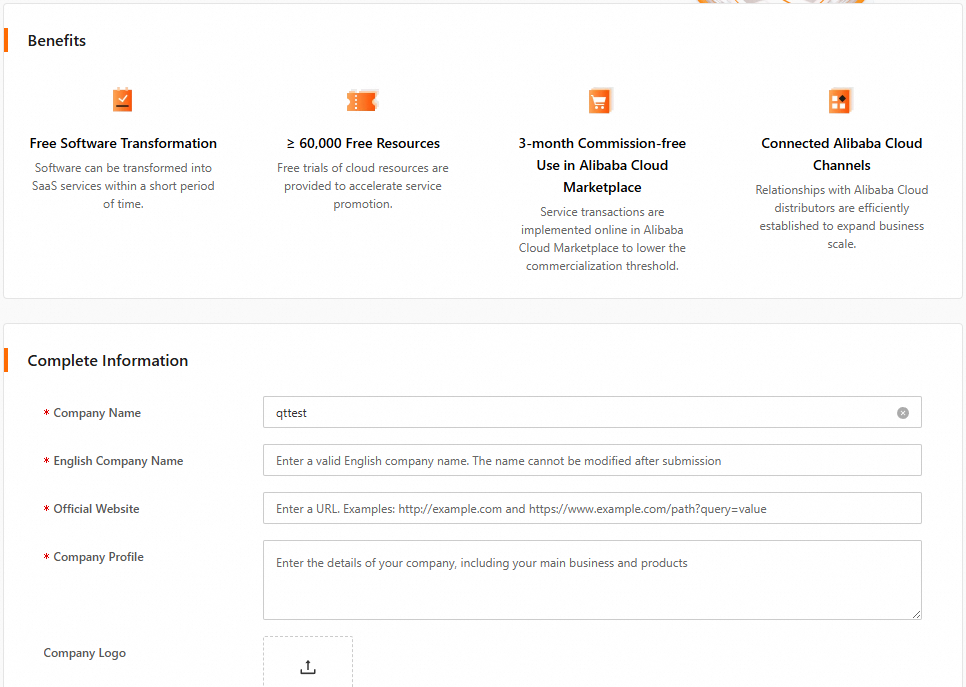
Apply to become a service provider
On the Compute Nest service provide applying page, follow the on-screen instructions to specify the application parameters, and then click Submit for Review.
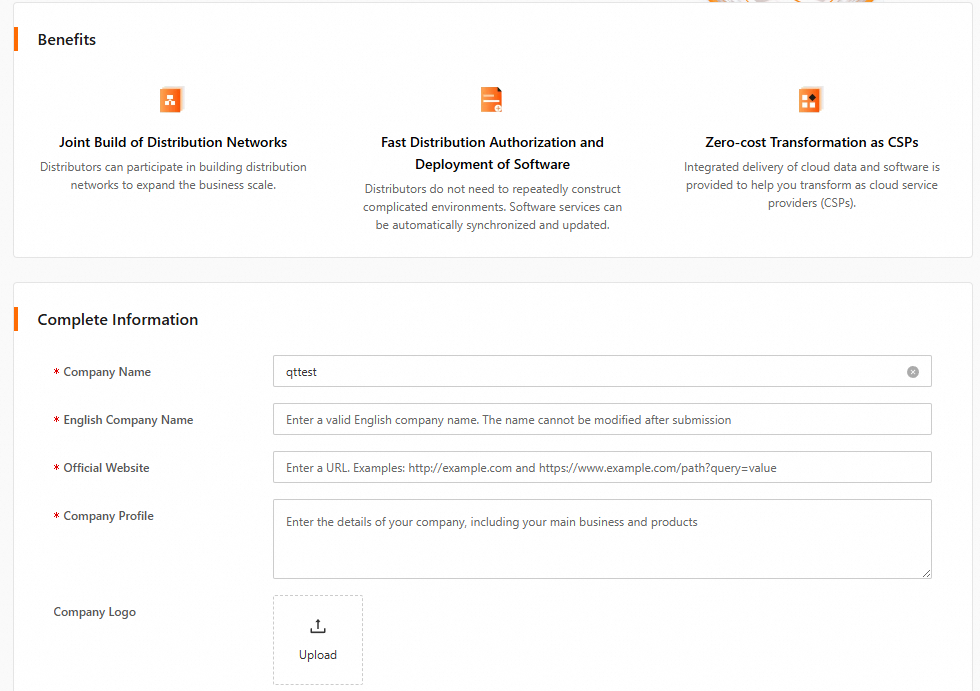
Apply to become a distributor
On the distributor applying page, follow the on-screen instructions to specify the application parameters, and then click Submit for Review.
Obtain the required permissions with approval.
Edit information
After the application is approved, you can view and modify the basic role information on the Compute Nest - Settings page.
View information
On the Settings page, view information such as the name, homepage URL, and description.
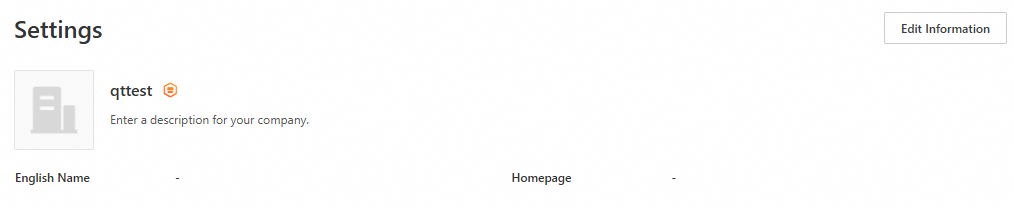
Edit information
In the upper-right corner of the service provider information page, click Edit Information. In the Edit Information dialog box, enter the basic service provider information.
NoteThis page allows you only to modify the icon, description, and homepage URL of the service provider, but not the service provider name.
Configure host O&M settings
Click Edit to configure host O&M settings as needed. After the configuration is complete, click Save.
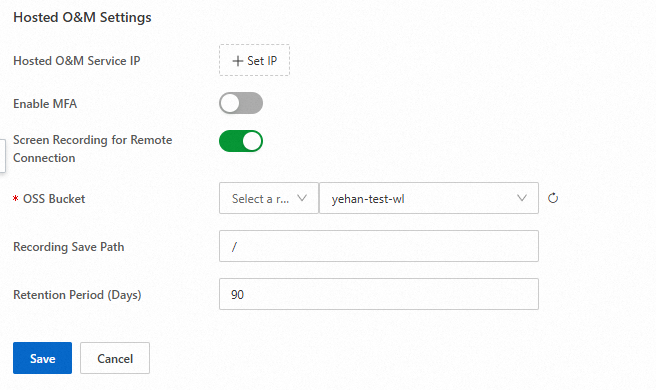
In the Host O&M Settings section, configure the settings described in the following table.
Configuration item | Description |
Hosted O&M Service IP | Specify one or more IP addresses or an IP address range for host O&M settings. |
Enable MFA | With the multi-factor authentication (MFA) feature enabled, you must enter a dynamic verification code from an MFA device after entering your username and password for logon, which enhances security. |
Screen Recording for Remote Connection | This feature enables Compute Nest to record videos of ECS instance operations for later viewing. After you enable this feature, configure the following settings:
|
Configure service deployment permission settings
The first time you deploy a service after you restricted service deployment permissions, fill out a permission application form to request service access permissions.
In the Service Deployment Permission Settings section, click Permission Application Form and then click Edit. On the application form editing page, enter the application form item names and prompt text, and then click Save Form.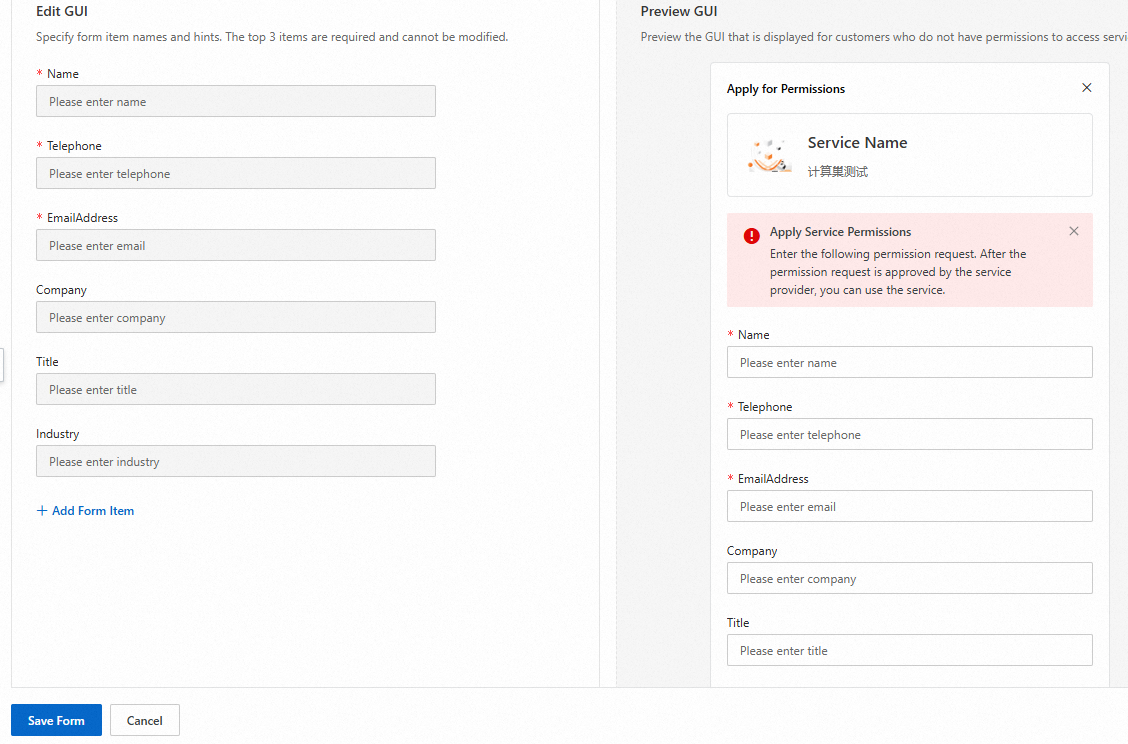
Configure service support settings
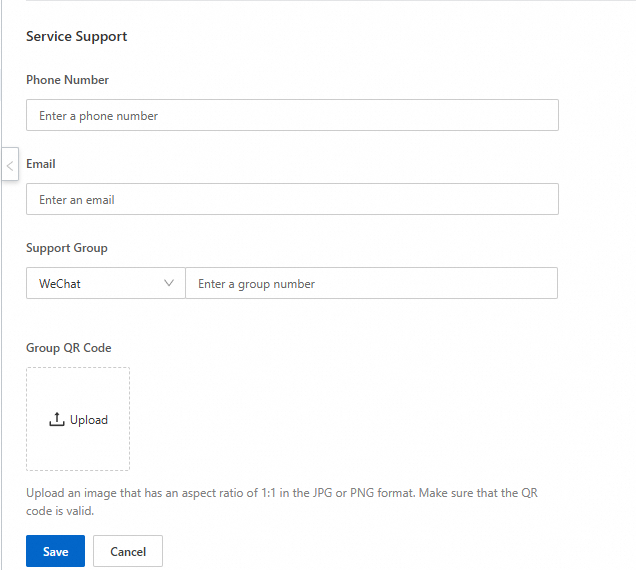
Service providers can provide issue consultation and real-time assistance by specifying service support information, such as the phone number, email, and DingTalk group.
In the Service Support section, click Edit, specify the parameters as needed, and then click Save.
Configure deployment package namespace settings
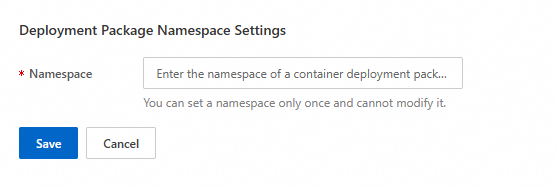
Compute Nest provides an independent scope for deployment packages to prevent conflicts caused by identical names. This applies to container image, file, and Helm chart deployment packages. The namespaces can only be set once and cannot be modified.
In the Deployment Package Namespace Settings section, click Edit, configure the parameters as needed, and then click Save.