This document describes how to use the TCO analysis feature of Cloud Migration Hub (CMH) to perform a cloud migration cost assessment for environments on AWS, Huawei Cloud, Tencent Cloud, Azure, or in on-premises data centers. This analysis helps you understand potential cloud costs and make informed migration decisions.
This feature was discontinued and its entry point was removed on April 9, 2026.
TCO analysis for cloud providers
Create a TCO analysis task
1. In the left-side navigation pane, choose Assessment Capability->TCO Analysis. Select the tab for your migration scenario, and then click Create TCO Analysis Task to open the form.

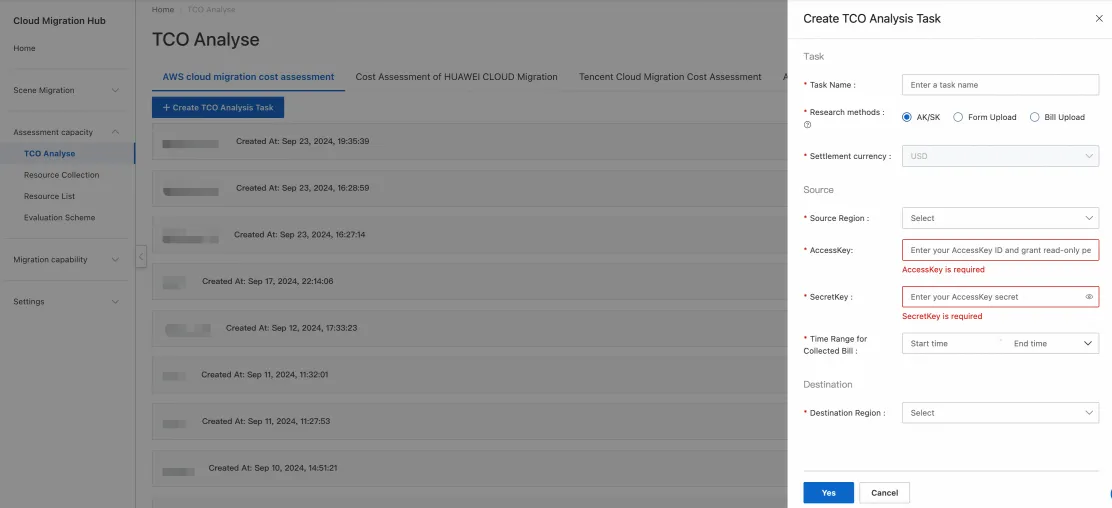
2. Select a survey method.
a. AK/SK: Grant CMH read-only access to your account. CMH then automatically analyzes your bills, maps your services to their Alibaba Cloud equivalents, and generates a cost comparison.
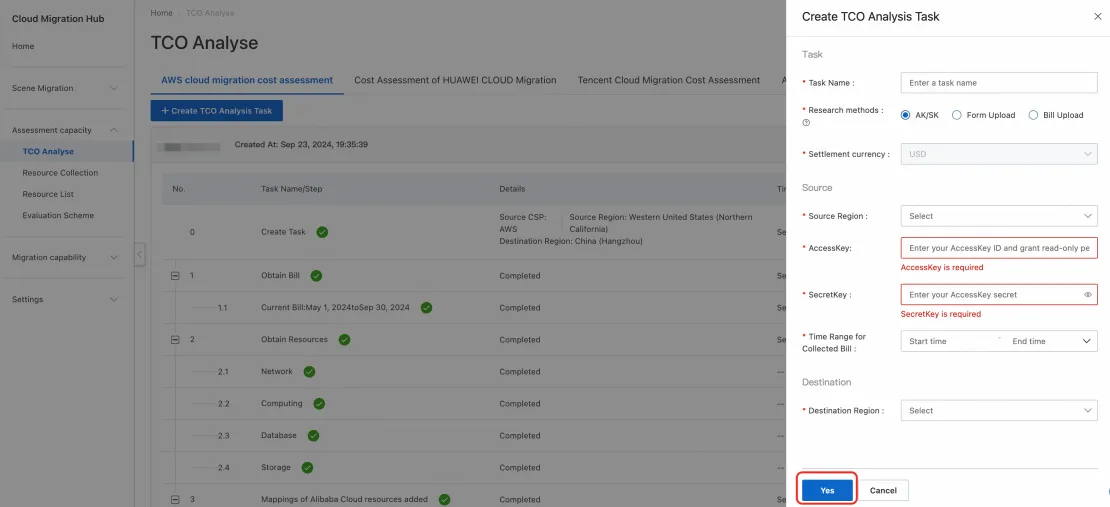
For AWS, Huawei Cloud, and Tencent Cloud, if you select the AK/SK survey method, fill in the required information in the form and submit it.
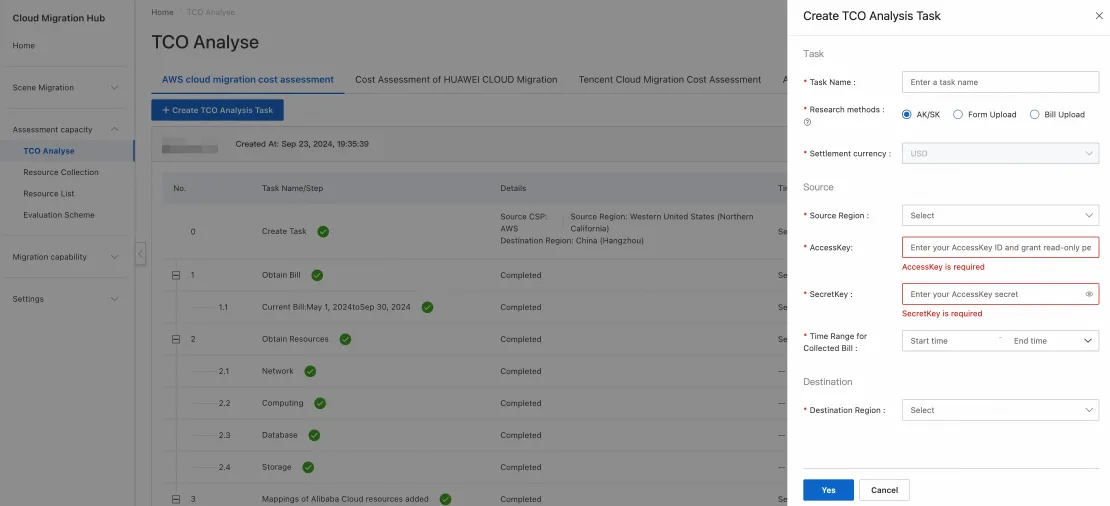
1. For the AK/SK survey method for AWS, you must first enable the AWS Cost Explorer service and ensure that the provided account has the following permissions:
arn:aws:iam::aws:policy/AWSBillingReadOnlyAccess
arn:aws:iam::aws:policy/Billing
arn:aws:iam::aws:rds/DescribeDbInstances
CMH uses the AWS SDK (GetCostAndUsageRequest/Response) to access your billing API, which may incur fees for API read calls. Read-only permission for RDS is also required to access its configuration and recommend suitable ApsaraDB RDS instance types.
2. For the AK/SK survey method for Tencent Cloud, you can configure the authorization policy for the account in the Cloud Access Management (CAM) console of Tencent Cloud.
3. For the AK/SK survey method for Huawei Cloud, you can configure the authorization policy for the account in the Identity and Access Management (IAM) console of Huawei Cloud.
4. For the AK/SK survey method for Azure, in the Azure portal, navigate to the relevant subscription or resource group, and then go to Access control (IAM) to set the required access permissions.
CMH does not record or store sensitive information such as your AccessKey pair (AK/SK). The credentials you provide are used only for the current task.
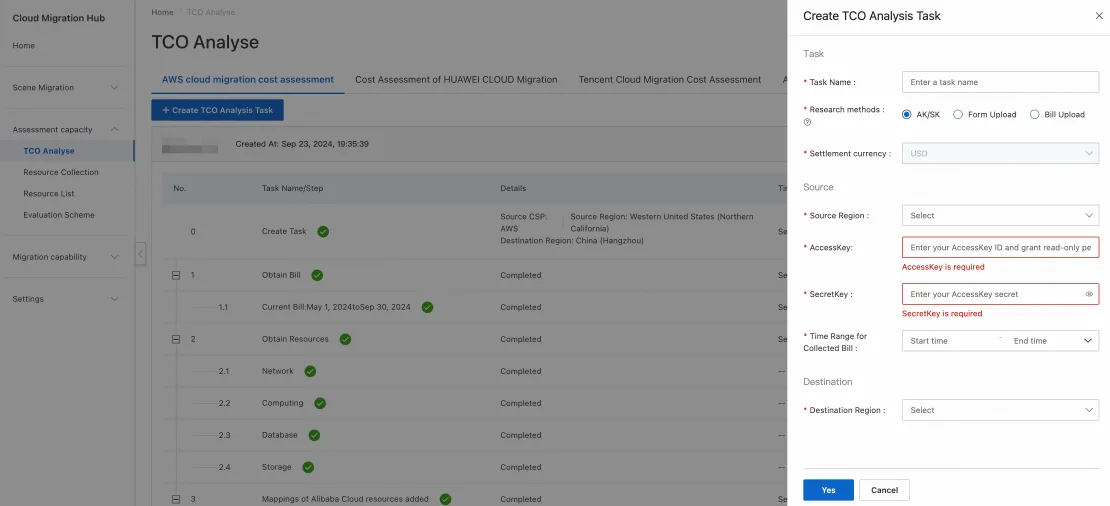
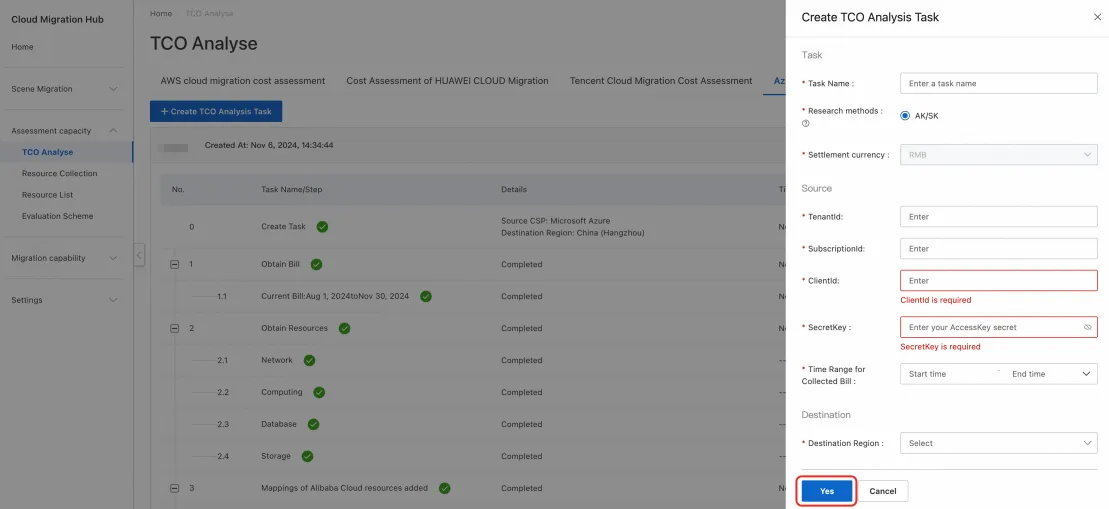
Unlike with AWS, Huawei Cloud, and Tencent Cloud, which require an AccessKey and SecretKey, the AK/SK survey method for Azure requires you to provide a TenantId, SubscriptionId, ClientId, and SecretKey. The following figure shows an example of a completed form:
b. Form Upload (currently available for AWS): Fill out an Excel spreadsheet with your source environment information and upload it.
If you select the Form Upload survey method, click Download Template. After filling out the template, upload the file by clicking Select file.
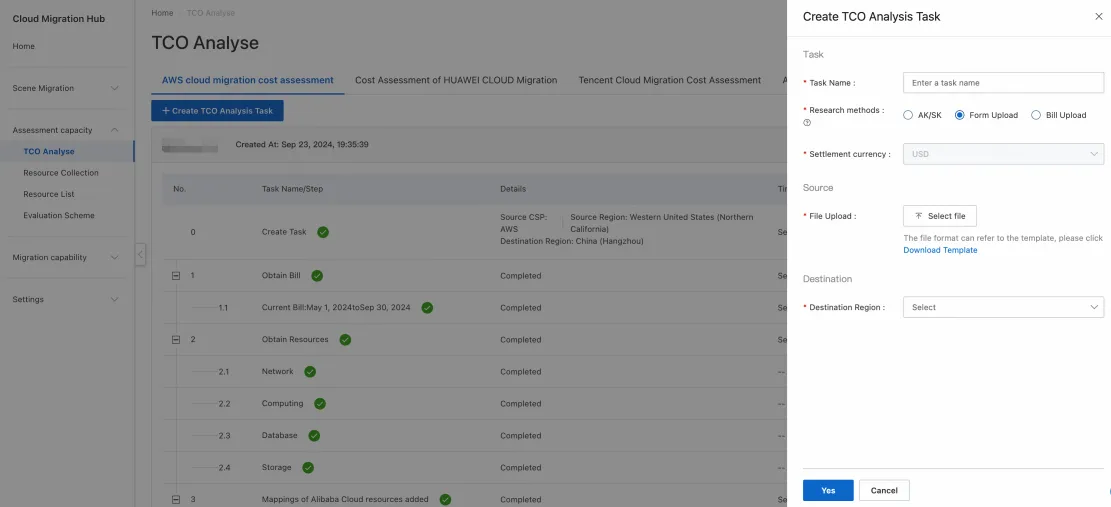
c. Bill Upload (currently available for AWS): Upload a bill file downloaded from AWS.
If you select the Bill Upload survey method, click Select file to upload your downloaded AWS bill. The tool supports bills in PDF and CSV formats. You can also download a sample bill template.
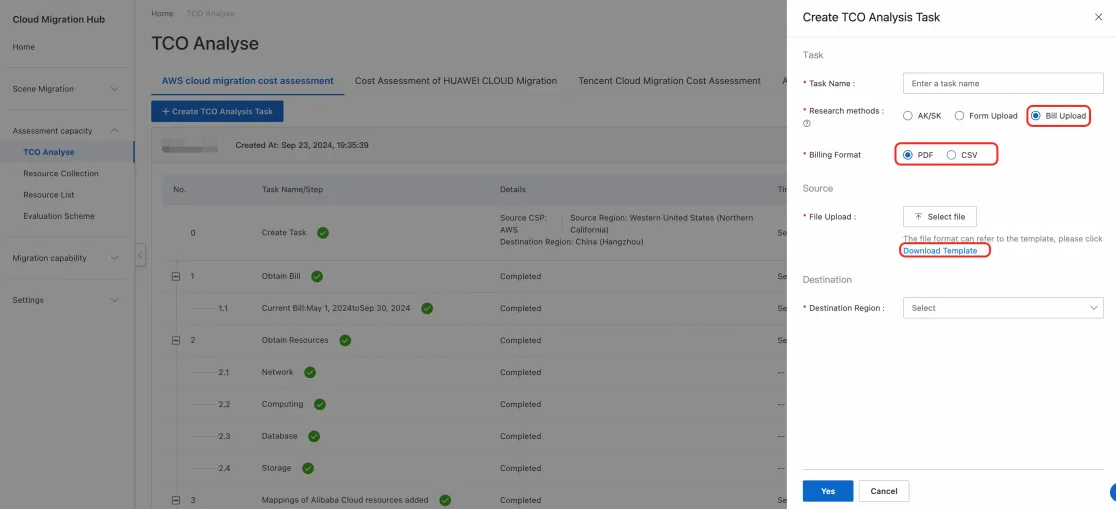
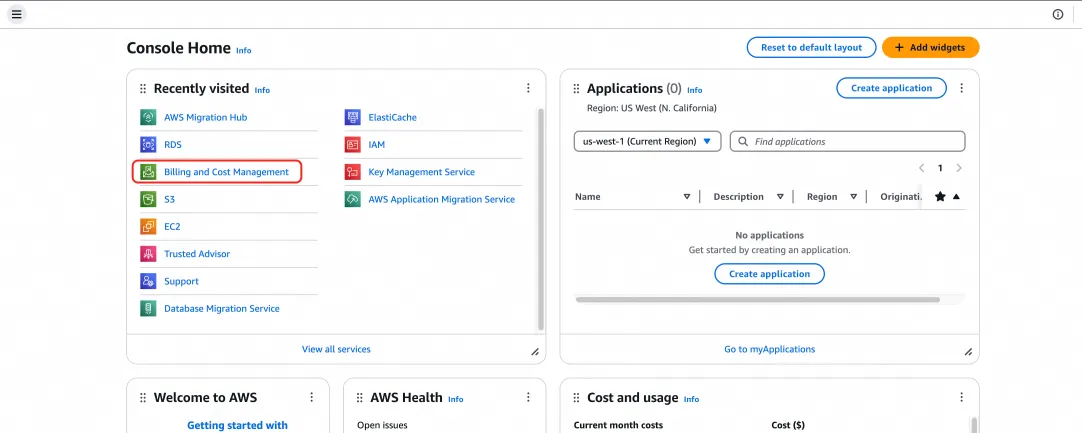
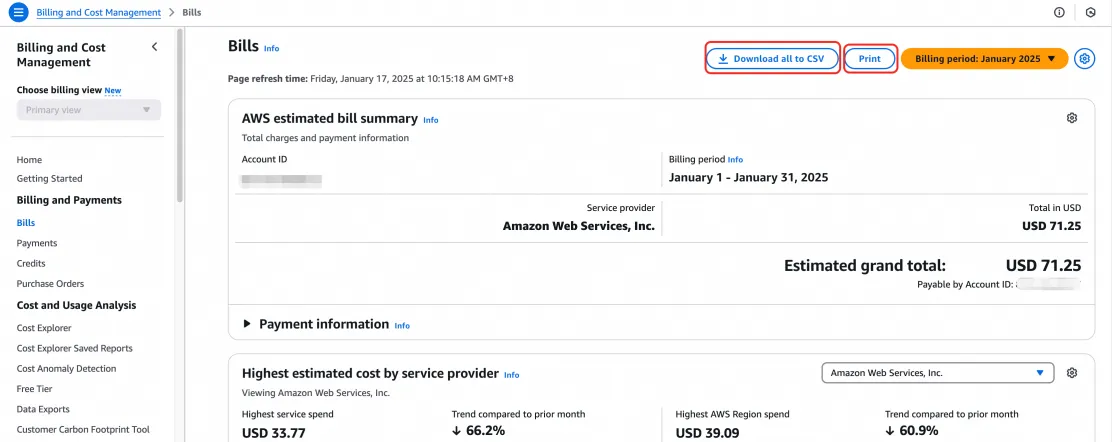
How to download a bill from AWS:
Step 1. Log on to the AWS console. On the homepage, go to Billing and Cost Management.
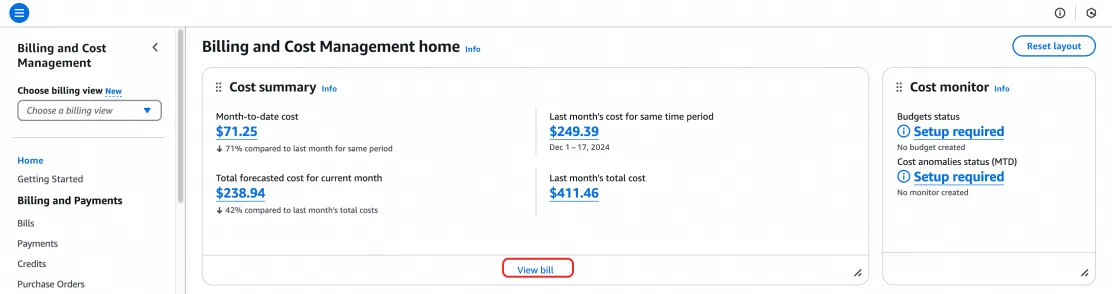
Step 2. On the billing homepage, click View bill.
Step 3. On the bill details page, select a billing period in the upper-right corner. Then, click Download all to CSV or click Print to export the file as a PDF.
3. Submit the TCO analysis task.
For AWS, Huawei Cloud, or Tencent Cloud, fill out the form and click Yes to start the TCO analysis task.
For Azure, fill out the form and click Yes to start the TCO analysis task.
After submitting the task, it appears in the task list with a running status. Wait for the task to complete before viewing the analysis.
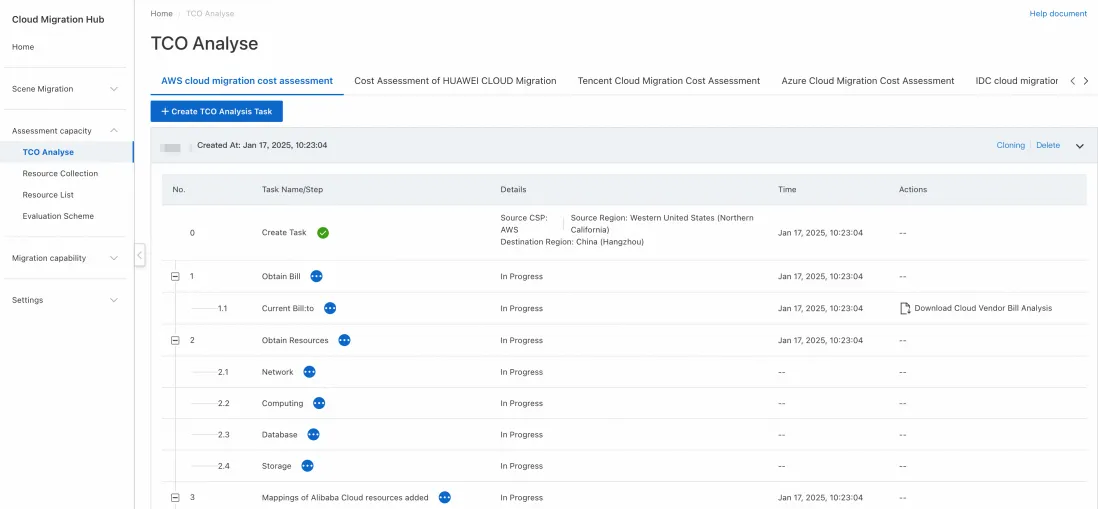
Download bill analysis
The system analyzes your bill for the specified period by billable item. It parses the specifications, average monthly usage, and average monthly consumption for each service. After the task is complete, you can download the analysis results as an Excel file for further offline analysis.
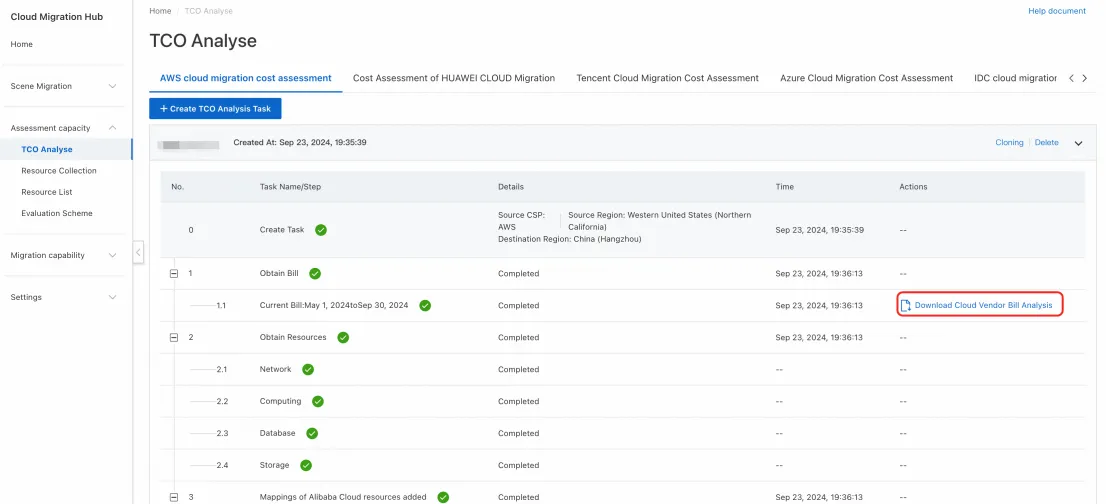
View configurations
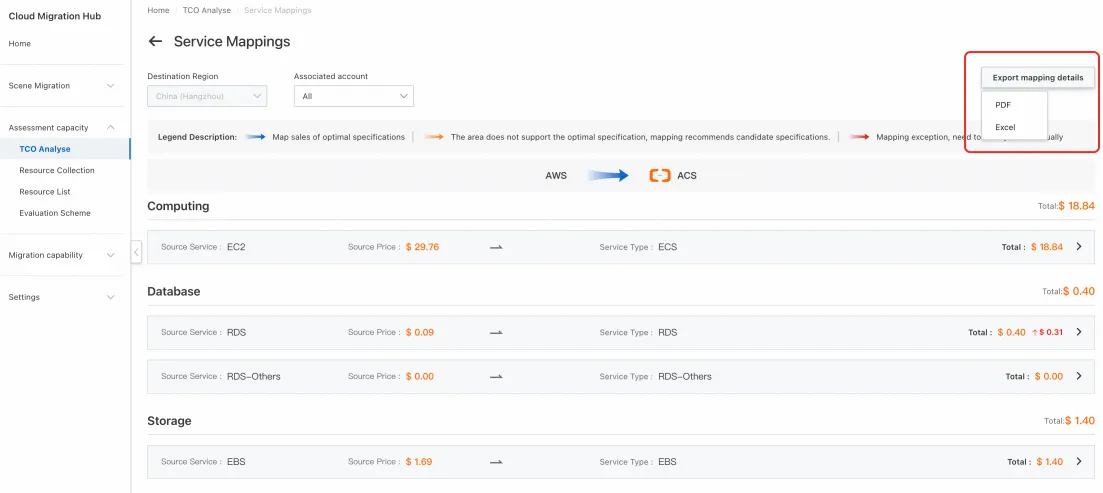
Based on the service specifications and usage data from the previous step, the system automatically maps your resources to equivalent Alibaba Cloud services and usage. The mapping strategy prioritizes cost-effectiveness while ensuring the recommended configurations are at least as powerful as your current setup. You can click the View Configurations link to open the service mapping list. In this list, you can modify mappings to meet your requirements. You can also click Export mapping details to download the details in PDF or Excel format.
Service comparison
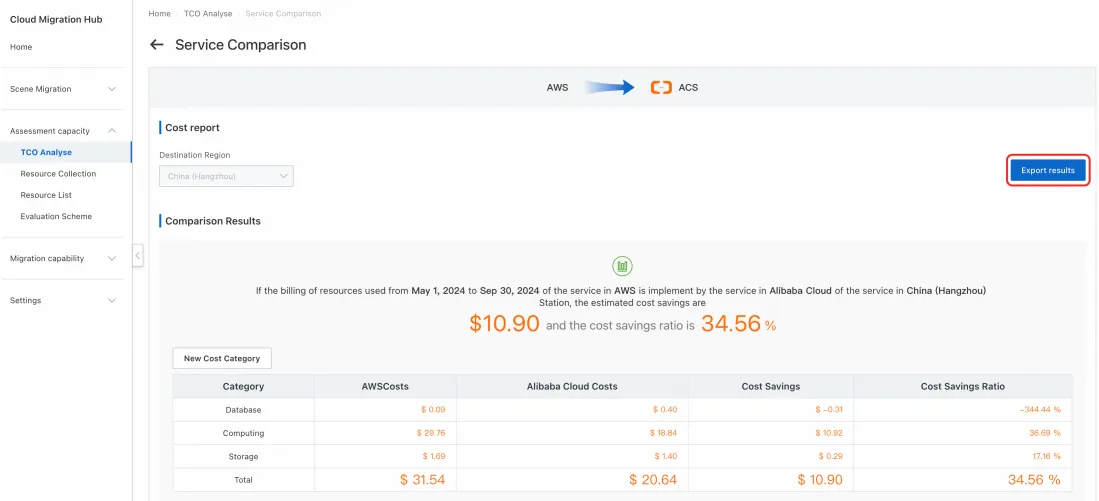
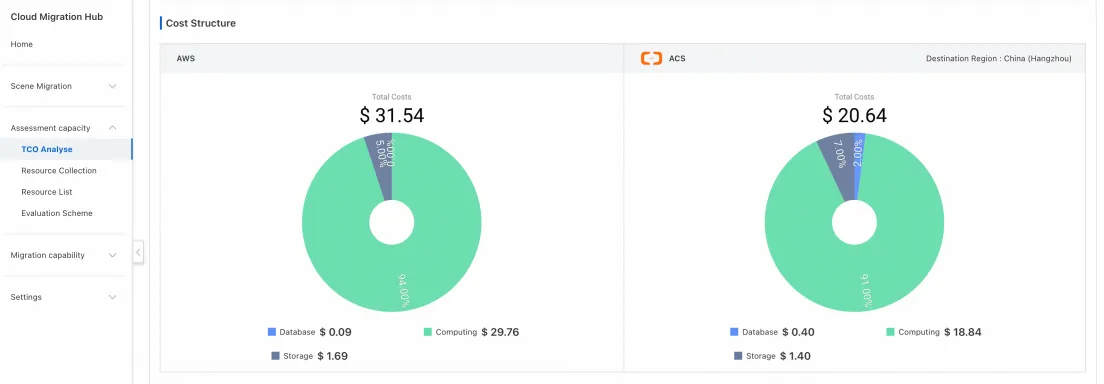
On the service comparison page, you can compare the average monthly costs of your third-party cloud provider, such as AWS, with the estimated average monthly costs on Alibaba Cloud for a specified period. You can click Export results to download a detailed comparison in PDF format. You can also contact your sales manager to adjust the pricing ratios for different service categories to further optimize your costs on Alibaba Cloud.

Supported service mappings
Third-party cloud service | Alibaba Cloud service |
Amazon Elastic Compute Cloud | Elastic Compute Service (ECS) |
Amazon Elastic IP Address | Elastic IP Address (EIP) |
Amazon NAT Gateway | NAT Gateway |
Amazon Elastic Load Balancing | Server Load Balancer (SLB) |
Amazon Relational Database Service | ApsaraDB RDS |
Amazon Simple Storage Service | Object Storage Service (OSS) |
Amazon Elastic File System | Block Storage |
Amazon EC2 Container Registry | Container Registry (ACR) |
Amazon Elastic Container Service for Kubernetes | Container Service for Kubernetes (ACK) |
Huawei Elastic Cloud Server | Elastic Compute Service (ECS) |
Huawei Relational Database Service | ApsaraDB RDS |
Tencent Cloud Virtual Machine | Elastic Compute Service (ECS) |
Azure Virtual Machines | Elastic Compute Service (ECS) |
TCO analysis for data centers
Create a TCO analysis task
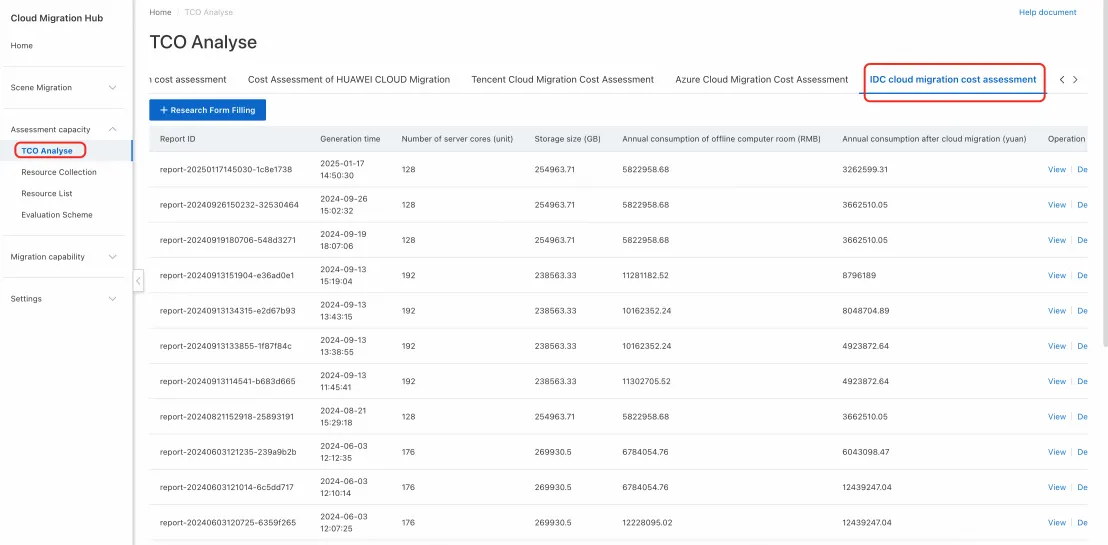
In the left-side navigation pane, choose Assessment->TCO Analysis. Click the Cloud Migration Cost Assessment for IDC tab, and then click Research Form Filling to enter your source data center information.
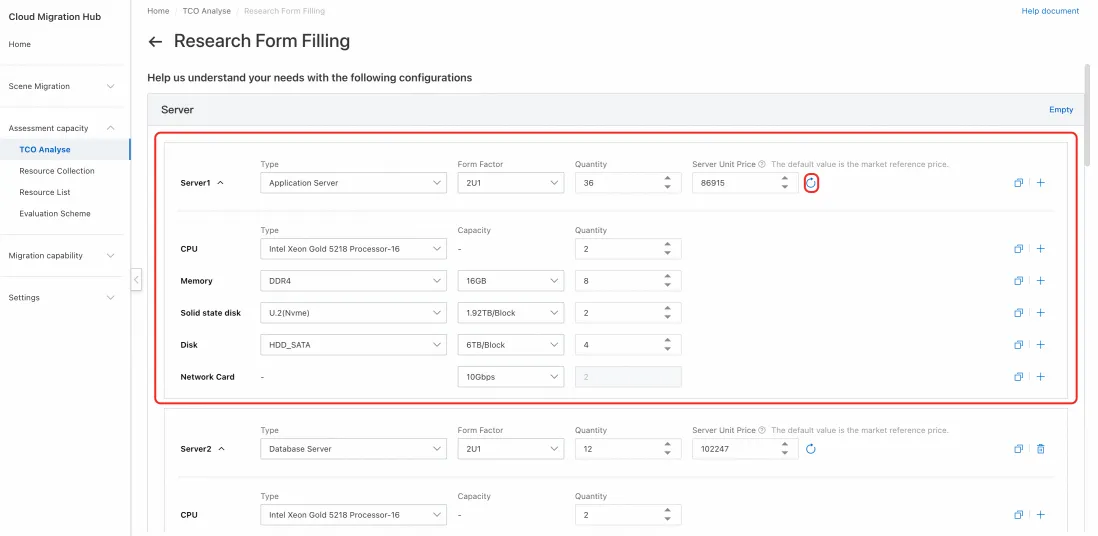
Server
1. On the research form filling page, first enter your server information. The server type can be an application server or a database server. Select the options for each configuration item from the drop-down lists. These selections affect the server's unit price based on default market reference prices. After entering the quantity, click Refresh to calculate the unit price for the current server specification.
2. To add another server specification, click Add Server. A blank server template appears.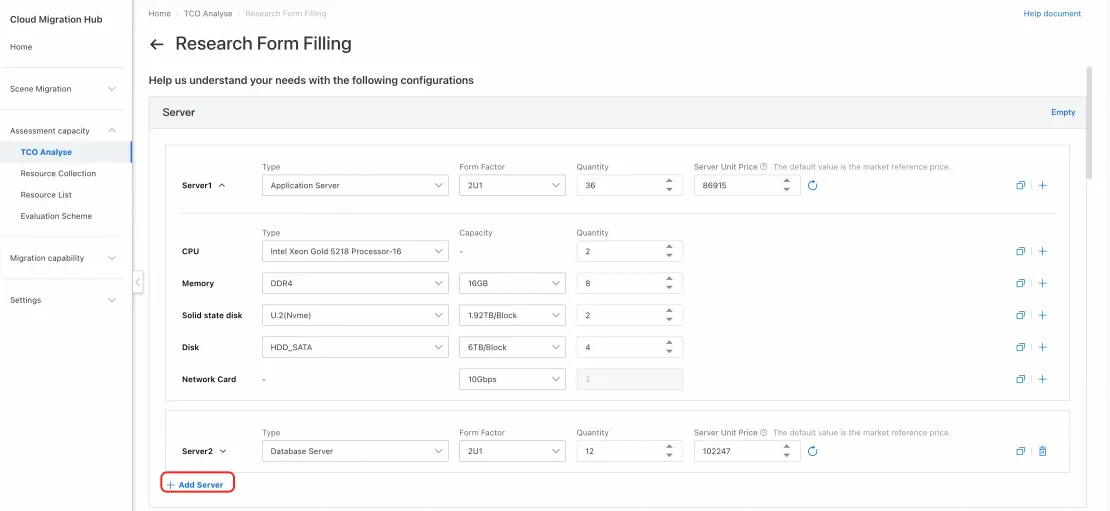
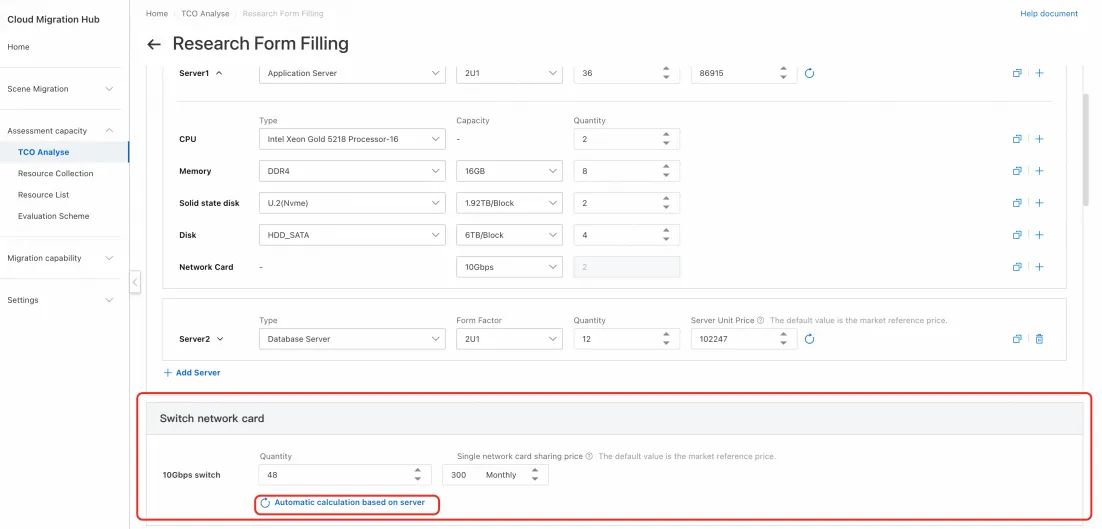
Network Interface Controllers (NICs)
Click Automatic calculation based on server. The system calculates the total number of network interface controllers (NICs) based on the server quantities and specifications. To adjust the price, enter a new value in the price field.
Storage
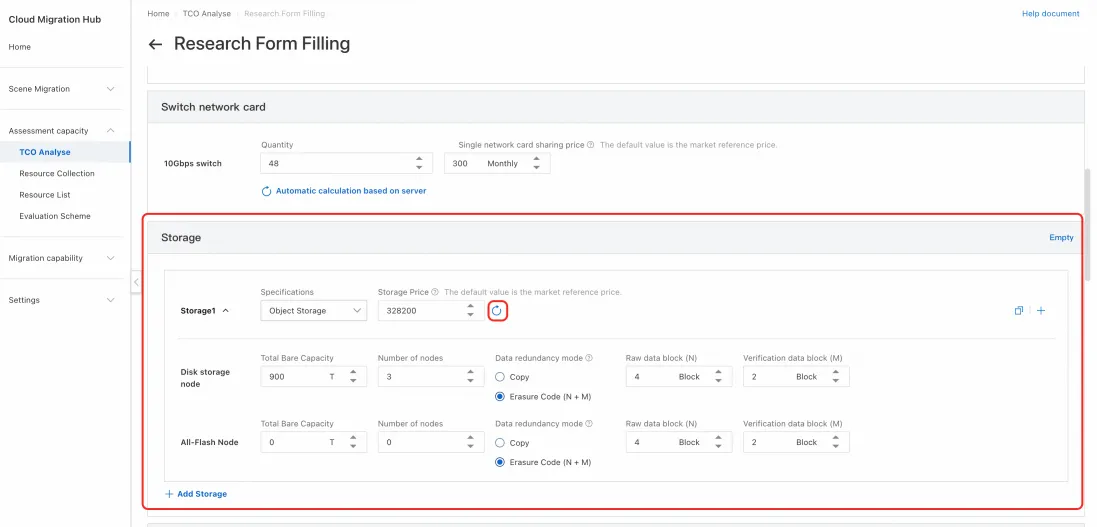
1. The storage type can be object storage or file storage. Fill out the form and click Refresh to calculate the unit price for the current specification. You can also adjust the storage unit price manually.
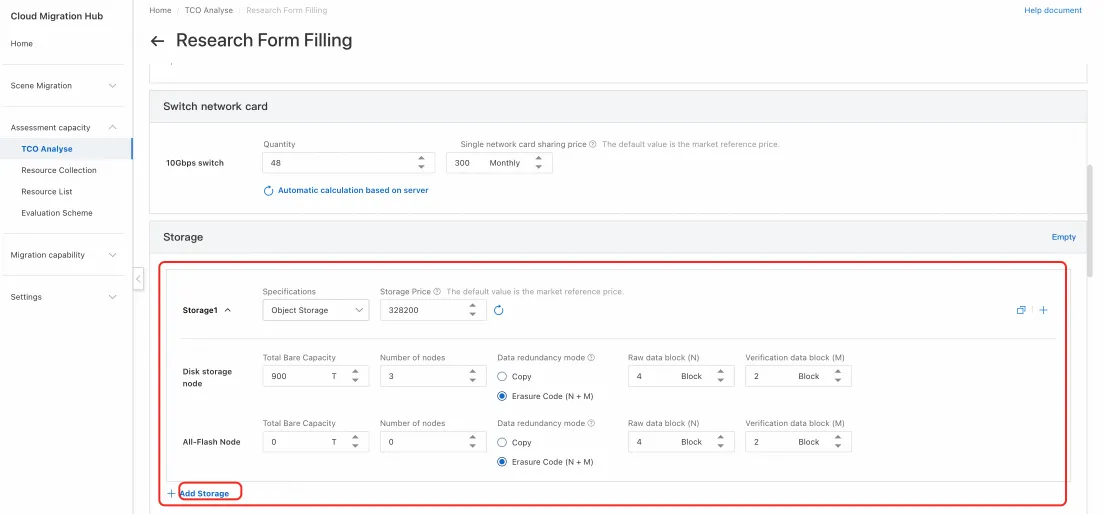
2. To add another storage specification, click Add Storage. A blank storage template appears.
Data center
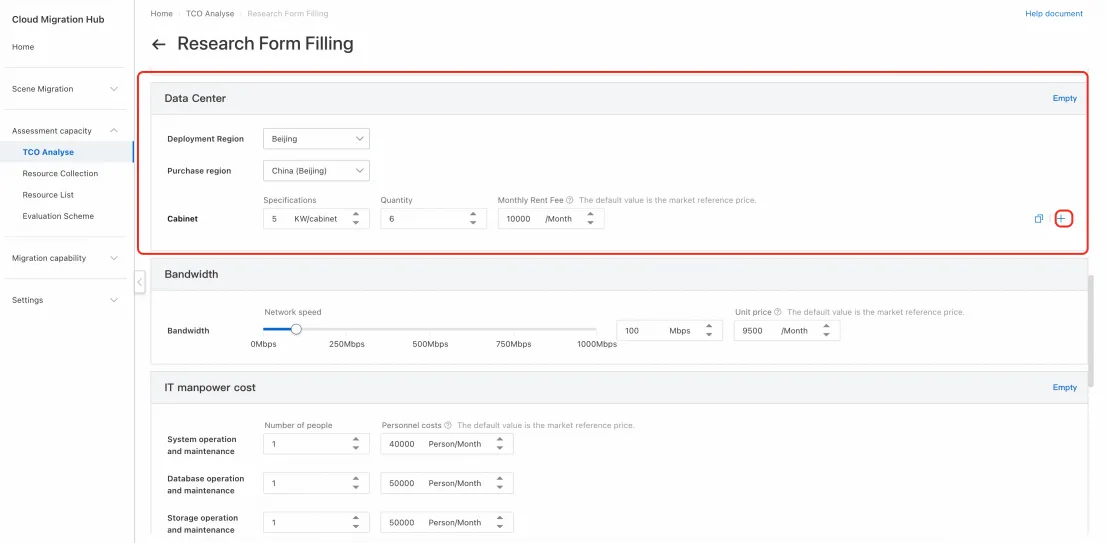
Select a region. The default rack price varies by region. You can adjust the rack price. To add more rack specifications, click the plus icon (+).
Bandwidth
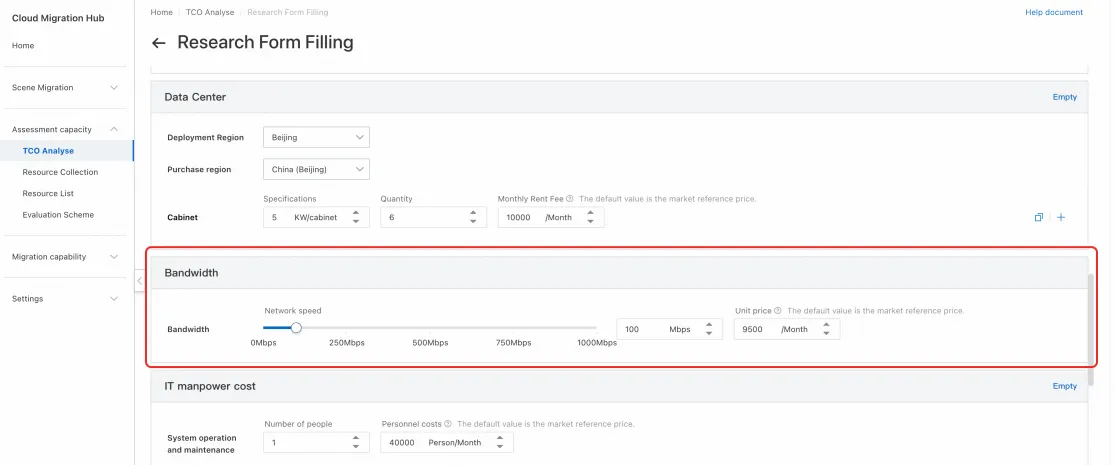
Specify the bandwidth by using the slider or by entering a value directly. The system calculates the monthly unit price based on a default price. You can also adjust this price.
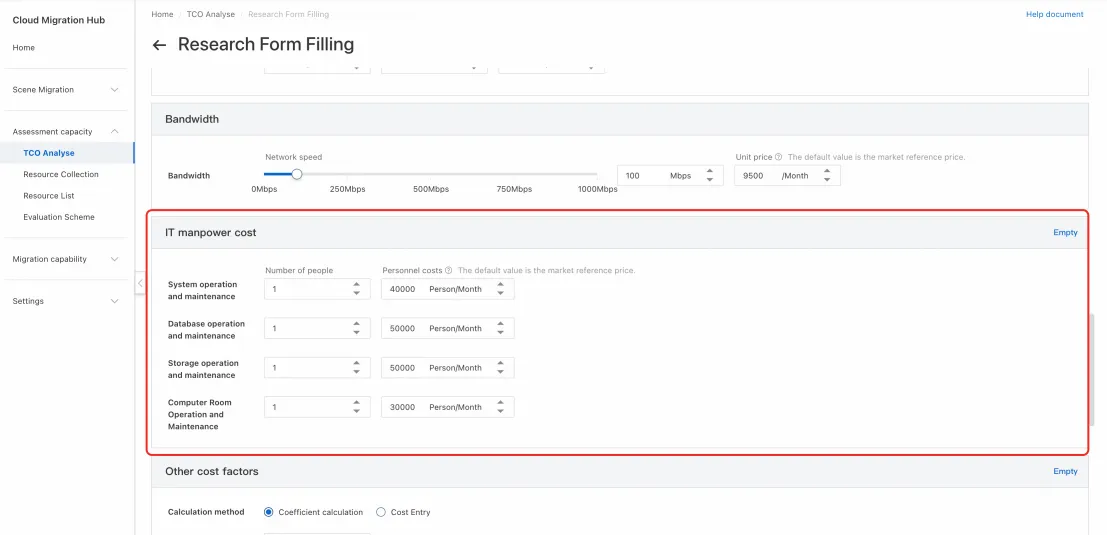
IT manpower cost
IT manpower cost includes employment costs other than salary, such as office and social security costs. The default values are based on market reference prices. You can modify these values.
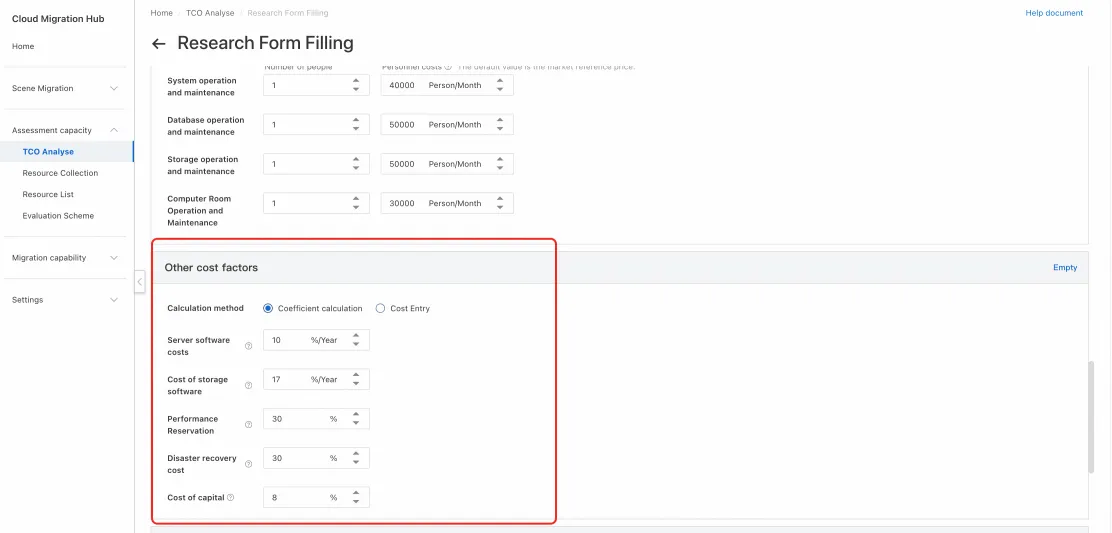
Other cost factors
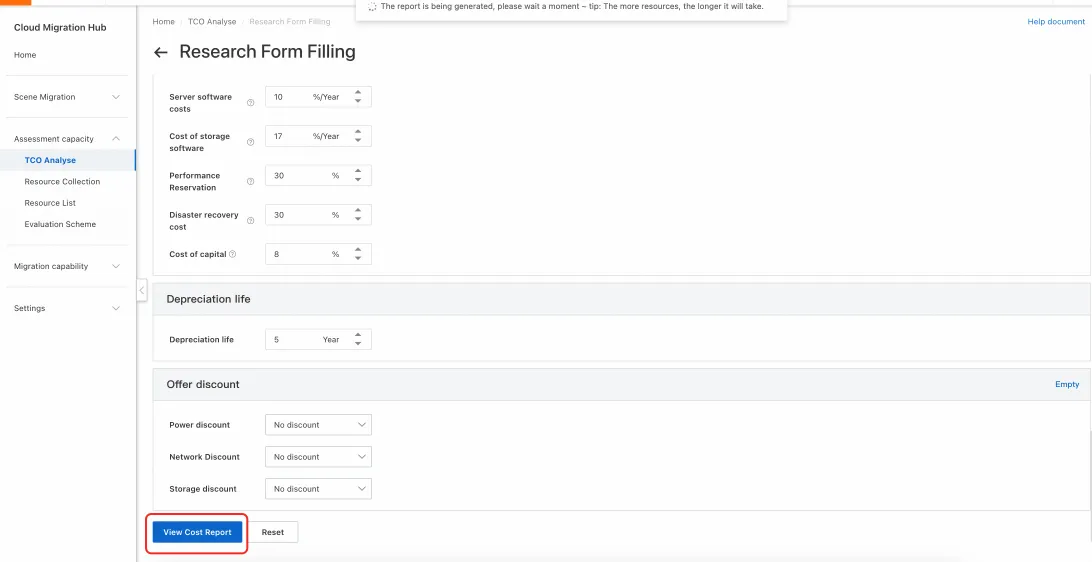
Enter other costs. You can use Coefficient calculation, where you enter a percentage for each item. The annual cost is then roughly estimated based on the total price and the specified coefficients.
Alternatively, you can select Cost Entry and enter the cost amounts directly.
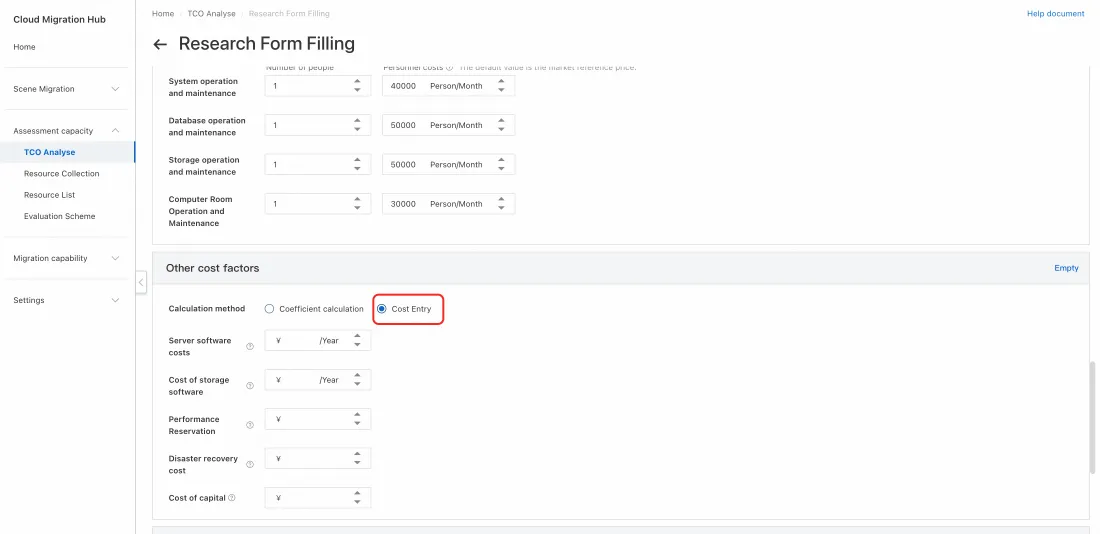
Description of other costs:
Server software costs: Costs for commercial software installed on servers, such as operating systems, database management systems, load balancing systems, resource management platforms, and O&M change platforms.
Cost of storage software: Costs for commercial storage software that supports device management and remote maintenance. This software often includes core features like data redundancy, data recovery, tiered storage, data encryption, load balancing, snapshot replication, and version management.
Performance reservation: In a self-managed data center, you can set a buffer for performance based on business demand forecasts. This helps reduce the capacity risk from short-term increases in business volume.
Disaster recovery cost: In a self-managed data center, this is the cost of maintaining a disaster recovery reserve to prevent hardware failures from affecting business stability.
Cost of capital: When purchasing hardware for a self-managed data center, the upfront payment incurs additional capital costs.
Depreciation life
Enter the depreciation life for the equipment. You can select a period of 3 to 5 years.
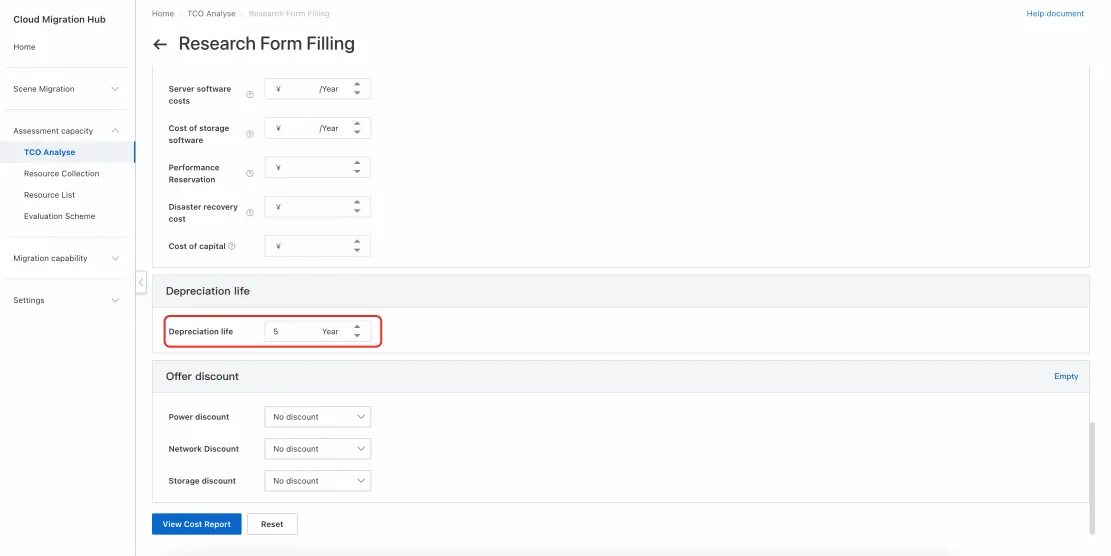
After filling out all the required information, click View Cost Report and wait for the report to be generated.
View report
After the report is generated, you are automatically redirected to the results page. You can click Adjustment needs in the upper-right corner to return to the form and modify parameters. You can also click Download Cost Report to export the report as a PDF file.
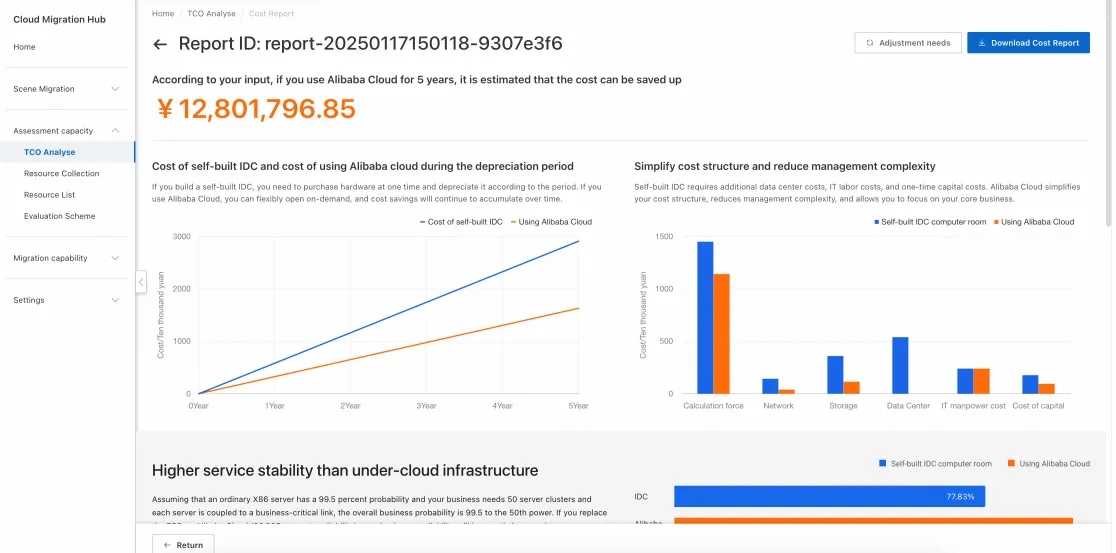
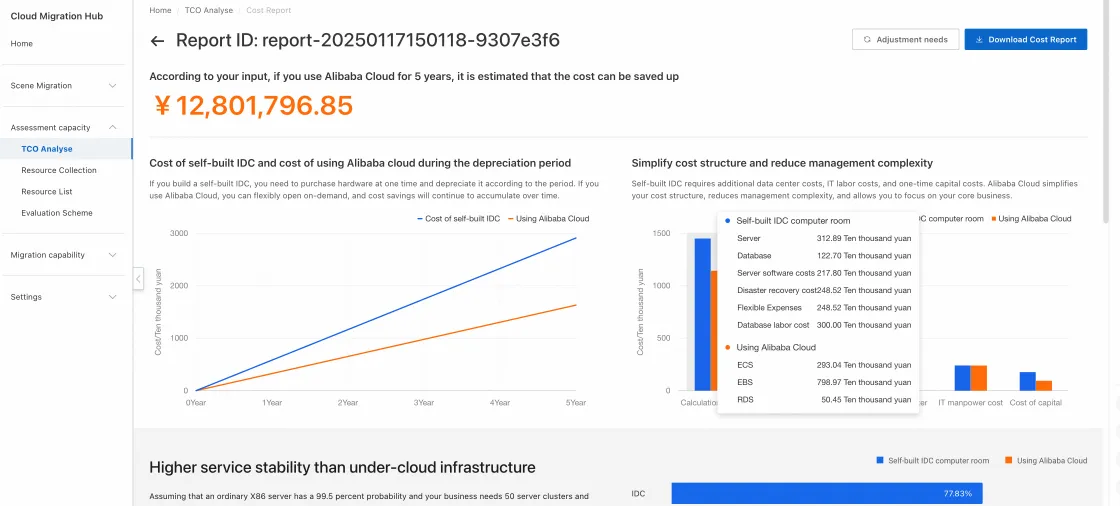
The charts provide an annual cost comparison over the depreciation life and a summary of the cost analysis.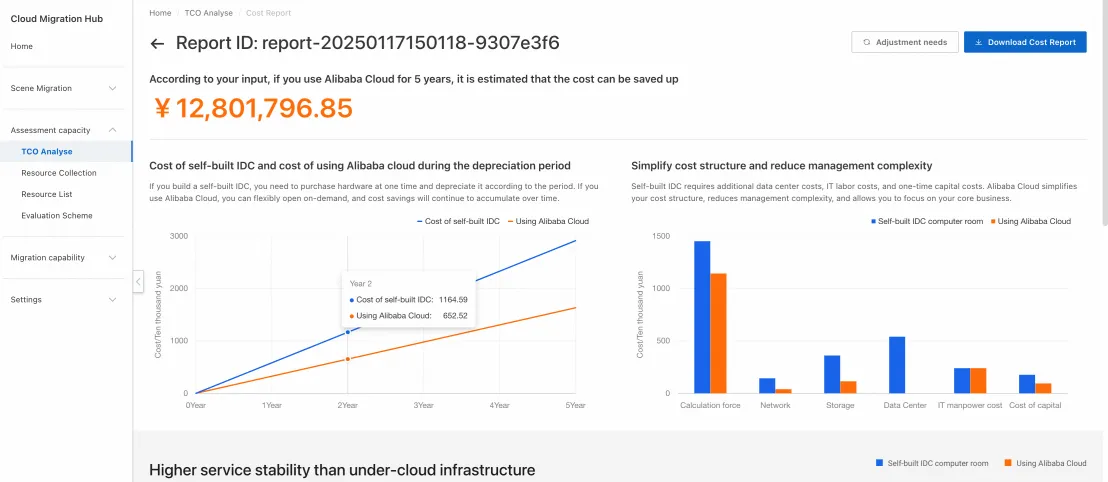
Cost list comparison
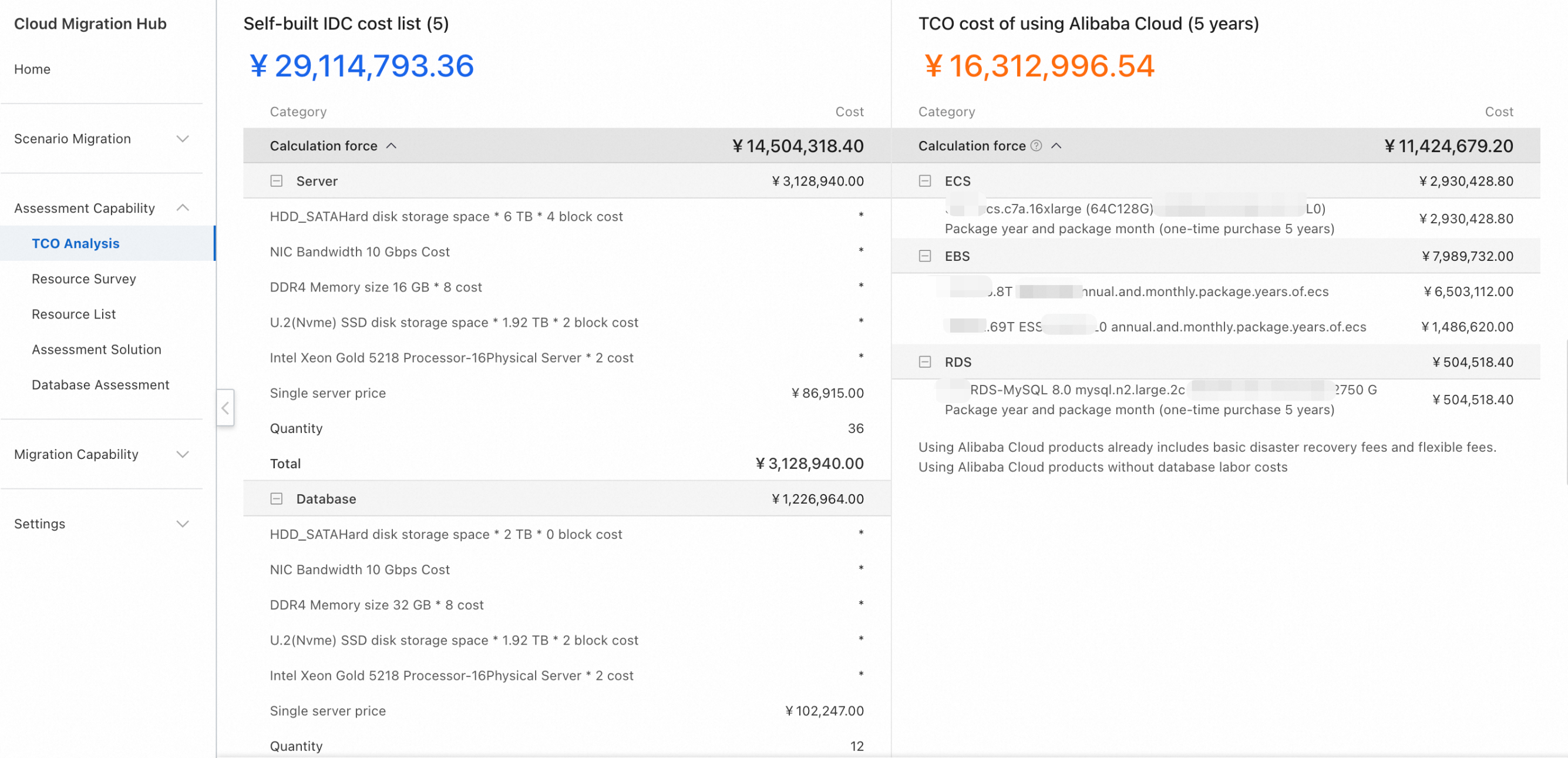
Below the charts, you can view a detailed cost comparison for this TCO analysis. Costs are broken down into major categories such as compute and network, allowing for a clear, structured comparison of spending in each area.
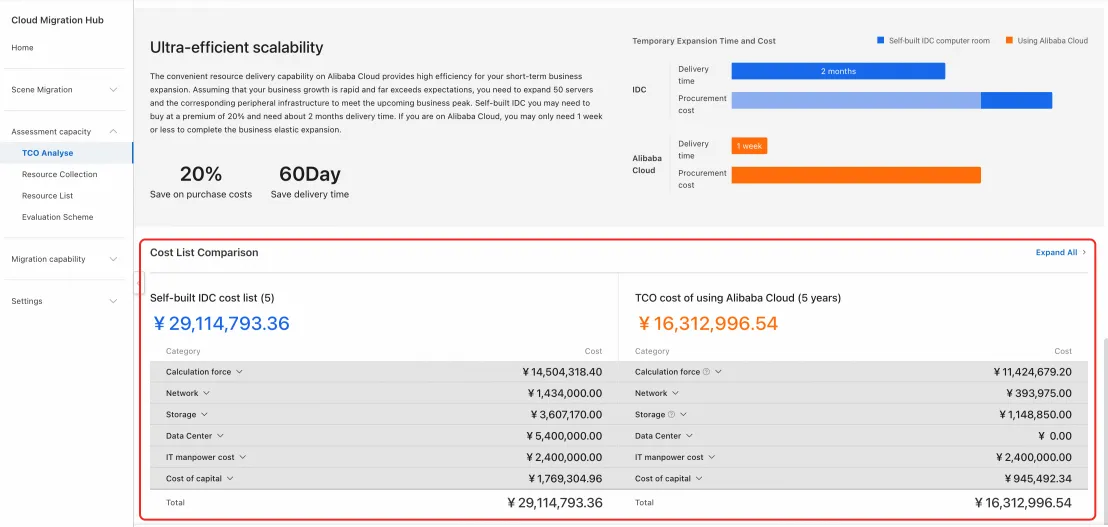
You can click the drop-down arrow for each category or click Expand All on the right to view detailed specifications and prices.
Historical reports
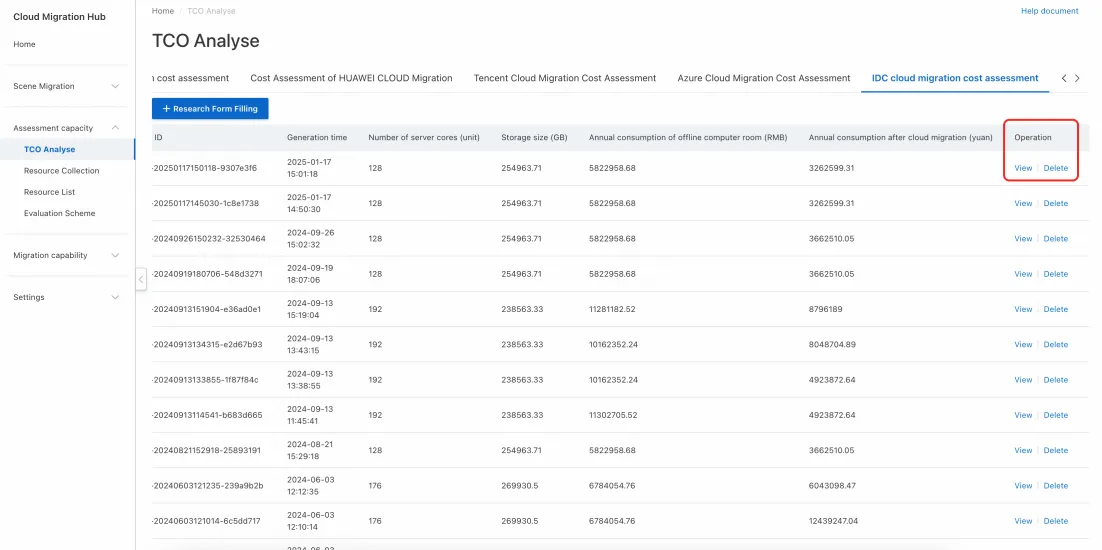
The results of each analysis are saved in a list. You can run multiple analyses with different configurations and compare the results. To review the details of a specific report, find it in the list and click View in the Operation column to open its report page.