Cloud Firewall is a SaaS firewall that protects cloud assets from network threats. This guide covers activation, asset protection, IPS verification, and ACL policy configuration in 15–20 minutes.
Step 1: Activate pay-as-you-go Cloud Firewall
-
Go to the Cloud Firewall purchase page. Set Product Type to Pay-as-you-go 2.0, and complete the following configuration items.
Configuration item
Description
Auto Protection for Internet Assets
Select Yes to automatically add all public assets to the firewall and enable automatic protection for new assets. You can change this later in the console.
Log Analysis and Log Analysis and Storage Capacity
Keep the default to store access logs. This enables real-time log collection, querying, and analysis for protected assets, meeting classified protection compliance requirements.
Service-linked Role
Cloud Firewall requires access to your Alibaba Cloud resources for traffic control and monitoring. Click Create Service-linked Role to create AliyunServiceRoleForCloudFW. Do not modify this role.
-
Read and accept the Cloud Firewall (pay-as-you-go) Service Agreement, then click Buy Now and complete payment.
Step 2: View asset protection
-
Log on to the Cloud Firewall console. In the navigation pane on the left, click Firewall.
-
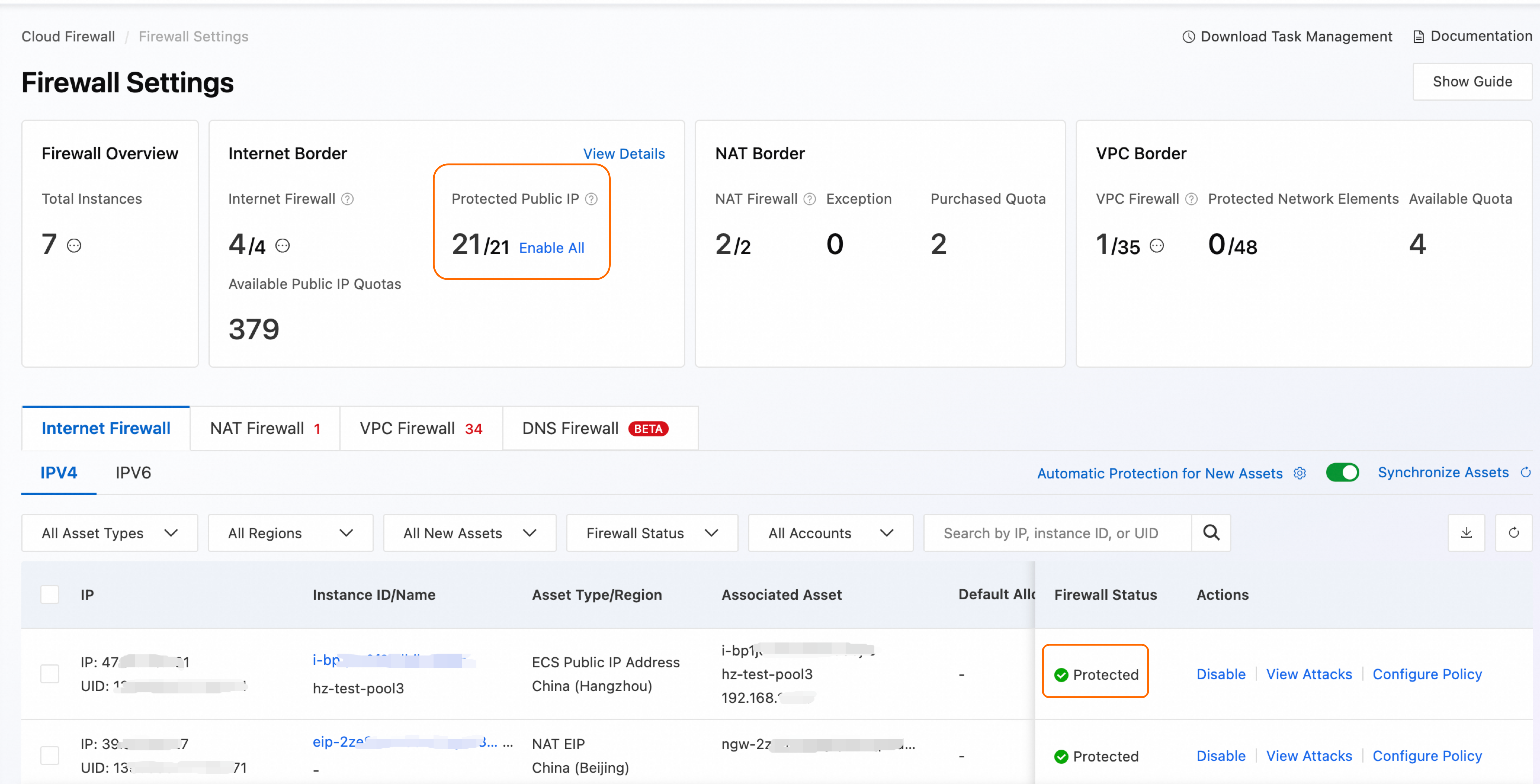
On the Internet Firewall tab, view your public assets under the current Alibaba Cloud account and their protection status. Because you enabled Auto Protection for Internet Assets during purchase, all public assets are in Protected status by default.
Step 3: Understand default IPS protection
Cloud Firewall includes built-in intrusion prevention (IPS) that automatically blocks:
-
Network attacks (SQL injection, XSS, command injection)
-
Vulnerability exploits (CVE-tracked vulnerabilities)
-
Brute-force attacks (SSH, RDP, database logins)
-
Worm propagation and cryptomining activity
-
Backdoor trojan communications
-
Denial-of-service (DoS) attacks
To view IPS rules:
-
In the navigation pane on the left, choose .
-
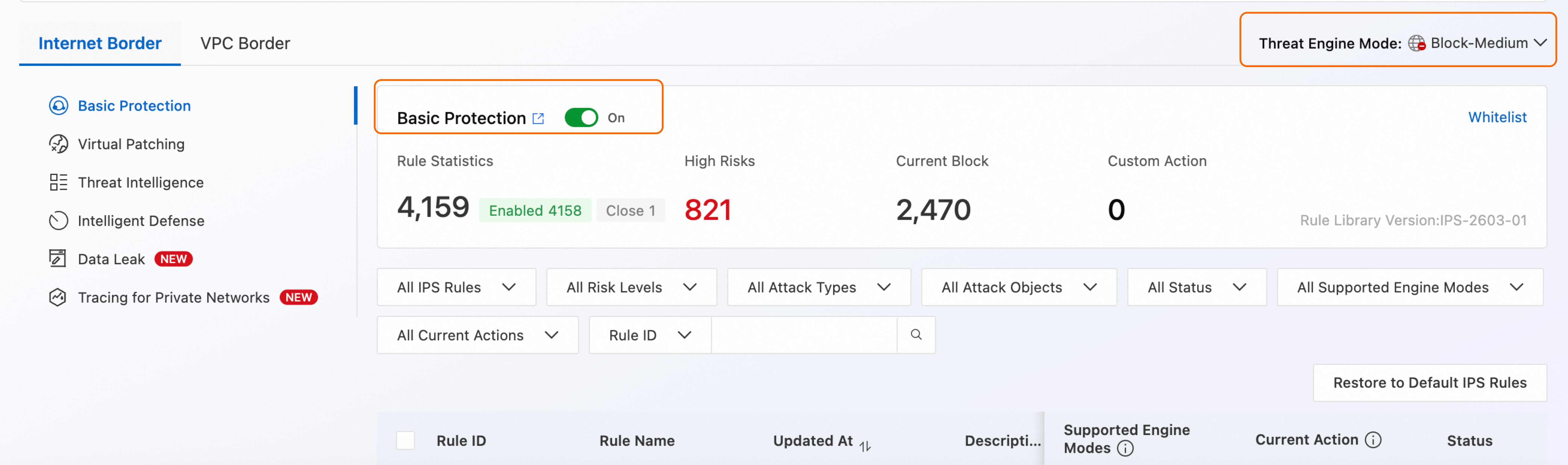
By default, the system enables Basic Protection and Virtual Patching, using the Block - Medium Threat Engine Mode, which is suitable for routine security protection scenarios.
Step 4: Configure access control (ACL) policies
ACL policies define which traffic reaches your servers. Use a whitelist approach: explicitly allow required traffic and deny everything else.
By default, Cloud Firewall includes the following policies with Action set to Allow. You can view them in the navigation pane on the left under .
|
Direction |
Source |
Purpose |
Protocol |
Port |
Policy description |
|
Outbound |
0.0.0.0/0 |
0.0.0.0/0 |
ICMP |
- |
Allows outbound |
|
Outbound |
0.0.0.0/0 |
0.0.0.0/0 |
UDP |
53 |
Allows outbound DNS queries for domain resolution. |
|
Outbound |
0.0.0.0/0 |
0.0.0.0/0 |
UDP |
123 |
Allows outbound NTP for time synchronization. |
|
Inbound |
0.0.0.0/0 |
0.0.0.0/0 |
ICMP |
- |
Allows inbound |
Most attacks originate from the Internet. Use a whitelist approach: create a low-priority Deny All catch-all policy, then add specific allow rules above it.
-
Risk of misconfiguration: The following examples include a Deny All rule. Applying them directly to production may cause service disruption if traffic does not match an explicit allow rule.
-
Configuration recommendations:
-
Order principle: Place whitelist rules before the catch-all rule. Ensure all production traffic is explicitly allowed above the deny rule before deploying.
-
Grayscale validation: Set the catch-all policy action to Monitor first. Use Log Audit to analyze traffic and refine policies. After thorough testing, change the action to Deny.
-
Environment isolation: Enable the catch-all rule fully in staging. In production, if you cannot define a complete whitelist immediately, limit the source address to test IP ranges to avoid impacting live services.
-
-
Configure policies: Go to the page and configure the following:
Inbound (priority from high to low):
Source
Purpose
Protocol
Application
Port
Action
Alibaba trusted IPs
Public IP of cloud asset
All
ANY
All
Allow
Origin URLs of Alibaba Cloud services (such as WAF, DDoS)
Public IP of cloud asset
All
ANY
All
Allow
Trusted O&M engineer or Bastionhost addresses
Public IP of cloud asset
TCP
RDP, SSH
3389, 22
Allow
Trusted Operations and Maintenance (O&M) Engineer Address
Public IP of cloud asset
ICMP
ANY
-
Allow
All
Public IP of cloud asset providing web services
TCP
HTTPS
443
Allow
All
Public IP of cloud asset providing API services
TCP
HTTP
Corresponding API port
Allow
All
All
All
All
All
Deny
Outbound (priority from high to low):
Source
Purpose
Protocol
Application
Port
Action
All
Alibaba trusted IPs, Alibaba trusted domains
All
ANY
All
Allow
All
Software repositories, Certificate Service
All
ANY
All
Allow
All
Trusted domains such as Microsoft, Google, Windows
TCP
HTTPS, HTTP
All
Allow
All
All
UDP
ANY
53, 123
Allow
All
All
ICMP
ANY
-
Allow
All
All
All
All
All
Deny
-
Adjust ACL engine mode: By default, Cloud Firewall allows traffic with unrecognized applications or domains to prevent false blocking. After confirming your policies are correct, click ACL Engine Management in the upper-right corner and switch the ACL Engine Mode for your assets to Strict Mode.
-
Validation test: After configuring policies, wait 3–5 minutes. Test with
pingorcurl, then click the number in the Hits/Last Hit At column to view hit logs on the Log Audit page.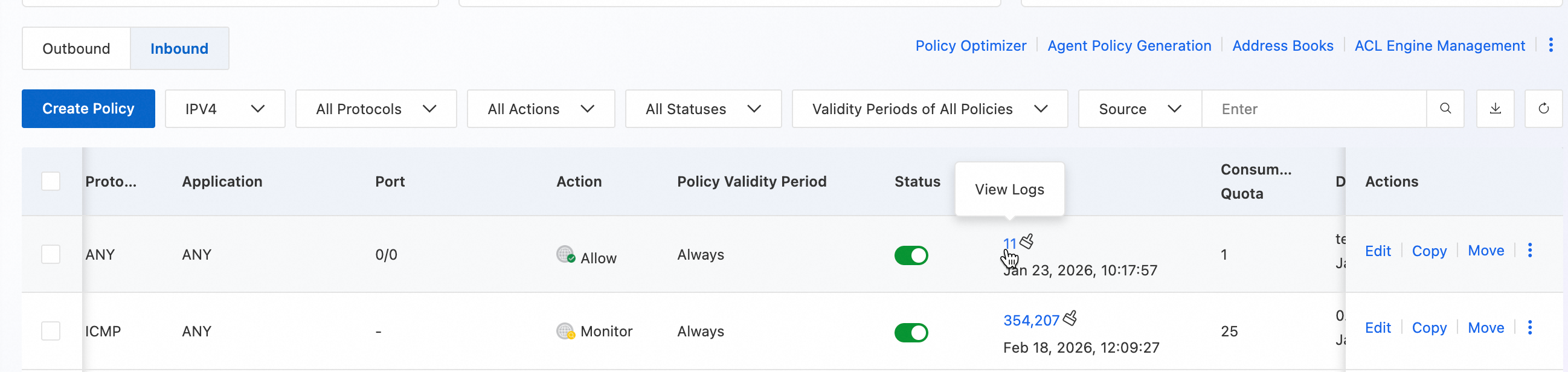
You have completed the Quick Start guide. Choose your next step:
-
(Recommended) Continue using Cloud Firewall: Go to Advanced Optimization to refine your configuration for enterprise-grade security and compliance.
-
Stop using Cloud Firewall: Go to Release Resources to stop billing.
Advanced Optimization
Use address books to improve management efficiency
When policies grow complex, address books simplify management. Predefine business-related IP addresses—such as office egress IPs or partner IPs—as address books, then reference them in policies.
-
Go to the page.
-
Click the Cloud Service IP Address Book tab to view address books provided by Alibaba Cloud.
-
Click the Custom IP Address Book tab, then click Create Address Book to define a group of frequently used IP addresses as a collection. Address Book.
IPS configuration
The default Block - Medium mode suits most scenarios. Adjust IPS settings in the following cases:
-
High-risk protection scenarios—such as frequent attacks, major event support, or red team exercises:
-
Add trusted IPs to the Allowlist;
-
Change the Threat Engine Mode to Block - Strict;
-
Enable the Threat Intelligence feature.
-
-
High false-positive rate:
-
Add trusted IPs to the Allowlist;
-
Change the Threat Engine Mode to Block - Loose;
-
If issues persist, switch to Monitor mode.
-
Enable VPC firewall to control private network traffic
If you use multiple VPCs or Cloud Enterprise Network to connect on-premises data centers, enable VPC Firewall Overview to monitor and control east-west traffic between VPCs connected via TransitRouter or Express Connect, and between VPCs and on-premises data centers.
Use subscription billing to reduce costs
For long-term use, purchase the subscription version, or use pay-as-you-go with a pay-as-you-go savings plan for better pricing.
Release resources to stop billing
If you no longer need the Cloud Firewall instance, go to the upper-right corner of the Overview page and choose .
