Because WhatsApp message templates are subject to a review process and routine checks, their category may be updated in the following two scenarios:
Category changed during review
When you create a template and submit it for review, if WhatsApp reviewers determine that the content does not match the selected category, they will adjust the category based on the actual content and automatically update it upon approval.
Example: You create a template with the Utility category with the content: "Your order has been shipped and is expected to arrive this Friday. Use code SAVE20 for 20% off your next purchase." Since this content includes promotional information, WhatsApp reviewers will change its category from Utility to Marketing and approve it under the Marketing category.
After approval, you can still send this template, but its category has been changed to Marketing.
NoteA category can also be updated from Marketing to Utility.
Category updated during routine checks after approval
To ensure consistency between template content and categories, WhatsApp has implemented a periodic automated check mechanism. Starting April 16, 2025, if WhatsApp detects a mismatch between a template's category and its content, the category will be updated instantly.
Both scenarios can cause a template's category to differ from what you expect when sending it. This is especially problematic if a template is changed from Utility to Marketing, as it will be billed at the marketing rate, potentially increasing your messaging costs.
Automatically pause sending when the category changes
To help you control costs, Chat App provides a feature to pause sending when category is changed. You can enable this option when creating a template. If the template's category is later updated, sending is automatically paused to prevent unintended usage and costs.
Chat App will intercept the template as soon as it receives the category update notification from WhatsApp. However, due to network latency and other factors, a small number of messages may still be sent and charged as marketing templates.
Procedure:
When creating a WhatsApp message template, select Utility as the template category.
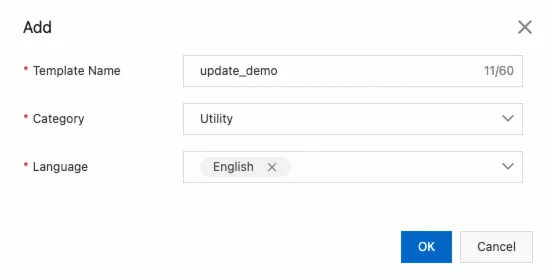
On the template design page, select the Pause sending when category is changed check box.

Edit the template content, then save and submit it for review.
If the template category is changed to Marketing during review or subsequent checks, sending for this template is automatically paused.
If a template's category is changed to Marketing and it is paused, you can uncheck the option to resume sending.
Once you uncheck this option, you cannot enable the pause setting again. Proceed with caution.