If the response time of your website increases due to DDoS attacks, you can enable the rate limiting feature. Rate limiting allows Alibaba Cloud CDN points of presence (POPs) to identify IP addresses that frequently send requests to your website and block malicious requests. This reinforces website security.
This feature is unavailable now. We recommend you use ESA WAF.
This topic consists of the following sections:
Enable rate limiting
Log on to the Alibaba Cloud CDN console.
In the left-side navigation pane, click Domain Names.
On the Domain Names page, find the domain name that you want to manage and click Manage in the Actions column.
In the left-side navigation pane of the domain name, click Security Settings.
Click the Rate Limiting tab.
Turn on Rate Limiting.
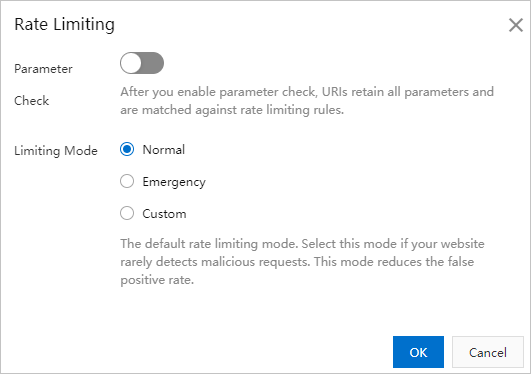
In the Rate Limiting dialog box, turn on Parameter Check and configure the Limiting Mode parameter.
Parameter
Description
Parameter Check
After you enable parameter check, URIs that include all parameters are matched with rate limiting rules. This feature checks only URIs. Match criteria that are configured in custom rate limiting rules do not apply to this feature.
NoteParameter Check takes effect only when you set the Limiting Mode parameter to Custom.
Limiting Mode
You can select one of the following modes:
Normal
The default rate limiting mode. If network traffic in your website is within the expected range, select this mode to prevent false positives.
Emergency
If your website responds slowly and exceptions are detected in network traffic, CPU utilization, memory usage, or other performance metrics, select this mode.
Custom
If you want to create custom rate limiting rules based on your business requirements, select this mode. This mode detects requests that are frequently sent from IP addresses and mitigates HTTP flood attacks on POPs. For more information about how to create custom rate limiting rules, see Add a custom rate limiting rule.
Click OK.
Add a custom rate limiting rule
If you set Limiting Mode to Custom, you must add a custom rate limiting rule. Other limiting modes do not require custom rate limiting rules.
You can add up to five custom rate limiting rules.
Click Add Rule on the right side of Custom Rules.
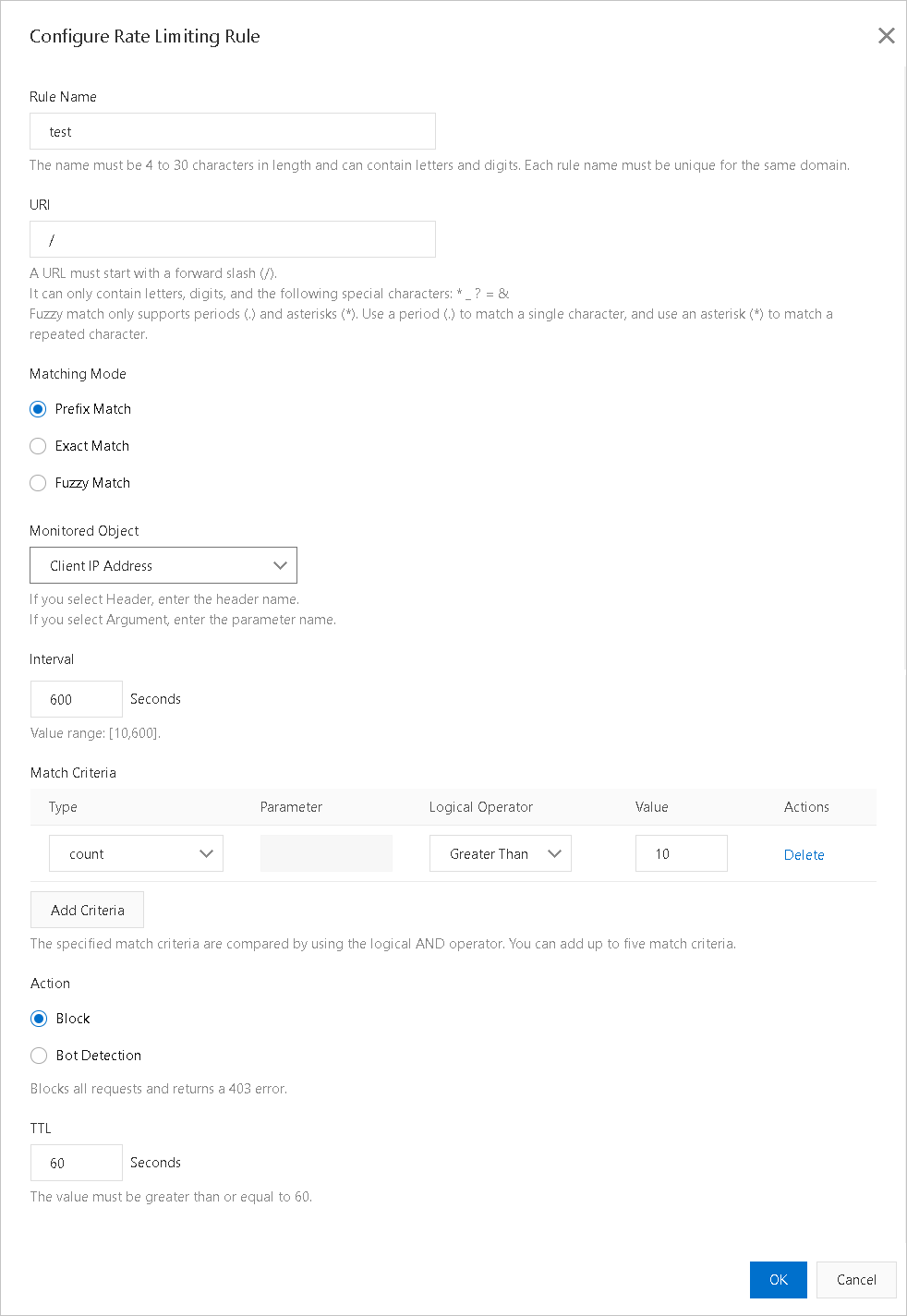
Follow the on-screen instructions to add a custom rate limiting rule. The following table describes the parameters.
Parameter
Description
Rule Name
The name must be 4 to 30 characters in length and can contain letters and digits.
The names of rules that are configured for the same domain name must be unique.
URI
The URI that you want to protect. Example:
/register. If the URI contains parameters, for example,/user?action=login, you must enable the parameter check feature.Matching Mode
Rate limiting rules apply match rules in the following order: exact match, prefix match, and fuzzy match. You can adjust the priorities of the match rules in a rate limiting rule. Match rules are listed and executed based on their priorities.
Exact Match
In this mode, requests are counted only if the request URIs exactly match the specified URI.
Prefix Match
In this mode, requests are counted only if the request URIs start with the specified URI. For example, if the specified URI is set to
/register, requests that start with/register.htmlare counted.Fuzzy Match
In this mode, requests are counted only if the request URIs match the specified regular expression. You can use periods (.) and asterisks (*) as wildcard characters.
A period (.) specifies that the rate limiting rule compares each individual character.
An asterisk (*) specifies that the rate limiting rule considers the request a match if any character matches the specified regular expression.
Monitored Object
Valid values:
Source IP
Header
Domain
URL Parameter
Interval
The period of time during which requests are counted. This parameter takes effect only if you specify a monitored object. Valid values: 10 to 600. Unit: seconds.
Match Criteria
Click Add Criteria and configure the Type, Parameter, Logical Operator, and Value parameters.
NoteThe number of requests that match the specified criteria on each POP is counted. Triggering the rate limiting rule may take a long period of time. You can send more requests to the POPs to trigger the rule.
Action
The action that you want to perform after a request matches the specified rule. You can select Block or Bot Detection.
Block
If this action is triggered, the HTTP 403 status code is returned to the request.
Bot Detection
If this action is triggered, the HTTP 200 status code is returned to the request and the request is redirected for verification. The request can access the requested resources only if it passes the verification.
For example, if an IP address initiates more than five requests within 20 seconds, bot detection is triggered. All requests from the IP address within the following 10 minutes are verified. Requests from this IP address can access resources only if the requests pass human-machine identification.
TTL
The period of time during which IP addresses remain blocked. The period of time must be at least 60 seconds.
Click OK.
Examples
The following table provides several configuration examples.
Scenario | Monitored object | Interval | Match criteria | Action | TTL | Expected result |
4xx or 5xx errors | IP | 10 seconds |
| Block | 10 minutes | If at least 60% of all HTTP status codes that are returned to the IP address are HTTP 404 status code, and the IP address initiates at least 50 requests, the IP address is blocked for 10 minutes. All requests from the IP address receive the HTTP 403 status code. |
Queries per second (QPS) errors | Domain names | 10 seconds |
Note Specify a value for N based on your business requirements. | Bot Detection | 10 minutes | If the number of requests that are sent to the domain name reaches the value of N, bot detection is triggered. All requests that are sent to the domain name within the next 10 minutes are verified. Requests can access the domain name only if the requests pass human-machine identification. |
Related API operations
DescribeDomainCcActivityLog: queries the log entries of rate limiting.