This topic describes the Auto Scaling workflow, covers how to configure scaling modes, and provides diagrams of key processes.
Scaling groups work in the same way for both Elastic Container Instance (ECI) instances and Elastic Compute Service (ECS) instances. This topic uses ECS instances in a scaling group as an example to describe how Auto Scaling works. For more information about ECS and ECI instances, see What is Elastic Compute Service (ECS)? and What is Elastic Container Instance (ECI)?.
Workflow
This workflow shows how Auto Scaling adds ECS instances:
In a typical three-tier web application that uses ECS instances to process requests, the top tier is a Server Load Balancer (SLB) instance that forwards client requests to the ECS instances in the scaling group. The middle tier consists of the ECS instances in the scaling group that process these requests. The bottom tier is an ApsaraDB RDS database that stores application data from the ECS instances.
Auto Scaling adjusts the number of ECS instances in the middle tier to match your application's load. The process is as follows:
Auto Scaling initiates a scaling activity when the conditions for a configured scaling mode are met. The following table describes the available scaling modes. For information about how to configure them, see Configure scaling modes.
You can combine multiple scaling modes to run in parallel. For example, if your application experiences a predictable traffic spike at 12:00 PM every day, you can create a scheduled task to add 20 ECS instances at that time. If this fixed number is not always sufficient, you can combine the scheduled mode with other modes, such as dynamic mode or custom mode, to handle unexpected demand.
Scaling mode
Description
Console documentation
API operations
fixed-quantity mode
If you set a Minimum number of instances, Auto Scaling adds instances if the count falls below this number, until the number of instances equals the minimum.
If you set a Maximum number of instances, Auto Scaling removes instances if the count exceeds this value, until the number of instances is reduced to the maximum.
If you set an Expected number of instances when you create a scaling group, Auto Scaling maintains that specific number of instances.
health mode
If you enable the health check feature for a scaling group, Auto Scaling periodically checks the status of its ECS instances. If an instance is not in the Running state, it is considered unhealthy and removed.
NoteA scaling group has a built-in health check feature. If the scaling group is also associated with a Server Load Balancer (SLB) instance, such as a Classic Load Balancer (CLB) or an Application Load Balancer (ALB), and the SLB instance also has health checks configured, both sets of health checks run simultaneously.
scheduled mode
You can create a scheduled task to execute a specific scaling rule at a designated time.
custom mode
This includes manually executing scaling rules, as well as adding, removing, or deleting existing ECS instances.
dynamic mode
You can create an event-triggered task based on CloudMonitor performance metrics, such as CPU utilization. When a metric meets the alert condition, for example, the average CPU utilization of all ECS instances in the scaling group exceeds 60%, an alert is triggered, and Auto Scaling performs the corresponding scaling action.
Auto Scaling executes the scaling activity by calling the
ExecuteScalingRuleAPI operation. You must specify the unique identifier of the scaling rule in the call. Example:ari:acs:ess:cn-hangzhou:140692647406****:scalingrule/asr-bp1dvirgwkoowxk7****.If you use the Auto Scaling console, you can find the identifier after you create a scaling rule. On the list of scaling rules, click the ID of the rule (for example, asr-bp14u7kzh8442w9z****) in the Scaling Rule ID/Name column. The identifier is displayed on the page that appears. For more information about how to create a scaling rule, see Configure scaling rules.
If you use the API, you can call the DescribeScalingRules operation to obtain the unique identifier of a scaling rule (ScalingRuleAri). The identifier is included in the response.
Using the unique identifier of the scaling rule (or ScalingRuleAri) from the previous step, Auto Scaling retrieves information about the scaling rule, scaling group, and scaling configuration to create a scaling activity.
Auto Scaling uses the unique identifier of the scaling rule (or ScalingRuleAri) to query the scaling rule and its associated scaling group, which determines the number of ECS instances to add and identifies the Server Load Balancer (SLB) and ApsaraDB RDS instances to configure.
Auto Scaling queries the scaling configuration associated with the scaling group to obtain the configuration details for the new ECS instances, such as CPU, memory, and bandwidth.
Auto Scaling creates a scaling activity based on the number of instances to add, the instance configuration, and the specified SLB and ApsaraDB RDS instances.
During the scaling activity, Auto Scaling creates the instances and configures the SLB and ApsaraDB RDS instances.
It creates the specified number of ECS instances based on the scaling configuration.
It adds the private IP addresses of the newly created ECS instances to the whitelist of the specified ApsaraDB RDS instance and adds the new ECS instances to the specified SLB instance.
After the scaling activity is complete, the cooldown period for the scaling group begins.
The scaling group does not execute new scaling rules until the cooldown period ends.
Configure scaling modes
Auto Scaling initiates scaling activities to add or remove ECS instances from a scaling group based on your configuration. To use a specific scaling mode, you must configure the corresponding components as described below.
Scaling mode | Configuration method | Description |
fixed-quantity mode | scaling group + instance configuration source① | The scaling effect of this mode is determined by the following scaling group settings:
|
health mode | scaling group + instance configuration source① | This mode requires you to enable the Instance Health Check setting in the scaling group. |
scheduled mode | scaling group + instance configuration source + scaling rule + scheduled task② | The scaling effect of this mode is determined by the scheduled task. |
dynamic mode | scaling group + instance configuration source + scaling rule + event-triggered task③ | The scaling effect of this mode is determined by the event-triggered task. |
custom mode | Any scaling mode configuration | In any scaling mode, you can manually add, remove, or delete existing ECS instances. If you have configured scaling rules, you can also execute them manually. |
Multi-mode | Combination of scaling mode configurations | The active settings depend on the scaling modes you choose. The modes operate independently and have no inherent priority. The scaling group executes the action for the first mode that is triggered. For example, if you use both scheduled mode and dynamic mode, you must configure both a scheduled task and an event-triggered task. If the condition for the scheduled task is met before the condition for the event-triggered task, the scheduled task is executed first. |
The following table provides more details about the configuration methods:
No. | Configuration method | Description |
① | scaling group + instance configuration source | You must first create a scaling group, configure an instance configuration source for it, and then enable both. Auto Scaling can scale out or scale in only after these steps are complete. This is the minimum required configuration. |
② | scaling group + instance configuration source + scaling rule + scheduled task | In addition to the basic configuration (①), you must create a scaling rule and then a scheduled task. Auto Scaling uses the scheduled task to execute the scaling rule. |
③ | scaling group + instance configuration source + scaling rule + event-triggered task | In addition to the basic configuration (①), you must create a scaling rule and then an event-triggered task. Auto Scaling uses the event-triggered task to execute the scaling rule. |
Auto Scaling diagrams
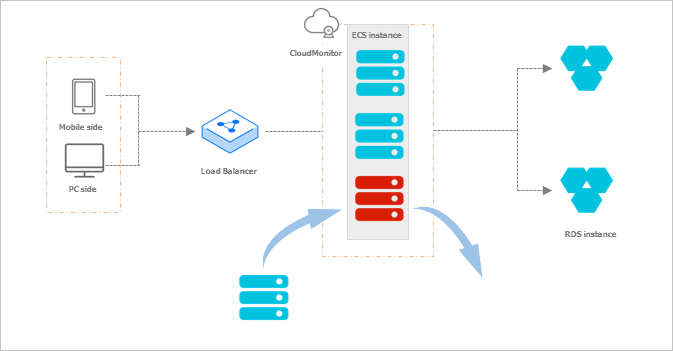
Auto Scaling allows you to associate a scaling group with Server Load Balancer (SLB) and ApsaraDB RDS instances. When an endpoint, such as a mobile device or a PC, sends a request, the SLB instance forwards it to an ECS instance in the scaling group. The ECS instance processes the request and stores the application data in an ApsaraDB RDS instance.
Auto Scaling automatically adjusts the number of ECS instances in the scaling group based on business needs and your configuration. The following diagrams illustrate the workflows for scale-out, scale-in, and elastic recovery (health check).
Figure 1. Scale-out workflow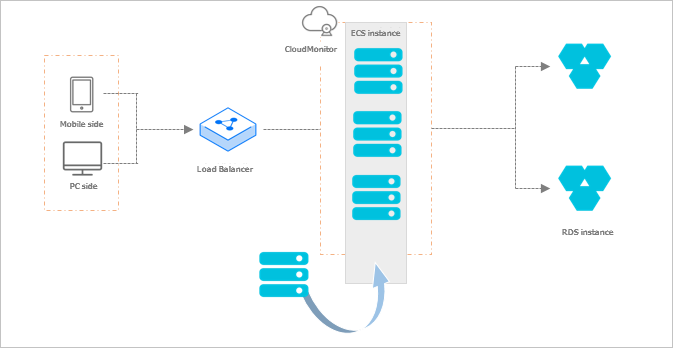
Figure 2. Scale-in workflow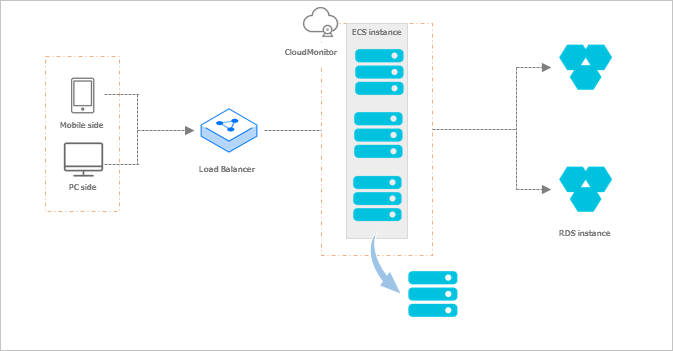
Figure 3. Elastic recovery workflow