Service Mesh (ASM) records every Kubernetes API (KubeAPI) operation within your mesh, giving you a chronological audit trail of who did what, when, and from where. Use KubeAPI operation audit to answer questions like:
Who modified this virtual service or destination rule?
When was this Istio gateway configuration changed?
Which source IP address initiated a suspicious API call?
After you enable mesh audit, ASM automatically sends structured audit logs to Simple Log Service (SLS). From there, you can view dashboards, run ad hoc queries, and set up real-time alerts.
After you enable the mesh audit feature, you are charged for the audit logs that are generated. For pricing details, see Pay-by-feature.
Before you begin
What gets audited
In this document, resources refers to Istio resources managed through the ASM control plane, including:
Virtual services
Istio gateways
Destination rules
Envoy filters
Sidecar proxies
Service entries
Where audit logs are stored
When you enable mesh audit, ASM automatically creates the following resources in SLS:
| SLS resource | Naming convention | Purpose |
|---|---|---|
| Project | mesh-log-${Mesh-ID} | Organizes all audit-related data for the ASM instance |
| Logstore | audit-${Mesh-ID} | Stores the raw audit log entries |
Indexes are preconfigured in the Logstore. Do not modify them -- changes to the index configuration can cause audit report generation to fail.
By default, API server audit logs of ASM are retained for 30 days. To change the retention period, see Manage a Logstore.
Step 1: Enable KubeAPI operation audit
Option A: During ASM instance creation
Log on to the ASM console. In the left-side navigation pane, choose Service Mesh > Mesh Management.
Click Create ASM Instance. In the Mesh Audit section, select Enable Mesh Audit.
Configure other parameters as needed, then click Create Service Mesh.
For a full walkthrough of instance creation parameters, see Create an ASM instance.
Option B: For an existing ASM instance
Log on to the ASM console. In the left-side navigation pane, choose Service Mesh > Mesh Management.
Click the name of your ASM instance. In the left-side navigation pane, choose Mesh Security Center > KubeAPI Operation Audit.
On the Mesh Audit page, select Enable Mesh Audit and click OK.
Step 2: View audit reports
Log on to the ASM console. In the left-side navigation pane, choose Service Mesh > Mesh Management.
Click the name of your ASM instance. In the left-side navigation pane, choose Mesh Security Center > KubeAPI Operation Audit.
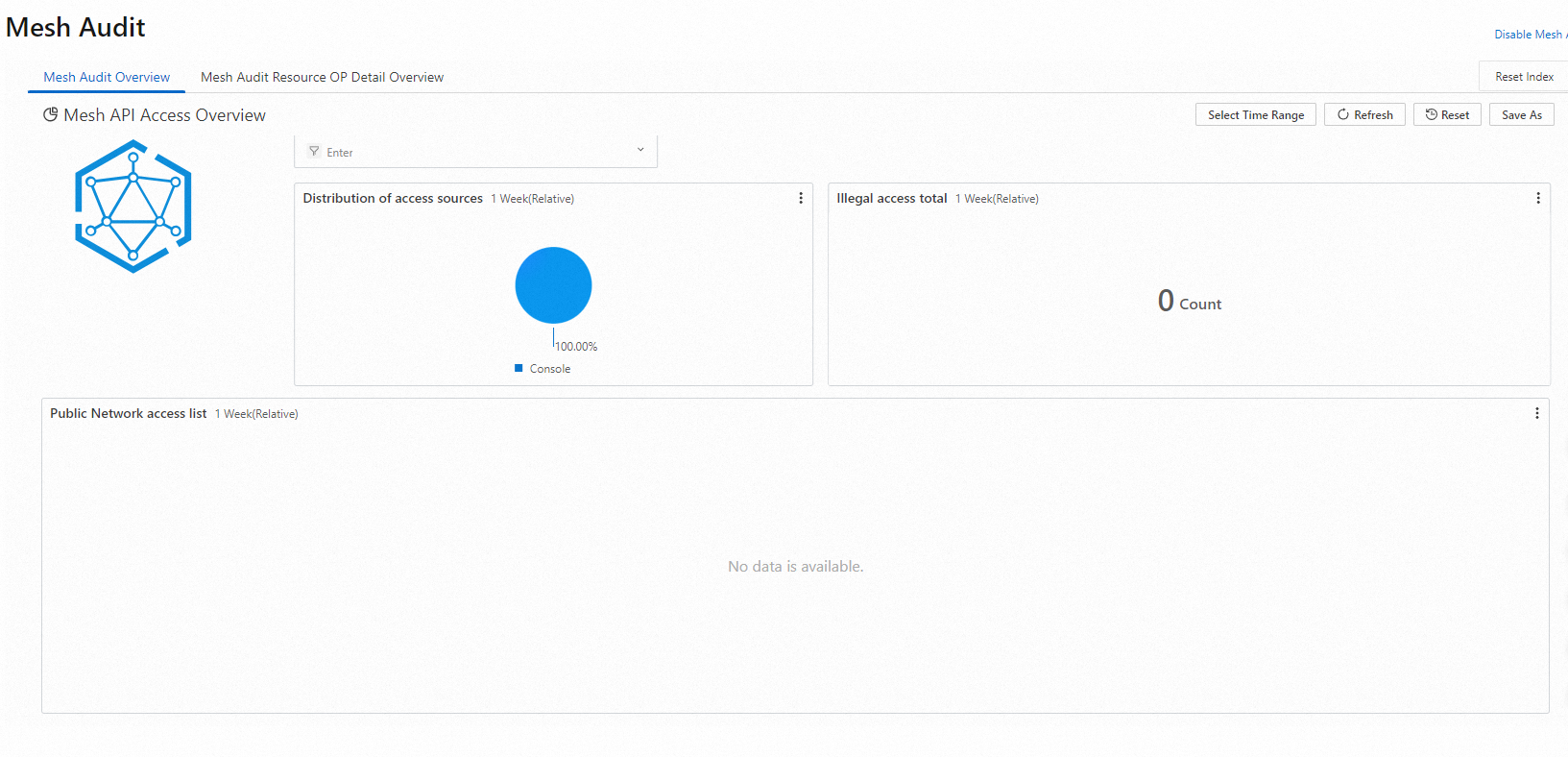
On the Mesh Audit page, click the Overview, Operation Audit, Operation Overview, or Operation Details tab based on what you need:
Mesh Audit Overview -- Displays a summary of all Kubernetes API operations across the ASM instance, including operation counts, trends, and top operators.
Operation Details -- Lets you drill down into operations on a specific resource type. Filter by resource type to see:
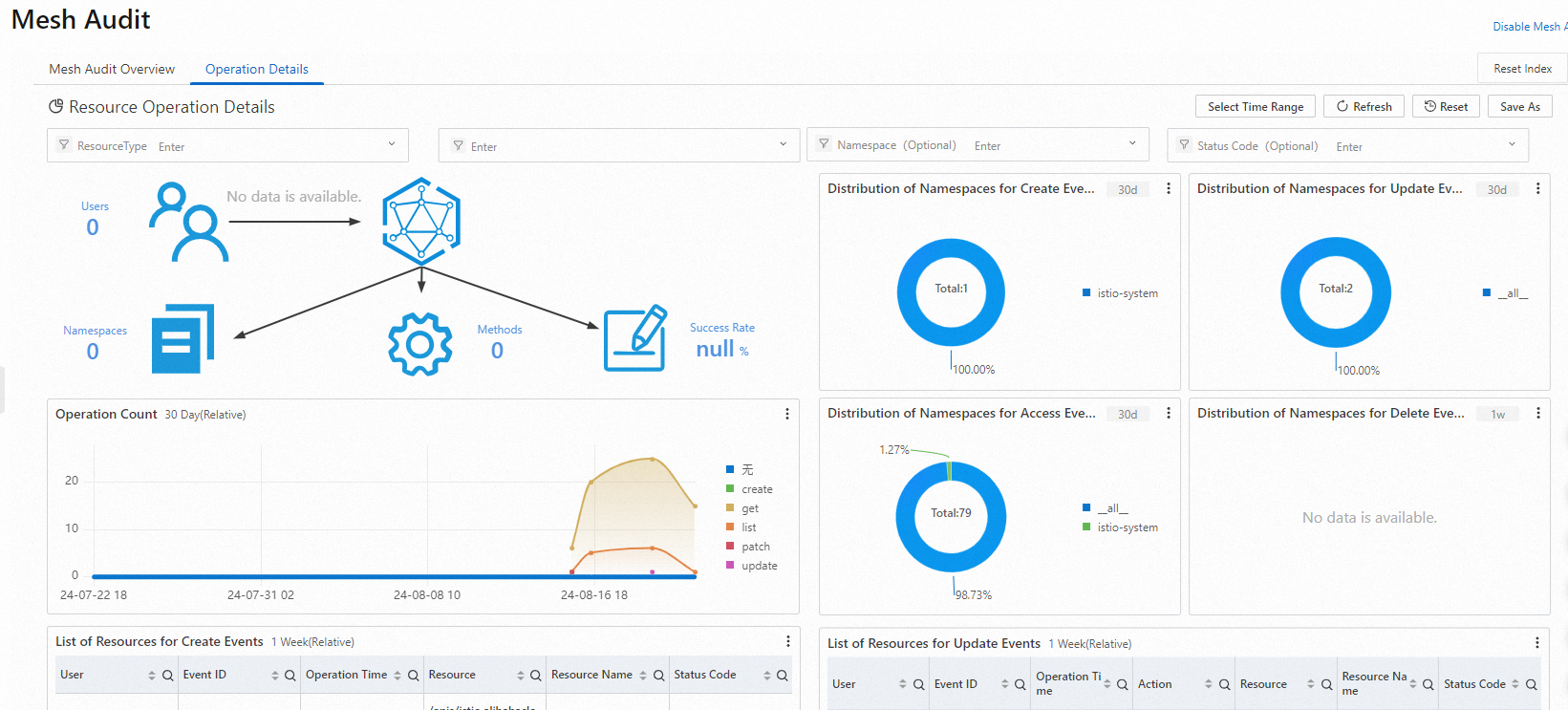
Total number of operations
Distribution of operations by namespace
Operation trends over time
Detailed operation list
Query audit logs in SLS
To run queries beyond what the built-in dashboards offer, access the raw audit logs directly in SLS.
Log on to the Simple Log Service console.
In the Projects section, click the project named
mesh-log-${Mesh-ID}.Click the
audit-${Mesh-ID}Logstore, then click Search & Analyze.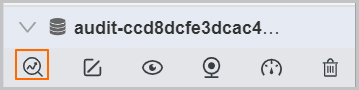
Common query patterns
| Goal | What to enter in the search box |
|---|---|
| Find operations by a specific RAM user | The RAM user ID |
| Find operations on a specific resource | The resource name |
| Exclude system component operations | NOT user.username: node NOT user.username: serviceaccount NOT user.username: apiserver NOT user.username: kube-scheduler NOT user.username: kube-controller-manager |
For more query syntax and analysis methods, see Log search overview.
Set up alerts
SLS supports real-time alerts that notify you when specific operations occur. Alert channels include SMS, DingTalk chatbots, email, custom webhooks, and Message Center in the Alibaba Cloud Management Console. For the full alert configuration guide, see Alerting.
The following examples show how to build alert queries against the audit logs. These queries also work directly in audit reports.
Example 1: Alert on container command execution
Scenario: Detect when someone logs on to or runs commands inside a container in the ASM instance. The alert includes the target container, executed command, operator, event ID, timestamp, and source IP address.
Query statement:
verb : create and objectRef.subresource:exec and stage:  ResponseStarted | SELECT auditID as "Event ID", date_format(from_unixtime(__time__), '%Y-%m-%d %T' ) as "Operation time",  regexp_extract("requestURI", '([^\?]*)/exec\?.*', 1)as "Resource",  regexp_extract("requestURI", '\?(.*)', 1)as "Command" ,"responseStatus.code" as "Status code",
 CASE
 WHEN "user.username" != 'kubernetes-admin' then "user.username"
 WHEN "user.username" = 'kubernetes-admin' and regexp_like("annotations.authorization.k8s.io/reason", 'RoleBinding') then regexp_extract("annotations.authorization.k8s.io/reason", ' to User "(\w+)"', 1)
 ELSE 'kubernetes-admin' END
 as "Username",
CASE WHEN json_array_length(sourceIPs) = 1 then json_format(json_array_get(sourceIPs, 0)) ELSE  sourceIPs END
as "Source IP address" limit 100
Conditional expression:
Operation event =~ ".*"Example 2: Alert on failed Internet access to the API server
Scenario: Monitor the number of connections from a source IP address over the Internet and the connection failure rate. Trigger an alert when a source IP makes 10 or more requests with more than 5 failures. The alert includes the source IP, geographic location, and risk assessment.
Query statement:
* | select ip as "Source IP address", total as "Number of Internet connection requests", round(rate * 100, 2) as "Connection failure rate", failCount as "Number of unauthorized Internet connection requests", CASE when security_check_ip(ip) = 1 then 'yes' else 'no' end  as "Whether the IP address is risky",  ip_to_country(ip) as "Country", ip_to_province(ip) as "Province", ip_to_city(ip) as "City", ip_to_provider(ip) as "ISP" from (select CASE WHEN json_array_length(sourceIPs) = 1 then json_format(json_array_get(sourceIPs, 0)) ELSE  sourceIPs END
as ip, count(1) as total,
sum(CASE WHEN "responseStatus.code" < 400 then 0
ELSE 1 END) * 1.0 / count(1) as rate,
count_if("responseStatus.code" = 403) as failCount
from log  group by ip limit 10000) where ip_to_domain(ip) != 'intranet'  having "Number of connections" > 10 and "Connection failure rate" > 50 ORDER by "Number of connections" desc limit 100
Conditional expression:
Source IP address =~ ".*"Recreate a deleted audit project
If the SLS project used for mesh audit is accidentally deleted, recreate it from the ASM console:
Log on to the ASM console. In the left-side navigation pane, choose Service Mesh > Mesh Management.
Click the name of your ASM instance. In the left-side navigation pane, choose Mesh Security Center > KubeAPI Operation Audit.
On the Mesh Audit page, click Recreate in the Rebuild Mesh Audit message.
The recreated project reuses the original project name with a timestamp suffix indicating when it was recreated.
Related topics
Overview of zero trust security -- Manage workload identity, peer authentication, request authentication, and authorization policies for fine-grained mesh security