Real User Monitoring (RUM) provides comprehensive mobile application monitoring, including real-time tracking of performance, crashes, and unresponsiveness. Learn how to integrate the RUM SDK with your Android application.
Prerequisites
The SDK supports Android 7.0 and later.
Step 1: Integrate the SDK
Maven automatic integration
In your Android Studio project, add the Maven dependency to your build.gradle files to import the latest SDK version.
-
Add the plugin dependency to the
build.gradlefile in the project's root directory.buildscript { repositories { mavenLocal() google() mavenCentral() gradlePluginPortal() } dependencies { // Import the Alibaba Cloud ARMS RUM plugin dependency. // Import the latest plugin version. For more information about the latest SDK version, see the Android SDK release notes. classpath "com.aliyun.rum:alibabacloud-android-rum-plugin:2.2.14" } } -
In the
build.gradlefile for the project's App module, enable the plugin and add the SDK dependency.// Enable the Alibaba Cloud ARMS RUM plugin. apply plugin: "com.aliyun.rum" dependencies { // Import the Alibaba Cloud ARMS RUM SDK. // Obtain the latest SDK version from the following URL: // https://www.alibabacloud.com/help/zh/arms/user-experience-monitoring/android-sdk-release-notes implementation("com.aliyun.rum:alibabacloud-android-rum-sdk:2.2.14") }
Manual integration
-
Download the SDK and decompress the package.
The .zip file contains the following:
-
The
libsfolder, which contains required JAR packages and JNI libraries. -
The
repofolder, which contains the required plugin. -
The
libs/assetsfolder, which contains required resource files.
-
-
Configure your project.
-
Copy the
repofolder to the project root directory, thelibsfolder to the app module directory, and the files fromlibs/assetsto theApp/src/assetsdirectory.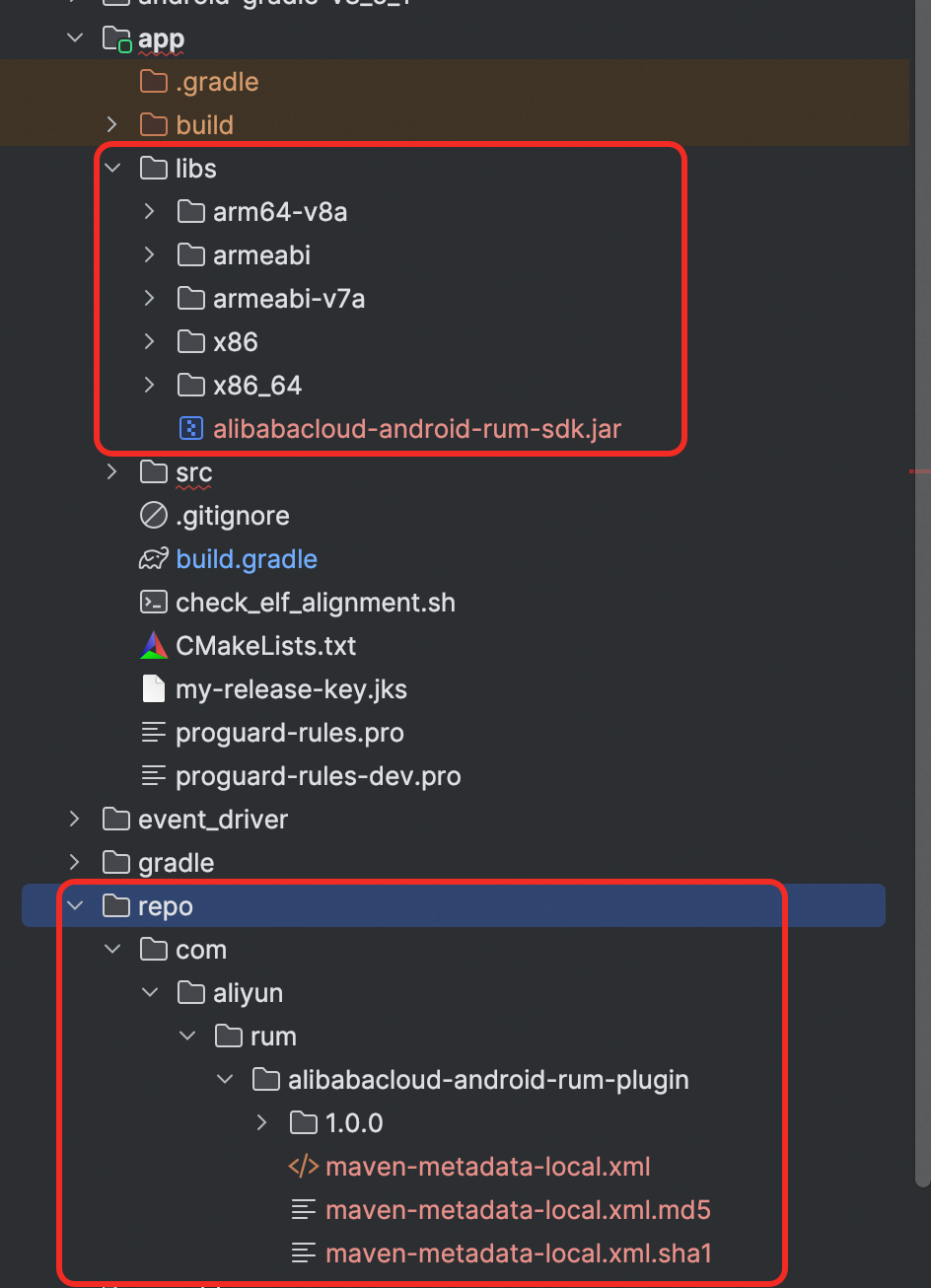
-
Open the
build.gradlefile (for Gradle 7.0 and earlier) or thesettings.gradlefile (for Gradle 7.0 and later) in the project root directory. Add the following Maven configuration to therepositoriesblock.build.gradle
buildscript {
    repositories {
        maven {
            url uri('./repo')
        }
        //... Other configurations
    }
}

allprojects {
    repositories {
        maven {
            url uri('./repo')
        }
        //... Other configurations
    }
}

//... Other configurations
settings.gradle
pluginManagement { repositories { maven { url uri('./repo') } //... Other configurations } } dependencyResolutionManagement { repositoriesMode.set(RepositoriesMode.FAIL_ON_PROJECT_REPOS) repositories { maven { url uri('./repo') } //... Other configurations } } //... Other configurations -
Add the classpath configuration to the build.gradle file in the project root directory.
// Add the following content regardless of your Gradle version. buildscript { dependencies { classpath "com.aliyun.rum:alibabacloud-android-rum-plugin:2.2.14" } } //... Other configurations -
Open the
build.gradlefile in your app module and import the AlibabaCloudRUM plugin and its dependencies.apply plugin: "com.aliyun.rum" //... Other configurations android { //... Other configurations sourceSets { main { jniLibs.srcDirs = ['libs'] } } //... Other configurations } dependencies { implementation files('libs/alibabacloud-android-rum-sdk.jar') //... Other configurations }
-
Step 2: Configure the plugin
In the build.gradle file in your app module, add the plugin configuration as needed:
AlibabacloudRumExt {
    // Exclude packages that do not need to be instrumented.
    excludePackages = [
        "com.example.internal",      // Exclude internal implementation packages.
        "com.myapp.debug",           // Exclude debugging-related packages.
        "com.thirdparty.analytics"   // Exclude third-party analytics SDKs.
    ]
}
//... Other configurations
Step 3: Configure permissions
The RUM SDK requires the following permissions in the host application.
<!--  Required  -->
<uses-permission android:name="android.permission.INTERNET"/>
<uses-permission android:name="android.permission.ACCESS_NETWORK_STATE"/>
<!--  Optional  -->
<uses-permission android:name="android.permission.READ_PHONE_STATE"/>
<uses-permission android:name="android.permission.READ_BASIC_PHONE_STATE"/>
<uses-permission android:name="android.permission.WRITE_EXTERNAL_STORAGE"/>
<uses-permission android:name="android.permission.READ_EXTERNAL_STORAGE"/>
Step 4: Configure obfuscation
If your application uses ProGuard for obfuscation, add the following rules.
-keep public class com.alibabacloud.rum.** { *; }
-dontwarn com.alibabacloud.rum.**

-optimizations !code/simplification/*,!field/*,!class/merging/*,!method/propagation/*,!class/unboxing/enum,!code/allocation/variable
Step 5: Initialize the SDK
Add the following initialization code at the beginning of the onCreate() method in your custom Application class. The initialization method varies by SDK version.
Synchronous startup
import com.alibabacloud.rum.AlibabaCloudRum;

public class YourApplication extends Application {
  @Override
  public void onCreate() {
    super.onCreate();
    // For SDK versions >= 2.0.0
    AlibabaCloudRum.withServiceId("") // The ServiceId obtained when you create the RUM application.
          .withWorkspace("") // The workspace obtained when you create the RUM application.
          .withEndpoint("") // The endpoint obtained when you create the RUM application.
          .start(getApplicationContext());

    // For SDK versions < 2.0.0
    AlibabaCloudRum.withAppID("<your appid>") // The AppID obtained when you created the RUM application in Step 1.
        .withConfigAddress("<your config address>") // The ConfigAddress obtained when you created the RUM application in Step 1.
        .start(getApplicationContext());
  }
}
Asynchronous startup
Asynchronous startup is supported in SDK versions 2.2.9 and later.
Asynchronous startup does not block the host application. However, the SDK might not collect data generated before initialization is complete.
import com.alibabacloud.rum.AlibabaCloudRum;

public class YourApplication extends Application {
  @Override
  public void onCreate() {
    super.onCreate();

    // For SDK versions >= 2.2.9
    AlibabaCloudRum.withServiceId("") // The ServiceId obtained when you create the RUM application.
      .withWorkspace("") // The workspace obtained when you create the RUM application.
      .withEndpoint("") // The endpoint obtained when you create the RUM application.
      .start(getApplicationContext(), true);
  }
}
Verify integration
Start your application and check Logcat in Android Studio. Search for the keyword AlibabaCloudRUM or filter by that tag. If the following log entry appears, the SDK is successfully integrated and collecting data.
