Application Real-Time Monitoring Service (ARMS) provides system policies that grant broad permissions across all Browser Monitoring resources. When you need fine-grained access control — such as restricting a team member to read-only access for a specific application or region — create a custom policy in the Resource Access Management (RAM) console and attach it to a RAM user.
Prerequisites
Custom policy-based access control is available for ARMS instances activated after 00:00 on August 26, 2022. If you activated ARMS before this date, you must submit a ticket to enable this feature.
Before you begin, make sure that you have a basic understanding of RAM policy elements, structure, and syntax. For more information, see Policy elements.
Policy elements reference
A Browser Monitoring custom policy uses three elements: Effect, Action, and Resource.
Effect
Specifies whether the statement allows or denies access. Valid values: Allow, Deny.
Action
Defines the operations a RAM user can perform on Browser Monitoring resources.
|
Action |
Description |
Typical use case |
|
arms:ReadRumApp |
Read-only access to the specified application |
View application overview, session traces, and JS errors |
|
arms:SaveRumApp |
Write access to the specified application |
Create an application site in Browser Monitoring |
|
arms:DeleteRumApp |
Delete access to the specified application |
Remove an application from Browser Monitoring |
Resource
Specifies the applications and regions the policy covers. Format:
acs:arms:<region-id>:*:armsweb/<app-name>|
Placeholder |
Description |
Example |
|
|
Region where the application is deployed. Use |
|
|
|
Application name. Use |
|
Step 1: Create a custom policy
Log on to the RAM console as a RAM user who has administrative rights.
In the left-side navigation pane, choose .
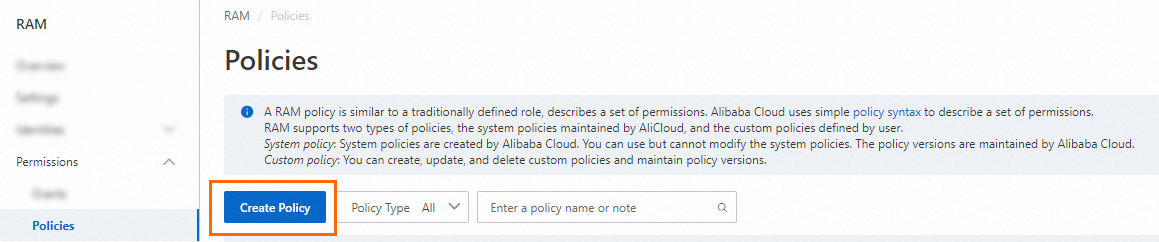
On the Policies page, click Create Policy.
-
On the Create Policy page, click the JSON tab and enter your policy in the editor.
The following example grants read-only access to all Browser Monitoring applications in the China (Hangzhou) region:
{
  "Version": "1",
  "Statement": [
    {
      "Action": [
        "arms:ReadRumApp"
      ],
      "Resource": "acs:arms:cn-hangzhou:*:armsweb/*",
      "Effect": "Allow",
      "Condition": {}
    }
  ]
}
For additional examples, see Policy examples.
Click Optimize in the upper part. In the Optimize message, click Perform to optimize the policy.
The system performs the following operations during the advanced optimization:
Split resources or conditions that are incompatible with actions.
Narrow down resources.
Deduplicate or merge policy statements.
On the Create Policy page, click OK.
In the Create Policy dialog box, configure the Policy Name and Description parameters and click OK.
Step 2: Attach the custom policy to a RAM user
Log on to the RAM console as a RAM administrator.
In the left-side navigation pane, choose .
On the Users page, find the required RAM user, and click Add Permissions in the Actions column.

You can also select multiple RAM users and click Add Permissions in the lower part of the page to grant permissions to the RAM users at a time.
In the Grant Permission panel, grant permissions to the RAM user.
Configure the Resource Scope parameter.
Account: The authorization takes effect on the current Alibaba Cloud account.
Resource Group: The authorization takes effect on a specific resource group.
ImportantIf you select Resource Group for the Resource Scope parameter, make sure that the required cloud service supports resource groups. For more information, see Services that work with Resource Group. For more information about how to grant permissions on a resource group, see Use a resource group to restrict a RAM user to managing only specific ECS instances.
Configure the Principal parameter.
The principal is the RAM user to which you want to grant permissions. The current RAM user is automatically selected.
Configure the Policy parameter.
A policy contains a set of permissions. Policies can be classified into system policies and custom policies. You can select multiple policies at a time.
System policies: policies that are created by Alibaba Cloud. You can use but cannot modify these policies. Version updates of the policies are maintained by Alibaba Cloud. For more information, see Services that work with RAM.
NoteThe system automatically identifies high-risk system policies, such as AdministratorAccess and AliyunRAMFullAccess. We recommend that you do not grant unnecessary permissions by attaching high-risk policies.
Custom policies: You can manage and update custom policies based on your business requirements. You can create, update, and delete custom policies. For more information, see Create a custom policy.
Click OK.
Click Close.
Policy examples
Read-only access to all applications in a specific region
Grants read-only access to all Browser Monitoring applications in the China (Hangzhou) region:
{
  "Version": "1",
  "Statement": [
    {
      "Action": [
        "arms:ReadRumApp"
      ],
      "Resource": "acs:arms:cn-hangzhou:*:armsweb/*",
      "Effect": "Allow",
      "Condition": {}
    }
  ]
}
Full access to a specific application
Grants read, write, and delete access to a single application across all regions. Replace my-app with your actual application name.
{
  "Version": "1",
  "Statement": [
    {
      "Action": [
        "arms:ReadRumApp",
        "arms:SaveRumApp",
        "arms:DeleteRumApp"
      ],
      "Resource": "acs:arms:*:*:armsweb/my-app",
      "Effect": "Allow",
      "Condition": {}
    }
  ]
}
Read-only access to applications with a shared prefix
Grants read-only access to all applications whose names start with prod-, across all regions. Use this pattern to manage permissions for environment-based naming conventions.
{
  "Version": "1",
  "Statement": [
    {
      "Action": [
        "arms:ReadRumApp"
      ],
      "Resource": "acs:arms:*:*:armsweb/prod-*",
      "Effect": "Allow",
      "Condition": {}
    }
  ]
}
Read-only access to a specific application in a specific region
Grants read-only access to a single application named my-app in the China (Hangzhou) region. Use this pattern for the most restrictive access.
{
  "Version": "1",
  "Statement": [
    {
      "Action": [
        "arms:ReadRumApp"
      ],
      "Resource": "acs:arms:cn-hangzhou:*:armsweb/my-app",
      "Effect": "Allow",
      "Condition": {}
    }
  ]
}
See also
-
Policy elements: RAM policy syntax and structure reference.
-
Services that work with RAM: Full list of Alibaba Cloud services that support RAM-based access control.