This topic describes common issues and solutions for media asset uploads.
Why is my file stuck in the 'Uploading' status?
The issue may be caused by one of the following reasons:
Cause 1: URL-based batch upload is asynchronous.
If you use the UploadMediaByURL API operation, the upload is an asynchronous task. The upload is not completed in real time and may take several hours or even days to finish. This operation is supported only in the China (Shanghai), China (Beijing), China (Shenzhen), Singapore, and U.S. (Silicon Valley) regions. We recommend that you integrate the ApsaraVideo VOD server-side upload SDK for uploads.
Cause 2: Only the upload credential was generated, but no file was uploaded.
When you call the CreateUploadVideo API operation, it only obtains an upload credential and creates basic information for the media asset. The operation does not upload the file. You must then use Object Storage Service (OSS) to complete the upload. For the complete steps, see Upload media files by calling the ApsaraVideo VOD API.
Cause 3: The file is large, resulting in a long upload time.
Check whether the file size and the time spent in the 'Uploading' status are reasonable. When you upload files using the console, upload SDK, or client tools, multipart upload is used by default. Multipart upload supports single files of up to 48.8 TB. The upload SDK also provides a simple upload feature, which supports single files of up to 5 GB.
Cause 4: Network issues.
Check whether your network bandwidth meets the requirements.
What do I do if an upload fails on the iOS upload SDK with the error Error Domain=NSCocoaErrorDomain?
An upload failure with error code 207 and the error message "Error Domain=NSCocoaErrorDomain" is typically caused by a file read error due to a lack of permissions. To resolve this issue, use one of the following methods:
Method 1: Grant the upload SDK for iOS the permission to read local resources.
Method 2: Store local resources in the sandbox path before you upload them.
What do I do if the "The service is not open in current region" error occurs during a URL-based batch upload?
The error message The service is not open in current region indicates that URL-based batch upload is not supported in the current region. URL-based batch upload is currently supported only in the China (Shanghai) and Singapore regions.
If you are in a different region, you can download the audio or video files to your local computer and then use the upload SDK to upload them. For more information, see SDK Overview.
Why can't I view an uploaded image in the console?
When you upload an image-type media asset, if you set its type to cover (video thumbnail), the file is not displayed in the console. You can query the image only by calling an API operation. For more information, see CreateUploadImage - Obtain an image upload URL and credential.
Compatibility issues with JS SDK uploads in WeChat
This issue occurs because of a compatibility problem with HTML5 in the WeChat browser. To resolve this issue, remove the multiple="" parameter from <input type="file" name="file" id="files" multiple=""> to ensure a successful upload.
Preview page stretching at specific resolutions with the Push SDK
When you select a resolution of 480p in the Push SDK, the preview page appears stretched, but the actual stream ingest is normal. This happens because 480p corresponds to a resolution of 480 × 640. The aspect ratio is not supported by most mobile phone screens, which causes the stretching.
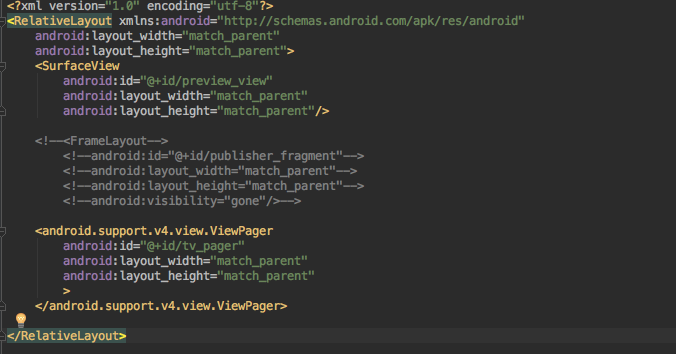
Solution: Modify the aspect ratio of the SurfaceView on the preview page. Change the content of the activity_push.xml file as follows. 
How to view and import AAR package data in Android Studio
To view AAR package data, change the file extension from .aar to .zip and decompress the file. Then, you can view the contents, such as .class files, .xml files, .jar files, images, and text.
To import AAR package data:
Copy the
.aarfile to your project folder, typically to the projectName/libs/ path, and then reload the project.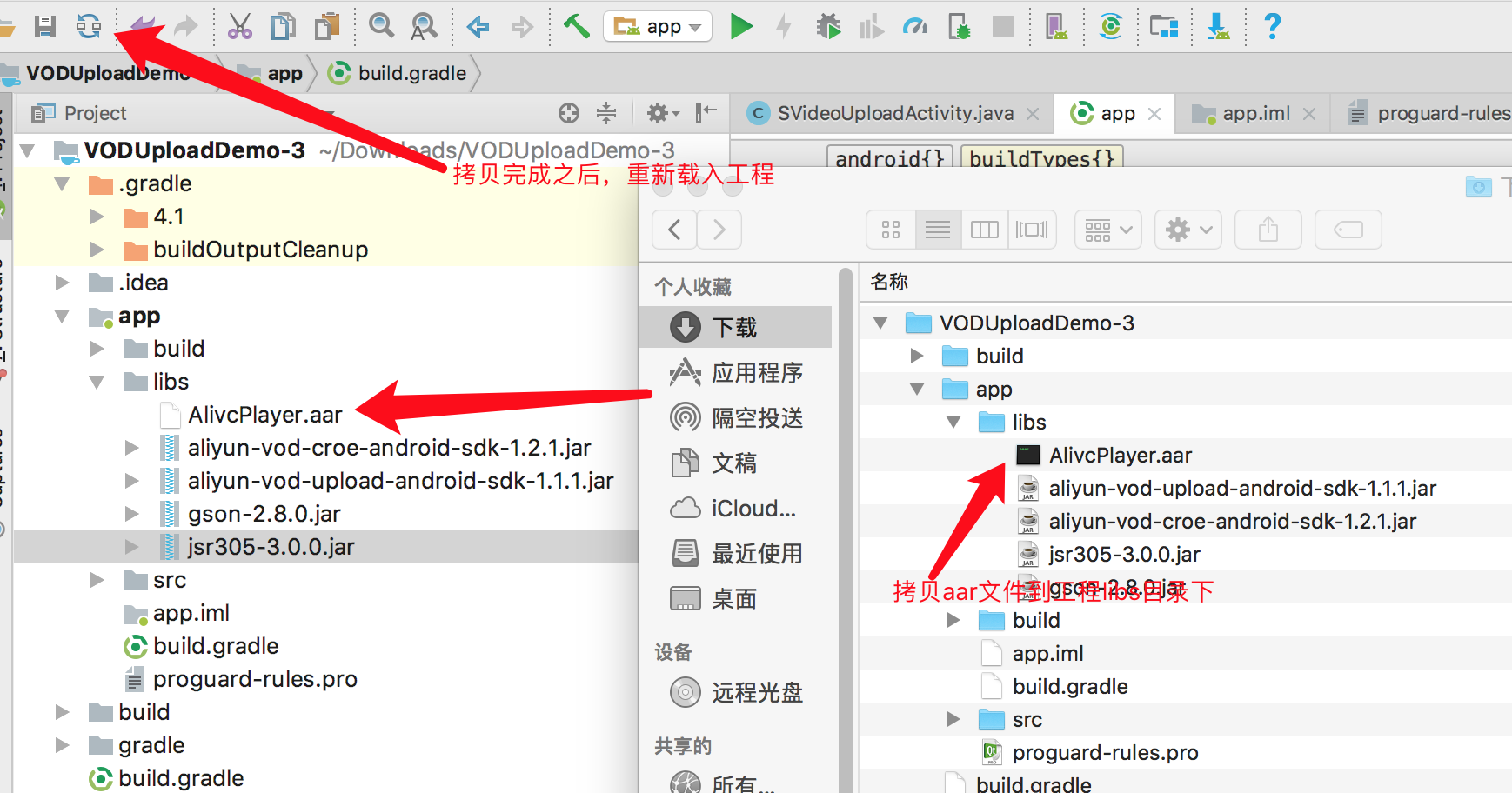
In the build.gradle file, add the local repository path under the root tag and add the compile dependency in the `dependencies` block.
The libs directory name depends on the folder where the package is imported into your project. In the compile parameter, name specifies the name of the AAR file, and ext specifies the file extension.

Select Build > Rebuild to rebuild the project.
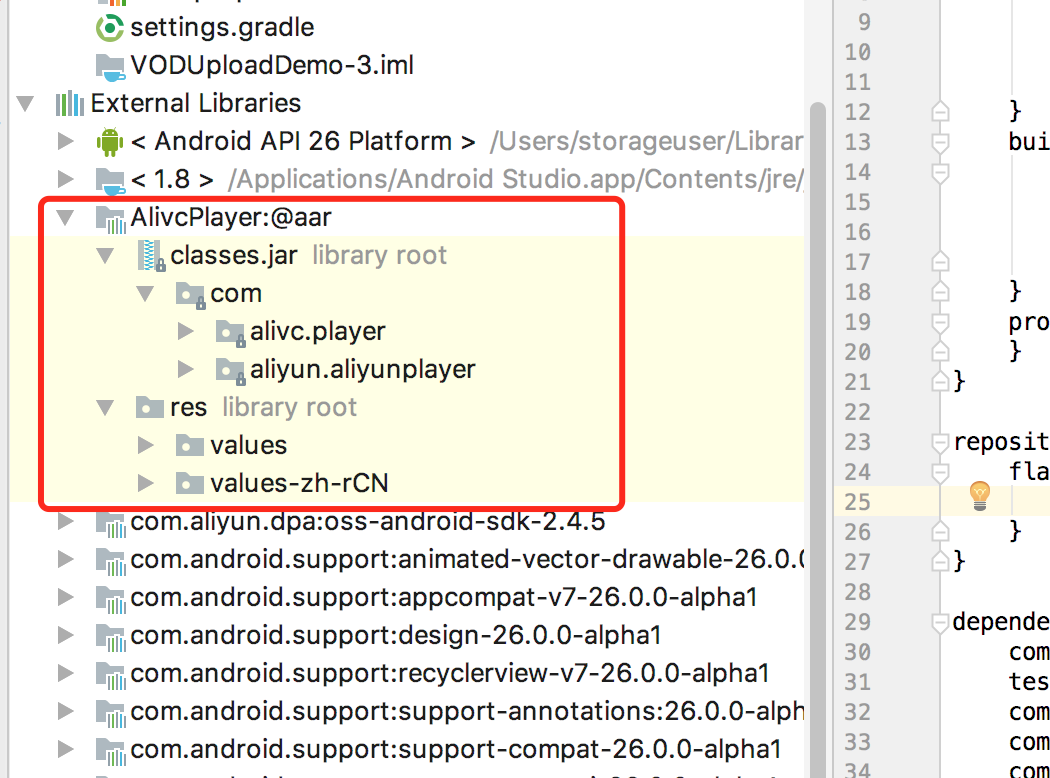
After the build is complete, the imported AAR package appears in the External Libraries section of the project.
Related links
For more information about the upload flow and instructions, see the following documents:
For more information about how to upload files using the ApsaraVideo VOD console or PC upload tools, see Upload using tools.
For more information about how to upload files using the ApsaraVideo VOD upload SDK, native OSS SDK, URL-based batch upload, or OSS API operations, see Developer-based upload.