Diagnose and resolve video playback failures by checking three areas in order: device compatibility, media stream integrity, and network connectivity.
Identify error patterns
Before you start troubleshooting, determine whether the error follows a pattern. Patterned errors have specific root causes that are faster to isolate than random failures.
| Error pattern | Likely cause |
|---|---|
| Affects users in specific regions or on specific ISPs | ISP network issue or Alibaba Cloud CDN scheduling error |
| Affects users on a specific operating system | SDK implementation difference or system compatibility issue |
| Affects users on a specific device brand or model | Device compatibility issue |
| Affects a specific media file | Encoding error, prefetch failure, or access policy misconfiguration |
If the error occurs randomly with no clear pattern, work through Step 1 to Step 3 below to isolate the cause along the full delivery pipeline, from the playback device to the media stream to the network.

Step 1: Check device compatibility
Protocol and codec support
Confirm that the protocol and codec of your media stream are supported on the target device. If the format is unsupported, transcode the stream to a compatible format. See Recommended output formats and transcoding tools.
The following tables list the protocols and codecs that ApsaraVideo Player SDK supports.
Native app
| Operating system | Video codec | Video protocol | Audio codec |
|---|---|---|---|
| Android, iOS, Windows, macOS, Linux | H.264, H.265 | MP4, HLS, FLV, MPEG-DASH (SegmentBase and SegmentTemplate) | AAC, MP3 |
Web
If the protocol that your media stream uses meets the compatibility requirements of ApsaraVideo Player SDK for Web described in the following table, check whether you have configured an SSL certificate and enabled Cross-Origin Resource Sharing (CORS). For more information, see HTTPS security acceleration and Configure CORS.
| Operating system | Video codec | Video protocol | Audio codec |
|---|---|---|---|
| Android | H.264 | MP4; HLS (MSEs required for specific browsers); FLV (MSEs required) | AAC, MP3 |
| iOS | H.264 | MP4, HLS | AAC, MP3 |
| iOS | H.265 | MP4; HLS (fMP4 segments only) | AAC, MP3 |
| Windows | H.264 | MP4; HLS (MSEs required); FLV (MSEs required) | AAC, MP3 |
| macOS | H.264 | MP4; HLS; FLV (MSEs required) | AAC, MP3 |
| macOS | H.265 | MP4; HLS (fMP4 segments only) | AAC, MP3 |
FLV and MPEG-DASH protocols are not supported on iOS web browsers.
HLS-encrypted video support on Android browsers
Some Android browsers require Media Source Extensions (MSEs) to play HLS-encrypted videos. The following table shows which browsers support HLS-encrypted video playback.
| Android browser | HLS-encrypted video support |
|---|---|
| Yes | |
| DingTalk ID | Yes |
| UC Browser, Quark Browser | Yes |
| QQ Browser | Yes |
| Chrome | MSEs required |
| Huawei Browser | MSEs required |
| OPPO Browser | Yes |
| Vivo Browser | Yes |
| Mi Browser | MSEs required |
Test with a third-party player
If your device meets the compatibility requirements above, test with a third-party player to determine whether the issue is specific to ApsaraVideo Player SDK.
Third-party player plays the stream successfully: The issue may be an ApsaraVideo Player SDK compatibility problem. Contact Alibaba Cloud technical support.
Third-party player also fails: The issue is in the media stream or network. Continue to Step 2.
Recommended third-party players and browsers for testing:
| Type | Recommendation |
|---|---|
| Desktop player | VLC media player |
| Mobile player | ExoPlayer (Android), AVPlayer (iOS) |
| System browser | Chrome (Android, Windows), Safari (iOS, macOS) |
Step 2: Check the media stream
If the device is compatible, the issue may be in the media stream. Transcode the stream and play it again. If the transcoded version plays correctly, the original file has encoding issues.
Check moov atom placement (MP4 and MOV)
For MP4 and MOV files, slow startup or playback failure is often caused by incorrect atom ordering. The moov atom (metadata index) must be placed before the mdat atom (media data) so the player can parse metadata without downloading the entire file.
Run the following command to check the atom order:
# Replace with a local file path or an online video URL
ffmpeg -v trace -i "<video-source>" 2>&1 | grep -e type:\'mdat\' -e type:\'moov\'
moov before mdat: Correct order. The video plays as expected.

mdat before moov: Incorrect order. Transcode the file to move the moov atom to the front.

Inspect source file properties
Use ffprobe to examine the codec and other properties of the source file. This helps determine whether the error follows a codec-specific or format-specific pattern.
ffprobe "<video-source>"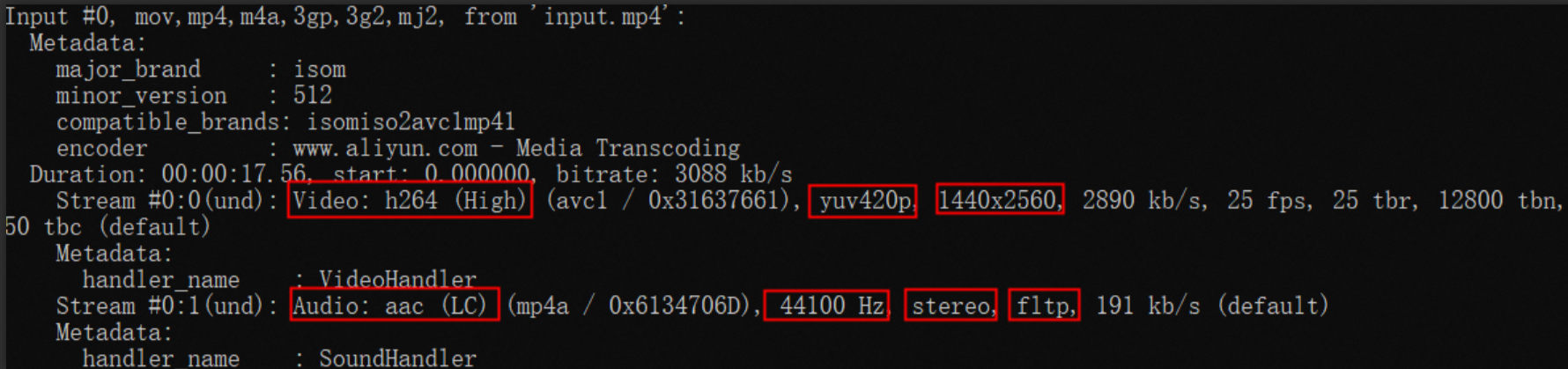
Download ffprobe from FFmpeg Downloads.
Recommended output formats and transcoding tools
For maximum compatibility, transcode media streams to H.264 video in MP4 or HLS containers.
| Category | Tool | Description |
|---|---|---|
| Alibaba Cloud | ApsaraVideo VOD | Supports regular transcoding, Narrowband HD 1.0, Narrowband HD 2.0, and original-quality transcoding. For more information, see Audio and video transcoding. |
| Alibaba Cloud | ApsaraVideo Media Processing (MPS) | Supports regular, Narrowband HD 1.0, Narrowband HD 2.0, high-speed, and resolution-redoubling transcoding. Ideal for media files stored in Object Storage Service (OSS). For more information, see Overview. |
| Alibaba Cloud | Intelligent Media Services (IMS) | Supports transcoding for on-demand videos stored in OSS and ApsaraVideo VOD, as well as live streams. |
| On-premises | FFmpeg | Open source transcoding tool. |
Step 3: Check the network connection
If the device and media stream are both fine, the issue is likely network-related.
1. Verify device network connectivity
Wi-Fi: Confirm the connection is stable and the downstream bandwidth exceeds the media bitrate. Use SpeedTest to measure downstream speed. If the downstream speed is lower than the video bitrate, buffering and loading failures occur.
Mobile network: Confirm a 4G or 5G connection with stable signal. Playback may fail or stutter on poor mobile connections.
If DNS hijacking is occurring on the network, manually set the DNS server to Alibaba Cloud Public DNS (223.5.5.5 or 223.6.6.6) to restore playback.
On iOS:
Go to Settings > Wi-Fi.

Tap the information icon next to the connected network.
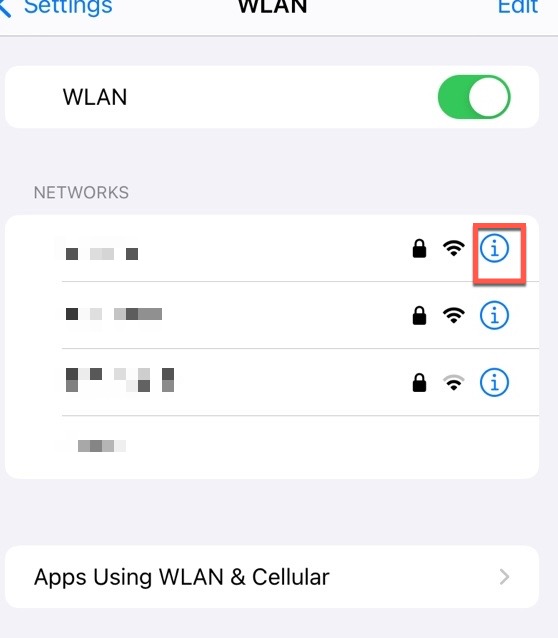
Configure Domain Name System (DNS) settings.
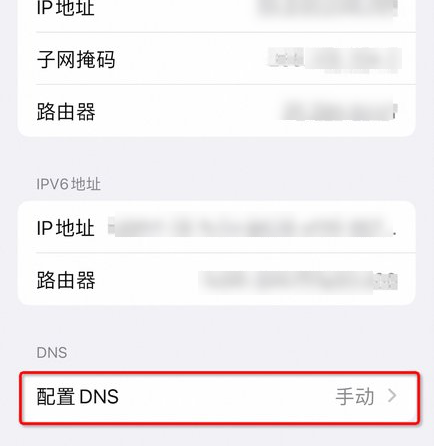
2. Check Alibaba Cloud CDN configuration
CDN not activated: Activate CDN to accelerate video delivery. For more information, see Add a domain name for CDN.
CDN activated: Check these items:
Cache miss: Verify that the media content is prefetched and the cached content has not expired. A cache miss causes loading failures or stuttering, especially for newly uploaded videos. Configure prefetch for new videos. For more information, see Purge and prefetch.
CDN scheduling: If no configuration errors exist and the stream plays in other players on the same device, the issue may be a CDN scheduling problem.
3. Check origin server and user proximity
If the origin server is deployed in the Chinese mainland and the user connects from outside the Chinese mainland, latency and stuttering may occur. Deploy the origin server in the same region as your users to reduce delivery latency.
4. Check for traffic spikes
During traffic spikes, requests to the origin server may be throttled, causing playback stuttering.
References
For additional troubleshooting help, see the following topics:
Contact technical support
If the issue persists after completing the steps above, submit a ticket. For more information, see Contact us.
Include the following information in your ticket to speed up resolution:
| Information | Example | Details |
|---|---|---|
| Operating system and device model | Android 9, Xiaomi | Brand and OS of the affected device (Android, iOS, Windows, macOS, or Linux) |
| SDK type and version | Android SDK 5.4.8.0 | ApsaraVideo Player SDK variant (Web, Android, iOS, Flutter, or Windows) and version number |
| Video source | https://xxxxxx.m3u8 | Playback URL or video file that triggers the error |
| Problem description, log, and screen recording | "Playback started at 16:40 on August 29, 2022. Stuttering began around 17:00." | Describe the operations performed and the symptoms observed, including exact timestamps. If the error is reproducible, attach the full log. For log collection instructions, see How do I obtain the error log in ApsaraVideo Player SDK for Android? and How do I obtain the error log in ApsaraVideo Player SDK for iOS?. |
| Error distribution | "Occurs every time, only on Android devices." | Whether the error follows a pattern (specific video, platform, or SDK version) and its frequency (always, intermittent, or random) |