When your application produces streaming data to ApsaraMQ for Kafka, you may need to persist those messages in Object Storage Service (OSS) for archival, analytics, or downstream processing. An OSS sink connector automates this pipeline: ApsaraMQ for Kafka sends messages to Function Compute (FC), which writes them to your OSS bucket.
Prerequisites
Before you begin, ensure that you have:
An ApsaraMQ for Kafka instance with the connector feature enabled
A topic created in the ApsaraMQ for Kafka instance
An OSS bucket created in the OSS console
Function Compute activated (the connector routes data through FC to reach OSS)
Limitations
Same-region requirement: The ApsaraMQ for Kafka instance, the OSS bucket, and FC must all reside in the same region. For more information, see Limits.
UTF-8 only: ApsaraMQ for Kafka serializes messages into UTF-8-encoded strings. Binary data is not supported.
Cost: FC provides a free resource quota. Usage beyond this quota is billed according to FC billing rules. To monitor function execution, configure FC logging.
Create and deploy the connector
Step 1: Start the connector wizard
Log on to the ApsaraMQ for Kafka console.
In the Resource Distribution section of the Overview page, select the region where your instance resides.
In the left-side navigation pane, click Connectors.
On the Connectors page, select your instance from the Select Instance drop-down list and click Create Connector.
Step 2: Configure basic information
In the Configure Basic Information step, set the following parameters and click Next.
| Parameter | Description | Example |
|---|---|---|
| Name | A unique name for the connector. Must be 1-48 characters and can contain digits, lowercase letters, and hyphens (-). Cannot start with a hyphen. A consumer group named connect-<connector-name> is created automatically. | kafka-oss-sink |
| Instance | Displays the name and ID of the current instance. | demo alikafka_post-cn-st21p8vj\*\*\*\* |
By default, Authorize to Create Service Linked Role is selected. ApsaraMQ for Kafka creates a service-linked role if one does not already exist. This role grants the permissions required to synchronize data from ApsaraMQ for Kafka to OSS.
Step 3: Configure the source service
In the Configure Source Service step, select Message Queue for Apache Kafka as the source service, set the following parameters, and click Next.
Essential parameters
| Parameter | Description | Example |
|---|---|---|
| Data Source Topic | The topic from which messages are exported. | oss-test-input |
| Consumer Thread Concurrency | The number of concurrent consumer threads. Valid values: 1, 2, 3, 6, 12. Default: 6. | 6 |
| Consumer Offset | Where to start consuming messages. Earliest Offset reads from the beginning. Latest Offset reads only new messages. | Earliest Offset |
Runtime environment parameters
Click Configure Runtime Environment to expand the following parameters.
| Parameter | Description | Example |
|---|---|---|
| VPC ID | The VPC in which the synchronization task runs. Defaults to the VPC of the source instance. | vpc-bp1xpdnd3l\*\*\* |
| vSwitch ID | The vSwitch connected to the source instance. Must be in the same VPC as the instance. Defaults to the vSwitch of the source instance. | vsw-bp1d2jgg81\*\*\* |
| Failure Handling Policy | How to handle message delivery failures. Continue Subscription keeps consuming from the partition and logs the error. Stop Subscription stops consuming from the partition and logs the error. For more information, see Manage a connector and Error codes. | Continue Subscription |
| Resource Creation Method | Whether to create the required internal topics automatically (Auto) or manually (Manual). Choose Auto unless you need custom topic settings. | Auto |
Internal topics (manual creation only)
If you set Resource Creation Method to Manual, create the following internal topics before proceeding. Click Configure Runtime Environment to display these parameters.
| Parameter | Naming prefix | Partitions | Storage engine | cleanup.policy | Example |
|---|---|---|---|---|---|
| Connector Consumer Group | connect-cluster | -- | -- | -- | connect-cluster-kafka-oss-sink |
| Task Offset Topic | connect-offset | > 1 | Local Storage | Compact | connect-offset-kafka-oss-sink |
| Task Configuration Topic | connect-config | 1 (exactly) | Local Storage | Compact | connect-config-kafka-oss-sink |
| Task Status Topic | connect-status | 6 (recommended) | Local Storage | Compact | connect-status-kafka-oss-sink |
| Dead-letter Queue Topic | connect-error | 6 (recommended) | Local Storage or Cloud Storage | -- | connect-error-kafka-oss-sink |
| Error Data Topic | connect-error | 6 (recommended) | Local Storage or Cloud Storage | -- | connect-error-kafka-oss-sink |
Local Storage is available only on Professional Edition instances. To save topic resources, you can use the same topic for both the Dead-letter Queue Topic and the Error Data Topic.
Step 4: Configure the destination service
In the Configure Destination Service step, select Object Storage Service as the destination service, set the following parameters, and click Create.
| Parameter | Description | Example |
|---|---|---|
| Bucket Name | The name of the OSS bucket that receives the exported data. | bucket_test |
| AccessKey ID | The AccessKey ID of the Alibaba Cloud account that has access to the bucket. | yourAccessKeyID |
| AccessKey Secret | The AccessKey secret of the Alibaba Cloud account. | yourAccessKeySecret |
Grant the account the following minimum permissions:
{
    "Version": "1",
    "Statement": [
        {
            "Action": [
                "oss:GetObject",
                "oss:PutObject"
            ],
            "Resource": "*",
            "Effect": "Allow"
        }
    ]
}The AccessKey ID and AccessKey secret are passed to OSS as environment variables when the synchronization task is created. ApsaraMQ for Kafka does not store these credentials after task creation.
Step 5: Deploy the connector
After the connector is created, return to the Connectors page, find the connector, and click Deploy in the Actions column.
Send a test message
After deployment, send a test message to verify the connector.
On the Connectors page, find the connector and click Test in the Actions column.
In the Send Message panel, choose a sending method:
Console: Enter a Message Key (for example,
demo) and Message Content (for example,{"key": "test"}). Optionally, set Send to Specified Partition to Yes and enter the Partition ID. For information about how to find partition IDs, see View partition status.Docker: Run the Docker command shown in the Run the Docker container to produce a sample message section.
SDK: Select an SDK for your programming language or framework and follow the instructions.
Verify the results
Check whether the test message arrived in your OSS bucket:
Open the OSS console and go to the Files page of the target bucket. For more information, see Overview.
Confirm that new objects appear. New objects indicate that the connector is working.
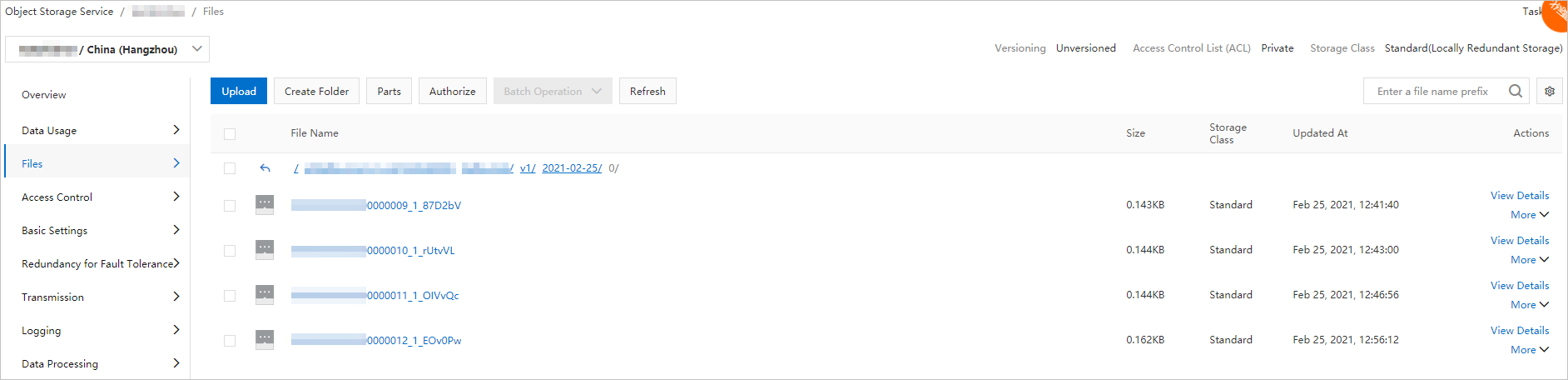
Each exported object contains a JSON array in the following format:
[
    {
        "key": "123",
        "offset": 4,
        "overflowFlag": true,
        "partition": 0,
        "timestamp": 1603779578478,
        "topic": "Test",
        "value": "1",
        "valueSize": 272687
    }
]| Field | Description |
|---|---|
key | The message key. |
offset | The consumer offset of the message in its partition. |
overflowFlag | Whether the message value was truncated due to size. |
partition | The partition from which the message was consumed. |
timestamp | The Unix timestamp (in milliseconds) when the message was produced. |
topic | The source topic name. |
value | The message content (or a truncated version if overflowFlag is true). |
valueSize | The original size of the message value in bytes. |
Configure Function Compute resources
To adjust the FC resources used by the connector:
On the Connectors page, find the connector, click More in the Actions column, and select Configure Function.
Configure the resources in the Function Compute console as needed.