After you create a regular ApsaraDB RDS for MySQL instance, you must add IP addresses to a whitelist. Only devices that use these IP addresses can access the RDS instance.
Prerequisites
You have created an regular ApsaraDB RDS for MySQL instance
Procedure
RDS has a default system whitelist that is not displayed. This whitelist allows system accounts to perform maintenance operations on the database. For more information, see System account description.
-
Visit the RDS instance list, select a region at the top, and then click the target instance ID.
-
In the left-side navigation pane, click Whitelist And SecGroup.
-
Confirm the IP address whitelist mode.
NoteInstances that run MySQL 5.5, 5.6, or 5.7 and use local SSDs can be switched to enhanced security mode. Other instances use standard mode.
-
Click Modify to the right of the default group, and in the dialog box that appears, add IP addresses to the whitelist.
Note-
If needed, you can also click Create Whitelist and specify a custom group name.
-
Groups are used only for IP address management and do not affect actual access permissions. IP addresses in all groups have the same access permissions to the RDS instance.
-
Method 1: Add the IP address of your application server to the IP Addresses field. To view the IP address of your application server, see Appendix: How to obtain IP addresses. You can also click Load Local Public IP Address (If there is a network proxy on your PC, please turn it off first) to directly add the public IP address of your computer.
Note-
If you add multiple IP addresses and CIDR blocks to an IP address whitelist, you must separate these IP addresses or CIDR blocks with commas (,). Do not add spaces preceding or following the commas.
-
You can add a maximum of 1,000 IP addresses and CIDR blocks in total for each RDS instance. If you want to add many IP addresses, we recommend that you merge the IP addresses into CIDR blocks, such as 10.10.10.0/24.
-
If the whitelist mode is enhanced security mode, note the following:
-
Add public IP addresses to the Classic Network group.
-
Add the private IP addresses of ECS instances in VPCs to the VPC group.
-
-
-
Method 2: Click Add Internal IP Address of ECS Instance to display the IP addresses of all ECS instances that belong to your Alibaba Cloud account in the current region. You can quickly add these IP addresses to the whitelist.
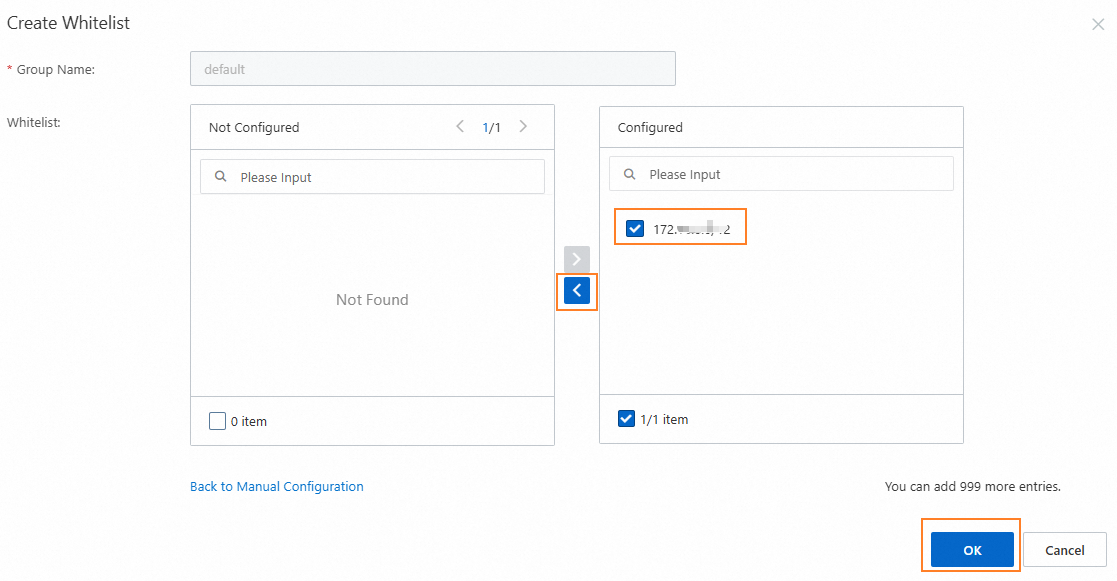
The server on which your application is deployed can access the RDS instance only after you add the IP address of the server to an IP address whitelist of the RDS instance.
-
-
Click OK.
What to do next
Connect to an ApsaraDB RDS for MySQL instance using the command line or a client
References
FAQ
-
Q: Why can IP addresses that are not added to the whitelist access my RDS instance?
A: You can troubleshoot the issue using the following methods:
-
Check all whitelist groups to see whether they include 0.0.0.0/0. The IP address 0.0.0.0/0 indicates that all IP addresses are allowed to access the RDS instance. This poses a security risk. We recommend that you delete this IP address and add only trusted IP addresses.
-
Check all security groups to see whether they include the IP address. If a security group includes the IP address, the IP address can be used to access the RDS instance.
-
-
Q: How can I access an RDS instance from my computer without enabling Internet access?
A: You need to establish an internal network connection. For more information, see Connect a VPC to an on-premises data center, office terminal, or other cloud.
-
Q: The IP address of my application changes frequently and is not fixed. How should I configure the whitelist for my RDS database in this case?
A: If you do not have a fixed IP address, you cannot set
0.0.0.0/0(which allows all IP addresses to access the RDS instance, not recommended for security reasons). We recommend that you use identity-based access control instead of IP-based access control. For example, you can use the following methods:-
Use a dynamic DNS service: Obtain a domain name for the dynamic IP address through a dynamic DNS service, and add the domain name or its resolved IP address to the database whitelist.
-
Set up a reverse proxy or Server Load Balancer: Forward all user application requests to the database through a reverse proxy server or Server Load Balancer, and add only the fixed IP address of the proxy server to the database whitelist.
-
Update the whitelist regularly: For IP addresses that change within a certain range (such as home broadband IP addresses assigned by ISPs), regularly obtain these IP addresses and update them in the whitelist.
-
-
Q: Why do I receive an error
InvalidSecurityIPListLength.Malformedwhen adding a whitelist through the RDS console?Issue description
When adding a whitelist through the RDS console, you might encounter the following error:
Error code: InvalidSecurityIPListLength.Malformed
Error message: The security IP address is not in the available range or is occupied.
Solution
-
Cause 1: A single whitelist group supports a maximum of 1,000 IP addresses/CIDR blocks, and the new IP address exceeds this limit.
Solution: Ensure that the number of IP addresses or CIDR blocks in a single whitelist group does not exceed 1,000. We recommend that you merge scattered IP addresses into CIDR format (such as
192.168.1.0/24) to reduce the number of entries. -
Cause 2: The IP address whitelist contains invalid addresses.
Solution: Ensure that the IP addresses you enter are valid. We recommend that you use the standard CIDR format (such as
10.23.12.0/24) with a mask range of 1 to 32. To add multiple IP addresses, separate them with commas (,). -
Cause 3: There is a conflict with existing whitelist entries. For example, in ApsaraDB RDS for MySQL,
192.168.1.8conflicts with192.168.1.1/8.Solution: Plan and add whitelist entries appropriately based on your actual needs to avoid overlaps or conflicts with existing rules.
NoteDo not delete the default group
default, which contains127.0.0.1, and do not modify system groups, such asali_dms_grouporhdm_security_ips, to avoid affecting system functionality or connection security. -
Appendix: Check whether your application can connect to the RDS instance over an internal network
View the region and network type of the ECS instance on which your application is deployed. For more information, see Get ready to use ApsaraDB RDS.
View the region and network type of the RDS instance.
Log on to the ApsaraDB RDS console and go to the Instances page. In the top navigation bar, select the region in which the RDS instance resides. Then, find the RDS instance and click the ID of the instance. On the page that appears, you can view the region, network type, and VPC ID of the RDS instance.
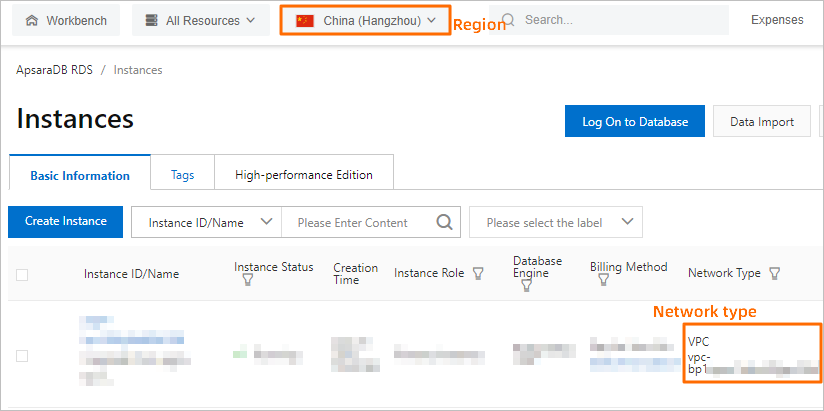
Check whether the ECS instance and the RDS instance meet the following conditions for communication over an internal network:
The ECS instance and the RDS instance reside in the same region.
The ECS instance and the RDS instance reside in the same type of network. If the ECS instance and the RDS instance both reside in VPCs, these instances reside in the same VPC.
NoteIf one of the preceding conditions is not met, the ECS instance cannot communicate with the RDS instance over an internal network.
Appendix: How to obtain IP addresses
Table 1. How to obtain IP addresses
|
Scenario |
IP address to obtain |
How to obtain |
|
Requirements for private network access |
IP address of the container in an ACK cluster |
You can view the pod IP address and node IP address on the pod page of the target ACK cluster. |
|
Private IP address of the ECS instance |
Click here to open the ECS instance list, select a region, and view the private IP address and public IP address in the instance list. |
|
|
The requirements for private network access are not met. |
Public IP address of the ECS instance |
|
|
You want to connect to the RDS instance from an on-premises device. |
Public IP address of the on-premises device |
Query the public IP address of the local client by running Note
The public IP address may change during database upgrades or changes. If you have added the local IP address to the whitelist but still cannot connect, see Cannot connect to an ApsaraDB RDS for MySQL or ApsaraDB RDS for MariaDB instance over the Internet: How to correctly enter the public IP address of your on-premises device for troubleshooting. |
Appendix: System whitelists
When DMS, DTS, and DAS services interact with ApsaraDB RDS for MySQL, the system automatically adds the following whitelist groups to ensure normal access.
|
Group name |
Description |
|
dms |
Used for DMS to connect to ApsaraDB RDS for MySQL instances. |
|
dts |
Used for DTS to transfer data. |
|
hdm_security_ips |
Used for DAS to obtain data and perform optimization, maintenance, and security management. Important
For instances created after December 2020, the hdm_security_ips whitelist group is invisible to users to prevent accidental modification or deletion, which would affect the use of related services. |