You can use API Gateway as the access layer for Kubernetes (K8s) application clusters to enhance service capabilities with security, throttling, monitoring, and protocol support. This architecture serves as a standard pattern for large-scale Internet applications.
Overview
K8s clusters
Kubernetes (K8s) is a mainstream open-source container orchestration platform that adds scheduling and scaling capabilities across a cluster of nodes. An enterprise-grade K8s cluster has the following primary capabilities:
-
Automates container deployment and replication.
-
Scales containers as required.
-
Groups containers and supports load balancing among the containers.
-
Easily upgrades containerized applications.
-
Replaces containers if they fail to work.
Architecture with API Gateway that serves as the access layer
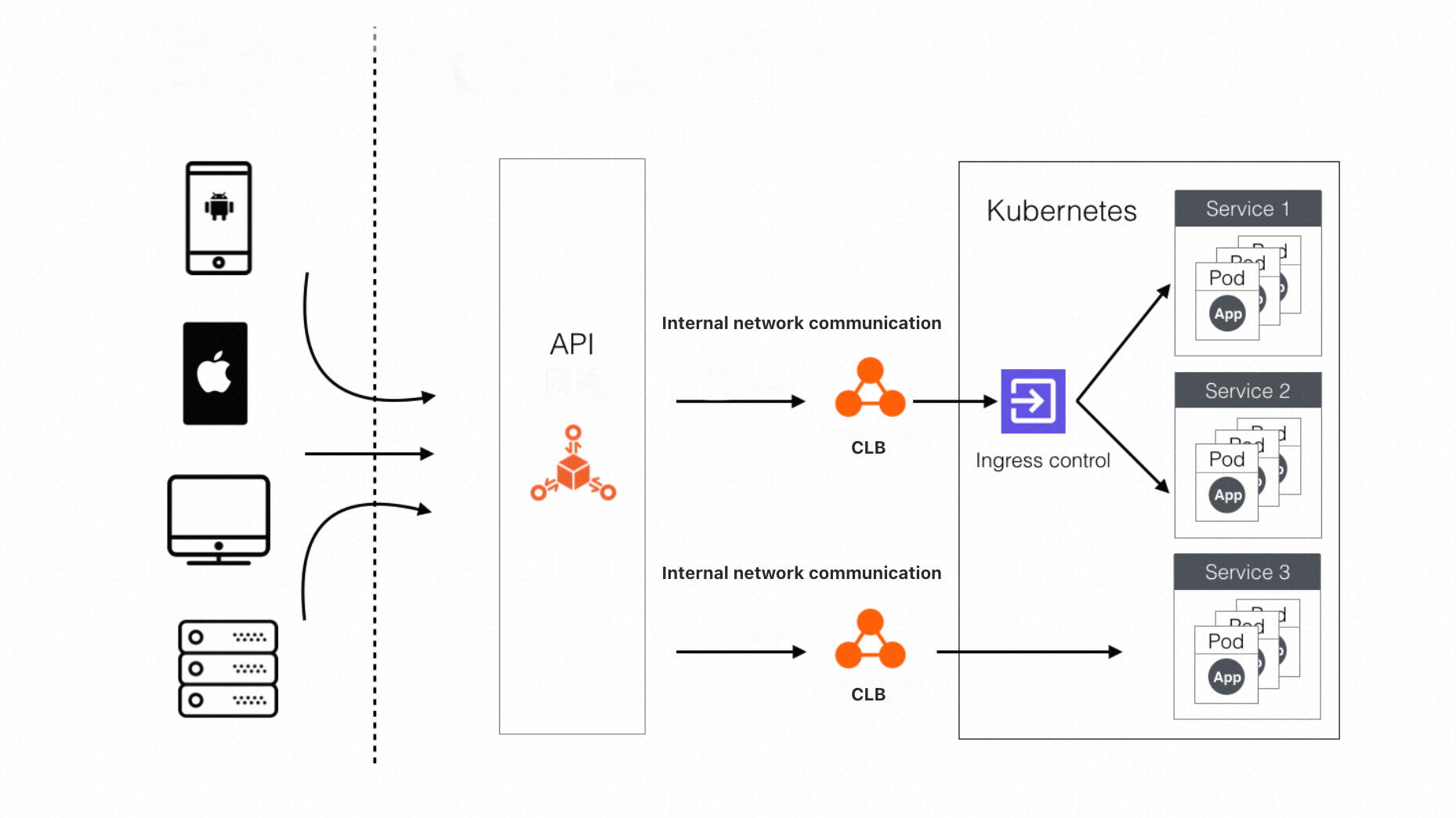
K8s clusters provide application services but lack sufficient access processing capabilities for large-scale applications, especially regarding security. API Gateway serves as the access layer to K8s clusters, forming a standard architecture for large-scale Internet applications. The following figure shows this architecture with Alibaba Cloud API Gateway deployed:
When to use an ingress controller
As shown in the architecture diagram, API Gateway processes client requests and safeguards a K8s cluster as its bridgehead. API Gateway communicates with the internal Classic Load Balancer (CLB) instance of an ingress controller or a service in the K8s cluster. If the cluster has only one service, API Gateway communicates directly with the internal CLB instance of that service. If the cluster has multiple services, API Gateway communicates with the CLB instance of the ingress controller instead, because managing separate CLB instances per service is impractical. The ingress controller discovers services and forwards requests to the appropriate containers, so only one internal CLB instance is needed.
API Gateway access capabilities
API Gateway provides the following capabilities for the architecture:
-
API Gateway communicates with clients in compliance with a variety of protocols. These protocols include:
* HTTP * HTTP2 -
API Gateway secures communications with clients through multiple methods.
* Defines an authorization relationship between APIs and apps. Only the authorized apps are allowed to call APIs. * Provides a full-link signature authentication mechanism for the communication between clients and API Gateway, and between API Gateway and backend services. This mechanism prevents data tampering during the transmission of requests. * Allows you to use your SSL certificates for HTTPS communication. * Supports the OpenID Connect security certification method. -
API Gateway automatically generates SDKs for iOS, Android, and Java, as well as API documentation.
-
API Gateway supports mapping between frontend and backend parameters. Parameters in a client request can be mapped to any location in the backend request.
-
API Gateway validates request parameters against rules you define, such as parameter type and regular expression, before forwarding requests to backend services.
-
API Gateway supports throttling by user, app, or API.
-
API Gateway supports monitoring and alerting based on request count, error count, response timeout, and traffic. Alerts are sent by text message or email within one minute after an error occurs.
-
API Gateway integrates with Simple Log Service. Request logs can be automatically uploaded to your Simple Log Service resources for analysis.
-
API Gateway supports Mock mode for efficient joint debugging between teams.
-
API Gateway allows you to configure IP address whitelists and blacklists for callers.
-
API Gateway allows API providers to charge API callers for API calls in Alibaba Cloud Marketplace.
-
API Gateway is a mature, battle-tested cloud service that meets high performance requirements.
Quickly configure K8s clusters and API Gateway in Alibaba Cloud
Alibaba Cloud allows you to quickly create K8s clusters and integrate them with API Gateway in the same region. The following sections describe two methods to build the architecture described in Architecture with API Gateway that serves as the access layer.
-
Method 1: API Gateway sends requests to the CLB instance of the ingress controller, which routes the requests to the corresponding node. This method requires only one CLB instance; the ingress controller handles service discovery and routing.
-
Method 2: API Gateway sends requests directly to the CLB instances of individual K8s services. This method requires a CLB instance per service and is suitable for high-concurrency scenarios.
Configuration in method 1
Create a K8s cluster and install an Ingress
When you create an ACK managed or Serverless cluster, select ALB Ingress for Ingress in the Component Configurations step. For more information, see Create an ACK managed cluster and Create an ACK Serverless cluster.
Set Source of ALB Instance to Create and Network Type to Private. The system automatically creates a standard Application Load Balancer (ALB) instance with the specified network type and a default HTTP:80 listener.
Create a multi-container service in a cluster
Create a service that consists of two containers in the K8s cluster. Each container runs an Nginx image with container port 80. The service port of the ingress controller is 80.
-
Log on to the ACK console. In the left navigation pane, click Clusters.
On the Clusters page, click the name of your cluster. In the left navigation pane, click .
-
On the Deployments page, click Create from YAML. Enter the following Resource Orchestration Service text and click Create.
apiVersion: apps/v1 kind: Deployment metadata: name: nginx-demo labels: app: nginx spec: replicas: 2 selector: matchLabels: app: nginx template: metadata: labels: app: nginx spec: containers: - name: nginx image: anolis-registry.cn-zhangjiakou.cr.aliyuncs.com/openanolis/nginx:1.14.1-8.6 ports: - containerPort: 80 --- apiVersion: v1 kind: Service metadata: name: nginx-service spec: ports: - port: 80 protocol: TCP targetPort: 80 selector: app: nginx sessionAffinity: None type: NodePortNoteDescription:
-
Two containers are created based on an Nginx image, and the container service port is 80. A service named nginx-service is created, and the service port is 80, which maps to the 80 port of the container service.
-
Each container runs an Nginx service. The two containers form a stateless application behind a service named nginx-service. API Gateway cannot access this service yet. You need to create an ingress that routes requests to this service for end-to-end communication.
-
Create an ingress on the ingress controller that routes requests to a service
Create an ingress for the service so the ingress controller can forward API Gateway requests to the appropriate K8s services. Follow these steps:
-
Log on to the ACK console. In the left navigation pane, click Clusters.
On the Clusters page, click the name of your cluster. In the left navigation pane, click .
-
Click Create Ingress. In the Rules section, configure the domain name and path mapping and click OK.
Select ALB Ingress as the gateway type. Enter
nginx-ingressfor the name and select alb for the Ingress Class. Set the domain toyangtest.com, the path to/, and the matching rule to Prefix. For the service name, select nginx-service and set the port to80.
Create an access authorization for the VPC of the internal CLB instance
To allow API Gateway to access the internal CLB instance of the ingress controller, configure a VPC access authorization in the API Gateway console.
-
Log on to the ACK console. In the left navigation pane, click Clusters.
On the Clusters page, click the name of your cluster. In the left navigation pane, click .
-
On the Ingresses page, copy the endpoint.
Log on to the ALB console.
-
In the left-side navigation pane, click Overview. In the Resources section, paste the copied endpoint and click the retrieved ALB instance.
-
On the Instance Details tab, copy the VPC ID and the domain name of the ALB instance.
-
Log on to the API Gateway console. In the top navigation bar, select a region. In the left-side navigation pane, choose Manage APIs > VPCs.
-
On the VPC Access Authorizations page, click Create Authorization in the upper-right corner.
-
In the Create VPC Access dialog box, specify the VPC Access Name, VPC Id, Instance ID or IP Address, and Port Number parameters. Then, click Confirm.
Create an API
-
Log on to the API Gateway console. In the left-side navigation pane, choose Manage APIs > API Groups.
-
On the API Groups page, find the created group and click Manage APIs in the Actions column.
-
On the APIs page, click Create API in the upper-right corner.
-
In the Basic Information step of the Create API wizard, configure the following parameters and click Next.
Set Group to api-k8s, enter
nginx-testfor API Name, and select No Authentication for Security Certification. Leave the API Options checkboxes unselected and the Description field blank. -
In the Define API Request step, configure the following parameters and click Next.
For Protocol, select both HTTP and HTTPS. Enter a Request Path beginning with a forward slash (/). For HTTP Method, select GET. For Request Mode, select Map and Filter Parameters. In the Input Parameter Definition section, you can click Add to add request parameters.
-
In the Define Backend Service step, configure the following parameters and click Next.
For Backend Configuration, select Custom Backend. For Backend Service Type, select VPC. For VPC Access Authorization Name, select the authorization that you created, such as
api-k8s. For Backend Request Path, enter/. For HTTP Method, select GET. Set Timeout to10000ms.ImportantWhen you create an API, you can add a constant parameter whose name is host, location is header, and value is the domain name of the ingress configured for the service in the ingress controller.
-
In the Define Response step, configure the parameters on the page based on your business requirements and then click Create.
-
In the message that appears, click Publish.
-
In the Publish API dialog box that appears, set Environment to Release, enter remarks in the Remarks section, and then click Publish.
Debug the API
After the API is created and published, test whether requests reach the K8s cluster from the API Gateway console.
-
Log on to the API Gateway console. In the left-side navigation pane, choose Call APIs > Debug.
-
On the debugging page, select the
nginx-testAPI that you created and click Send Request. If the configuration is successful, a response is returned.A successful call returns the HTML source code of the default Nginx welcome page on Anolis OS. The title line
Welcome to nginx on Anolis OS!confirms that the backend service is connected and the API is configured correctly.
Configuration in method 2
This section describes how to create a K8s service with an internal CLB instance.
Create an ACK cluster
For more information, see Create an ACK managed cluster or Create an ACK Serverless cluster.
Create a multi-container service in a cluster
Use the following template to create a service with an internal CLB instance. This code differs from the sample in Configuration in method 1: the Type is set to LoadBalancer and the CLB instance is specified as internal.
-
Log on to the ACK console. In the left navigation pane, click Clusters.
On the Clusters page, click the name of your cluster. In the left navigation pane, click .
-
On the Deployments page, click Create from YAML. Enter the following Resource Orchestration Service text and click Create.
apiVersion: apps/v1 kind: Deployment metadata: name: nginx-demo labels: app: nginx spec: replicas: 2 selector: matchLabels: app: nginx template: metadata: labels: app: nginx spec: containers: - name: nginx image: anolis-registry.cn-zhangjiakou.cr.aliyuncs.com/openanolis/nginx:1.14.1-8.6 ports: - containerPort: 80 --- apiVersion: v1 kind: Service metadata: name: nginx-service annotations: service.beta.kubernetes.io/alicloud-loadbalancer-address-type: intranet spec: ports: - port: 80 targetPort: 80 protocol: TCP selector: app: nginx type: LoadBalancerNoteTwo containers are created based on an Nginx image, and the container service port is 80. A service named nginx-service is created, and an internal CLB instance precedes the service. The service port of the CLB instance is 80, which maps to the 80 port of the container service.
Grant permissions on the CLB instance
On the details page of your cluster, choose Network > Services. On the Services page that appears, find the endpoint of the internal CLB instance that precedes the created service.
-
Log on to the ACK console. In the left navigation pane, click Clusters.
On the Clusters page, click the name of your cluster. In the left navigation pane, click .
-
On the Services page, copy the IP address in the External IP column.
Log on to the ALB console.
-
In the left-side navigation pane, click Overview. In the Resources section, paste the copied IP address and click the retrieved CLB instance.
-
On the Instance Details tab, copy the VPC ID and the domain name of the CLB instance.
In the Basic Information section, find the CLB instance ID in the Instance ID field and the VPC ID in the Network field.
-
Log on to the API Gateway console. In the top navigation bar, select a region. In the left-side navigation pane, choose Manage APIs > VPCs.
-
On the VPC Access Authorizations page, click Create Authorization in the upper-right corner.
-
In the Create VPC Access dialog box, specify the VPC Access Name, VPC Id, Instance ID or IP Address, and Port Number parameters. Then, click Confirm.
Create an API
-
Log on to the API Gateway console. In the left-side navigation pane, choose Manage APIs > API Groups.
-
On the API Groups page, find the created group and click Manage APIs in the Actions column.
-
On the APIs page, click Create API in the upper-right corner.
-
In the Basic Information step of the Create API wizard, configure the following parameters and click Next.
Set Group to api-k8s, enter nginx-test-2 for API Name, and select No Authentication for Security Certification.
-
In the Define API Request step, configure the following parameters and click Next.
For Protocol, select both HTTP and HTTPS. Set Request Path to
/nginx-test. For HTTP Method, select GET. For Request Mode, select Map and Filter Parameters. -
In the Define Backend Service step, configure the following parameters and click Next.
For Backend Configuration, select Custom Backend. For Backend Service Type, select VPC. For VPC Access Authorization Name, select the authorization that you created, such as
api-k8s-2. For Backend Request Path, enter/. For HTTP Method, select GET. Set Timeout to10000ms. -
In the Define Response step, configure the parameters on the page based on your business requirements and then click Create.
-
In the message that appears, click Publish.
-
In the Publish API dialog box that appears, set Environment to Release, enter remarks in the Remarks section, and then click Publish.
Debug the API
After the API is created and published, test whether requests reach the K8s cluster from the API Gateway console.
-
Log on to the API Gateway console. In the left-side navigation pane, choose Call APIs > Debug.
-
On the debugging page, select the
nginx-test-2API that you created and click Send Request. If the configuration is successful, a response is returned.A successful call returns the HTML of the default Nginx welcome page, which includes the title
Welcome to nginx on Anolis OS!. This confirms that the configuration from API Gateway to the backend service is working correctly.
Summary
The key to integrating API Gateway with K8s lies in using an ingress controller for service discovery and a VPC access authorization to route requests to CLB instances. The procedure for method 1 is as follows:
-
Create a K8s cluster with an ingress controller installed.
-
Run resource orchestration code to create two Nginx containers and a service backed by these containers.
-
Create an ingress that routes requests to the service on the ingress controller.
-
Obtain the VPC ID and CLB instance ID of the ingress controller, then create a VPC access authorization in API Gateway.
-
Create an API in the API Gateway console. Use the VPC access authorization for the backend service and add a constant parameter named host with its value set to the domain name of the ingress. API requests are then sent to the CLB instance of the ingress controller, which routes them to the Nginx service in containers.
For high-concurrency or single-service scenarios, you can associate a CLB instance directly with the service and authorize API Gateway to access it.
Comparison between the two methods
-
CLB + ingress controller: An ingress controller handles service discovery and application-layer proxying for K8s clusters. For clusters with multiple services, the ingress controller routes requests through a single internal CLB instance, simplifying O&M and service management. This method is recommended.
-
CLB only: For services with heavy loads, you can create a dedicated CLB instance and connect API Gateway directly to it for higher communication efficiency. However, using a separate CLB instance for each service complicates O&M and management.
Conclusion
Integrating K8s clusters with API Gateway as the access layer delivers higher availability, reliability, and flexibility. This architecture supports dynamic scaling, dynamic routing, multi-protocol access, and automatic SDK generation.