This topic walks through three common integration scenarios and shows how to use AI Gateway to quickly set up unified access to third‑party DeepSeek models.
Scenario overview
Scenario | Description |
Access DeepSeek directly by selecting a provider and configuring an API key. | |
Access a self-deployed DeepSeek service on Alibaba Cloud through AI Gateway | Access AI services that meet OpenAI standards by configuring a custom AI service endpoint. |
Use AI Gateway as a unified proxy for multiple DeepSeek endpoints | Access using both integrated large model providers and custom AI service endpoints. |
Prerequisites
You have created a virtual private cloud (VPC) and attached an Internet NAT gateway to it. For more information, see Create and manage a VPC and Use the SNAT feature of an Internet NAT gateway to access the Internet.
You have created an AI Gateway instance in the VPC. For more information, see Create a gateway instance.
Scenario 1: Access DeepSeek via built-in model providers on AI Gateway
AI Gateway has integrated several large model providers. You can connect to these models directly by selecting a provider and configuring an API key.
1. Create an AI service
Log on to the AI Gateway console.
In the navigation pane on the left, choose Instance. In the top menu bar, select a region.
On the Instance page, click the target instance ID.
In the navigation pane on the left, choose Service, then click the Services tab.
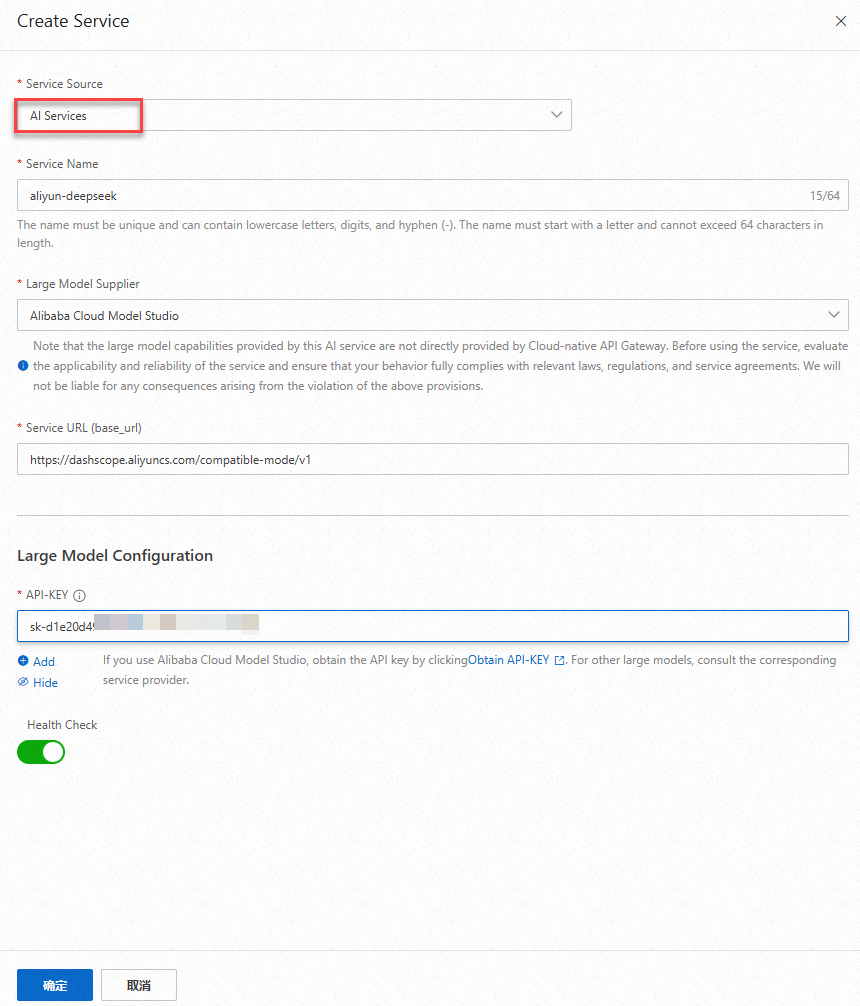
Click Create Service. In the Create Service panel, configure the AI service with the following information. This topic uses the configuration for Alibaba Cloud Model Studio as an example.
Source: Select AI Services.
Service Name: Enter a name for the gateway service, such as `aliyun-deepseek`.
Large Model Supplier: Select the model provider, such as Alibaba Cloud Model Studio.
Service URL (base_url): Use the default configuration for Alibaba Cloud Model Studio, such as https://dashscope-intl.aliyuncs.com/compatible-mode/v1.
API-KEY: Enter the API key that you obtained from the model provider.
NoteIf you use Alibaba Cloud Model Studio, you can obtain the API key from the console. For other large model providers, contact the respective service provider to obtain the key.
2. Create a Model API
Log on to the AI Gateway console.
In the navigation pane on the left, choose Instance. In the top menu bar, select a region.
On the Instance page, click the target instance ID.
In the navigation pane on the left, choose Model API, then click Create Model API.
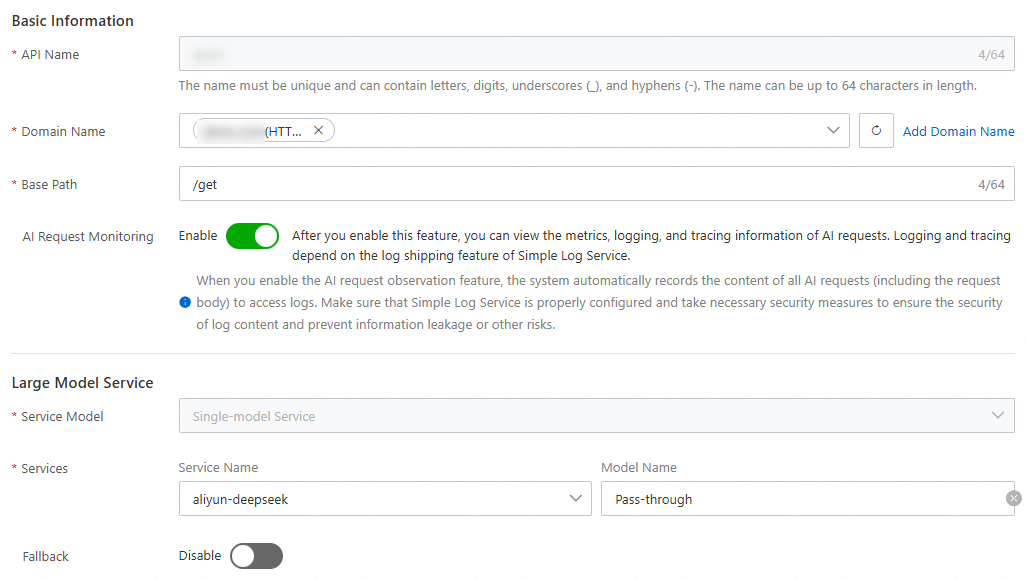
In the Create Model API panel, configure the basic information as follows:
Domain Name: Configure a domain name. If you use the default environment domain name, rate limiting is applied.
Base Path: The base path of the API.
AI Request Observation: Select Enabled.
Service Model: Select Single Model Service.
Services: Configure the following parameters:
Service Name: Select the Alibaba Cloud Model Studio DeepSeek service that you configured in the previous step.
Model Name: Select Pass-through.
3. Test the Model API
Log on to the AI Gateway console.
In the navigation pane on the left, choose Instance. In the top menu bar, select a region.
On the Instance page, click the target instance ID.
In the navigation pane on the left, select Model API. In the Actions column of the target Model API, click Debugging. In the Debugging panel, configure the parameters to test the API.
Set model to deepseek-r1. On the Model Returned tab, you can interact with the DeepSeek model from Alibaba Cloud Model Studio.
ImportantThe Model Response tab uses the
/v1/chat/completionsdialogue interface. To use other interfaces, select the CURL Command or Raw Output tab to perform a test using cURL or a software development kit (SDK).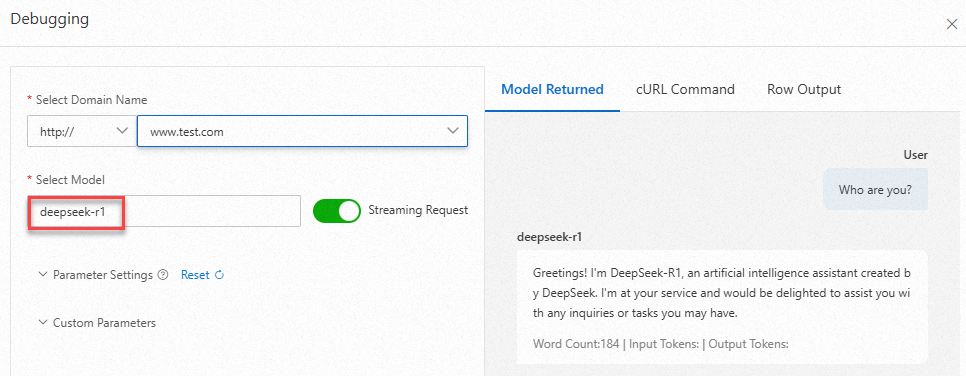
Scenario 2: Access a self-deployed DeepSeek service on Alibaba Cloud through AI Gateway
You can onboard a general-purpose model to AI Gateway by specifying a custom service endpoint. This method is suitable for the following situations:
The large model provider is not integrated into AI Gateway, but the model is compatible with the OpenAI protocol.
The DeepSeek service is deployed on Alibaba Cloud, such as on Platform for AI (PAI) or Function Compute (FC).
For this scenario, follow the instructions in Access a PAI-deployed model through AI Gateway.
Scenario 3: Use AI Gateway as a unified proxy for multiple DeepSeek endpoints
1. Create AI services
AI Gateway can expose both built-in DeepSeek integrations and self-deployed DeepSeek services behind a single endpoint, acting as a multi-endpoint proxy. It also supports fallback to an alternative DeepSeek backend when a primary endpoint fails. In this scenario, you can use a unified method to call different third-party model services.
Follow the instructions in Scenario 1 and Scenario 2 to configure three AI services for the gateway: Alibaba Cloud Model Studio, Volcengine, and PAI. For the Volcengine service configuration, see the example in the following figure.

2. Create a Model API
Log on to the AI Gateway console.
In the navigation pane on the left, choose Instance. In the top menu bar, select a region.
On the Instance page, click the target instance ID.
In the navigation pane on the left, choose Model API, then click Create Model API.
In the Create Model API panel, configure the basic information as follows:
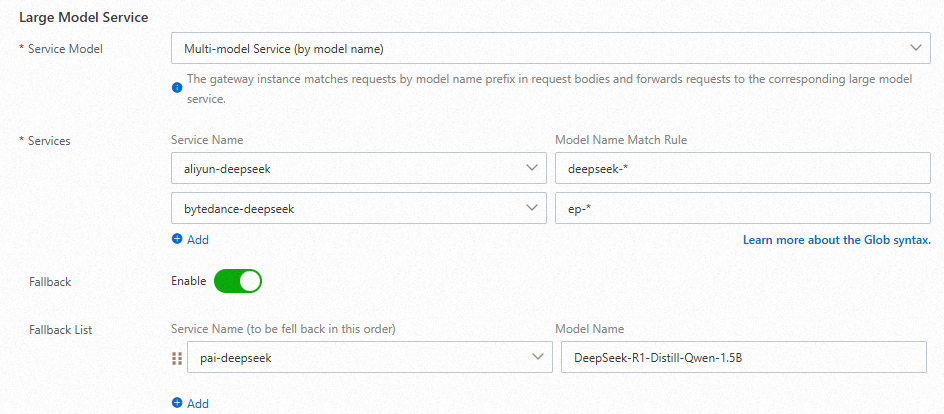
Service Model: Select Multi-model Service (by model name).
Services: Add the following services.
Select the Alibaba Cloud DeepSeek service that you configured in the previous step. Set the model name matching rule to
deepseek-*.Select the Volcengine DeepSeek service that you configured in the previous step. Set the model name matching rule to
ep-*.
Fallback: Enable it.
Fallback List: Select the
pai-deepseekservice that you configured in the previous step. Set the model name toDeepSeek-R1-Distill-Qwen-1.5B.
 Note
NoteThe configuration in the preceding figure is executed based on the following rules:
If the model name starts with `deepseek-`, the Alibaba Cloud DeepSeek service is called.
If the model name starts with `ep-`, the Volcengine DeepSeek service is called.
If another model call fails or is rate-limited, the PAI DeepSeek-R1-Distill-Qwen-1.5B service is called. If you configure multiple fallback services, they are called in the order they are listed.
3. Test the Model API
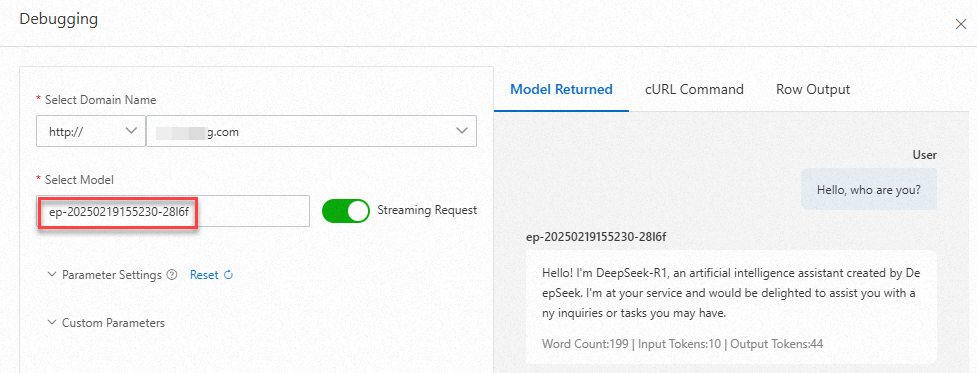
In the Actions column of the target Model API, click Debugging. In the Debugging panel, configure the parameters to test the API.
If you set the model to
deepseek-v3orep-20250219155230-28l6f(use the actual model name from Volcengine), the system responds based on the rules for Alibaba Cloud Model Studio and Volcengine.ImportantThe Model Response tab uses the
/v1/chat/completionsdialogue interface. To use other interfaces, select the CURL Command or Raw Output tab to perform a test using cURL or an SDK.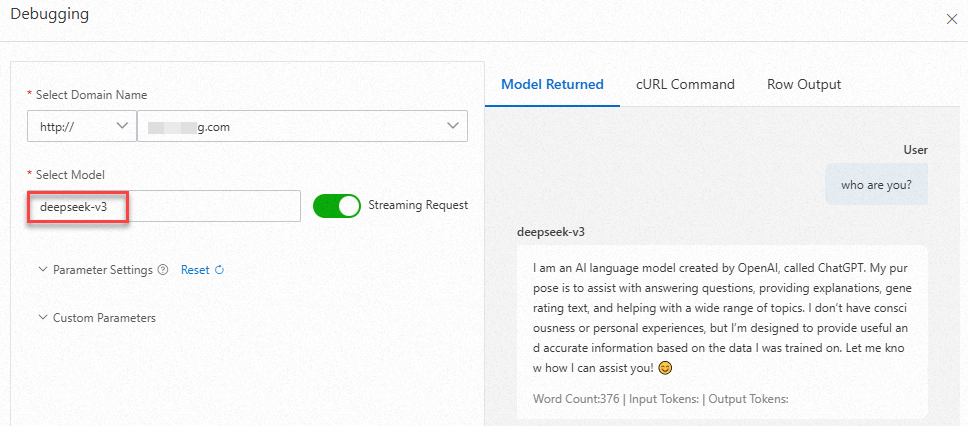
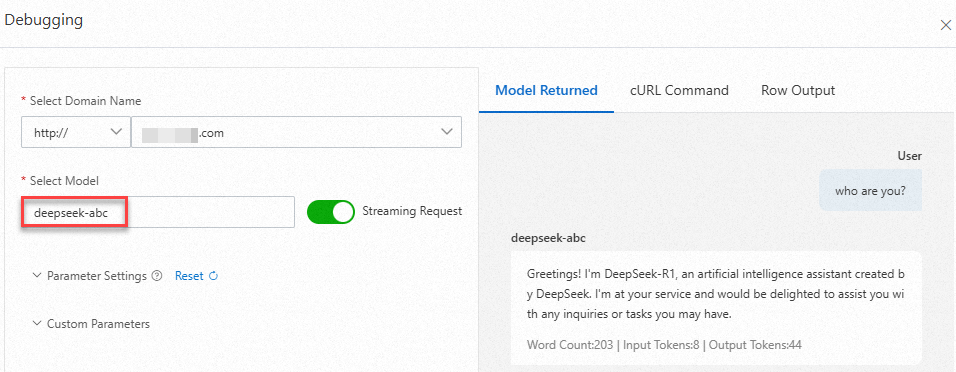
If you configure a name that matches the prefix but is incorrect, such as
deepseek-abc, the model does not exist in Alibaba Cloud Model Studio. This triggers the Fallback mechanism, and the PAI DeepSeek service is called.