When you manage applications across multiple clusters, maintaining separate Argo CD Application resources for each cluster is error-prone and hard to scale. The multi-cluster GitOps feature in ACK One uses Argo CD ApplicationSet to solve this: one application set template automatically generates one Argo CD Application per target cluster, so a single commit propagates to all clusters simultaneously.
This topic describes how to create a multi-cluster application in the ACK One console.
Prerequisites
Before you begin, ensure that you have:
Fleet management enabled
Multiple clusters associated with the fleet instance
Create a multi-cluster application
Log on to the ACK One console. In the left-side navigation pane, choose Fleet > Multi-cluster GitOps.
In the upper-left corner of the Multi-cluster GitOps page, click the
 icon next to the fleet name, and select the target fleet from the drop-down list.
Click Create Multi-cluster Application > GitOps to open the Create Multi-cluster Application - GitOps page.
On the Quick Create tab, configure the following parameters. Under Advanced Configuration, configure the synchronization policies. When Automatic is selected, you can enable the following options. For sync operations, the following options are available. For a complete reference on sync options, see Argo CD sync options.
Parameter Description Example Multi-cluster Application Set Name Name of the application set. appset-echo-server-demoProject Argo CD project the application set belongs to. defaultSource Code URL URL of the Git repository containing your application manifests. https://github.com/AliyunContainerService/gitops-demo.gitGit Branch Branch to track in the repository. mainPath Path within the repository to the application manifests. This can point to a directory of YAML files, a Helm chart root, or a Kustomize directory. manifests/helm/echo-serverDestination Cluster Clusters to deploy the application to. If left blank, all clusters registered in Argo CD — except the in-cluster (where the fleet and Argo CD run) — are used as destination clusters. — Namespace Namespace in each destination cluster where the application is deployed. demoApplication Name Name template for each generated Argo CD Application. The following variables are available by default: {{.name}},{{.metadata.annotations.cluster_name}}, and{{.metadata.annotations.cluster_id}}.{{.metadata.annotations.cluster_id}}-echoserverSynchronization policy (ApplicationSet)
Option Description PRESERVE RESOURCES ON DELETION When selected, child resources created by this application set are retained if the application set is deleted. Select this to protect workloads from accidental deletion of the application set. Synchronization policy (Application)
Option Description Manual Sync is triggered only when you manually initiate it. Automatic Argo CD automatically syncs the application when it detects a difference between the Git repository and the live cluster state. Option Description PRUNE RESOURCES By default, Argo CD does not delete resources that no longer exist in Git — this is a safety mechanism to prevent accidental data loss. When enabled, resources removed from the Git repository are automatically deleted from the cluster. Enable this only when you want Git to be the sole source of truth for cluster state. SELF HEAL By default, manual changes to live cluster resources do not trigger an automatic sync. When enabled, any out-of-band change to a live cluster resource is automatically reverted to match the desired state in Git. Enable this to prevent configuration drift caused by direct cluster modifications. Option Description SKIP SCHEMA VALIDATION Skips Kubernetes resource spec validation before applying. Equivalent to `kubectl apply --validate=true|false`. Enabled by default. AUTO-CREATE NAMESPACE Automatically creates the target namespace if it does not exist in the cluster. PRUNE LAST Deletes pruned resources only after all other resources are deployed and healthy, reducing the risk of downtime during sync. APPLY OUT OF SYNC ONLY Syncs only resources in the OutOfSyncstate, which speeds up sync operations when most resources are already in sync.RESPECT IGNORE DIFFERENCES During sync, ignores fields specified in the ignoreDifferencesconfiguration so those fields are not overwritten.SERVER-SIDE APPLY Uses Kubernetes server-side apply instead of the default client-side apply. Use this when a resource is too large to fit within the allowed annotation size, when patching resources not fully managed by Argo CD, or when you want declarative field management. REPLACE Uses kubectl replace(delete then recreate) instead ofkubectl apply(patch). Use this only whenapplyis not sufficient, such as for immutable fields.RETRY Retries a failed sync operation. Configure the number of retries, retry interval, and backoff policy. If Quick Create does not meet your requirements, select the Create from YAML tab and edit the ApplicationSet YAML directly.
Quick Create and Create from YAML are synchronized. Changes made on either tab are reflected in the other.
Click OK. The application set is created, and the status of each generated application appears in the Status column on the Multi-cluster GitOps page.
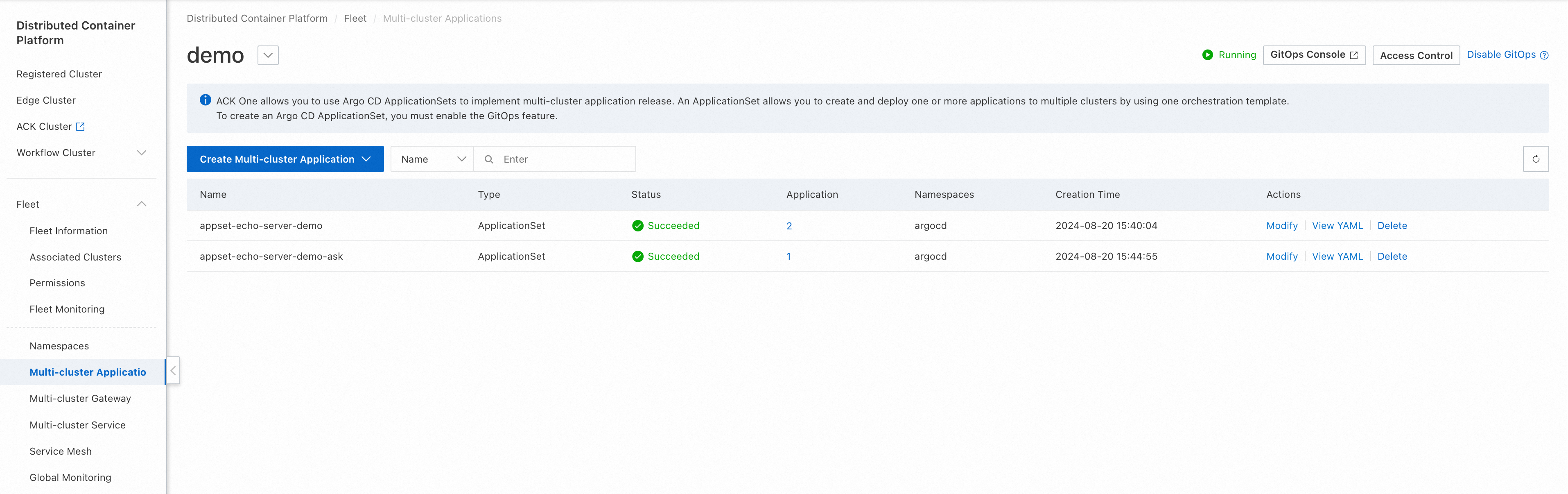
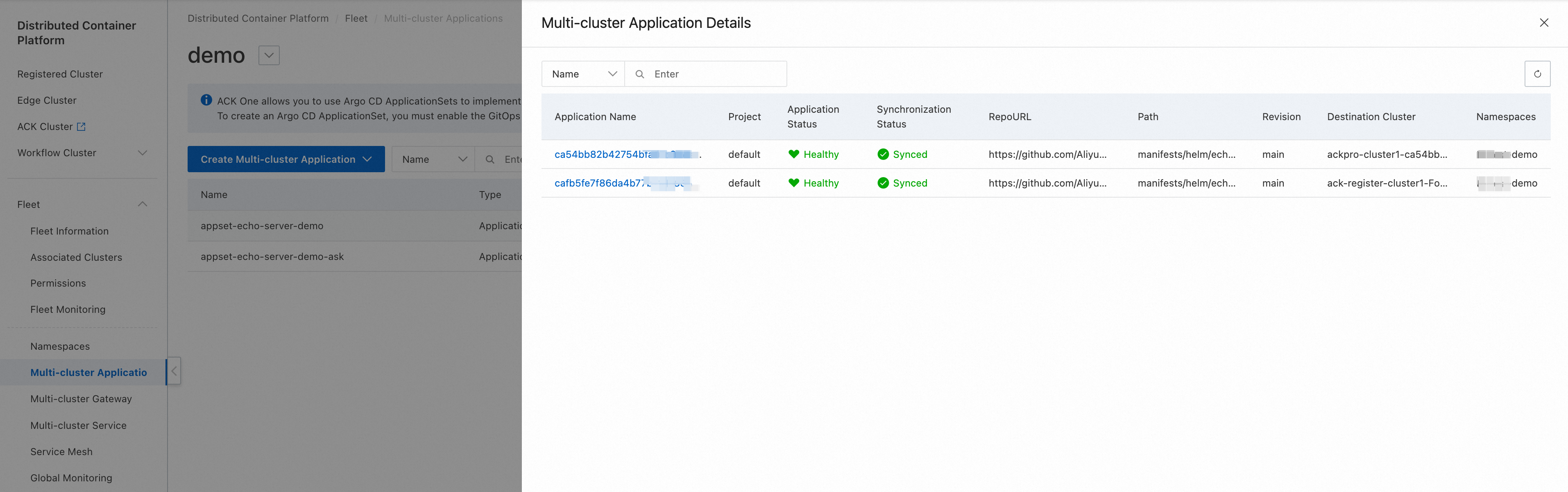
To inspect the generated applications, click the number in the Application column next to the application set name. A summary of all applications created from this application set is displayed. Click an Application Name to open the Argo CD UI for that application.