After connecting your on-premises data center to Alibaba Cloud through Express Connect or Smart Access Gateway, you can use Cloud Enterprise Network (CEN) to access DTS deployed in a VPC.
Background information
The cloud services discussed in this topic refer to the Alibaba Cloud services that use the 100.64.0.0/10 CIDR block to provide services, such as Object Storage Service (OSS), Log Service, and Data Transmission Service (DTS). If an on-premises network needs to access a cloud service, you must attach the VBR or CCN instance associated with the on-premises network to a CEN instance, and then attach a virtual private cloud (VPC) to the CEN instance. The VPC and the cloud resource must belong to the same region. This way, your on-premises network can access the VPC and access the cloud service through the VPC. 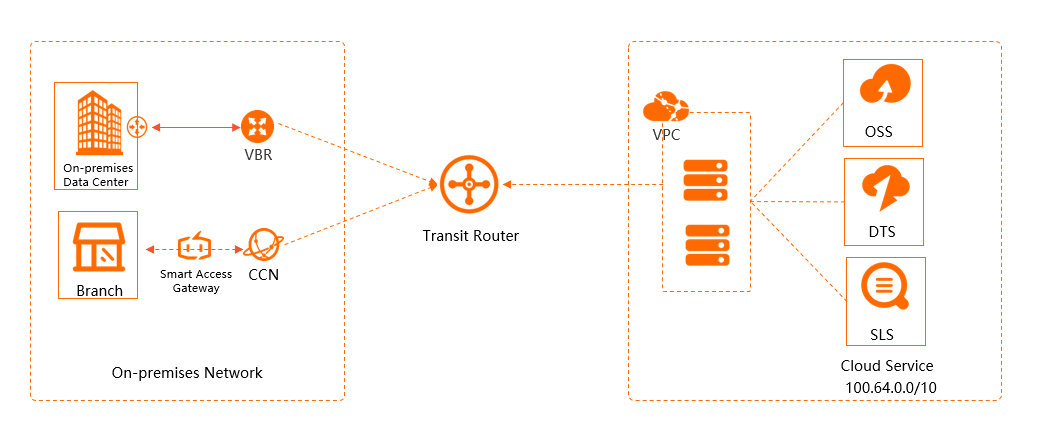
Prerequisites
-
The on-premises network that hosts the self-managed database is connected to Alibaba Cloud through Express Connect or Smart Access Gateway. Connect a VPC to an on-premises data center or another cloud.
NoteIf you have multiple VPCs in the same region attached to a CEN instance (for example, VPC1, VPC2, and VPC3), and one of them (VPC1) already accesses other cloud services such as OSS or SLB, you must also select VPC1 to access DTS in the following steps.
-
A CEN instance is created. Create a CEN instance.
-
The VPC associated with your self-managed database is attached to a transit router of the CEN instance. Create a VPC connection.
Configure access to cloud services
Log on to the CEN console.
On the CEN Instance page, click the ID of the CEN instance that you want to manage.
-
On the tab, click the ID of the transit router in the cloud service's region.
-
Configure the transit router based on its edition.
-
Enterprise Edition transit router
-
On the transit router details page, click the Route Table tab.
-
On the Route Table tab, select a route table from the left-side pane. In the Route Table Details area, click the Route Entry tab, then click Create Route Entry.
-
In the Add Route Entry dialog box, configure the parameters and click OK.
Parameter
Description
Route table
Automatically selected.
Transit router
Automatically selected.
Route entry name
Enter a name for the route entry.
Destination CIDR block
Enter the DTS IP address or CIDR block for the target region. The CIDR block must be a subnet of 100.64.0.0/10. For example, the China (Hangzhou) CIDR blocks are
100.104.52.0/24,100.104.61.128/26,100.104.244.64/26,100.104.216.192/26,100.104.85.0/26,100.104.221.128/26,100.104.2.0/26,100.104.251.192/26,100.104.159.64/26,100.104.216.128/26,100.104.148.192/26,100.104.239.64/26,100.104.114.0/26,100.104.0.192/26,100.104.13.192/26. CIDR blocks for other regions are listed in Add the IP addresses of DTS servers to a whitelist.NoteYou can enter only one IP address or CIDR block at a time. If DTS in a region uses multiple subnets of 100.64.0.0/10, repeat this step for each subnet.
Blackhole route
Select No.
Next hop
Select the connection ID of the VPC instance attached to the transit router.
Route entry description
Enter a description for the route entry.
-
-
Basic Edition transit router
-
On the transit router details page, click the Access Cloud Service tab.
-
On the Access Cloud Service tab, click Set Cloud Service.
-
In the Set Cloud Service panel, configure the following parameters and click OK.
Parameter
Description
Cloud service IP or CIDR block
Enter the DTS IP address or CIDR block for the target region. The CIDR block must be a subnet of 100.64.0.0/10. For example, the China (Hangzhou) CIDR blocks are
100.104.52.0/24,100.104.61.128/26,100.104.244.64/26,100.104.216.192/26,100.104.85.0/26,100.104.221.128/26,100.104.2.0/26,100.104.251.192/26,100.104.159.64/26,100.104.216.128/26,100.104.148.192/26,100.104.239.64/26,100.104.114.0/26,100.104.0.192/26,100.104.13.192/26. CIDR blocks for other regions are listed in Add the IP addresses of DTS servers to a whitelist.NoteYou can enter only one IP address or CIDR block at a time. If DTS in a region uses multiple subnets of 100.64.0.0/10, repeat this step for each subnet.
Service location
Select the region of the target DTS instance.
ImportantFor both same-region and cross-region tasks, set Service Location to the destination region. For example, to synchronize data from a self-managed database in China (Beijing) to an ApsaraDB RDS for MySQL instance in China (Hangzhou), set Service Location to China (Hangzhou) and select a VPC in China (Hangzhou) for Service VPC.
Service VPC
Select a VPC attached to the CEN instance. The on-premises network associated with the VBR or CCN instance accesses DTS through this VPC.
Note-
For cross-region synchronization (for example, from China (Beijing) to an ApsaraDB RDS for MySQL instance in China (Hangzhou)), specify a VPC in the destination region for Service VPC. This VPC must be attached to the CEN instance.
-
If multiple VPCs in the same region are attached to the CEN instance (for example, VPC1, VPC2, and VPC3), and one of them (VPC1) already accesses other cloud services such as OSS or SLB, select VPC1 for DTS as well.
Access location
Select the region of the VBR or CCN instance accessing DTS.
ImportantIf your self-managed database connects to Alibaba Cloud through a VBR instance, CEN can access DTS only in the same region as the VBR.
Description
Enter a description.
The description can be empty or 2 to 256 characters long. It must start with a letter or Chinese character, and can contain digits, hyphens (-), periods (.), and underscores (_). It cannot start with
http://orhttps://. -
-
-
Access databases across accounts or regions
To access DTS across accounts or regions through CEN, follow Connect VPCs across accounts by using an Enterprise Edition transit router or Use CEN to achieve cross-region and cross-account VPC communication (Basic Edition).
Select the configuration that matches your transit router edition.
Next steps
When configuring a DTS task (migration, synchronization, change tracking, or data verification), set the on-premises self-managed database as the source or destination with the following parameters.
|
Parameter |
Description |
|
Database Type |
Select the type of your self-managed database. |
|
Access Method |
Select Cloud Enterprise Network (CEN). |
|
Instance Region |
Select the CEN instance region. |
|
CEN Instance ID |
Select the ID of the CEN instance. |
|
Connected VPC |
Select the VPC that you previously set for the Service VPC parameter. |
|
Domain Name or IP |
Enter the IP address of the self-managed database server. |
|
Port Number |
Enter the port number of the self-managed database server. |
|
Database Account |
Enter the database username. |
|
Database Password |
Enter the database password. |
FAQ
Q: Why does the connectivity test on the DTS console fail when I connect to an on-premises database over Express Connect, even after I configure the VPC's Cloud Firewall access control list (ACL) to allow all traffic?
A: Check these three potential causes:
-
Check whether the CEN instance is missing a cloud service route for the DTS CIDR block. Add the route and rerun the connectivity test. Configure access to cloud services.
-
Check whether your on-premises network has a route for the DTS CIDR block. If not, add a route pointing to your local customer-premises equipment (CPE).
-
Check whether your Cloud Firewall ACL blocks traffic from DTS servers to the on-premises database. Add a policy that allows traffic from the DTS CIDR block (source) to your on-premises CIDR block (destination).
Q: What do I do after I receive a notification about new DTS whitelist CIDR blocks?
A: Complete these steps:
-
Add the new CIDR blocks to the CEN cloud service route. Configure access to cloud services.
-
In your on-premises network, update the routing configuration to include the new DTS CIDR blocks.
-
Add the new DTS CIDR blocks to your on-premises firewall ACL. Update any other ACLs along the network path to allow traffic from the DTS CIDR blocks (source) to your on-premises CIDR block (destination).