Terraform is an open-source tool for managing cloud resources as code. Create and configure an OSS bucket using Terraform.
You can run the sample code in this tutorial with a single click. Run Now
Prerequisites
-
Use a RAM user with minimum required permissions (Create a RAM user, Manage RAM user permissions). Grant the following policy:
{ "Version": "1", "Statement": [ { "Effect": "Allow", "Action": "oss:*", "Resource": "*" } ] } -
Prepare a Terraform runtime environment using one of the following methods.
-
Explorer: Alibaba Cloud's online Terraform environment. Quick and cost-effective.
-
Use Terraform to quickly create resources: Alibaba Cloud Shell has Terraform preinstalled with credentials preconfigured.
-
Install and configure Terraform on your local machine: Best for slow networks or custom development environments.
-
Some resources in this tutorial may incur fees. Release them when no longer needed.
Resources used
-
alicloud_oss_bucket: Defines an OSS bucket.
-
alicloud_oss_bucket_acl: Sets the access control for an OSS bucket.
Create a bucket
-
Create a directory and a main.tf file. Add the following code to main.tf.
variable "region"{ default = "cn-beijing" } provider "alicloud"{ region = var.region } resource "random_uuid" "default" { } # Create a bucket. resource "alicloud_oss_bucket" "bucket" { bucket = substr("tf-example-${replace(random_uuid.default.result, "-", "")}", 0, 16) } # Set the access control for the bucket. resource "alicloud_oss_bucket_acl" "bucket-ac"{ bucket = alicloud_oss_bucket.bucket.id acl = "private" } -
Initialize the Terraform environment.
terraform initExpected output on success:
Terraform has been successfully initialized! You may now begin working with Terraform. Try running "terraform plan" to see any changes that are required for your infrastructure. All Terraform commands should now work. If you ever set or change modules or backend configuration for Terraform, rerun this command to reinitialize your working directory. If you forget, other commands will detect it and remind you to do so if necessary. -
Apply the configuration.
terraform applyEnter
yeswhen prompted and press Enter. Expected output on success:You can apply this plan to save these new output values to the Terraform state, without changing any real infrastructure. Do you want to perform these actions? Terraform will perform the actions described above. Only 'yes' will be accepted to approve. Enter a value: yes Apply complete! Resources: 3 added, 0 changed, 0 destroyed. -
Verify the results.
Terraform show
Run the following command to view the created resources:
terraform show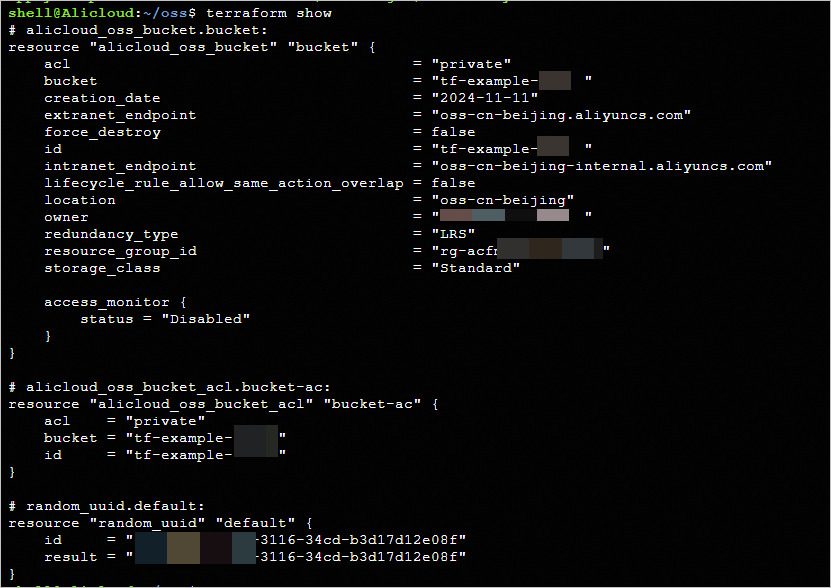
Console
-
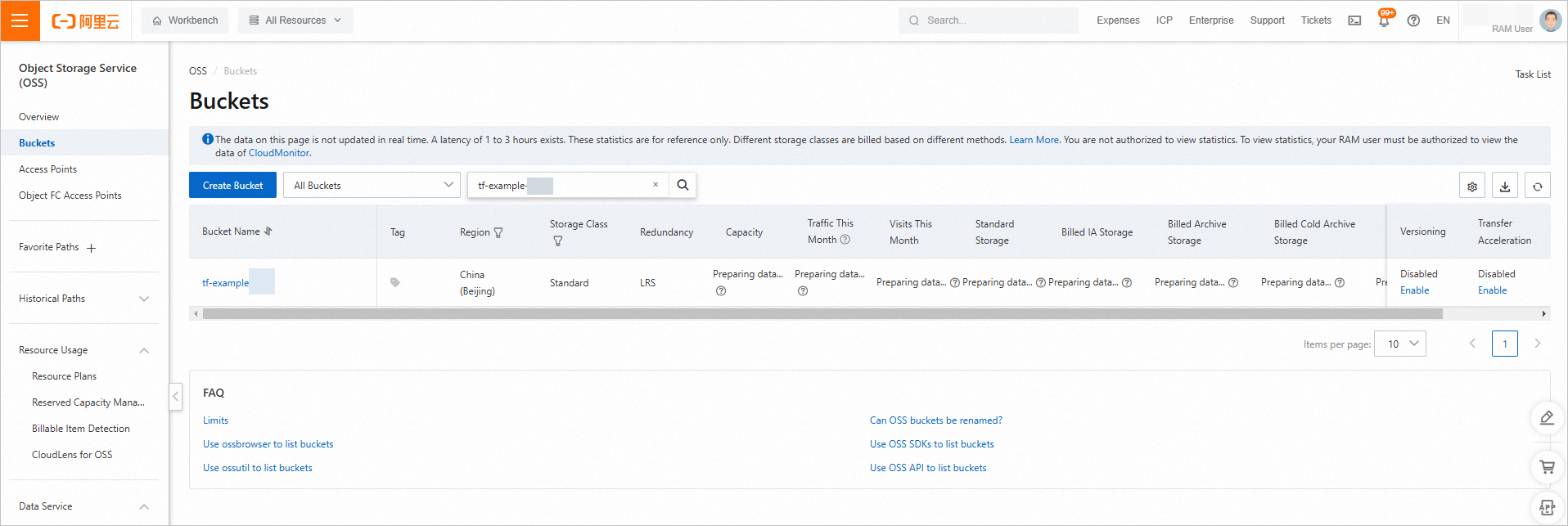
Log on to the OSS console and click to view your bucket.
-
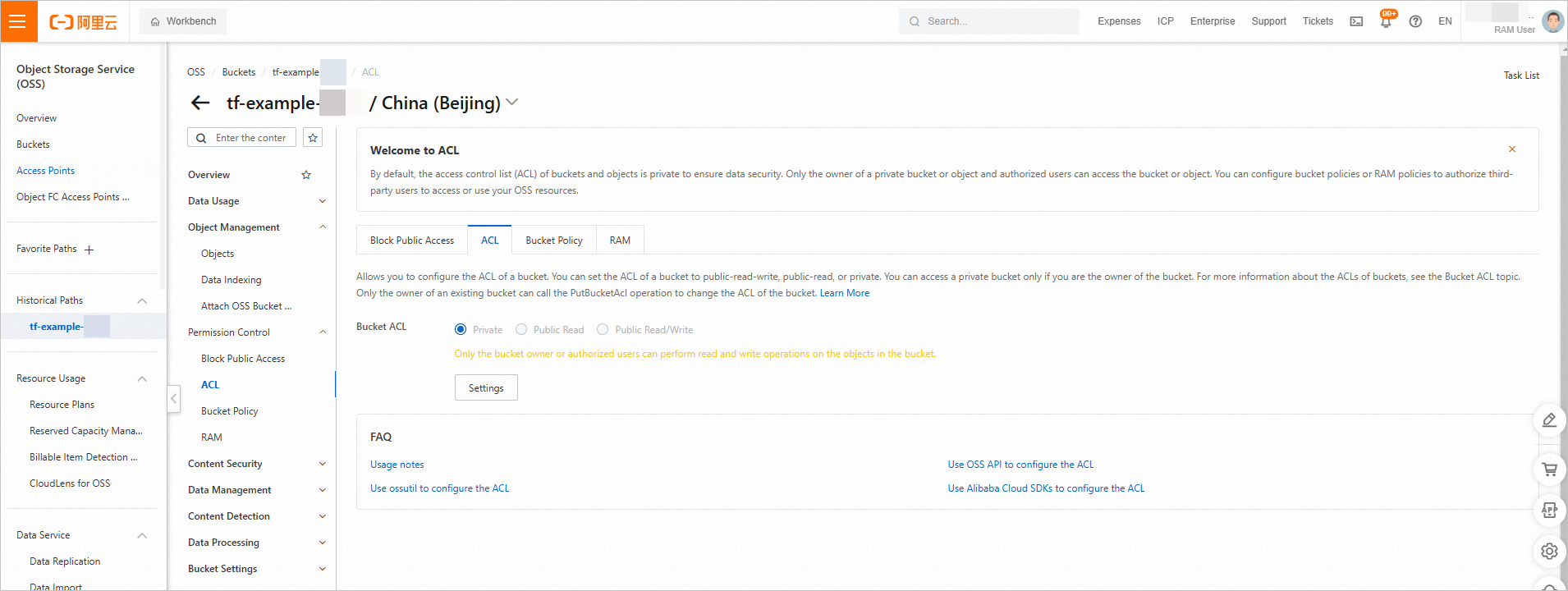
Click your Bucket Name, then go to to verify the ACL.
-
Clean up resources
Run the following command to release resources you no longer need (Common Commands).
terraform destroyComplete example
You can run the sample code in this example with a single click. Run Now
Sample code
Explore product-specific examples at More complete examples.