ApsaraVideo VOD lets you categorize media assets, such as audio, video, image, and short video materials. This simplifies the retrieval and management of your media assets.
Limits
Audio, video, and image categorization supports up to three levels. Short video material categorization supports up to two levels. Each level can have a maximum of 100 subcategories.
Procedure
Step 1: Create a category
Create a category in the console
Log on to the ApsaraVideo VOD console.
In the left-side navigation pane, choose Configuration Management > Media Management > Categories.
Create a category.
Audio, video, and image categories
ImportantA maximum of three levels of categories are supported. Each level can contain up to 100 categories.
On the Audio/Video/Image Categories tab, click Add Level 1 Category. Enter a category name and press Enter to add the category.
By default, the category tree is empty. You can create a category tree for your audio files, videos, and images as needed.
You can also use keyboard shortcuts to add and delete categories and subcategories.
Enter: Add a category at the same level.
Alt+Enter: Add a subcategory. A maximum of three levels are supported.
Delete: Delete a category.
Short video material categories
ImportantA maximum of two levels of categories are supported. Each level can contain up to 100 categories.
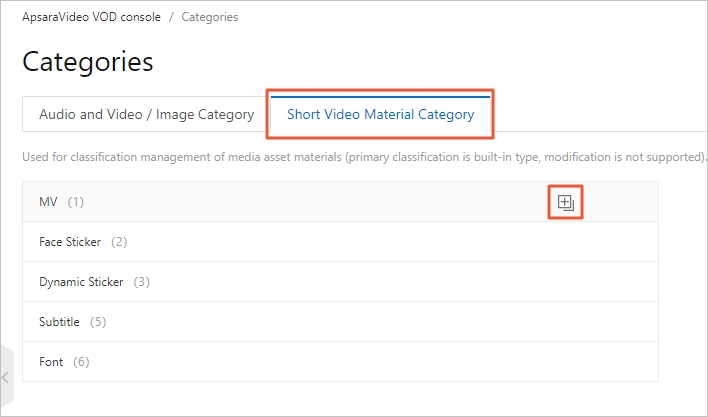
On the Short Video Material Category tab, click the
 icon next to a level-1 category. Enter a category name and press Enter to add the category.
The default level-1 categories are MV, Face Sticker, Animated Sticker, Caption, and Font. These categories cannot be modified. You can create your own category tree for short video materials under the level-1 categories as needed.
You can also use keyboard shortcuts to add and delete categories and subcategories.
Enter: Add a category at the same level.
Alt+Enter: Add a subcategory. A maximum of two levels are supported.
Delete: Delete a category.
Create a category using an API
Call the AddCategory operation to create a category or subcategory.
Step 2: Categorize media assets
Categorize media assets in the console
This section uses a video as an example. The steps for categorizing audio files, images, and short video materials are similar.
Categorize a media asset during upload
Log on to the ApsaraVideo VOD console.
In the left-side navigation pane, choose Media Files > Audio/Video.
Click Upload Audio/Video.
Click Add Audio/Video and set parameters, such as the upload method and storage address.
After you add the audio or video file to upload, expand Unclassified and select a category for the video.
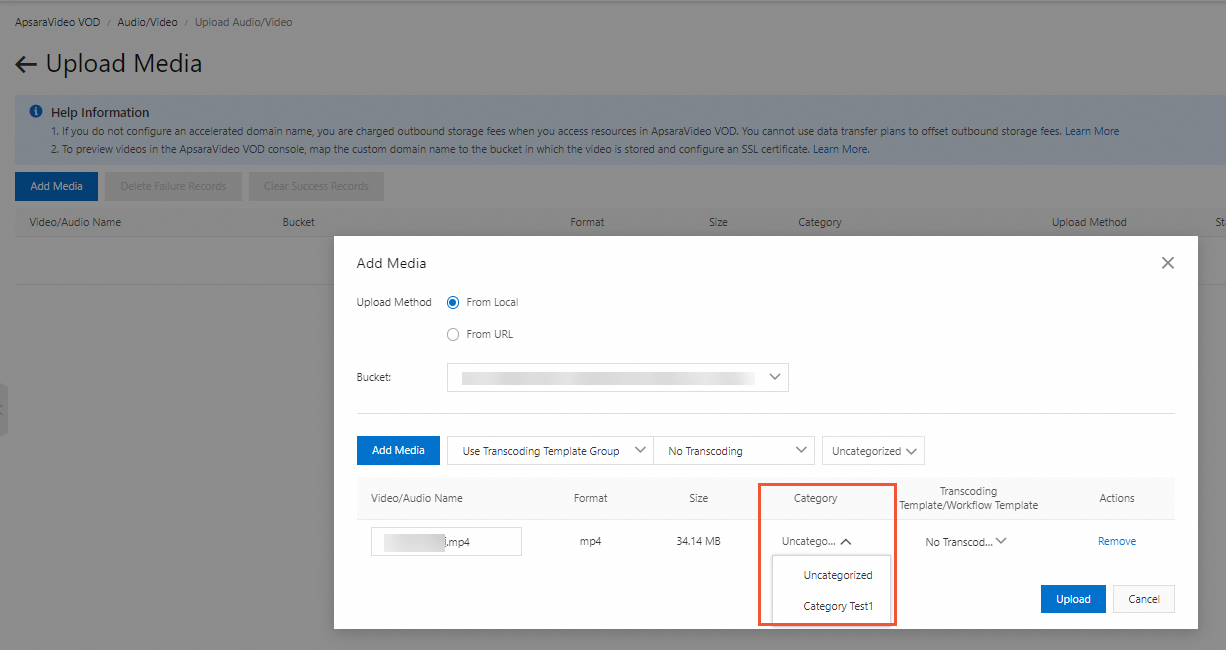
Click Upload.
After the video is uploaded, you can view the uploaded video and its category information on the Audio/Video page.
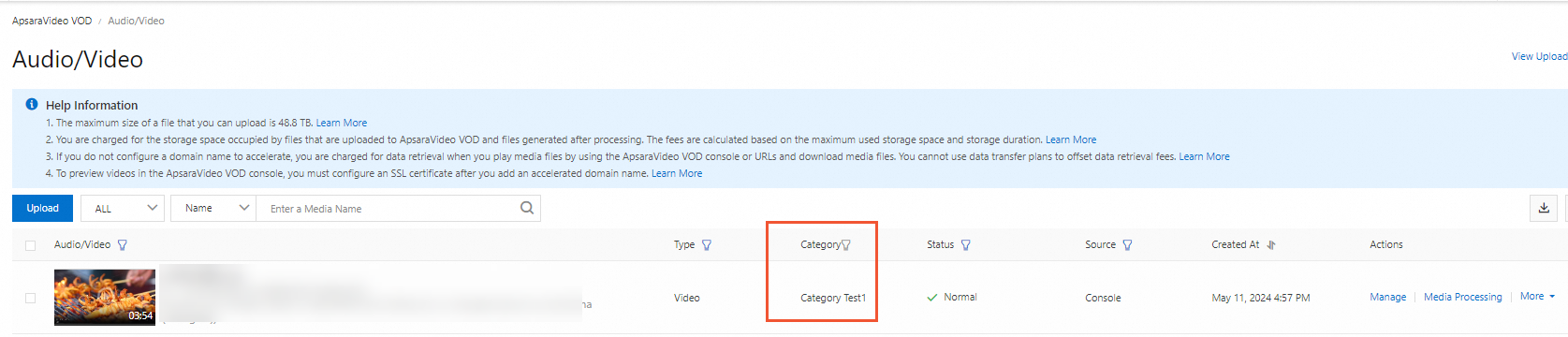
Classifying media resources after upload
Log on to the ApsaraVideo VOD console.
In the left-side navigation pane, choose Media Files > Audio/Video.
In the row of the video that you want to categorize, click Manage.
On the Basics tab, click Editing Video Information .
Expand the Categories drop-down list and select a category name.
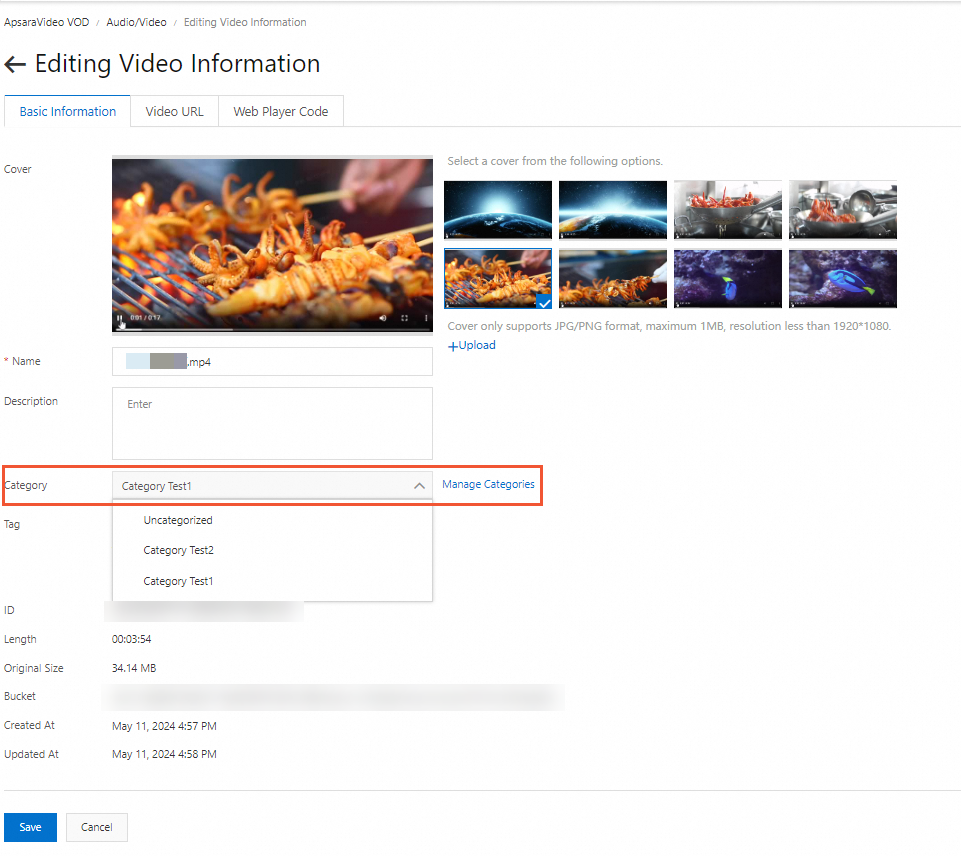
Click Save.
After the settings are saved, you can view the category information for the video on the Audio/Video page.
Categorize media assets using an API
Categorize a media asset during upload
When you call an API to obtain an upload credential or to upload a media asset, include the CateId or CateIds parameter to categorize the asset. The related API operations are as follows:
Categorize an existing media asset
For media assets that are already uploaded to ApsaraVideo VOD, you can call an API to modify media asset information. Include the CateId or CateIds parameter to categorize the asset. The related API operations are as follows:
Step 3: Retrieve media assets by category
Retrieve media assets in the console
This section uses a video as an example. The steps for retrieving audio files, images, and short video materials are similar.
Log on to the ApsaraVideo VOD console.
In the left-side navigation pane, choose Media Files > Audio/Video.
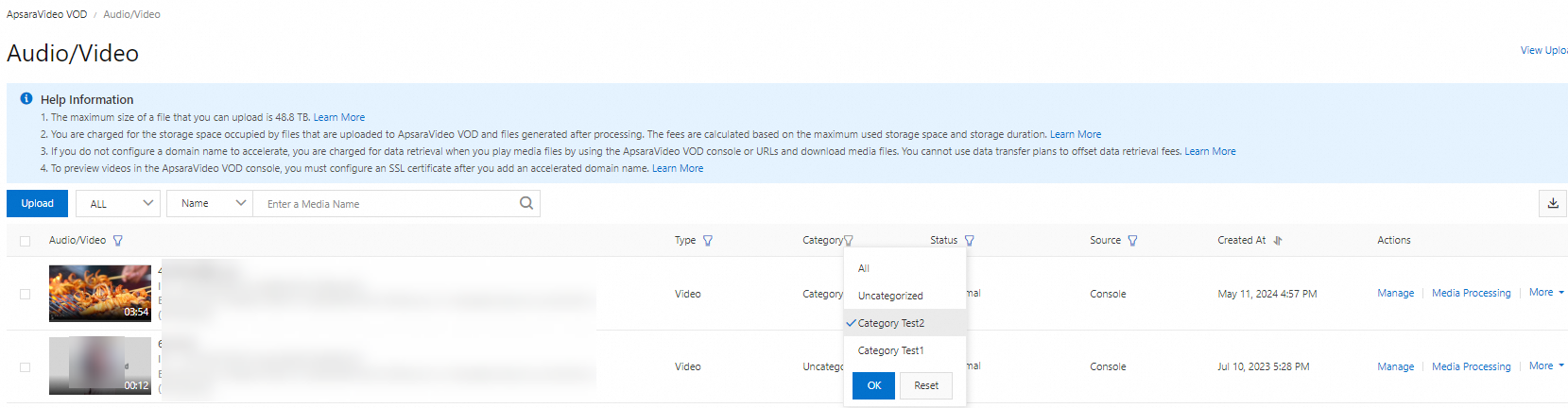
Click the
 icon in the Category column. Select a category name and click OK.
The Audio/Video page displays only the audio and video files that are annotated with the selected category.
Retrieve media assets using an API
Call the SearchMedia operation. Set the filter condition in the Match parameter to retrieve media assets. You can retrieve assets by category name (CateName) or category ID (CateId).
What to do next: Manage categories
After you create categories, you can query, delete, and modify them.
When you delete a category, all its subcategories are also deleted. Perform this operation with caution.
Manage categories in the console
Log on to the ApsaraVideo VOD console.
In the left-side navigation pane, choose Configuration Management > Media Management > Categories.
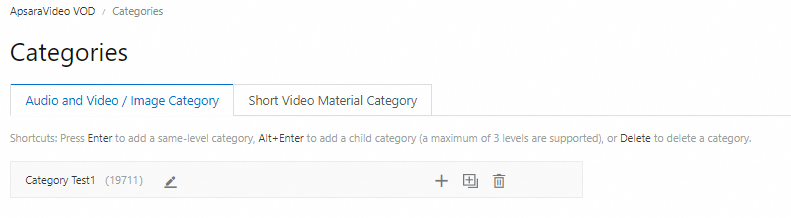
Find the target category. Click the buttons to modify the category, add a category at the same level, add a subcategory, or delete the category. You can also use keyboard shortcuts to manage categories.
Manage categories using an API
After you create categories, you can call API operations to modify, query, or delete them. The related API operations are as follows: