Function Compute supports API Gateway as an event source. Configure Function Compute as the backend service for an API, and API Gateway forwards incoming requests to the associated function and returns the execution result to the caller.
When to use API Gateway triggers
API Gateway triggers and HTTP triggers both expose functions as HTTP endpoints. Choose based on your requirements:
| Capability | API Gateway trigger | HTTP trigger |
|---|---|---|
| IP allowlists and denylists | Supported | Not supported |
| Authentication (AppKey, AppCode) | Supported | Not supported |
| Traffic shaping | Supported | Not supported |
| Data transformation | Supported | Not supported |
Use an API Gateway trigger when you need advanced access control, authentication, or traffic management. For simple HTTP exposure, an HTTP trigger is sufficient.
API Gateway supports both event functions and web functions as its backend. The integration model differs:
Event function: API Gateway converts the HTTP request into a structured JSON event and passes it to your function. Your function must return a JSON response in a specific format.
Web function: API Gateway forwards the raw HTTP request to your function's internal network endpoint. Your function handles the request directly as an HTTP server.
Connect an event function to API Gateway
Prerequisites
Before you begin, ensure that you have:
An Alibaba Cloud account with access to Function Compute and API Gateway
A region selected for both services (place them in the same region to avoid public network traffic fees)
Step 1: Create an event function
Create an event function in the Function Compute 3.0 console. For more information, see Create an event function.
Step 2: Create an API Gateway backend service
Define a backend service in API Gateway and link it to your function.
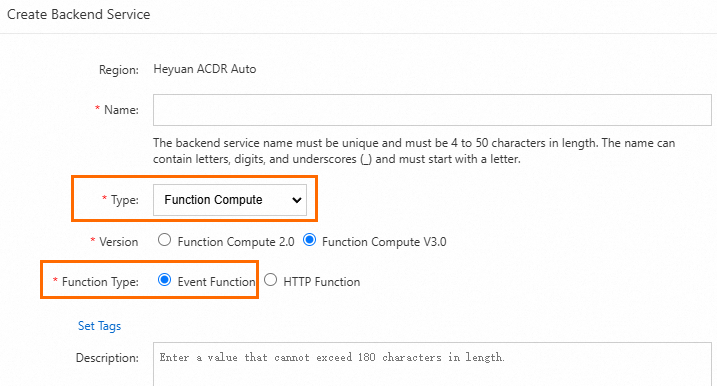
Log on to the API Gateway console, select a region, and in the left navigation pane, choose Manage APIs > Backend Services. In the upper-right corner, click Create Backend Service. Configure the required information and click Confirm.
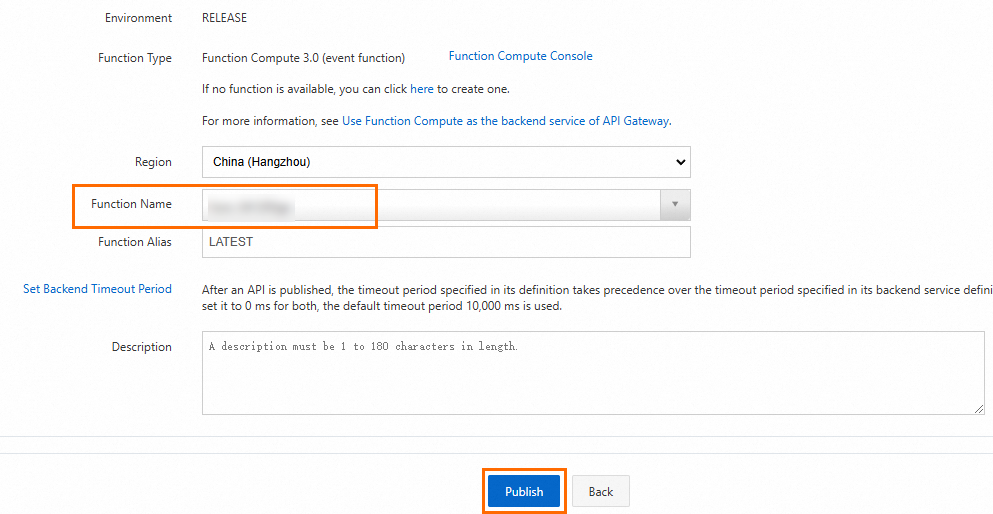
On the Backend Services page, click the backend service you just created. Click the Production tab. In the Basic Information section, click Create, select the event function from Step 1, and then click Publish.
Step 3: Create and publish an API
In the API Gateway console, create an API group. Place the group in the same region as your function.
If the API group and function are in different regions, API Gateway accesses Function Compute over the public network, which incurs traffic fees. For lower latency and better data security, use the same region.
Create and publish an API with the following key settings. Keep the defaults for all other fields.
Configuration item Value Security authentication No authentication Configuration mode Use an existing backend service Backend service type Function Compute Version Function Compute 3.0 Function type Event function Backend services Select the backend service you created in Step 2 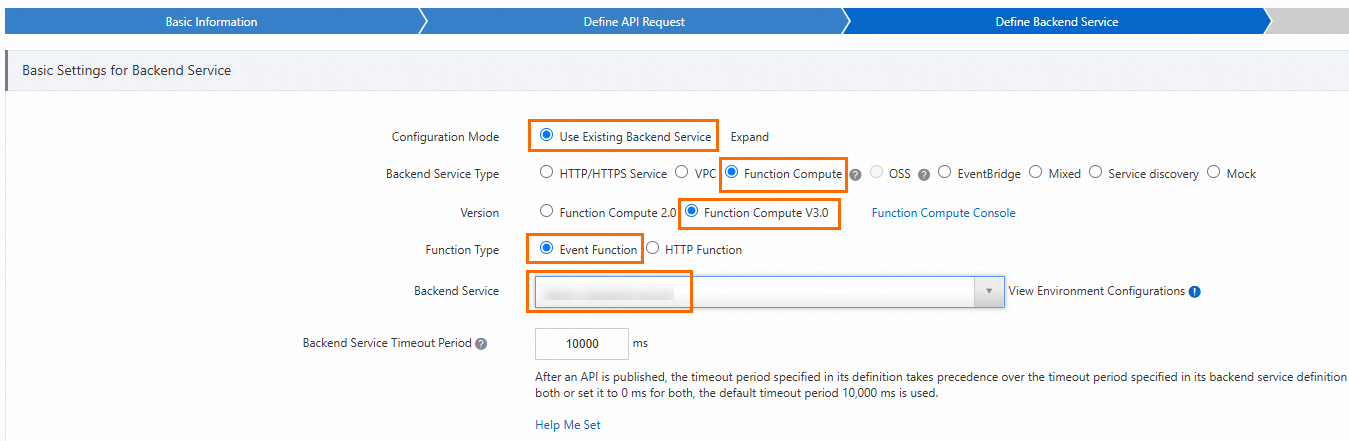
Step 4: Write the function code
Log on to the Function Compute console. In the left-side navigation pane, click Functions.
In the top navigation bar, select the region. On the Functions page, click the function you want to manage.
On the function details page, click the Code tab. Write your code in the editor and click Deploy.
All examples read the request event, extract key fields, and return a response in the required JSON format.
Node.js
module.exports.handler = function(event, context, callback) {
   var event = JSON.parse(event);
   var content = {
     path: event.path,
     method: event.method,
     headers: event.headers,
     queryParameters: event.queryParameters,
     pathParameters: event.pathParameters,
     body: event.body
   // You can write your own logic here.
   }
   var response = {
        isBase64Encoded: false,
        statusCode: '200',
        headers: {
          'x-custom-header': 'header value'
        },
        body: content
      };
   callback(null, response)
};
Python
# -*- coding: utf-8 -*-
import json

def handler(event, context):
    event = json.loads(event)
    content = {
        'path': event['path'],
        'method': event['httpMethod'],
        'headers': event['headers'],
        'queryParameters': event['queryParameters'],
        'pathParameters': event['pathParameters'],
        'body': event['body']
    }
    # You can write your own logic here.
    rep = {
        "isBase64Encoded": "false",
        "statusCode": "200",
        "headers": {
            "x-custom-header": "no"
        },
        "body": content
    }
    return json.dumps(rep)
PHP
<?php
function handler($event, $context) {
    $event   = json_decode($event, $assoc = true);
    $content = [
        'path'            => $event['path'],
        'method'          => $event['httpMethod'],
        'headers'         => $event['headers'],
        'queryParameters' => $event['queryParameters'],
        'pathParameters'  => $event['pathParameters'],
        'body'            => $event['body'],
    ];

    $rep = [
        "isBase64Encoded" => "false",
        "statusCode"      => "200",
        "headers"         => [
            "x-custom-header" => "no",
        ],
        "body"            => $content,
    ];

    return json_encode($rep);
}
Java
Function Compute provides two handler interfaces for Java. For more information about the Java runtime, see Compile and deploy a code package.
Option 1 (recommended): PojoRequestHandler
PojoRequestHandler<I, O> lets you work with typed request and response objects instead of raw streams.
import com.aliyun.fc.runtime.Context;
import com.aliyun.fc.runtime.PojoRequestHandler;
import java.util.HashMap;
import java.util.Map;

public class ApiTriggerDemo implements PojoRequestHandler<ApiRequest, ApiResponse> {

    public ApiResponse handleRequest(ApiRequest request, Context context) {
        // Obtain API request information.
        context.getLogger().info(request.toString());
        String path = request.getPath();
        String httpMethod = request.getHttpMethod();
        String body = request.getBody();
        context.getLogger().info("path: " + path);
        context.getLogger().info("httpMethod: " + httpMethod);
        context.getLogger().info("body: " + body);

        // You can write your own logic here.

        // Sample API response.
        Map headers = new HashMap();
        boolean isBase64Encoded = false;
        int statusCode = 200;
        String returnBody = "";
        return new ApiResponse(headers, isBase64Encoded, statusCode, returnBody);
    }
}
Define the ApiRequest and ApiResponse Plain Old Java Object (POJO) classes as follows. The set() and get() methods must be complete.
import java.util.Map;

public class ApiRequest {
    private String path;
    private String httpMethod;
    private Map headers;
    private Map queryParameters;
    private Map pathParameters;
    private String body;
    private boolean isBase64Encoded;

    @Override
    public String toString() {
        return "Request{" +
                "path='" + path + '\'' +
                ", httpMethod='" + httpMethod + '\'' +
                ", headers=" + headers +
                ", queryParameters=" + queryParameters +
                ", pathParameters=" + pathParameters +
                ", body='" + body + '\'' +
                ", isBase64Encoded=" + isBase64Encoded +
                '}';
    }

    public String getPath() { return path; }
    public void setPath(String path) { this.path = path; }
    public String getHttpMethod() { return httpMethod; }
    public void setHttpMethod(String httpMethod) { this.httpMethod = httpMethod; }
    public Map getHeaders() { return headers; }
    public void setHeaders(Map headers) { this.headers = headers; }
    public Map getQueryParameters() { return queryParameters; }
    public void setQueryParameters(Map queryParameters) { this.queryParameters = queryParameters; }
    public Map getPathParameters() { return pathParameters; }
    public void setPathParameters(Map pathParameters) { this.pathParameters = pathParameters; }
    public String getBody() { return body; }
    public void setBody(String body) { this.body = body; }
    public boolean getIsBase64Encoded() { return this.isBase64Encoded; }
    public void setIsBase64Encoded(boolean base64Encoded) { this.isBase64Encoded = base64Encoded; }
}
import java.util.Map;
public class ApiResponse {
private Map headers;
private boolean isBase64Encoded;
private int statusCode;
private String body;
public ApiResponse(Map headers, boolean isBase64Encoded, int statusCode, String body) {
this.headers = headers;
this.isBase64Encoded = isBase64Encoded;
this.statusCode = statusCode;
this.body = body;
}
public Map getHeaders() { return headers; }
public void setHeaders(Map headers) { this.headers = headers; }
public boolean getIsBase64Encoded() { return isBase64Encoded; }
public void setIsBase64Encoded(boolean base64Encoded) { this.isBase64Encoded = base64Encoded; }
public int getStatusCode() { return statusCode; }
public void setStatusCode(int statusCode) { this.statusCode = statusCode; }
public String getBody() { return body; }
public void setBody(String body) { this.body = body; }
}Add the following Maven dependency in your pom.xml:
<?xml version="1.0" encoding="UTF-8"?>
<project xmlns="http://maven.apache.org/POM/4.0.0"
         xmlns:xsi="http://www.w3.org/2001/XMLSchema-instance"
         xsi:schemaLocation="http://maven.apache.org/POM/4.0.0 http://maven.apache.org/xsd/maven-4.0.0.xsd">
    <modelVersion>4.0.0</modelVersion>

    <groupId>apiTrigger</groupId>
    <artifactId>apiTrigger</artifactId>
    <version>1.0-SNAPSHOT</version>
    <build>
        <plugins>
            <plugin>
                <groupId>org.apache.maven.plugins</groupId>
                <artifactId>maven-compiler-plugin</artifactId>
                <configuration>
                    <source>1.8</source>
                    <target>1.8</target>
                </configuration>
            </plugin>
        </plugins>
    </build>
    <dependencies>
        <dependency>
            <groupId>com.aliyun.fc.runtime</groupId>
            <artifactId>fc-java-core</artifactId>
            <version>1.0.0</version>
        </dependency>
    </dependencies>
</project>
Option 2: StreamRequestHandler
StreamRequestHandler gives you direct access to raw input and output streams. Convert the InputStream to the corresponding POJO class manually. The pom.xml configuration is the same as for PojoRequestHandler.
import com.aliyun.fc.runtime.Context;
import com.aliyun.fc.runtime.StreamRequestHandler;
import com.google.gson.Gson;
import java.io.*;
import java.util.Base64;
import java.util.HashMap;
import java.util.Map;

public class ApiTriggerDemo2 implements StreamRequestHandler {

    public void handleRequest(InputStream inputStream, OutputStream outputStream, Context context) {
        try {
            // Convert the InputStream to a string.
            BufferedReader bufferedReader = new BufferedReader(new InputStreamReader(inputStream));
            StringBuffer stringBuffer = new StringBuffer();
            String string = "";
            while ((string = bufferedReader.readLine()) != null) {
                stringBuffer.append(string);
            }
            String input = stringBuffer.toString();
            context.getLogger().info("inputStream: " + input);
            Request req = new Gson().fromJson(input, Request.class);
            context.getLogger().info("input req: ");
            context.getLogger().info(req.toString());
            String bodyReq = req.getBody();
            Base64.Decoder decoder = Base64.getDecoder();
            context.getLogger().info("body: " + new String(decoder.decode(bodyReq)));

            // You can process your own logic here.

            // Return structure.
            Map headers = new HashMap();
            headers.put("x-custom-header", " ");
            boolean isBase64Encoded = false;
            int statusCode = 200;
            Map body = new HashMap();
            Response resp = new Response(headers, isBase64Encoded, statusCode, body);
            String respJson = new Gson().toJson(resp);
            context.getLogger().info("outputStream: " + respJson);
            outputStream.write(respJson.getBytes());
        } catch (IOException e) {
            e.printStackTrace();
        } finally {
            try {
                outputStream.close();
                inputStream.close();
            } catch (IOException e) {
                e.printStackTrace();
            }
        }
    }

    class Request {
        private String path;
        private String httpMethod;
        private Map headers;
        private Map queryParameters;
        private Map pathParameters;
        private String body;
        private boolean isBase64Encoded;

        @Override
        public String toString() {
            return "Request{" +
                    "path='" + path + '\'' +
                    ", httpMethod='" + httpMethod + '\'' +
                    ", headers=" + headers +
                    ", queryParameters=" + queryParameters +
                    ", pathParameters=" + pathParameters +
                    ", body='" + body + '\'' +
                    ", isBase64Encoded=" + isBase64Encoded +
                    '}';
        }

        public String getBody() {
            return body;
        }
    }

    // Function Compute must return the response to API Gateway in the following JSON format.
    class Response {
        private Map headers;
        private boolean isBase64Encoded;
        private int statusCode;
        private Map body;

        public Response(Map headers, boolean isBase64Encoded, int statusCode, Map body) {
            this.headers = headers;
            this.isBase64Encoded = isBase64Encoded;
            this.statusCode = statusCode;
            this.body = body;
        }
    }
}
Step 5: Test the function
API Gateway passes request data to your function as a structured JSON event. Use a test event to verify your function handles the input correctly before connecting live traffic.
On the Code tab of the function details page, click the
 icon next to Test function and select Configure test parameters from the drop-down list.
In the Configure test parameters panel, select Create new test event or Modify existing test event. Enter the event name and content, and then click OK. Use the following event format:
{
    "path": "api request path",
    "httpMethod": "request method name",
    "headers": {all headers, including system headers},
    "queryParameters": {query parameters},
    "pathParameters": {path parameters},
    "body": "string of request payload",
    "isBase64Encoded": "true|false, indicate if the body is Base64-encoded"
}
Click Test function and verify the result above the Code tab.
Event and response format reference
When API Gateway calls your event function, it converts HTTP request data into a JSON event and passes it to the function. After processing, Function Compute returns a JSON response. API Gateway maps the response fields back to an HTTP response and sends it to the client.
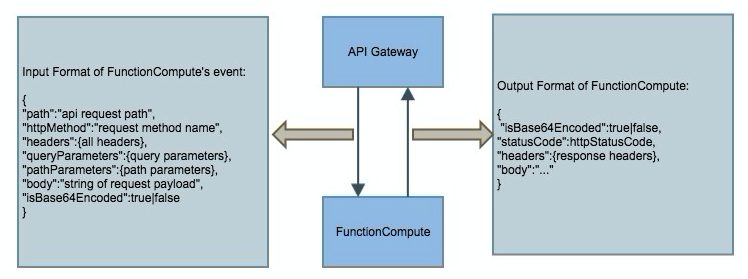
Request event fields
| Field | Type | Description |
|---|---|---|
path | String | The path of the API request |
httpMethod | String | The HTTP method: GET, POST, PUT, DELETE, and so on |
headers | Object | All request headers, including system and custom headers |
queryParameters | Object | Key-value pairs from the query string (after ? in the URL) |
pathParameters | Object | Path parameters that identify a specific resource within the URL |
body | String | The request body |
isBase64Encoded | Boolean | Whether the request body is Base64-encoded |
`isBase64Encoded` behavior:
true: The body is Base64-encoded. Decode it before processing.false: The body is not encoded. Read it directly.
Response format
Return the execution result in the following JSON format. API Gateway maps these fields to the HTTP response sent to the client.
{
    "isBase64Encoded": true|false,
    "statusCode": httpStatusCode,
    "headers": {response headers},
    "body": "..."
}
If the response does not follow this format, API Gateway treats the backend as unavailable and returns a 502 error.
Connect a web function to API Gateway
With a web function, API Gateway forwards raw HTTP traffic to your function's internal network endpoint. Your function acts as an HTTP server and handles requests directly—no JSON event conversion required.
Prerequisites
Before you begin, ensure that you have:
An Alibaba Cloud account with access to Function Compute and API Gateway
A region selected for both services (place them in the same region to avoid public network traffic fees)
Step 1: Create a web function
Create a web function in the Function Compute 3.0 console. For more information, see Create a web function.
An HTTP trigger is created for the web function by default. Copy the internal network endpoint for use in Step 2.
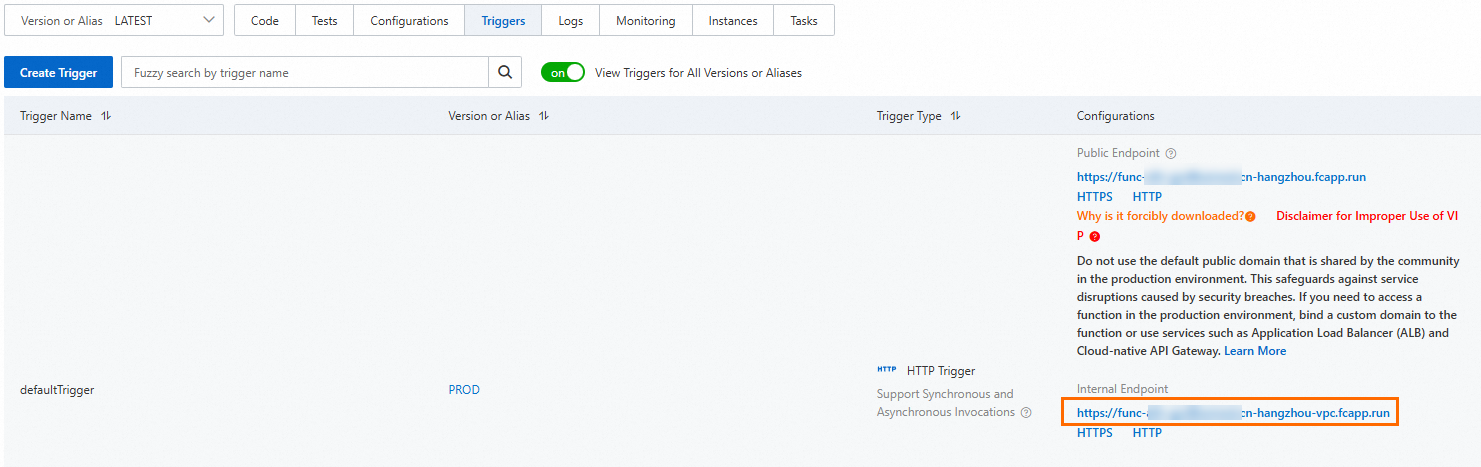
Step 2: Create a backend service
Log on to the API Gateway console, select a region, and in the left navigation pane, choose Manage APIs > Backend Services. In the upper-right corner, click Create Backend Service. Configure the required information and click Confirm.
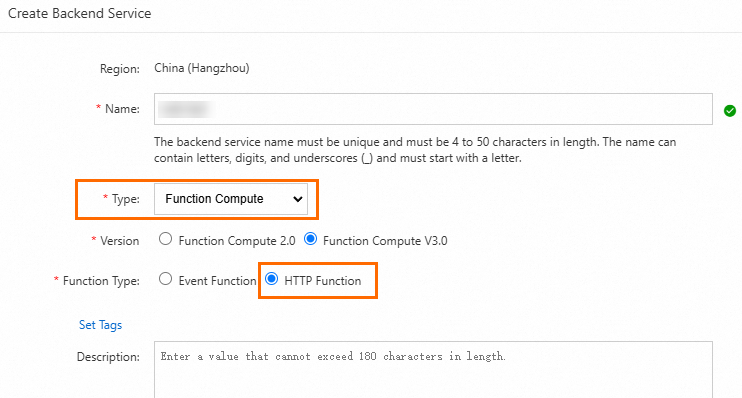
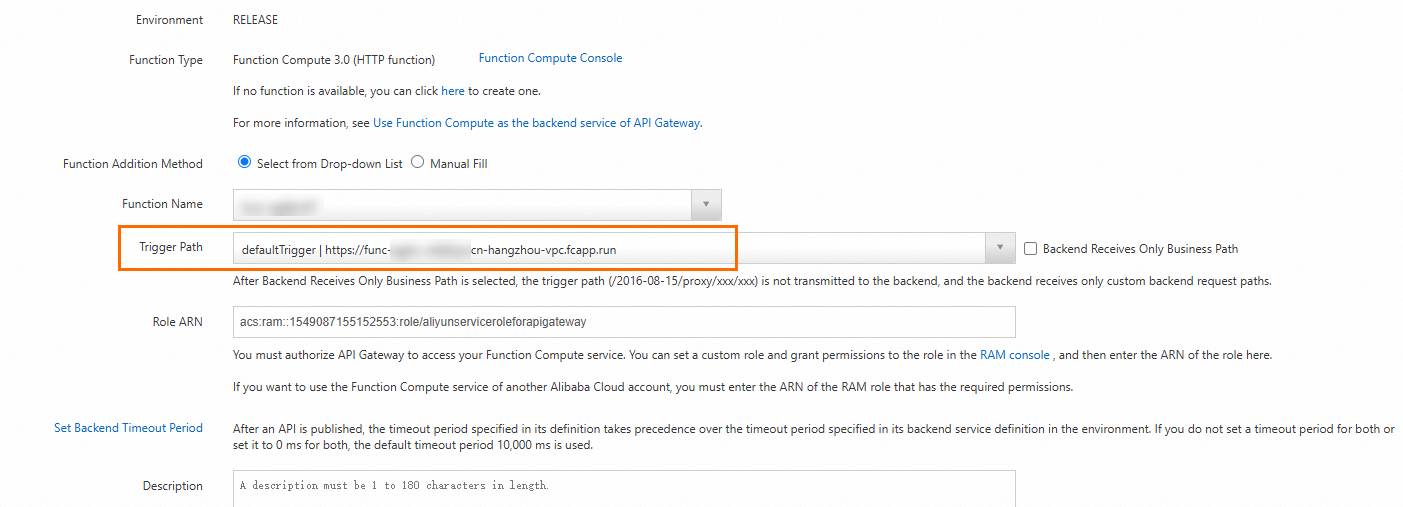
On the Backend Services page, click the backend service you just created. Click the Production tab. In the Basic Information section, click Create, enter the internal network endpoint of the web function's HTTP trigger, and then click Publish.
Step 3: Create and publish an API
Use API groups to organize related APIs and apply unified security and traffic management policies.
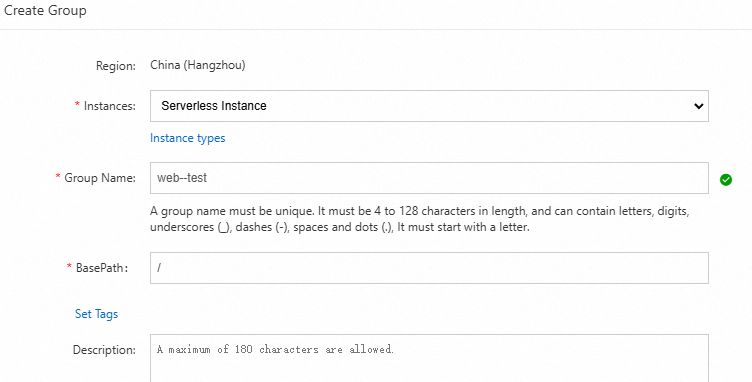
Log on to the API Gateway console. In the left navigation pane, choose Manage APIs > API groups and click Create group.
In the Create group dialog box, select an instance, enter
FC-Groupfor Group name, set BasePath to/, and click Confirm.Place the API group in the same region as your function. If they are in different regions, API Gateway accesses Function Compute over the public network, which incurs traffic fees.
On the group list page, find the target group and click Manage APIs in the Actions column. Click Create API, configure the required settings, and click Next.
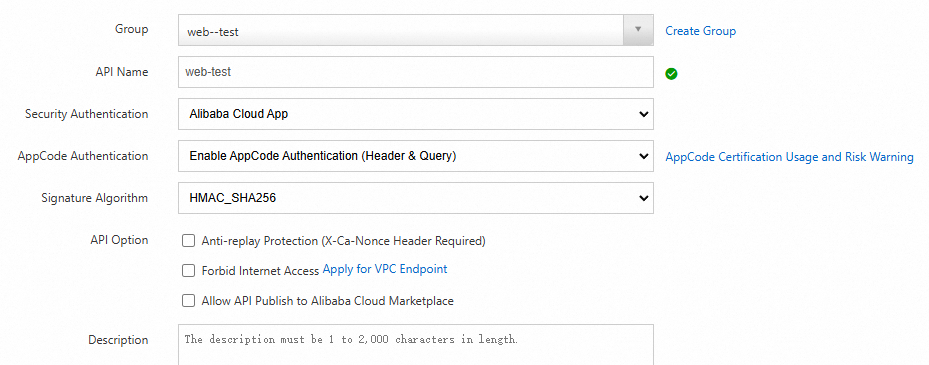
On the Define API request tab, set Request path to
/and click Next.On the Define backend service tab, configure the settings as shown in the figure and click Next.
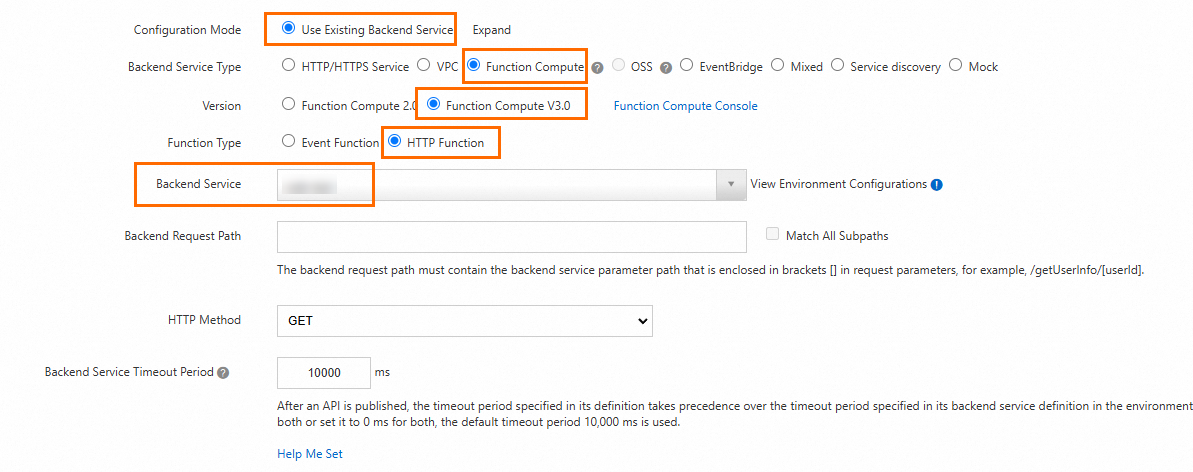
On the Define response tab, keep the default settings and click Create. When prompted, click Publish.
In the Publish API dialog box, configure the publish settings and click Publish.
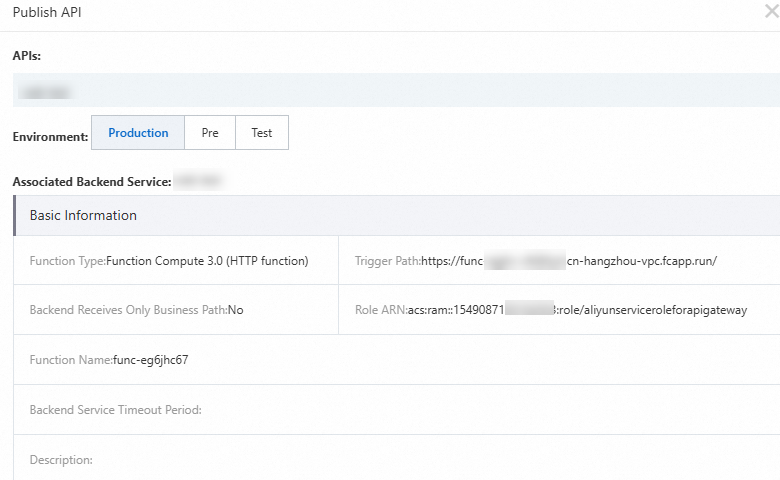
Step 4: Create an app and grant authorization
The API published in Step 3 uses Alibaba Cloud APP authentication. Create an app and grant it access to the API.
Log on to the API Gateway console. In the left navigation pane, choose Call APIs > Apps.
On the Apps page, click Create app in the upper-right corner. Enter
fcAppfor App name and click Confirm.Click the
fcAppapplication to open its details page. The app has two authentication methods: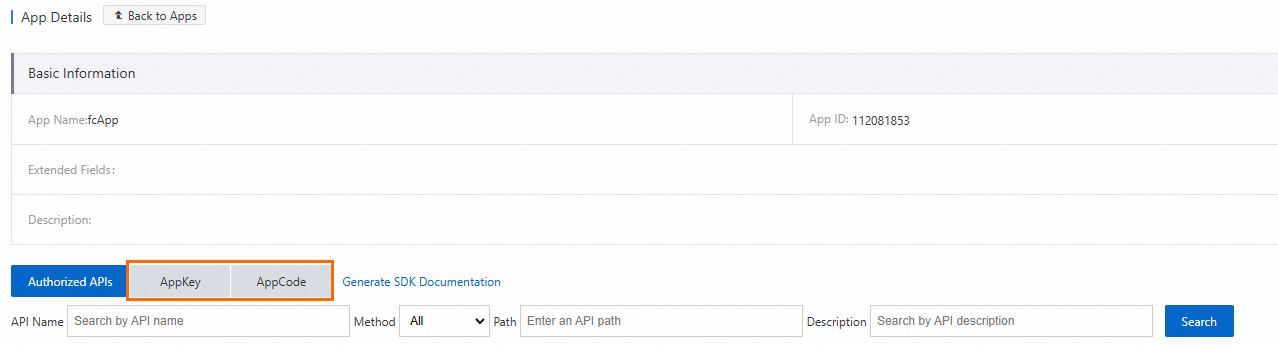
AppKey: Uses an AppKey and AppSecret pair (similar to an account and password). Pass the AppKey as a request parameter; the AppSecret is used to compute the request signature.
AppCode: A simpler authentication method for direct use in API calls.
In the left navigation pane, choose Manage APIs > APIs. Find the API you created. In the Actions column, click
 > Authorize.
On the authorization page, set Stage to Production. Search for
fcApp, click Add, and then click Confirm.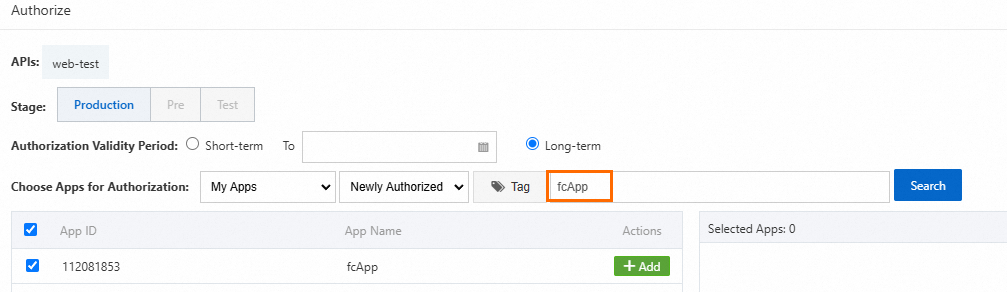
Step 5: Verify the result
Call the published API using AppCode authentication. The following example uses curl:
In the API Gateway console, choose Call APIs > Apps. Open the
fcAppapp details page to get the AppCode.Call the API:
curl -i -X GET "http://fd6f8e2b7bf44ab181a56****-cn-hangzhou.alicloudapi.com" \
  -H "Authorization:APPCODE 7d2b7e4945ce44028ab00***"
FAQ
A function triggered by API Gateway returns a 502 error, but the function logs show it completed successfully. Why?
The response from Function Compute did not match the required format. API Gateway expects isBase64Encoded, statusCode, headers, and body fields in the JSON response. If any field is missing or malformed, API Gateway treats the backend as unavailable. Check the event and response format reference and verify your function's return value matches the expected structure.
How do I set the Content-Type of the response?
Set the Content-Type when configuring the API in API Gateway. For details, see Connect to Function Compute 3.0 (web function) through API Gateway.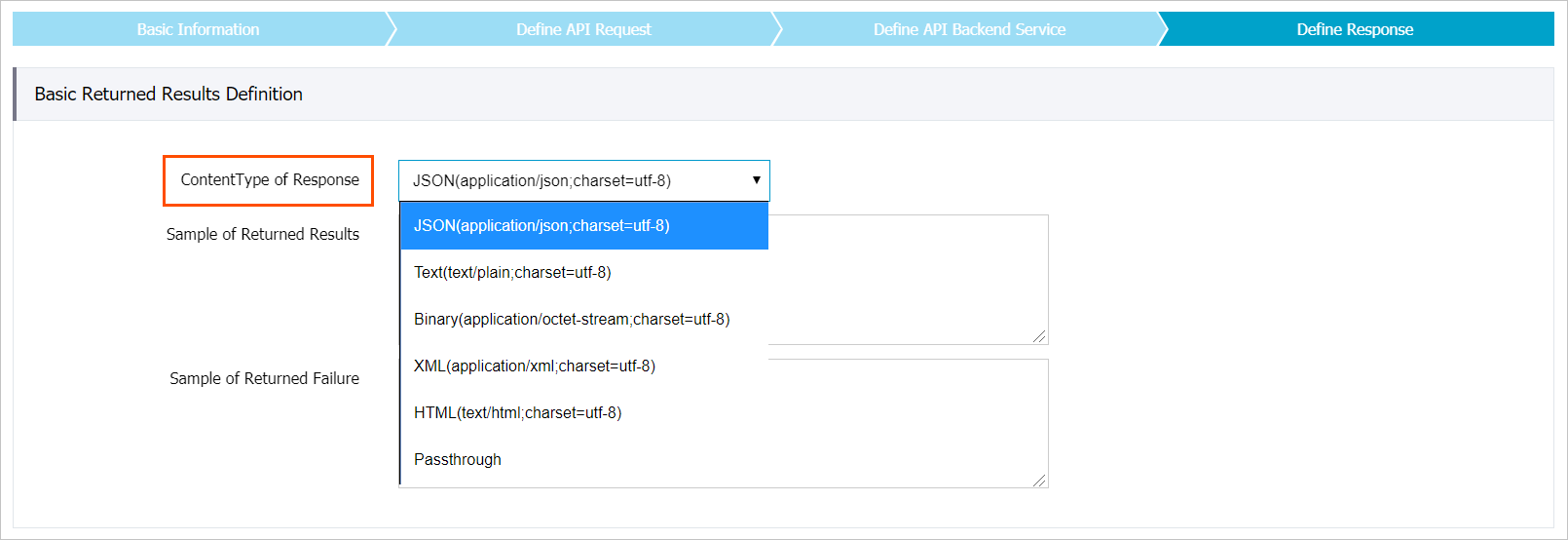
A function works correctly but returns a 503 error after a period of inactivity. Why?
The function's execution environment was recycled during the idle period. When the next request arrives, Function Compute needs time to initialize a new environment—this is a cold start. If the initialization exceeds the timeout configured in API Gateway, API Gateway treats the backend as unavailable and returns 503. To resolve this, extend the timeout period in the API Gateway configuration.
Why does the function receive a Base64-encoded body from API Gateway?
API Gateway skips Base64 encoding only for FORM-based transmissions (when you select input parameter mapping in API Gateway). All other body formats are Base64-encoded to prevent data loss during transmission. Check the isBase64Encoded field in the event: if it is true, decode the body before processing. For more details on the event format, see Trigger event format.