In Intelligent Speech Interaction, each project represents a distinct business scenario. A project serves as a unified configuration container for speech recognition and speech synthesis, so you can manage all speech settings for a given scenario in one place.
If your application spans multiple scenarios with different vocabularies or voice requirements, you can create a separate project for each scenario and optimize the settings independently.
Prerequisites
You have an Alibaba Cloud account. If you do not have one, create an account.
Intelligent Speech Interaction is activated.
You have the required permissions to access the Intelligent Speech Interaction console.
Create a project
For more information about how to create a project, see Create a project.
Configure a project
You can configure both speech recognition and speech synthesis settings within the same project. This unified approach lets you coordinate recognition models, hotwords, and voice output without switching between separate services.
Open the project settings
Log on to the Intelligent Speech Interaction console.
In the left-side navigation pane, click All Projects.
Find the project that you want to configure, and click Project Settings in the Actions column.
Speech recognition
On the speech recognition settings page, you can select a model and configure hotwords (custom vocabulary terms that improve recognition accuracy for domain-specific words and phrases).
Select a model
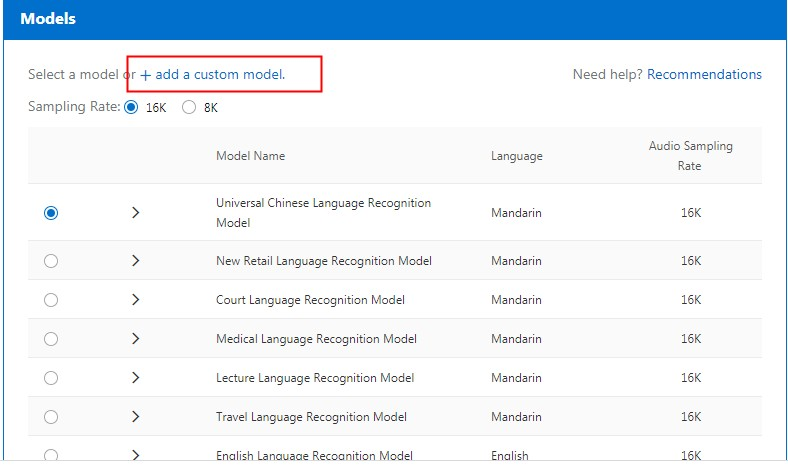
Click Modify the configuration to change the speech recognition model for the current project.
Select a basic model from the list, or click add a custom model to use a model that you trained. For more information about custom models, see Manage custom models.
Configure hotwords
You can configure hotwords for the project to boost recognition accuracy for specific terms. For more information, see Manage hotwords.
Speech synthesis
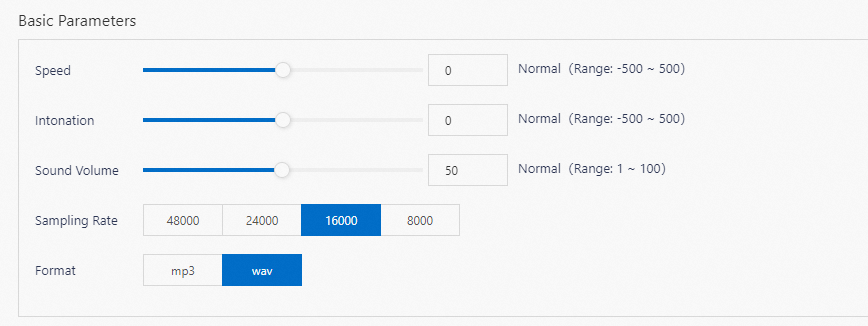
On the Speech Synthesis tab, you can select a voice and adjust basic output parameters such as Speed, Intonation, and Sound Volume.
If you do not configure these parameters, the default values are used. When you publish the settings, they are bound to the appkey of the project.
To configure speech synthesis:
Select a voice in the Speaker section.
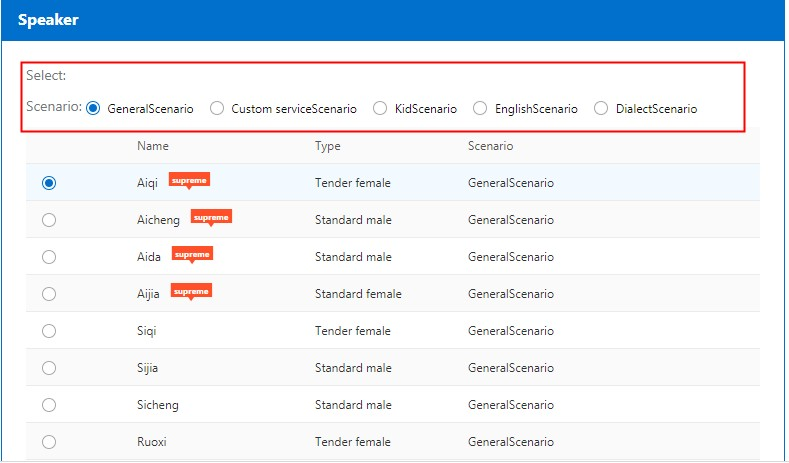 For more information about available voices and their supported scenarios, see API reference.
In the Basic Parameters section, adjust the Speed, Intonation, and Sound Volume to meet your requirements.
Click Publish. Confirm the settings, and then click OK.
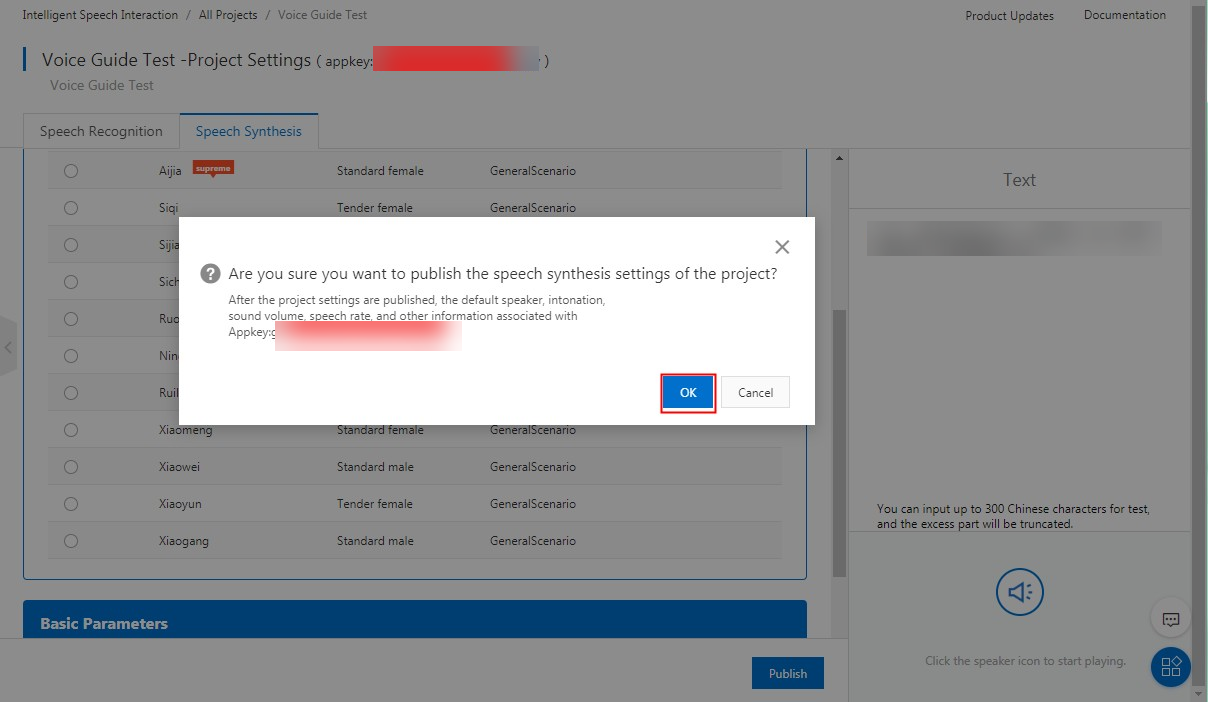
Click the speaker icon in the lower-right corner of the page to preview the speech synthesis output and verify that it meets your expectations.
Modify or delete a project
Log on to the Intelligent Speech Interaction console.
In the left-side navigation pane, click All Projects.
Find the project that you want to modify or delete, and click Modify or Delete Project in the Actions column.

Deleted projects cannot be recovered.