SLS integrates with Function Compute for streaming data transformation. Configure a trigger to periodically consume incremental Logstore data and run transformation functions using built-in templates or user-defined functions.
Prerequisites
-
Authorized SLS to trigger function execution via Resource Access Authorization.
-
Function Compute
-
Simple Log Service (SLS)
-
Create a project and Logstores
Created one project and two Logstores: one to store collected logs (ensure continuous ingestion, as Function Compute triggers on incremental data), and one to store SLS trigger logs.
ImportantThe project and the Function Compute service must be in the same region.
-
Limitations
The maximum number of SLS triggers you can associate with a single Project is five times the number of Logstores in that Project. Configure no more than five SLS triggers per Logstore to avoid degraded data shipping performance.
Scenarios
-
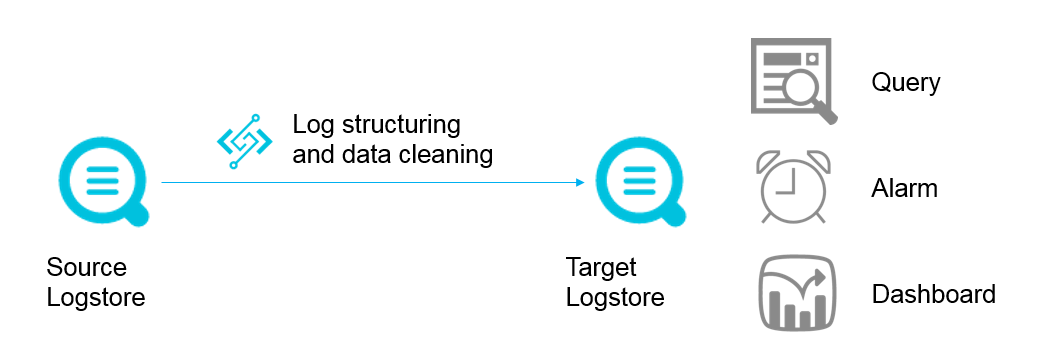
Data cleaning and transformation
Collect, transform, query, and analyze logs with SLS.
-
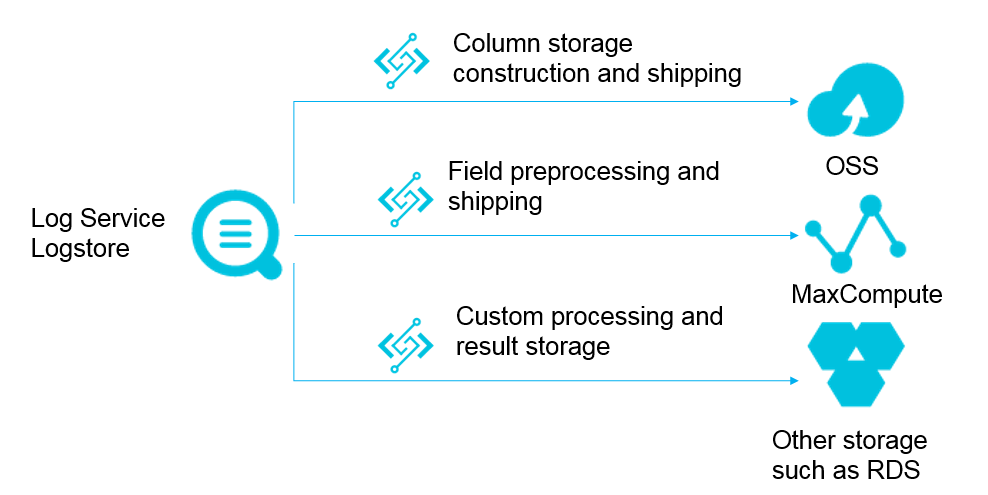
Data Transfer Scenarios
Ship data to various destinations and build data pipelines between big data products on the cloud.
Data transformation functions
-
Function types
-
Template functions
Available templates: aliyun-log-fc-functions.
-
User-defined functions
The configuration format varies by implementation. ETL function development guide.
-
-
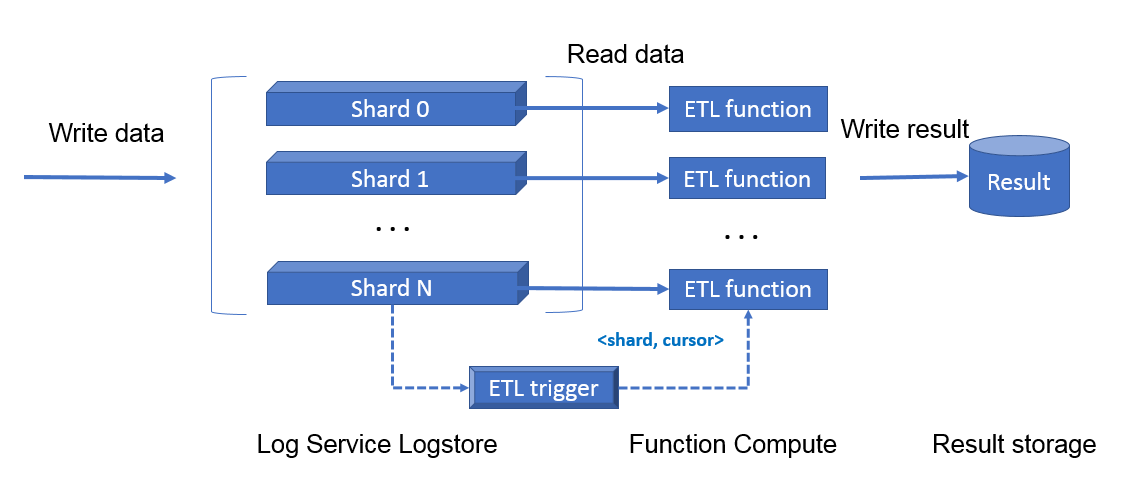
Function Compute trigger mechanism
Each trigger task maps to a Function Compute trigger. SLS starts a timer that polls shard information in the Logstore. When new data arrives, SLS generates a
<shard_id,begin_cursor,end_cursor>triple as the function event and triggers execution.NoteStorage upgrades may shift cursors without new data, causing one extra empty invocation per shard. Handle this by fetching data with the cursor in your function — if no data returns, skip the invocation. User-defined function development guide.
Triggers are time-based. For example, with a 60-second interval and continuous writes to Shard 0, a function triggers every 60 seconds for that shard. Shards with no new data are skipped. The function receives the cursor range from the last 60 seconds and uses it to read shard data for processing.
Step 1: Create an SLS trigger
Log on to the Function Compute console. In the left-side navigation pane, click Functions.
In the top navigation bar, select a region. On the Functions page, click the function you want to manage.
On the function details page, click the Trigger tab, then click Create Trigger. In the Create Trigger panel, set Trigger Type to Log Service, configure the following parameters, and click OK.
| Parameter | Description | Example |
|---|---|---|
| Name | A custom name for the trigger. If left blank, Function Compute generates one automatically. | log_trigger |
| Version or Alias | The function version or alias to attach this trigger to. Defaults to LATEST. To use a different version or alias, switch to it in the upper-right corner of the function details page before creating the trigger. See Manage versions and Manage aliases. | LATEST |
| Log Service Project | The SLS Project to consume data from. | aliyun-fc-cn-hangzhou-2238f0df-a742-524f-9f90-976ba457**** |
| Logstore | The Logstore to consume. The trigger polls this Logstore at the specified interval. | function-log |
| Trigger Interval | How often SLS invokes the function, in seconds. Valid range: 3–600. Default: 60. | 60 |
| Retries | The maximum number of retries per invocation. Valid range: 0–100. Default: 3. A successful invocation returns HTTP 200 with no UnhandledInvocationError or HandledInvocationError in the X-Fc-Error-Type header. If all retries fail, the system enters a backoff retry phase with an increased interval. See Response parameters. | 3 |
| Trigger Log | The Logstore that records function execution logs for this trigger. | function-log2 |
| Invocation Parameters | Custom parameters to pass to the function as a JSON-formatted string. Delivered as the parameter field in the event. Empty by default. | — |
| Role Name | Select AliyunLogETLRole. If this is your first time creating an SLS trigger, click OK and then select Authorize Now in the dialog that appears. | AliyunLogETLRole |
After the trigger is created, it appears on the Triggers tab. To modify or delete a trigger, see Trigger Management.
Step 2: Configure permissions
On the function details page, select the Configuration tab. In the Advanced Settings section, click Modify.
In the Advanced Settings panel, select a Function Role:
Default role — AliyunFCServerlessDevsRole grants read-only access to SLS and covers most use cases.
Custom RAM role — if your function writes to SLS or accesses other services, create a RAM role with:
Trusted entity: Cloud Service → Function Compute. See Create a RAM role for a trusted Alibaba Cloud service.
Permissions: the SLS permissions your function needs. See Examples of custom RAM policies.
Click Deploy.
Step 3: Deploy and view logs
On the Code tab, paste your function code into the editor and click Deploy. The following Python example reads log data from the source Logstore using the cursor range from the trigger event. It uses temporary credentials from
context.credentialsto initialize the SLS client — no hardcoded keys required.""" Reads log data from an SLS Logstore within the cursor range provided by the trigger event. """ import logging import json from aliyun.log import LogClient logger = logging.getLogger() def handler(event, context): # Get temporary credentials from the function's execution role. creds = context.credentials access_key_id = creds.access_key_id access_key_secret = creds.access_key_secret security_token = creds.security_token # Parse the trigger event. event_obj = json.loads(event.decode()) source = event_obj['source'] endpoint = source['endpoint'] log_project = source['projectName'] log_store = source['logstoreName'] shard_id = source['shardId'] begin_cursor = source['beginCursor'] end_cursor = source['endCursor'] # Initialize the SLS client with temporary credentials. client = LogClient( endpoint=endpoint, accessKeyId=access_key_id, accessKey=access_key_secret, securityToken=security_token ) # Pull all log groups in the range [begin_cursor, end_cursor). while True: response = client.pull_logs( project_name=log_project, logstore_name=log_store, shard_id=shard_id, cursor=begin_cursor, count=100, end_cursor=end_cursor, compress=False ) log_group_cnt = response.get_loggroup_count() if log_group_cnt == 0: break logger.info("Got %d log group(s) from %s", log_group_cnt, log_store) logger.info(response.get_loggroup_list()) begin_cursor = response.get_next_cursor() return 'success'On the function details page, go to Logs > Function Logs to verify that the function is receiving and processing data. If the message "The logging feature is not enabled for the current function." appears, click Enable.
(Optional) Step 4: Test with a simulated event
On the Code tab, click the
 icon next to Test Function and select Configure Test Parameters.
In the Configure Test Parameters panel, select Create New Test Event or Modify Existing Test Event. Select the Log Service template, enter an event name, and click OK.
Click Test Function. After execution completes, view the result above the Code tab.
event parameter
When the trigger fires, SLS passes the following JSON object to the function's event parameter:
{
    "parameter": {},
    "source": {
        "endpoint": "http://cn-hangzhou-intranet.log.aliyuncs.com",
        "projectName": "fc-test-project",
        "logstoreName": "fc-test-logstore",
        "shardId": 0,
        "beginCursor": "MTUyOTQ4MDIwOTY1NTk3ODQ2Mw==",
        "endCursor": "MTUyOTQ4MDIwOTY1NTk3ODQ2NA=="
    },
    "jobName": "1f7043ced683de1a4e3d8d70b5a412843d81****",
    "taskId": "c2691505-38da-4d1b-998a-f1d4bb8c****",
    "cursorTime": 1529486425
}
User-configurable fields
| Field | Description |
|---|---|
parameter | The value of the Invocation Parameters you specified when creating the trigger. Empty by default. |
Source fields (the log block your function reads)
| Field | Description |
|---|---|
source.endpoint | The endpoint of the SLS Project's region. |
source.projectName | The name of the SLS Project. |
source.logstoreName | The name of the Logstore the trigger is consuming. |
source.shardId | The specific shard within the Logstore. |
source.beginCursor | The position where data consumption begins (inclusive). |
source.endCursor | The position where data consumption ends (exclusive). |
System-generated fields (auto-populated by Function Compute, no configuration needed)
| Field | Description |
|---|---|
jobName | The name of the SLS ETL job corresponding to this trigger. |
taskId | A deterministic identifier for this specific function invocation. |
cursorTime | The Unix timestamp (seconds) when the last log arrived at the SLS server. |
When debugging, use the GetCursor by time API to obtain beginCursor and endCursor values and build a test event from the example above.
Related operations
-
Query trigger logs
To view trigger execution statistics, create an index on the trigger log Logstore. Create an index.
-
View function execution logs
Use the CLI to inspect function execution details. View invocation logs.
FAQ
SLS trigger doesn't invoke the function
Check that new data is being written to the configured Logstore — the trigger only fires when shard data changes. If data is flowing, check the trigger logs and function run logs for error messages.
Why is the invocation count high?
Each shard triggers independently. A Logstore with 10 shards produces 10 invocations per interval during normal operation. If the trigger is catching up after a delay (when processing falls more than 10 seconds behind), it accelerates to roughly one invocation every 2 seconds per shard until it catches up.
Error: "denied by sts or ram"
The function role is missing required SLS permissions. Review and update the role as described in Step 2: Configure permissions.