Use an event rule to filter and route events to Log Service. This topic describes how to route a custom event to Log Service, covering the prerequisites, procedure, and verification.
Prerequisites
Step 1: Add a custom event source
- Log on to the EventBridge console. In the left navigation pane, click Event Buses.
- In the top navigation bar, select a region. On the Event Buses page, click the name of the target custom event bus.
- In the left navigation pane, click Event Sources, and then click Add Event Source.
-
In the Add Custom Event Source panel, enter a Name and Description, select Custom Application for Event Provider, and then click OK.
Step 2: Create an event rule
Log on to the EventBridge console. In the left-side navigation pane, click Event Buses.
In the top navigation bar, select a region. On the Event Buses page, click the name of the event bus that you want to manage.
In the left-side navigation pane, click Event Rules. On the page that appears, click Create Rule.
- In the Create Rule panel, complete the following steps, and then click Create.
- On the Configure Basic Info tab, enter a Name and Description for the event rule, and then click Next.
- On the Configure Event Pattern tab, set Event Source Type to Custom Event Source. For Event Source, select the custom event source that you added in Step 1: Add a custom event source. In the Pattern Content code editor, enter an event pattern, and then click Next.
For more information, see event pattern.
- On the Configure Targets tab, set Service Type to Simple Log Service, and then configure the following parameters.
Note You can add up to five targets for a single event rule.
- Project: Select the Project that you created in Log Service.
- Logstore: Select the Logstore that you created in Log Service.
- Topic: Enter a custom log topic.
- Content: Specify the log content to route. For more information, see event transformation.
- Role Configuration: Use this role to grant EventBridge permission to write logs to Log Service. The following is an example permission policy. For more information, see permission policy and examples.
{
  "Version":"1",
  "Statement":[
    {
      "Effect":"Allow",
      "Action":[
        "log:PostLogStoreLogs"
      ],
      "Resource":[
        "acs:log:*:*:project/<your-project-name>/logstore/<your-logstore-name>"
      ]
    }
  ]
}
Step 3: Publish an event
Log on to the EventBridge console.
In the left-side navigation pane, click Event Buses.
In the top navigation bar, select a region.
On the Event Buses page, find the target event bus and click Publish Event in the Operations column.
NoteThe EventBridge console supports publishing events to custom event buses only.
In the Publish Event To Custom Event Bus panel, configure the following settings:
Setting Description Custom Event Source Select an existing custom event source from the drop-down list. Event Body Enter the event content. Click OK.
Verification
- Log on to the Log Service console.
- In the Project list, click the target Project.
- On the Logstore page, click the target Logstore.
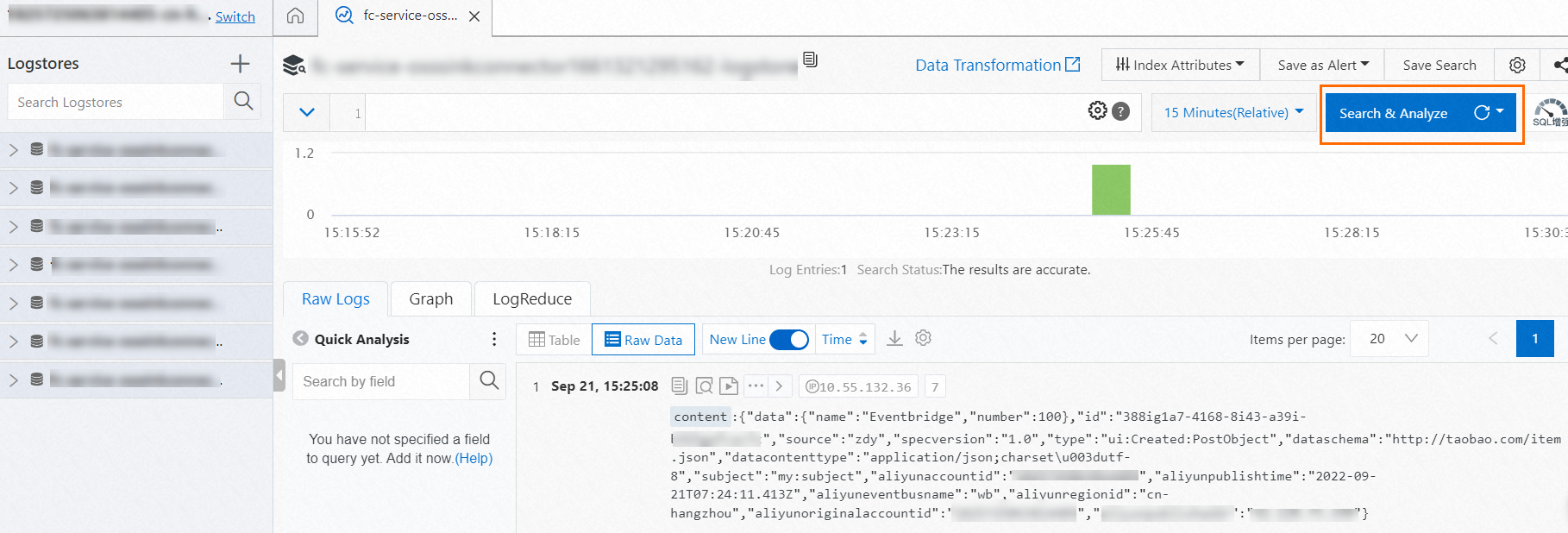
- Click Search & Analysis to view the results.