Elastic Reserved CU lets you scale compute capacity up and down on a schedule, so you pay for peak capacity only when you need it. Combined with your subscription reserved CUs, it covers burst demand without permanently increasing your subscription.
Prices in the examples below are for illustration only. Actual prices appear on the product purchase page. In real deployments, test configurations over time to find optimal settings.
How it works
Elastic Reserved CU adds capacity on top of your existing subscription reserved resources. During a scheduled window, additional CUs become available; outside that window, they scale back to zero.
| Behavior | Detail |
|---|---|
| Billing start | When scaling up succeeds |
| Billing stop | When scaling down succeeds |
| Metering data | Pushed hourly on the hour |
| Bill appearance | 3-hour delay after metering |
| Break-even threshold | More than 16 hours/day of elastic usage costs more than an equivalent subscription CU |
Break-even calculation: 1 CU × USD 0.0488/CU/hour × 16 hours × 30 days = USD 23.424/CU/month, which exceeds the subscription rate of USD 22.0/CU/month. If your workload needs elastic capacity for more than 16 hours per day, buy subscription CUs instead.
Billing stops only when scaling down *succeeds*. If a scale-down operation is delayed, billing continues until the operation completes. Monitor scale-down confirmations to avoid unexpected charges.
Prerequisites
Before you begin, make sure you have:
-
An active MaxCompute subscription with reserved resources (not available on pay-as-you-go plans)
-
At least 50 subscription reserved CUs (the minimum Elastic Reserved CU amount)
-
Elastic Reserved CU amounts set in multiples of 10 CUs, and not exceeding your total subscription reserved CUs
When to use Elastic Reserved CU
Use the following table to identify which scenario matches your situation:
| Scenario | Symptom | Recommended action | Estimated savings |
|---|---|---|---|
| Idle resources | CU usage spikes during a short peak window; resources sit idle the rest of the day | Reduce subscription CUs; cover the peak with elastic capacity | ~31% per month |
| Speed up job output | CUs run near 100% all day; a critical dataset needs to be ready earlier | Temporarily add elastic CUs during the analysis window to finish jobs faster | ~80% vs. buying equivalent subscription CUs |
Scenario 1: Idle resources
Situation
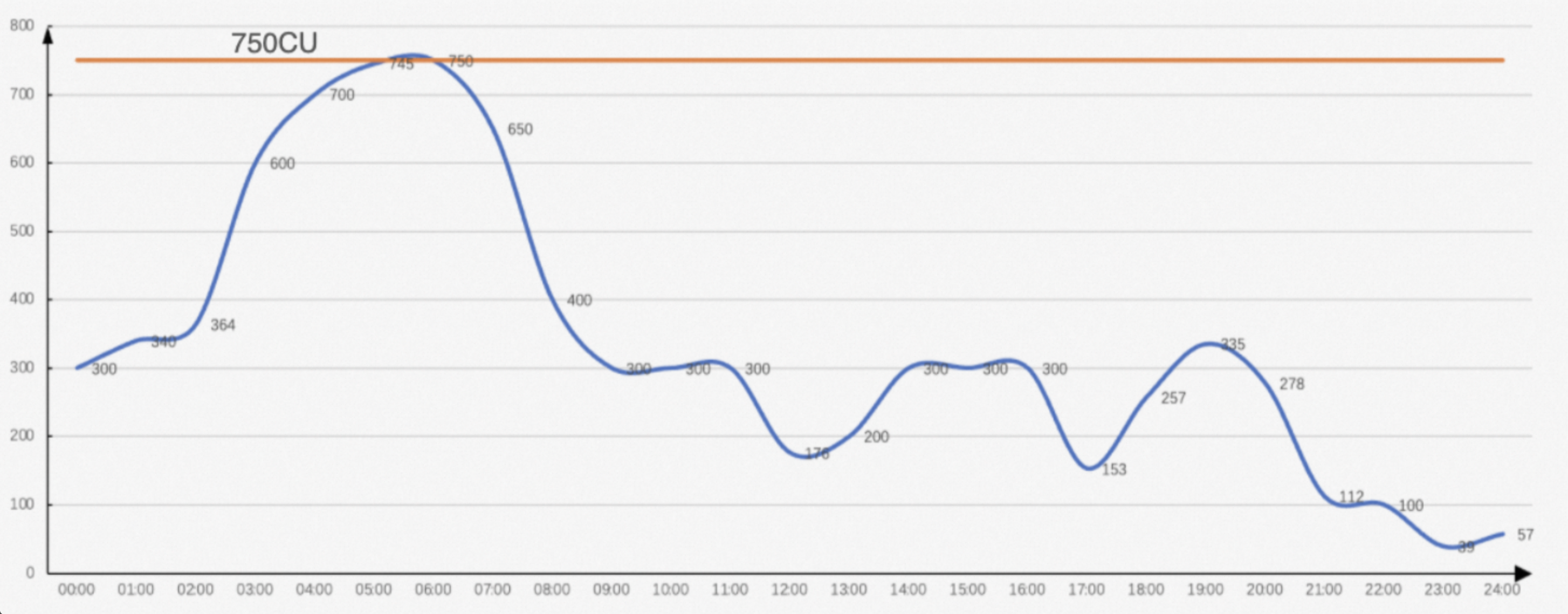
Production jobs run overnight and peak from 03:00 to 08:00 (UTC+8). To meet that 5-hour peak, you purchased 750 subscription reserved CUs — but they sit idle for the other 19 hours.
Original monthly cost: 750 CU × USD 22.0/CU/month = USD 16,500/month
Plan
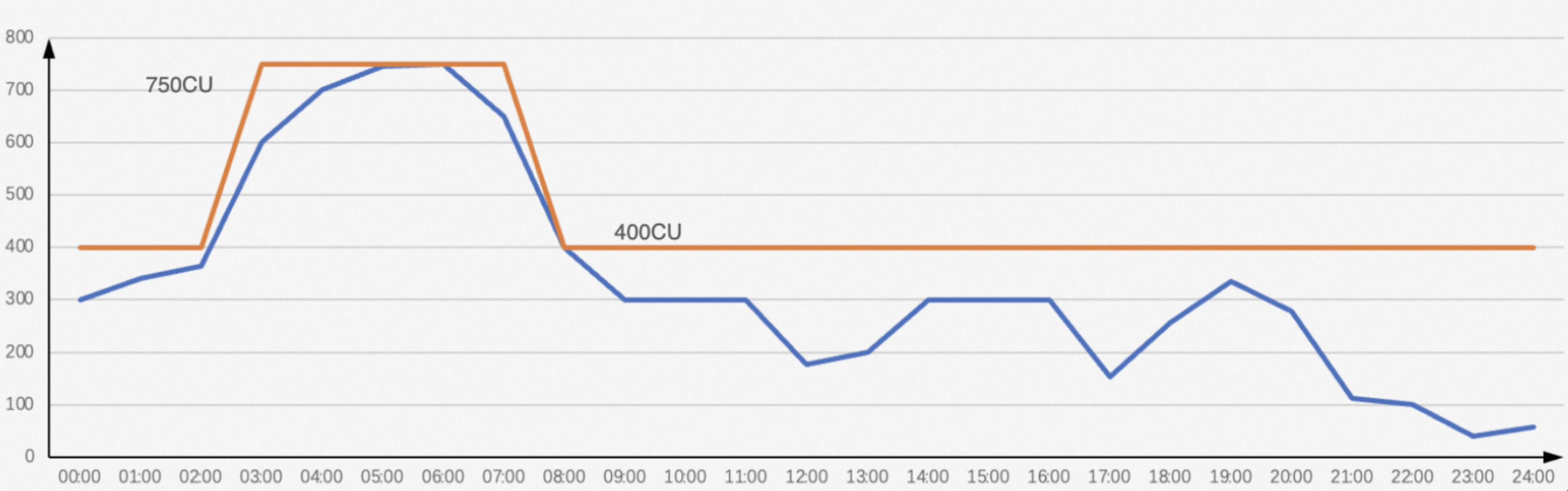
Reduce the subscription to 400 CUs and add 350 Elastic Reserved CUs for the 5-hour peak window (03:00–08:00).
Monthly cost with Elastic Reserved CUs: 400 × USD 22.0 + 350 × USD 0.0488 × 5 × 30 = USD 11,362/month — about 31% less.400 × USD 22.0 + 350 × USD 0.0488 × 5 × 30 = USD 11,362
Configure Elastic Reserved CU
Step 1: Downgrade your subscription quota
-
Log on to the MaxCompute console and select a region.
-
In the left navigation pane, choose Manage Configurations > Quotas.
-
Find the target quota and click Downgrade in the Actions column.
-
On the Downgrade page, set the target CU count, then click Buy Now.
If you downgrade soon after an upgrade, your refund may be smaller than expected for two reasons: - Discounts applied to the original order (for example, a 15% annual discount) reduce the refund base. A USD 154.7 order paid at USD 131.5 after discount is refunded at the USD 131.5 rate. - Coupons used on the original order are not refunded in cash. For full refund rules, see Alibaba Cloud International Website Cancellation Rules. You can review your order history on the Alibaba Cloud Orders page.
Step 2: Create a configuration plan
-
On the Quotas page, find the target quota and click Quota Configuration in the Actions column.
-
On the Quota Configuration page, click the Scaling Configuration tab.
-
Click Add Configuration Plan. In the dialog, enter a Configuration Plan Name and set Elastically Reserved CUs to
350for the level-1 quota (and for any level-2 quotas as needed). -
Click OK.
Step 3: Set up a time plan
Monitor quota consumption daily and adjust Elastic Reserved CU amounts based on actual job load.
-
On the Scaling Configuration tab, click Edit Time Plan in the Scheduled Scaling Management area.
-
Click Add Effective Period, set an Effective Start Time, and select a Configuration Plan. Use the following schedule: The Default plan has 0 Elastic Reserved CUs.
Effective start time (UTC+8) Configuration plan 00:00 Default 03:00 Plan created in step 2 08:00 Default
Scenario 2: Speed up job output
Situation
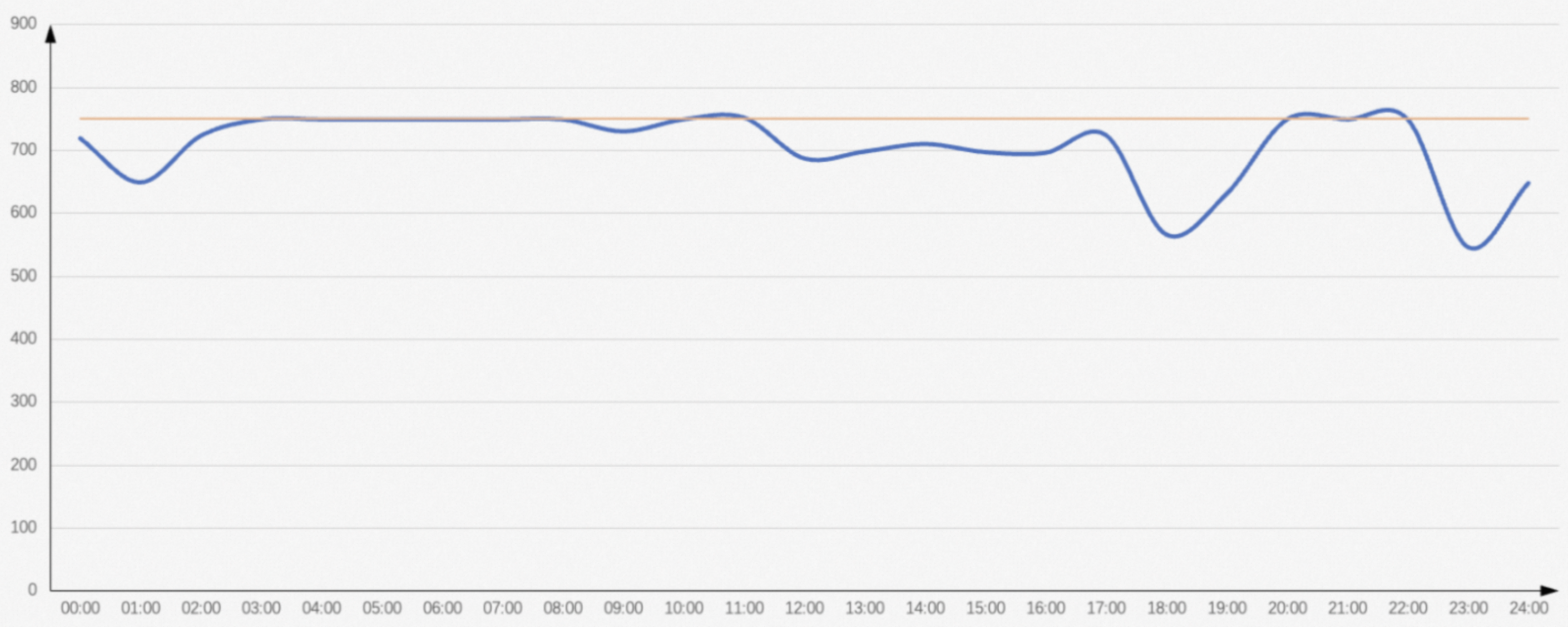
Your 750 subscription reserved CUs run near 100% capacity all day. A critical dataset used to be ready by 07:00, but the business now needs it by 06:00.
Original monthly cost: 750 CU × USD 22.0/CU/month = USD 16,500/month
Diagnose CU usage
Before sizing Elastic Reserved CUs, analyze actual CU consumption for the jobs tied to this dataset. Use Information Schema to query historical CU usage during the target window (03:00–07:00).
This tells you how many CUs the relevant jobs consumed and how long they ran — the foundation for estimating how many additional CUs can compress their runtime.
Plan
The CU usage chart shows full utilization from 03:00 to 08:00. For the 03:00–07:00 window (4 hours):
-
Assume total CU usage = 2,000 CU over 4 hours, giving an average of 500 CU/hour
-
To finish in 3 hours instead of 4: 2,000 ÷ 3 ≈ 667 CU/hour
-
Add a 30% buffer for job dependencies: 667 × 1.3 = 867 CU/hour
-
Additional CUs needed: 867 − 500 = 367 CU
Rounding to the nearest 50 CU increment: start with 350 Elastic Reserved CUs for 3 hours (03:00–06:00).
This calculation uses ideal average CU usage as a baseline. In practice, monitor results after each configuration change and adjust as needed.
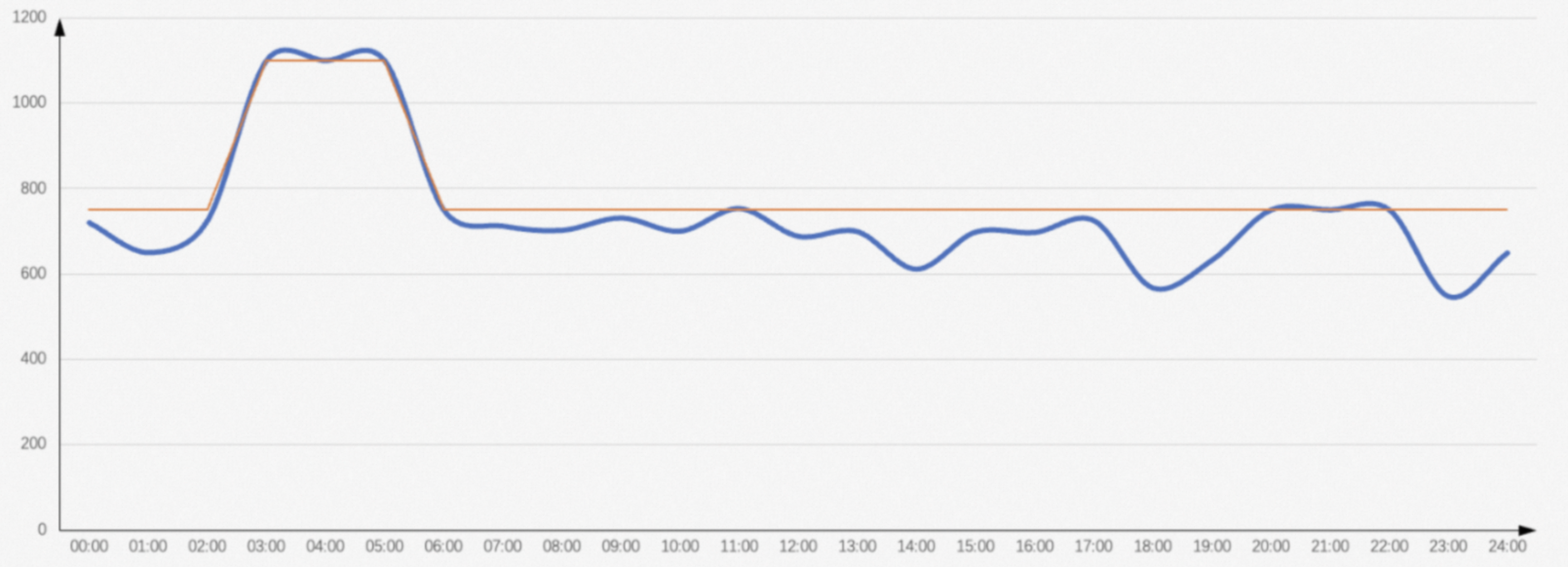
Cost comparison for 350 additional CUs:
| Option | Monthly cost |
|---|---|
| Buy 350 additional subscription CUs | 350 × USD 22.0 = USD 7,700/month |
| Use 350 Elastic Reserved CUs for 3 hours/day | 350 × USD 0.0488 × 3 × 30 = USD 1,537.2/month |
The Elastic Reserved CU option costs about 80% less.80%
Configure Elastic Reserved CU
Step 1: Create a configuration plan
-
Log on to the MaxCompute console and select a region.
-
In the left navigation pane, choose Manage Configurations > Quotas.
-
Find the target quota and click Quota Configuration in the Actions column.
-
On the Quota Configuration page, click the Scaling Configuration tab.
-
Click Add Configuration Plan. In the dialog, enter a Configuration Plan Name and set Elastically Reserved CUs to
350for the level-1 quota (and for any level-2 quotas as needed). -
Click OK.
Step 2: Set up a time plan
Monitor quota consumption daily and adjust Elastic Reserved CU amounts based on actual job load.
-
On the Scaling Configuration tab, click Edit Time Plan in the Scheduled Scaling Management area.
-
Click Add Effective Period, set an Effective Start Time, and select a Configuration Plan. Use the following schedule: The Default plan has 0 Elastic Reserved CUs.
Effective start time (UTC+8) Configuration plan 00:00 Default 03:00 Plan created in step 1 06:00 Default