Scheduled messages are delivered to consumers at a specified time instead of immediately. Use them to build time-based triggers in distributed applications -- such as order timeout cancellation, deferred notifications, or periodic task scheduling.
Scheduled messages and delayed messages work the same way -- the broker holds both and delivers them at a specified timestamp. The term "scheduled messages" below covers both types.
Before you begin
Before you send scheduled messages, make sure that:
Your topic has its MessageType set to
Delay. Scheduled messages can only be sent to Delay-type topics.The delivery timestamp is later than the current time. If the timestamp is in the past or exceeds the allowed range, the broker delivers the message immediately.
The delivery timestamp falls within the maximum scheduling window for your instance type:
Instance type Maximum scheduling window Standard Edition (subscription, pay-as-you-go, or serverless) and serverless Professional Edition 7 days Professional Edition and Enterprise Platinum Edition (subscription or pay-as-you-go) 40 days
Use cases
Distributed task scheduling
Schedule messages at varying time granularities to replace traditional database-based timers. For example, trigger a file cleanup task daily at a fixed time, or send a reminder notification every 2 minutes. Scheduled messages eliminate the complexity of managing distributed cron jobs while providing higher scalability.
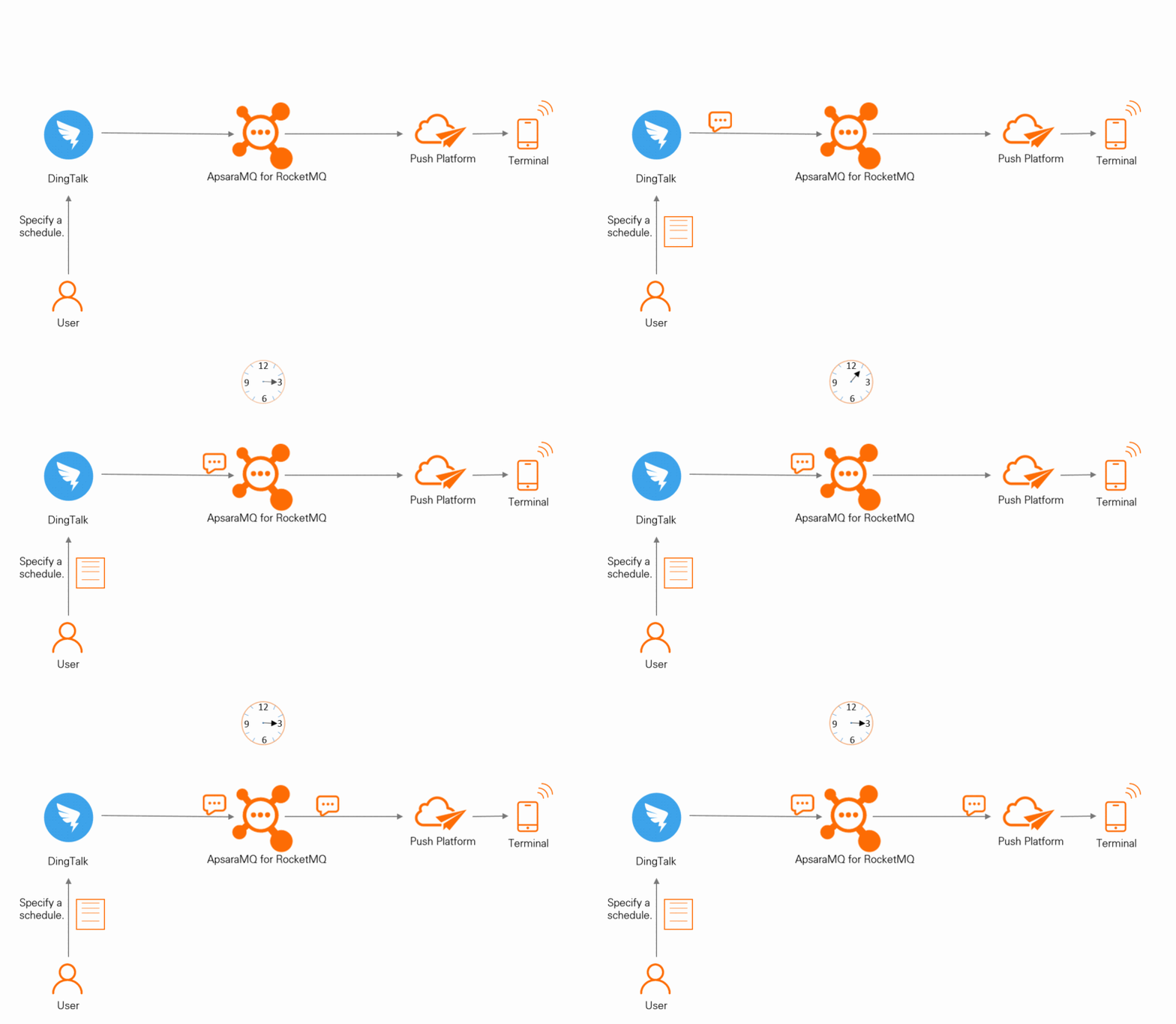
Task timeout handling
Delay an action until a deadline passes. For example, in e-commerce, cancel an unpaid order 30 minutes after creation instead of polling a database to check payment status.
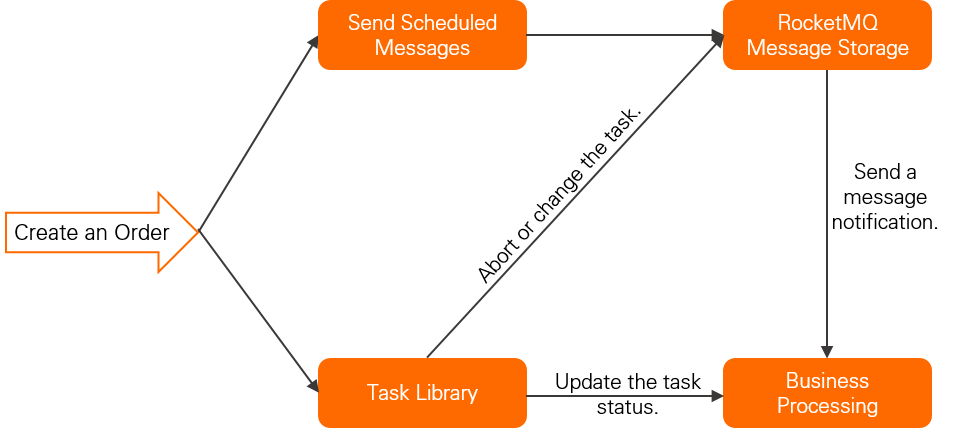
Compared to polling a database for expired records, scheduled messages offer:
Flexible time granularity -- Trigger tasks at any interval, with no fixed time increments and no need for deduplication logic.
Higher performance -- Avoid the bottlenecks of frequent database scans. The messaging infrastructure handles concurrency and scales horizontally.
How scheduling works
Delivery timestamp
The delivery time is expressed as a Unix timestamp in milliseconds. Set it on the message with setDeliveryTimestamp(). The broker holds the message until that timestamp is reached.
For scheduled messages, calculate the absolute delivery time: If the current time is
2022-06-09 17:30:00and you want delivery at19:20:00, set the timestamp to1654773600000.For delayed messages, add a relative offset to the current time: If the current time is
2022-06-09 17:30:00and you want delivery after 1 hour, set the timestamp to1654770600000.
The delivery timestamp cannot be changed or canceled after the message is sent.
Message lifecycle
A scheduled message goes through six stages from production to deletion:

| Stage | What happens |
|---|---|
| Initialization | The producer builds the message and sends it to the broker. |
| Scheduled | The broker stores the message in a time-based storage system. No consumer-visible index is created yet. |
| Ready for consumption | At the delivery timestamp, the message moves to the regular storage engine and becomes visible to consumers. |
| In consumption | A consumer receives and processes the message. If no acknowledgment arrives within the timeout, the broker retries delivery. For more information, see Consumption retry. |
| Committed | The consumer acknowledges the message. The broker marks it as consumed but does not delete it immediately. |
| Deleted | The broker deletes the message in a rolling manner when the retention period expires or storage space runs low. Until deletion, the message can be re-consumed. For more information, see Message storage and cleanup. |
Limits
| Constraint | Detail |
|---|---|
| Topic type | Only topics with MessageType set to Delay accept scheduled messages. |
| Time precision | Accurate to milliseconds. Default granularity is 1,000 ms. |
| Persistence | Scheduled messages survive broker restarts. However, storage system exceptions or restarts may cause brief delivery delays. |
| Cancellation | Not supported. Once sent, the delivery timestamp cannot be changed or revoked. |
Send and consume scheduled messages
The following examples use the Apache RocketMQ 5.x Java SDK. Each producer example sets a delivery timestamp with setDeliveryTimestamp() -- this is the only difference from sending a normal message. For the complete SDK reference, see Apache RocketMQ 5.x SDKs.
Make sure your topic is created with MessageType set to Delay before running these examples.Best practices
Stagger delivery times. Avoid scheduling a large batch of messages for the exact same timestamp. When many messages share a delivery time, the broker must process them all simultaneously, which increases load and can delay delivery. Spread timestamps across a range when possible.
Build cancellation logic in consumers. Because you cannot revoke or reschedule a message after sending it, handle cancellation at the consumer side. For example, when a consumer receives a "cancel unpaid order" message, check the current order status first -- if the user has already paid, skip the cancellation.
FAQ
Can I cancel or reschedule a message after sending it?
No. The delivery timestamp is final once the message is sent. To handle scenarios where a scheduled action becomes unnecessary, build that logic into your consumer -- for example, check the current order status before canceling an unpaid order.
What happens if I set a delivery time in the past?
The broker delivers it immediately, just like a normal message.
Why can't I find my scheduled message in the console?
Scheduled messages stay invisible until the delivery timestamp is reached. Check back after that time -- the message appears and becomes available to consumers.