Telnet is a tool that allows an instance to communicate with another host by using Telnet. Telnet is commonly used to test connectivity between network services. In Linux systems, this tool is installed by default. In Windows systems, the telnet feature is not enabled by default. This topic uses Windows 10 and Windows Server as examples to describe how to enable the Telnet feature in these two Windows systems.
Procedure
Enable Telnet
Follow the steps below to enable the Telnet feature for your operating system.
Windows 10
Click Start, enter Control Panel, and press the
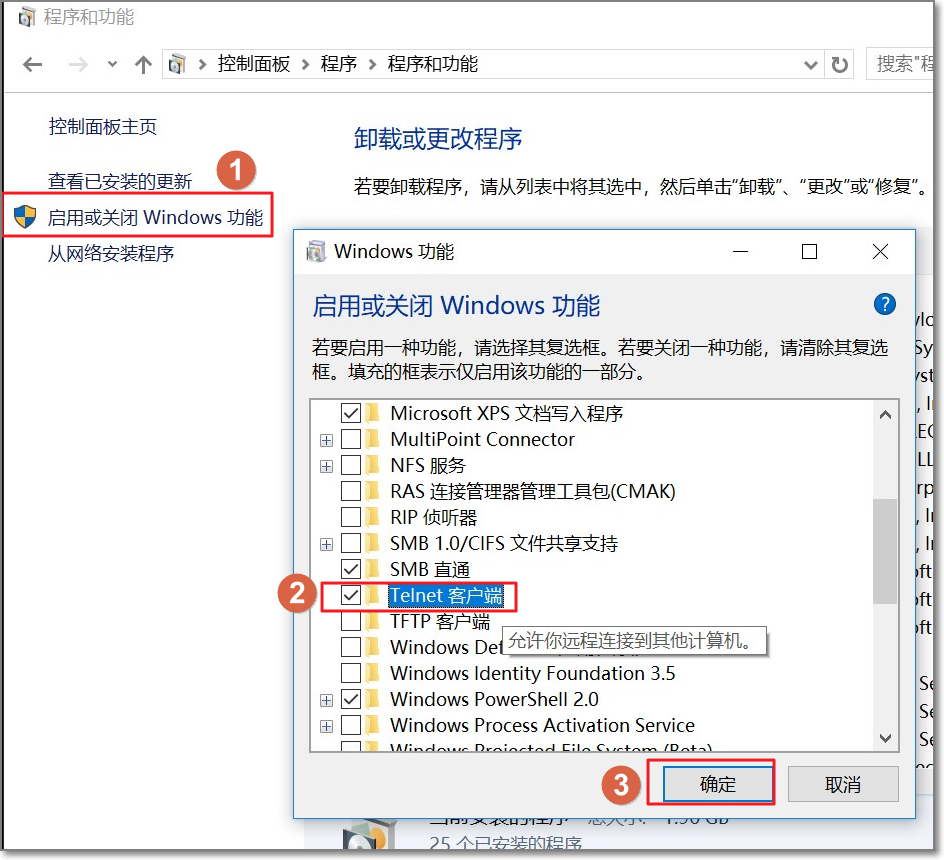
Enterkey to open Control Panel.Choose Programs > Programs and Features, and click Turn Windows features on or off. Select Telnet Client and then click OK.

Windows Server
Connect to the Windows instance. For more information, see Use Workbench to connect to a Windows instance over RDP.
Click Start, enter Control Panel, and press the
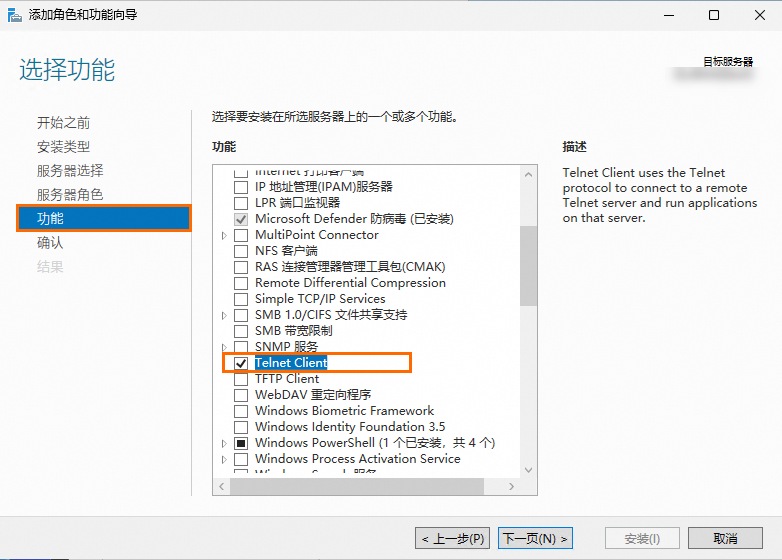
Enterkey to open Control Panel.Choose Programs > Programs and Features, and then click Turn Windows features on or off.
In the Add Roles and Features Wizard dialog box, click Next to proceed to the Features tab. Select Telnet Client, click Next to reach the Confirmation tab, and then click Install to enable the Telnet feature.

Verify results
Click the Start icon, enter cmd, and then press the
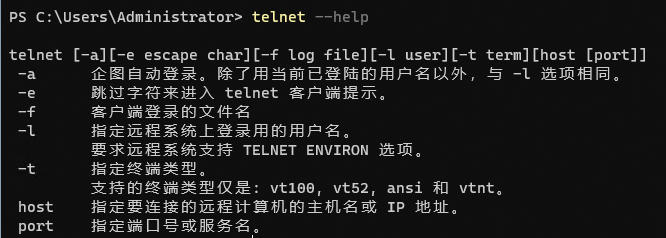
Enterkey to open the Command Prompt window.Run the following command to test if the
telnetcommand functions as expected.telnet -helpIf the system returns output similar to the example below, the
telnetcommand is run as expected.
Example
Run the following command to test service or network connectivity by using Telnet. Replace the <ip> and <port> parameters with actual values.
telnet <ip> <port>If the cursor blinks, the connection is successful. To exit, press CTRL+].
References
For information about how to resolve network connectivity issues, see What do I do if I cannot ping the public IP address of an ECS instance? and Troubleshoot the issue that a client can ping an instance but not the port of the instance.
You can test links if packet loss or disconnection occurs when you run a ping command. For more information, see Test network paths when packet loss or connection failures occur after the ping command is run.