The Natural Language Dialogue component manages user interactions with a Large Language Model (LLM). Its primary function is to receive user inputs, organize them sequentially, and deliver them to the model with the complete conversation history. This ensures the LLM can generate coherent and context-aware responses, maintaining the integrity of multi-turn dialogues.
Component information
Icon | Name |
| Natural Language Dialogue |
Preparations
Go to the canvas page of an existing flow or a new flow.
Go to the canvas page of an existing flow.
Log on to the . Choose Chat Flow > Flow Management. Click the name of the flow that you want to edit. The canvas page of the flow appears.

Create a new flow to go to the canvas page. For more information, see Create a flow.
Procedure
Click the Natural Language Dialogue component on the canvas to view the component configuration panel on the right.
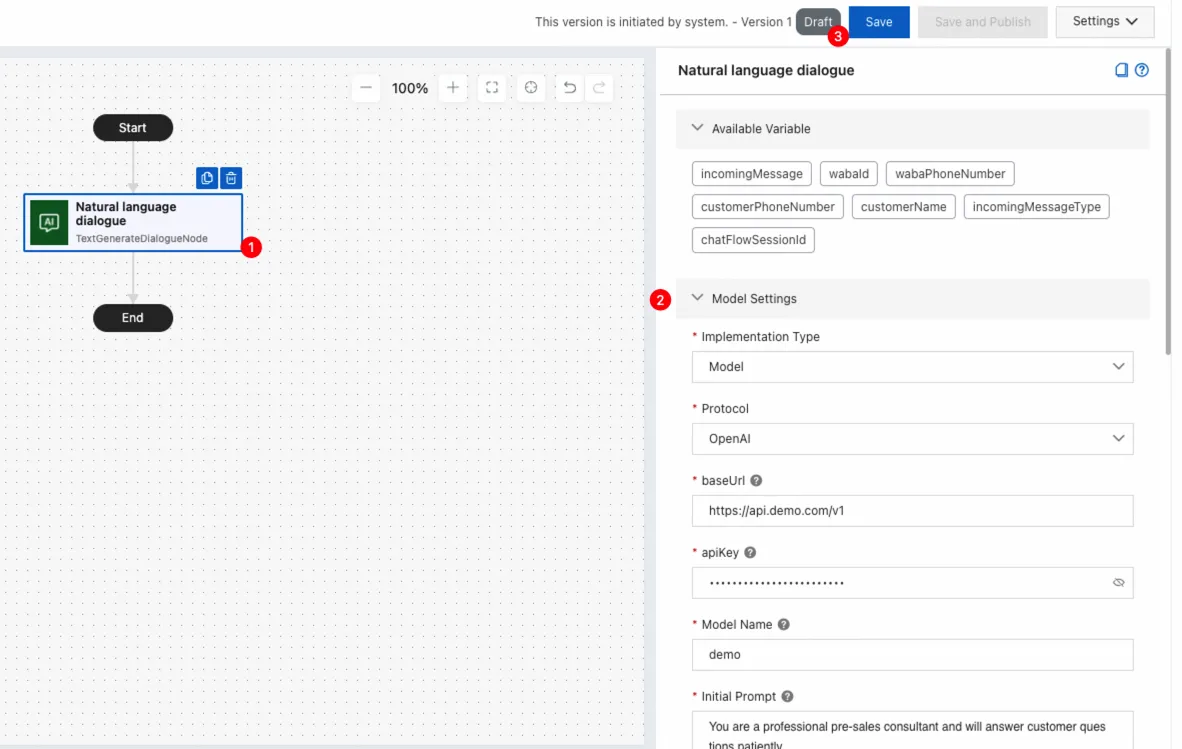
Configure the component as needed. For detailed instructions, see Parameters section in this topic.
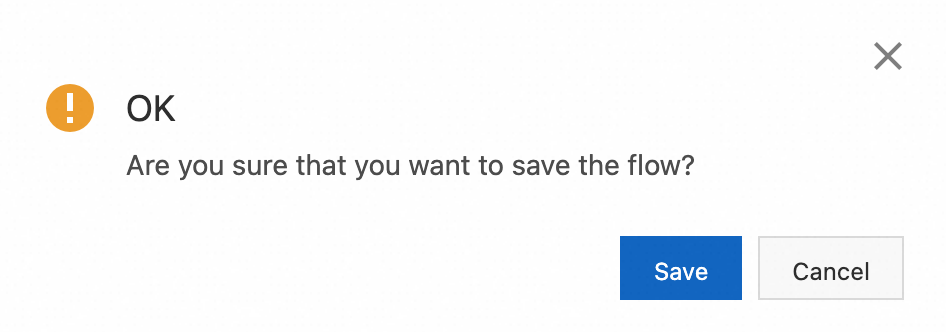
Click Save in the upper-right corner. In the message that appears, click Save.
Parameters
Model settings
You can set Implementation Type to Model or Application. Different implementation types have different parameters. The following tables describe the specific parameters.
Implementation Type - Model
Parameter | Description |
Protocol | The protocol of the model service. Valid value: OpenAI. |
baseUrl | The endpoint for the model service. Example: https://api.openai.com/v1 or another OpenAI-compatible endpoint. |
apiKey | The key of the model service. |
Model Name | The model name. Example: gpt-3.5-turbo or qwen-plus. |
Initial Prompt | The initial prompt input for the model session, used to guide its output. Example: You are a witty comedian, please use humorous language in the following Q&A. |
Model Input | The current round of model conversation input can directly reference or embed multiple variables within a text. Example: {{incomingMessage}} or “Please help me find information about {{topic}}.” |
Model Output Variable Name | The variable name for output of this round in the model conversation can be reused in subsequent processes and used as the content of a message reply. |
Fallback Text | This content will be used as the output when the model service is unavailable. Example: Sorry, I am temporarily unable to answer your question. |
Implementation Type - Application
Parameter | Description |
Protocol | The protocol of the application service. Valid value: DashScope. Note For more information about applications, see Application development. |
apiKey | The key of the application service. Note For more information, see Get an API key. |
workspaceId | The workspace ID where the agent, workflow, or agent orchestration application resides. It needs to be passed when calling an application in a sub-workspace, but not when calling an application in the default workspace. Note For information about workspaces, see Authorize a sub-workspace to call models. |
appId | The application ID. |
Application Input | The current round of application conversation input can directly reference or embed multiple variables within a text. Example: {{incomingMessage}} or Please help me find information about {{topic}}. |
Custom Pass-through Parameters | Custom pass-through parameters. Example: {"city": "Hangzhou"}. |
Application Output Variable Name | The variable name for output of this round in the application conversation can be reused in subsequent processes and used as the content of a message reply. |
Fallback Text | This content will be used as the output when the application service is unavailable. Example: Sorry, I am temporarily unable to answer your question. |
Request header settings
When Implementation Type is Application, request header configuration is not supported.
Item | Description |
Request header | Set HTTP request headers. Enter the following:
|
Message settings
Configure message delivery after the LLM generates a response.
Item | Description |
Channel | The channel for sending messages. Note Only WhatsApp channels are supported. |
Enable WhatsApp Typing Indicator | Display a typing status in the current session to indicate that a response is being prepared for the user. |
Action | The message action. Currently, only reply is supported, which means replying to mobile originated (MO) messages from users. |
Message Type | The type of message to send. Only plain text replies are supported. |
Timeout settings
Item | Description |
Waiting Time | The maximum time to wait for a user's message. If the timeout is reached, the session will automatically close. Currently, the conversation can only be concluded by this timeout. |
Natural Language Dialogue vs. Natural Language Generation
Both components leverage LLMs to automate intelligent content generation and respond to user input. However, they differ fundamentally in their message-handling mechanisms and are designed for distinct use cases.
The Natural Language Dialogue component is specifically designed for multi-turn, continuous dialogues. When a user sends a message, the component submits it to the LLM to generate a response. If the user sends additional messages while the model is processing, these new inputs are not discarded; instead, they are placed in an internal queue. Once the model completes its current response, the queued messages are processed sequentially, ensuring the continuity and integrity of the conversation's context.
The Natural Language Generation component is ideal for single-turn, context-independent tasks. It passes configured variables from the workflow (such as user input or system parameters) to the LLM to generate a one-off response. The result is then returned to the business workflow for subsequent use or delivery. This component only processes the input available at the time of execution and does not queue any intermediate messages sent by the user.
Comparison |
|
|
Role | Passes predefined variables to the LLM to generate a single response for use in the workflow. | Manages a back-and-forth dialogue by sending user messages to the LLM and queuing subsequent inputs for sequential processing. |
Scope of input processing | Processes only the latest mobile originated message after the model responds. | Processes the initial user message, then sequentially processes all messages that were queued during the model's response time. |
New inputs during generation | Ignored (not processed later) | Queued (Held for processing after the current turn is complete). |
Interaction model | Single-turn generation with a predictable, fixed workflow. | Multi-turn conversation that can handle successive user inputs. |
Key characteristics | More stable and predictable. User interruptions do not affect the current generation. | Feels more like a natural, human conversation. Aims to capture and process every user input. |
Typical use cases | Summarization, rewriting, explanation, converting structured data into natural language text. | Continuous Q&A, handling follow-up questions, processing supplemental information, general multi-turn chat. |
Best-fit scenarios | Process-driven scenarios requiring strong control and fixed steps, where interruptions are undesirable:
| Dialogue-heavy scenarios where users may speak frequently and expect every message to be processed:
|
 Natural Language Generation
 Natural Language Dialogue