Manually writing a Resource Orchestration Service (ROS) template requires advanced technical skills. To simplify template creation, you can use Application Management Service to reverse-engineer your existing cloud resources into an ROS template. This feature is useful for quickly replicating staging environments or creating a basic template for migrating an existing architecture to infrastructure as code (IaC).
How it works
Import resources: Import your deployed resources into Application Management Service.
Generate a template: Application Management Service automatically analyzes dependencies based on the imported resources and their configurations, then generates a corresponding ROS template.
Deploy and publish: Use the generated template to create a new environment directly through ROS.
Procedure
Step 1: Prepare an existing resource environment
Before you start, ensure you have a fully configured resource environment in the Alibaba Cloud Management Console. For example, a basic environment that includes a virtual private cloud (VPC), a vSwitch, and an Elastic Compute Service (ECS) instance.
Step 2: Import resources into Application Management
Go to the Application Management page in the ECS console, then click Create from Existing Resources.
Configure the application information and select the resources to import.
Application Name: Set a clear and recognizable name for the application.
Region: Select the region where your existing resources are located.
Resource Type: Select the resource types to import, then select the specific resource instances from the list below. You can select multiple resource types.
After you confirm your selections, click Create and wait for the application to be created.
Step 3: Generate and export the ROS template
In the My Applications list, click the application that you created in the previous step to go to its details page.
On the Resource Management tab, check whether the list of imported resources is complete. If any resources are missing, click Import Resource to add them.

After you confirm that the resources are correct, select Export ROS Template from the More drop-down list.

In the dialog box that appears, the system provides the template content in JSON and YAML formats.
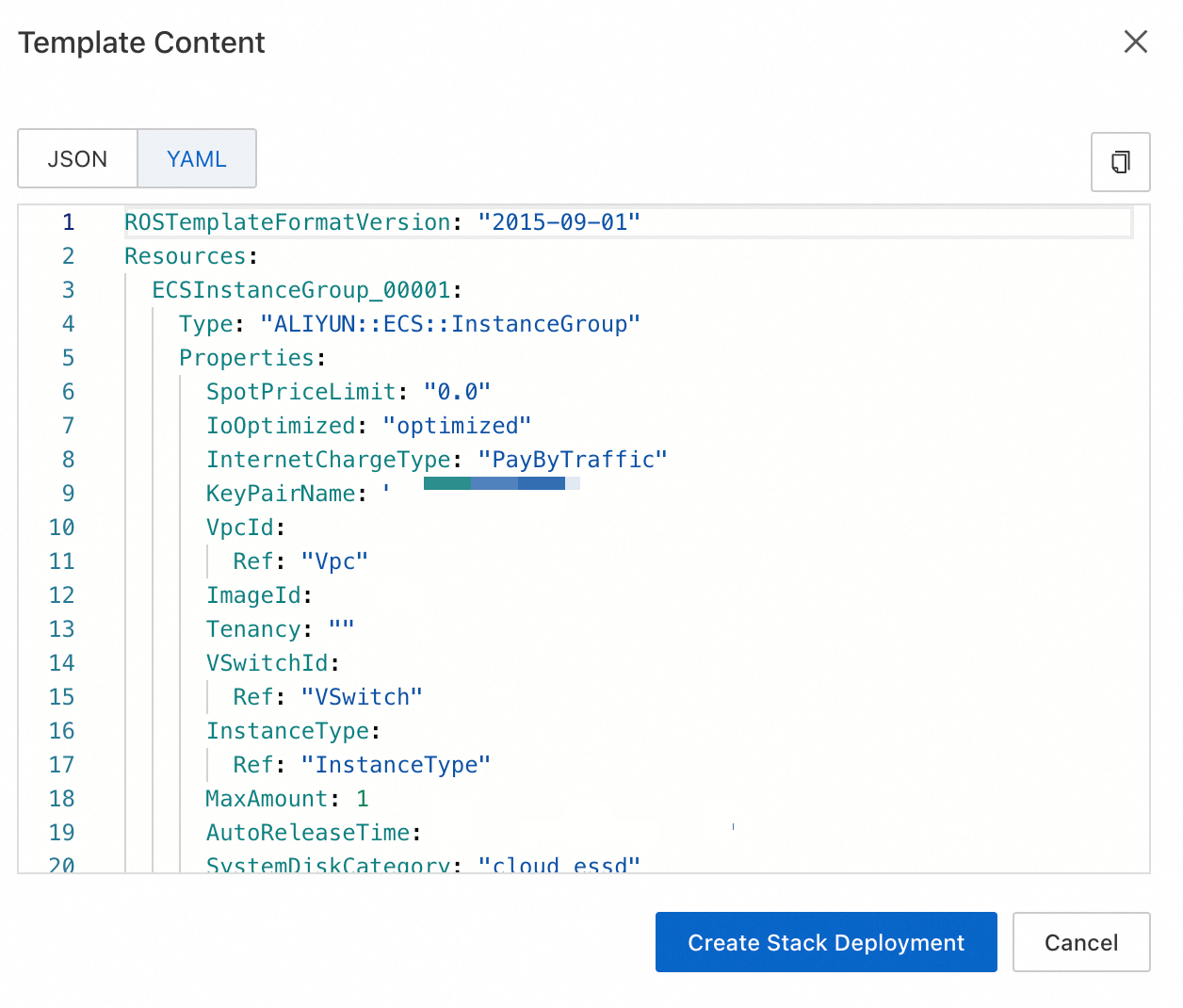
Step 4: Use the generated template
In the template export dialog box, click Deploy with Stack.
You are redirected to the Create Stack page in the ROS console. The template is automatically filled in.
Click Next to go to the parameter settings page.
ImportantCarefully check and modify the parameters, especially passwords and instance types.
After you confirm the parameters, click Create.
Wait for the stack deployment to complete. If the deployment fails, log on to the ROS console. In the navigation pane on the left, click Stacks. On the Events tab of the corresponding stack, view the detailed error log.
Template content details
For a list of resource types that can be generated in the template, see Resource types that support resource scenarios. If a required resource is not in the list, you must manually modify the template to add it.
Parameters section
Fixed parameters include billing method (
PayType), subscription duration (PayPeriod), and subscription duration unit (PayPeriodUnit).Variable parameters include the following:
Password parameters (
InstancePassword): This parameter is generated only when the template includes ECS or Redis resources. All related resources share the same password. To set different passwords for different resources, manually modify the template.Specification parameters: These parameters are generated only when the template includes ECS, RDS, or ACK resources.
Zone parameters (
ZoneId): If the template contains multi-zone resources, such as multiple vSwitches or NLB LoadBalancers, the Parameters section will include multipleZoneIdorVSwitchCidrBlockparameters.VPC CIDR block (
VpcCidrBlock)vSwitch CIDR block (
VSwitchCidrBlock)
Resources section
In the generated template:
The billing parameters for all cloud resources correspond to the billing-related parameters in the
Parameterssection.The zone parameter corresponds to the
ZoneIdparameter in theParameterssection.The resource name parameter defaults to the stack name (
ALIYUN::StackName).
In the generated template, the image for ECS resources (
ALIYUN::ECS::Instance) is replaced with CentOS 7.