All Products
Search
Document Center

OpenLake:Manage Paimon Catalogs

Last Updated:Jan 16, 2026

After you configure a Paimon catalog, you can use Realtime Compute for Apache Flink to directly access Paimon tables in Data Lake Formation (DLF). This topic describes how to create, view, and delete Paimon catalogs, and how to manage Paimon databases and tables in the development console of Realtime Compute for Apache Flink.

Precautions

  • Only Ververica Runtime (VVR) 8.0.5 or later supports the creation and configuration of Paimon catalogs and tables. To use DLF as the metastore, VVR 11.1.0 or later is required.

  • Object Storage Service (OSS) is used to store files related to Paimon tables, including data files and metadata files. Make sure that you have activated OSS and that the storage class of the OSS bucket is Standard. For more information, see Getting Started with the Console and Storage Classes.

    Important

    You can also use the OSS bucket specified when you activated Realtime Compute for Apache Flink. However, to better distinguish data and prevent accidental operations, we recommend that you create and use a separate OSS bucket in the same region.

  • The AccessKey that you provide when you create a Paimon catalog must have read and write permissions on the OSS bucket and the DLF directory.

  • After you use SQL statements to create or delete a catalog, database, or table, click the image icon to refresh the Metadata page.

  • The following table shows the version mapping between Paimon and VVR.

    Apache Paimon version

    VVR version

    1.3

    11.4

    1.2

    11.2、11.3

    1.1

    11

    1.0

    8.0.11

    0.9

    8.0.7, 8.0.8, 8.0.9, and 8.0.10

    0.8

    8.0.6

    0.7

    8.0.5

    0.6

    8.0.4

    0.6

    8.0.3

Create a Paimon DLF Catalog

  1. You can create a Paimon Catalog in DLF. For more information, see Quick start with DLF.

    1. The DLF Catalog must be in the same region as the Flink workspace. Otherwise, you cannot associate them in the subsequent steps.

  2. You can create a Paimon Catalog in the Realtime Compute for Apache Flink development console.

    Note

    This operation creates a mapping to your DLF catalog. Creating or deleting the catalog in Flink does not affect actual data in DLF.

    1. Log on to the Realtime Compute for Apache Flink management console.

    2. Click your workspace name to open the Development Console.

    3. Register your catalog using one of the following methods:

      UI

      1. In the left navigation menu, click Catalogs.

      2. On the Catalog List page, click Create Catalog.

      3. In the Create Catalog wizard, select Apache Paimon, and then click Next.

      4. Set metastore to DLF. For catalog name, select the DLF catalog to connect.

      5. Click Confirm.

      SQL commands

      In the Scripts SQL editor, copy and run the following SQL code to register a DLF catalog in Flink.

      CREATE CATALOG `flink_catalog_name` 
      WITH (
        'type' = 'paimon',
        'metastore' = 'rest',
        'token.provider' = 'dlf',
        'uri' = 'http://cn-hangzhou-vpc.dlf.aliyuncs.com',
        'warehouse' = 'dlf_test'
      );

      The following table describes the connector options:

      Option

      Description

      Required

      Example

      type

      The catalog type. Set this option to paimon.

      Yes

      paimon

      metastore

      The catalog metastore. Set this option to rest.

      Yes

      rest

      token.provider

      The token provider. Set this option to dlf.

      Yes

      dlf

      uri

      The Rest URI for the DLF catalog service. Format: http://[region-id]-vpc.dlf.aliyuncs.com. See Region ID in Endpoints.

      Yes

      http://ap-southeast-1-vpc.dlf.aliyuncs.com

      warehouse

      The name of the DLF paimon catalog.

      Yes

      dlf_test

Manage Paimon databases

In the Data Query text editor, enter the following command, select the code, and click Run.

  • Create a database

    After you create an Apache Paimon catalog, a database named default is automatically created in the catalog.

    -- Replace my-catalog with the name of your Paimon catalog.
    USE CATALOG `my-catalog`;
    
    -- Replace my_db with a custom database name in English.
    CREATE DATABASE `my_db`;
  • Delete a database

    Important

    You cannot delete the `default` database from a DLF catalog. You can delete the `default` database from a Filesystem catalog.

    -- Replace my-catalog with the name of your Paimon catalog.
    USE CATALOG `my-catalog`;
    
    -- Replace my_db with the name of the database that you want to delete.
    DROP DATABASE `my_db`; -- Deletes a database only if it contains no tables.
    DROP DATABASE `my_db` CASCADE; -- Deletes the database and all tables in it.
    

Manage Paimon tables

Create a table

Note

After you configure an Apache Paimon catalog, you can reference tables from the catalog in a Flink deployment. When you use a table from the catalog as a source, sink, or dimension table, you do not need to define the Flink table through DDL. In SQL, you can reference a table using its fully qualified name in the format ${Paimon-catalog-name}.${Paimon-db-name}.${Paimon-table-name}. Alternatively, you can run the use catalog ${Paimon-catalog-name} and use ${Paimon-db-name} statements to set the current catalog and database. Then, you can reference the table using only its name ${Paimon-table-name} in subsequent SQL statements.

  • Create a table using the CREATE TABLE statement

    In the Data Query text editor, enter the following command, select it, and then click Run.

    The following sample code shows how to create a partitioned table in the `my_db` database of the `my-catalog` catalog. The partition key is `dt`, the primary key consists of `dt`, `shop_id`, and `user_id`, and the number of buckets is fixed at 4.

    -- Replace my-catalog with the name of your Paimon catalog.
    -- Replace my_db with the name of the database that you want to use.
    -- You can also replace my_tbl with a custom name in English.
    CREATE TABLE `my-catalog`.`my_db`.`my_tbl` (
      dt STRING,
      shop_id BIGINT,
      user_id BIGINT,
      num_orders INT,
      total_amount INT,
      PRIMARY KEY (dt, shop_id, user_id) NOT ENFORCED
    ) PARTITIONED BY (dt) WITH (
      'bucket' = '4'
    );

    For more information about the parameters and usage of Paimon tables, see Paimon connector and Paimon primary key tables and append-only tables.

  • Create a table using the CREATE TABLE AS (CTAS) or CREATE DATABASE AS (CDAS) statement

    The CTAS and CDAS statements automatically synchronize data and table schema changes. You can use these statements to easily synchronize tables from data sources such as MySQL and Kafka to a Paimon catalog.

    To synchronize data using CTAS and CDAS statements, you must Deploy a job and then Start it. For more information, see Job development map and Start a job.

    Note
    • When you create an Apache Paimon table using the CTAS or CDAS statement, you cannot specify 'bucket' = '-1' to enable dynamic bucketing for Apache Paimon primary key tables or Apache Paimon append-only tables (non-primary key tables).

    • CTAS and CDAS statements support setting physical table properties in the `WITH` clause. When you create a sink table, the corresponding properties are set on the table at the same time. When the job starts, these parameters are applied to the descendant tables that require synchronization. For more information about the supported table properties, see Paimon connector.

    • Create a specific table and synchronize its data

      For example, the Apache Paimon table `my-catalog`.`my_db`.`web_sales` is automatically created based on the schema of the mysql.tpcds.web_sales table, and data from the source table is synchronized. The number of buckets for the Apache Paimon table is set to 4, and the input-based incremental data generation mechanism is used.

      CREATE TABLE IF NOT EXISTS `<catalog name>`.`<db name>`.`<table name>`
      WITH (
        'bucket' = '4',
        'changelog-producer' = 'input'
      ) AS TABLE mysql.tpcds.web_sales;
    • Create tables for an entire database

      In the following sample code, Apache Paimon tables are automatically created in the `my-catalog`.`my_db` database based on the schema of each table in the mysql.tpcds database. Data from all tables in the mysql.tpcds database is synchronized to the Apache Paimon tables. The input-based incremental data generation mechanism is used.

      CREATE DATABASE IF NOT EXISTS `<catalog name>`.`<db name>`
      WITH (
        'changelog-producer' = 'input'
      ) AS DATABASE mysql.tpcds INCLUDING ALL TABLES;
    • Synchronize column type changes

      Paimon tables created with CTAS/CDAS statements support not only adding columns but also specific column type changes. You can choose whether to use the lenient field type mode as needed.

      • By default

        By default, the column types of a Paimon table created with a CTAS/CDAS statement are consistent with the source table's column types. The following column type changes are supported:

        • Integer types `TINYINT`, `SMALLINT`, `INT`, and `BIGINT` can be changed to an integer type with the same or higher precision. `TINYINT` has the lowest precision, and `BIGINT` has the highest.

        • Floating-point types `FLOAT` and `DOUBLE` can be changed to a floating-point type with the same or higher precision. `FLOAT` has the lowest precision, and `DOUBLE` has the highest.

        • String types `CHAR`, `VARCHAR`, and `STRING` can be changed to a string type with the same or higher precision.

      • Lenient field type mode

        When you create Apache Paimon tables using the CTAS or CDAS statement, you can specify 'enableTypeNormalization' = 'true' in the WITH clause to enable type normalization mode. This means changing data types in the upstream table does not cause a deployment failure if the old and new data types can be normalized, which means they can be converted into the same data type. Type normalization rules are as follows:

        • `TINYINT`, `SMALLINT`, `INT`, and `BIGINT` are normalized to `BIGINT`.

        • `FLOAT` and `DOUBLE` are normalized to `DOUBLE`.

        • `CHAR`, `VARCHAR`, and `STRING` are normalized to `STRING`.

        • Other data types are not normalized.

        For example:

        • If `SMALLINT` is changed to `INT`, both are normalized to `BIGINT`. The modification is considered successful, and the job runs normally.

        • If `FLOAT` is changed to `BIGINT`, their normalized types are `DOUBLE` and `BIGINT`, respectively. This is an incompatible change and results in an exception.

        The data types stored in the Paimon table will be unified to the normalized type. For example, two columns in MySQL with types `SMALLINT` and `INT` are both stored as `BIGINT` in the Paimon table.

Modify a table schema

Enter the following command in the Data Query editor, select the code, and click Run.

Operation

Sample code

Add or modify table parameters

Set the value of the write-buffer-size parameter to 256 MB, and the value of the write-buffer-spillable parameter to true.

ALTER TABLE my_table SET (
  'write-buffer-size' = '256 MB',
  'write-buffer-spillable' = 'true'
);

Temporarily modify table parameters

You can temporarily modify table parameters when writing to a table by adding an SQL hint after the table name. The temporarily modified table parameters take effect only for the current SQL job.

  • When you write to the my_table table, temporarily set write-buffer-size to 256 MB and write-buffer-spillable to true.

    INSERT INTO my_table /*+ OPTIONS('write-buffer-size' = '256 MB', 'write-buffer-spillable' = 'true') */
    SELECT ...;
  • When consuming data from the my_table table, temporarily set scan.mode to latest and scan.parallelism to 10.

    SELECT * FROM t /*+ OPTIONS('scan.mode' = 'latest', 'scan.parallelism' = '10') */;

Rename a table

Rename the `my_table` table to `my_table_new`.

ALTER TABLE my_table RENAME TO my_table_new;
Important

Because the rename operation in object storage is not atomic, exercise caution when you rename a table if you use OSS to store Paimon table files. We recommend that you use the OSS-HDFS service to ensure the atomicity of file operations.

Add a new column

  • Add the `c1` column of type `INT` and the `c2` column of type `STRING` to the end of the `my_table` table.

    ALTER TABLE my_table ADD (c1 INT, c2 STRING);
  • Add the `c2` column of type `STRING` after the `c1` column in the `my_table` table.

    ALTER TABLE my_table ADD c2 STRING AFTER c1;
  • Add the `c1` column of type `INT` to the beginning of the `my_table` table.

    ALTER TABLE my_table ADD c1 INT FIRST;

Rename a column

Rename the `c0` column to `c1` in the `my_table` table.

ALTER TABLE my_table RENAME c0 TO c1;

Drop a column

Drop the `c1` and `c2` columns from the `my_table` table.

ALTER TABLE my_table DROP (c1, c2);

Drop a partition

Drop the dt=20240108,hh=06 and dt=20240109,hh=07 partitions from the my_table table.

ALTER TABLE my_table DROP PARTITION (`dt` = '20240108', `hh` = '08'), PARTITION (`dt` = '20240109', `hh` = '07');

Modify a column comment

Change the comment of the `buy_count` column in the `my_table` table to `this is buy count`.

ALTER TABLE my_table MODIFY buy_count BIGINT COMMENT 'this is buy count';

Modify column order

  • Move the `col_a` column of type `DOUBLE` to the beginning of the `my_table` table.

    ALTER TABLE my_table MODIFY col_a DOUBLE FIRST;
  • Move the `col_a` column of type `DOUBLE` after the `col_b` column in the `my_table` table.

    ALTER TABLE my_table MODIFY col_a DOUBLE AFTER col_b;

Modify a column type

Change the type of the `col_a` column in the `my_table` table to `DOUBLE`.

ALTER TABLE my_table MODIFY col_a DOUBLE;

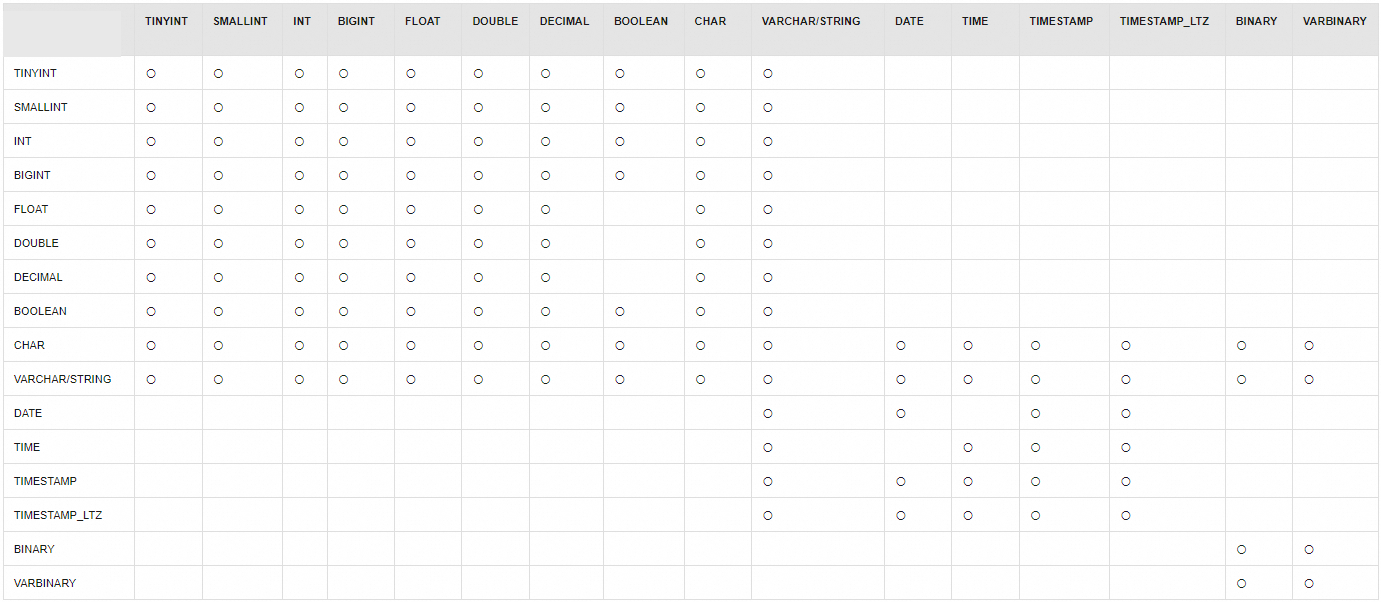
The following table describes the supported column type modifications for Paimon tables. In the figure, 〇 indicates that the type conversion is supported. An empty cell indicates that the type conversion is not supported.

image

Delete a table

In the Data Query SQL editor, enter the following command, select it, and click Run.

-- Replace my-catalog with the name of your Paimon catalog.
-- Replace my_db with the name of the database that you want to use.
-- Replace my_tbl with the name of the Paimon catalog table that you created.
DROP TABLE `my-catalog`.`my_db`.`my_tbl`;

If the message The following statement has been executed successfully! appears, the Paimon table has been successfully dropped.

View or delete a Paimon catalog

  1. In the Realtime Compute for Apache Flink console, click Console in the Actions column for the target workspace.

  2. On the Data Management page, you can view and drop Apache Paimon catalogs.

    • On the Catalog List page, you can view the Catalog Name and Type of each catalog. To view the databases and tables in a catalog, click View.

    • On the Catalog List page, click Delete in the Actions column for the catalog that you want to delete.

      Note

      Deleting a Paimon catalog removes only its definition from Data Management in the Flink project. The data files of the Paimon tables are not affected. After you delete a catalog, you can run the `CREATE CATALOG` command again to reuse the Paimon tables in it.

      In the Data Query text editor, you can also enter DROP CATALOG <catalog name>;, select the code, and click Run.

References