Build a GraphRAG pipeline that combines DTS RAGFlow's document processing with AnalyticDB for PostgreSQL's graph analytics engine. The pipeline extracts a knowledge graph from your documents and uses hybrid retrieval—vector search plus graph traversal—to answer complex, multi-hop queries that pure vector retrieval cannot handle reliably.
This feature is currently in invitational preview. Submit a ticket to request access.
When to use GraphRAG
Pure vector retrieval finds semantically similar text chunks but cannot connect information across entities. The root problem is that context for a complex query is often scattered across multiple chunks—vector search returns each chunk in isolation, and the LLM has no way to reconstruct the relationships between them. A query like "Compare the pros and cons of Product A and Product B in Scenario C" spans multiple documents and requires reasoning across entity connections; with vector-only retrieval, the LLM receives fragmented context and produces incomplete answers.
GraphRAG solves this by extracting entities and their relationships from your documents into a knowledge graph stored in AnalyticDB for PostgreSQL. At query time, the system runs both vector retrieval and graph retrieval in parallel, then combines the results into richer context for the LLM.
Use GraphRAG for knowledge bases that contain:
Financial risk control reports with complex entity relationships
Multi-product technical manuals that reference shared components
Enterprise organizational charts and project responsibility matrices
For simple factual queries, standard vector retrieval is sufficient. GraphRAG adds value when answers require connecting information across multiple entities.
How it works
The pipeline runs in four stages:
Data ingestion: Upload unstructured documents to the DTS RAGFlow knowledge base.
Knowledge extraction and storage: RAGFlow parses, chunks, and embeds the documents. With GraphRAG enabled, RAGFlow also invokes knowledge extraction operators to extract subject-predicate-object (SPO) triples from the text. Both the embedded text chunks and the extracted knowledge graph data (entities and edges) are written to the configured AnalyticDB for PostgreSQL instance.
Hybrid retrieval: At query time, the system runs vector retrieval to find relevant text chunks and graph retrieval in the AnalyticDB for PostgreSQL graph analytics engine to identify relevant entities and their associated subgraph—simultaneously.
Context enrichment and generation: The system submits both the vector-retrieved text chunks and the graph-retrieved subgraph as context to the LLM, which generates the final answer.
Prerequisites
Before you begin, ensure that you have:
An AnalyticDB for PostgreSQL instance running Milvus version 7.3 or later, with the GraphRAG service enabled by installing the required plug-in. See Enable the GraphRAG service.
A DTS RAGFlow knowledge base with the IP allowlist configured. See Create a RAGFlow knowledge base and configure the IP allowlist.
An embedding model and an LLM added under Model Provider and configured in System Settings > Model Provider.
(If using external models) A NAT Gateway configured for the virtual private cloud (VPC) where the knowledge base is located, to allow outbound internet access. See Set up a NAT Gateway for external models.
Set up a NAT Gateway for external models
If your DTS RAGFlow knowledge base uses external embedding models or LLMs, configure a NAT Gateway to allow outbound internet access from its VPC.
Create an Internet NAT gateway. On the NAT Gateway purchase page, select the same VPC and vSwitch as your DTS RAGFlow knowledge base.
Configure a SNAT entry. On the Internet NAT Gateway page, click Set SNAT in the Operation column of your gateway, then click Create SNAT Entry with the following settings:
Parameter Value SNAT Entry Granularity VPC Select Elastic IP Address Choose an elastic IP address (EIP) that provides public network access
Step 1: Configure the knowledge base and enable GraphRAG
This step associates the DTS RAGFlow knowledge base with your AnalyticDB for PostgreSQL instance and enables GraphRAG.
Open the RAGFlow knowledge base list:
Log on to the Data Transmission Service (DTS) console.
In the left navigation pane, click Data preparation.
In the upper-left corner, select the region where your instance resides.
Click the RAGFlow Knowledge Base tab.
Log on to RAGFlow:

In the Actions column of the target knowledge base, click Manage.
NoteAlternatively, click Log on to Knowledge Base in the Actions column to choose between internal and public network access.
In the Endpoint section, click Log on with Public Endpoint or Log on with Internal Endpoint.
NoteTo access the RAGFlow knowledge base over the public network, first enable a public endpoint for the instance.
Enter the account email and password, then click Log on.
The RAGFlow page opens. For information about available operations, see the official RAGFlow documentation.
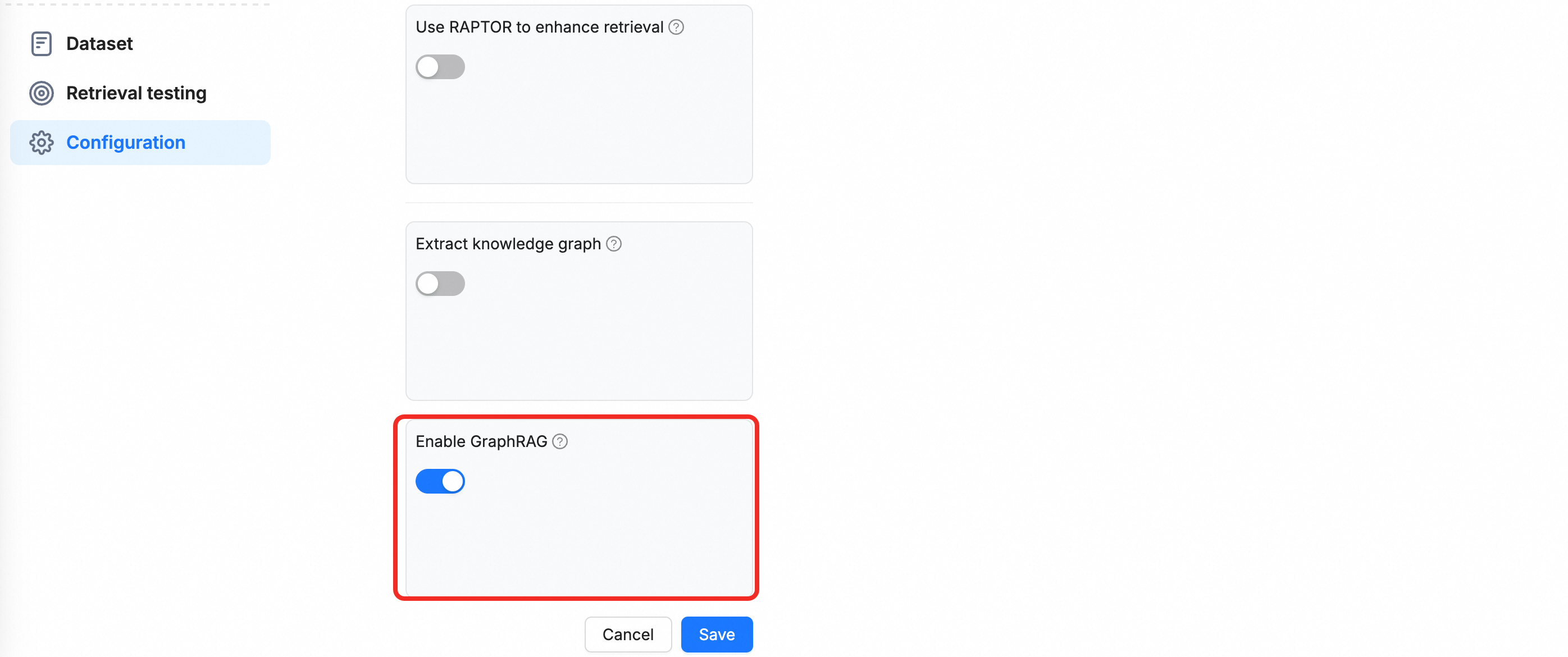
Create a knowledge base with GraphRAG enabled: Click Create Knowledge Base. Enter a name and toggle the Enable GraphRAG switch.
Step 2: Upload documents and build the knowledge graph
In the knowledge base, go to Dataset and click Add File to upload a local file.
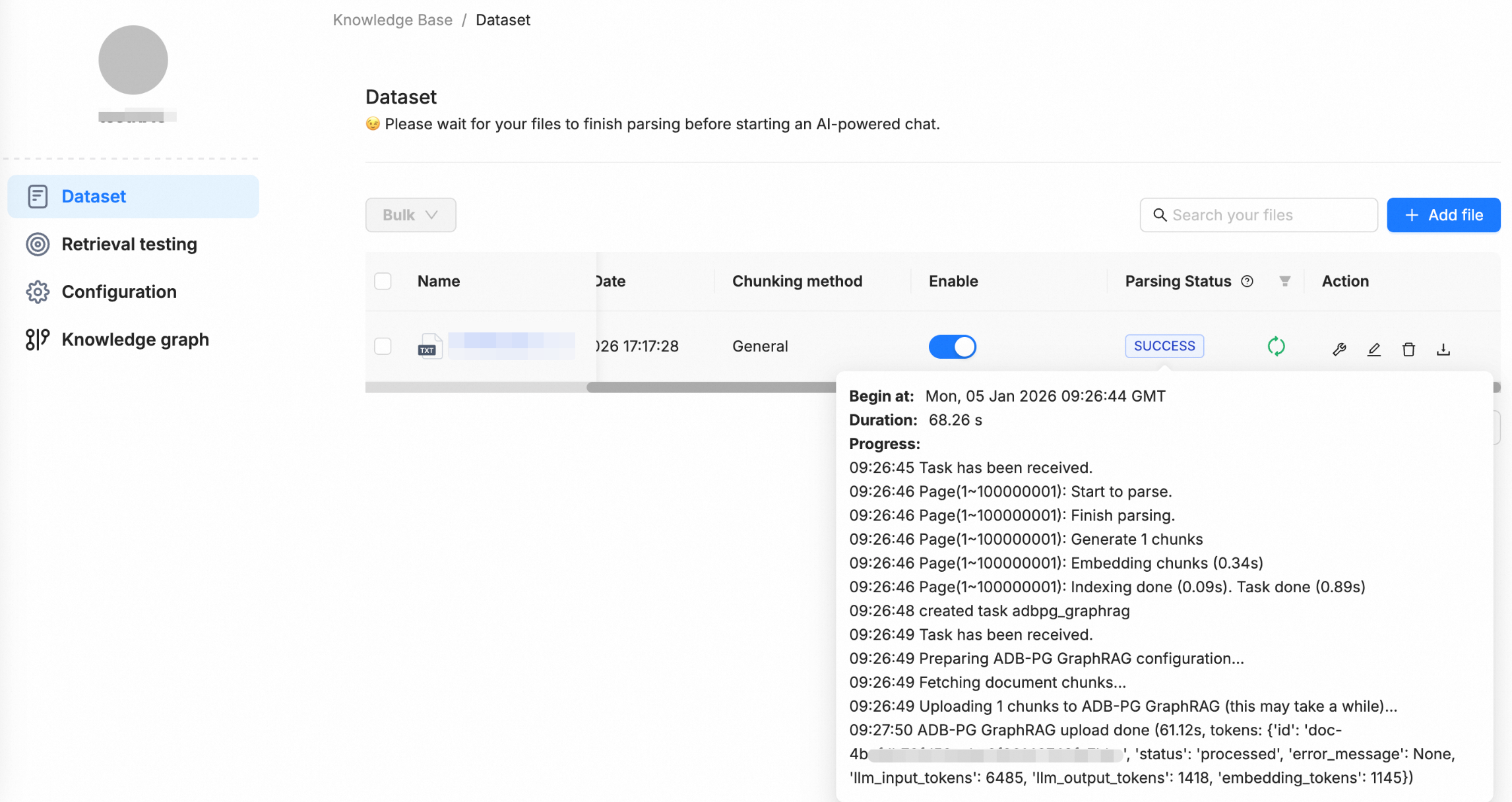
After the upload completes, RAGFlow automatically runs parsing, chunking, embedding, and other processing steps. Because GraphRAG is enabled, the system also performs knowledge extraction and writes the resulting entities and edges into the configured AnalyticDB for PostgreSQL instance. This completes the knowledge graph construction.
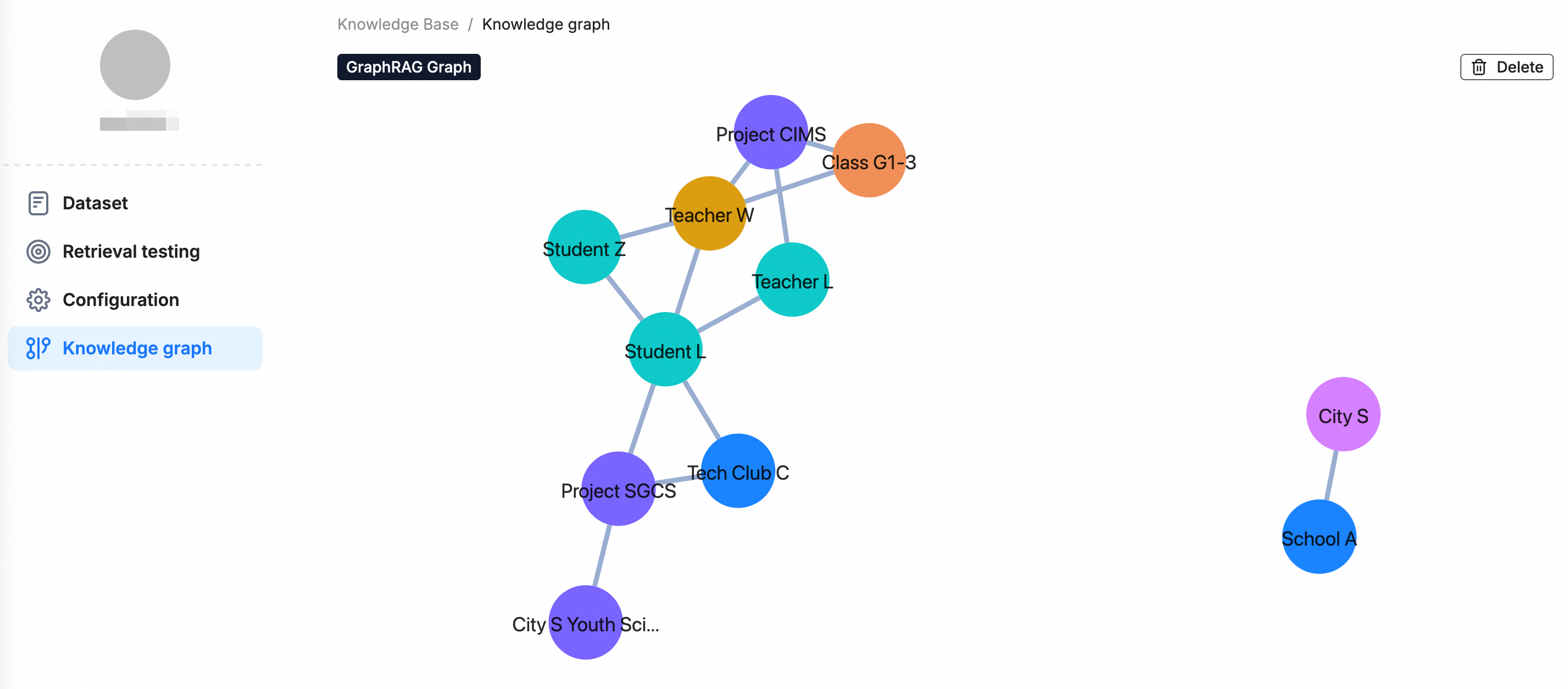
After processing completes, the Knowledge Graph component appears in the left navigation pane. Use it to browse and validate the extracted entities and relationships.
Step 3: Test retrieval
Run comparative tests on the Retrieval Test page to verify GraphRAG effectiveness across different query types.
Simple queries
For factual, direct questions such as "What is RAG?", the system relies on vector retrieval to return the most relevant text chunks. The result is the same whether or not GraphRAG is enabled.
Complex queries
For queries that require understanding relationships between entities—such as "Compare the pros and cons of RAG and GraphRAG"—select Use GraphRAG.
The retrieval results include both relevant text chunks and a structured relational subgraph. The subgraph is returned as a Markdown table that lists the core entities and their relationships, giving the LLM the structured context it needs to generate accurate, logically coherent answers.
The subgraph format is:
---- Entities ---- ,Entity,Description
0,entity1,description1
1,entity2,description2
---- Relations ---- ,From Entity,To Entity,Description
0,source_entity1,target_entity1,description1
1,source_entity2,target_entity2,description2
Example:
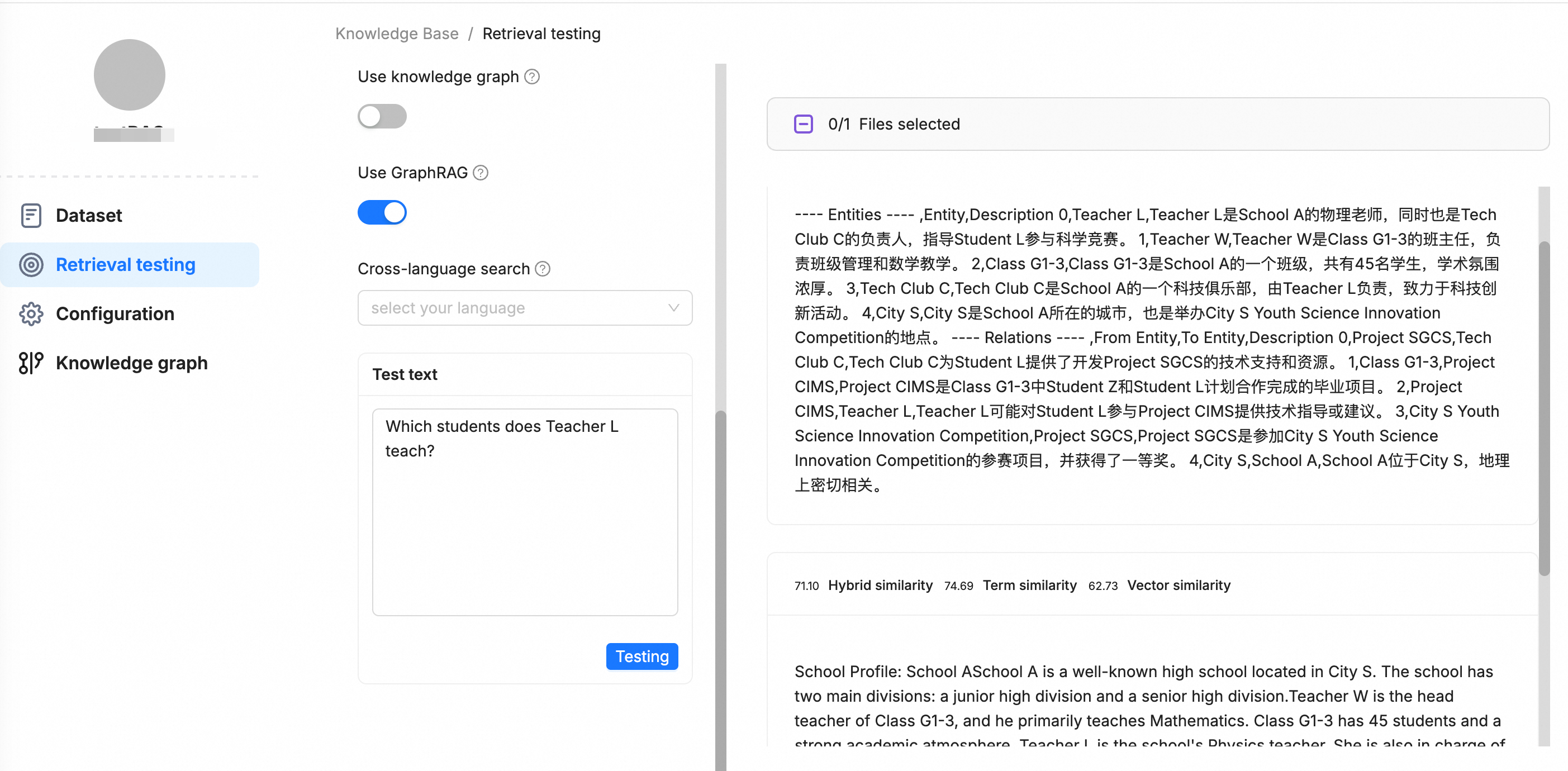
If you do not select Use GraphRAG, the retrieval results include only text chunks. Without structured relationship data, the LLM may fail to answer complex queries accurately.
FAQ
Does the knowledge graph update automatically when I remove a file?
No. The knowledge graph does not update when you remove a file from the dataset. To reflect the change, rebuild the knowledge graph manually.
Can I use GraphRAG and standard vector retrieval in the same knowledge base?
Yes. GraphRAG extends standard retrieval rather than replacing it. When you select Use GraphRAG at query time, the system runs both vector retrieval and graph retrieval in parallel. When you do not select it, only vector retrieval runs.
What should I do if the AnalyticDB for PostgreSQL instance version does not meet requirements?
The Milvus version must be 7.3 or later. If your instance runs an earlier version, upgrade it before enabling the GraphRAG service. See Enable the GraphRAG service for version and plug-in requirements.
What causes high token consumption during knowledge graph construction?
Token consumption scales with document volume and the complexity of entity and relationship extraction. To reduce costs, limit the dataset to documents that genuinely require multi-hop reasoning and exclude documents suitable for standard vector retrieval.